Automation Overview
Automation lets you build a multi-step workflow for Subscribers. When a Subscriber meets the starting condition, Mailix enters them into the workflow and performs its configured steps in order.
Unlike an email Campaign launched or scheduled for a group of recipients, Automation email is sent when each Subscriber reaches the corresponding email step.
What is Automation?
An Automation combines four main parts:
- Starting condition identifies the event that brings a Subscriber into the workflow.
- Automation workflow defines the order of the steps.
- Actions tell Mailix whether to send email, wait, check a condition, or update a Subscriber.
- Activity tracking shows where a Subscriber is and the result of each email step.
Each Automation is attached to a List. You can also limit Subscribers with a Segment when configuring the starting condition.
When should I use Automation?
Automation suits processes that respond to each Subscriber or span multiple steps, such as:
- sending a welcome email when a Subscriber joins a List;
- waiting before sending the next email;
- branching according to whether a Subscriber opened or clicked an email;
- adding or removing a Tag, updating a field, or moving a Subscriber between Lists;
- starting when a Tag is added or removed, or when a field changes.
For content sent at a defined time to a selected recipient group, use an email Campaign.
Open Automation
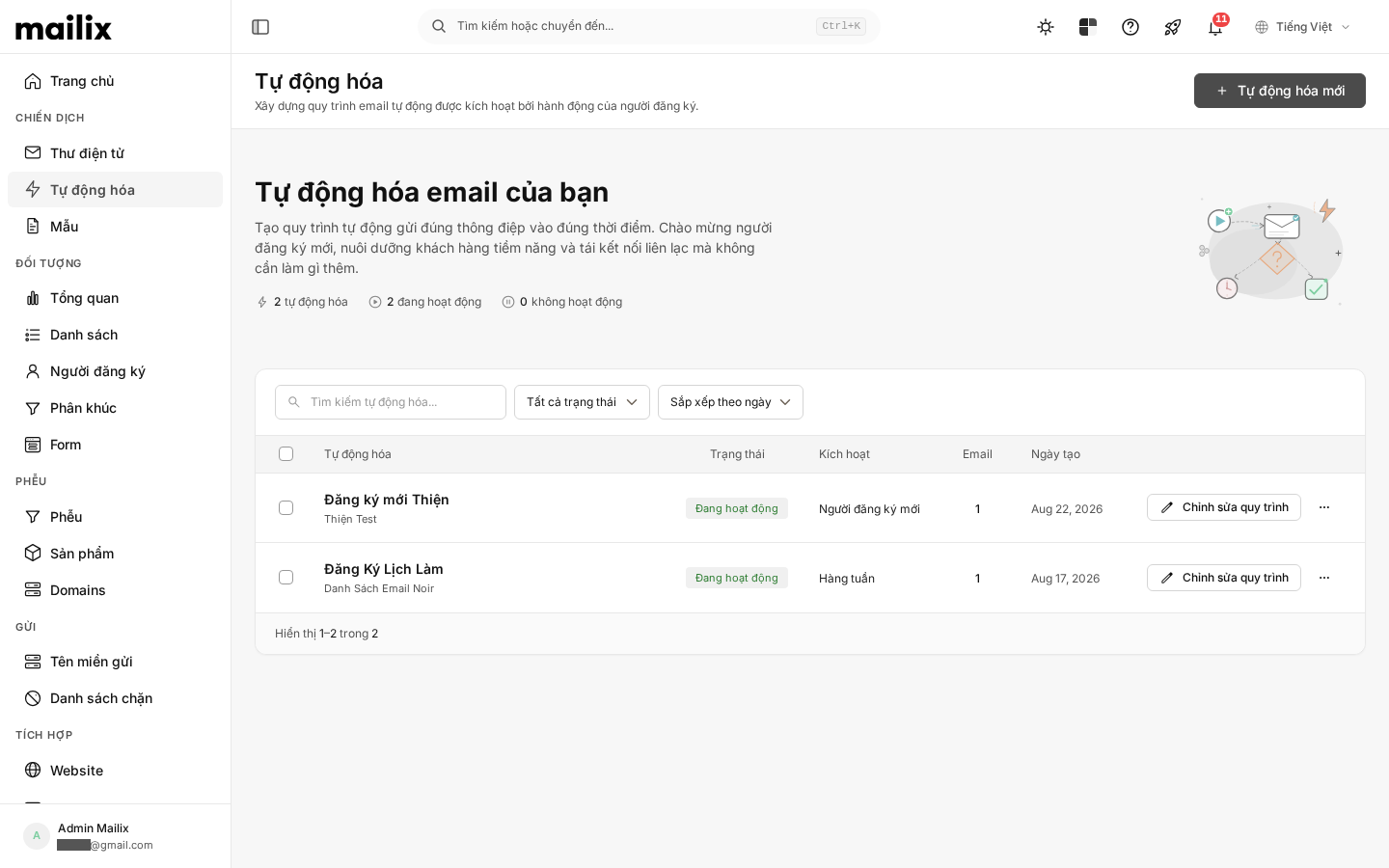
In the navigation bar, select Automation (Tự động hóa). The list page displays the total number of Automations, how many are active, and how many are paused.
In the table, you can see:
- the Automation name and related List;
- status;
- starting condition;
- number of email steps;
- creation date;
- Edit, Subscribers, Enable or Pause, Copy, and Delete actions.
You can search by name, filter by status, and sort the list. When there are no Automations, select Create Automation (Tạo Tự động hóa) in the empty state or at the top of the page.
What does an Automation contain?
Starting condition
The starting condition is the event used to evaluate a Subscriber. Stable condition groups include List subscription changes, adding or removing Tags, field updates, and requests from an external application. Other items may appear depending on features and configuration; use them only after an administrator confirms they are enabled for your system.
Each Automation has one starting condition. It is attached to the Automation's List and may include a Segment.
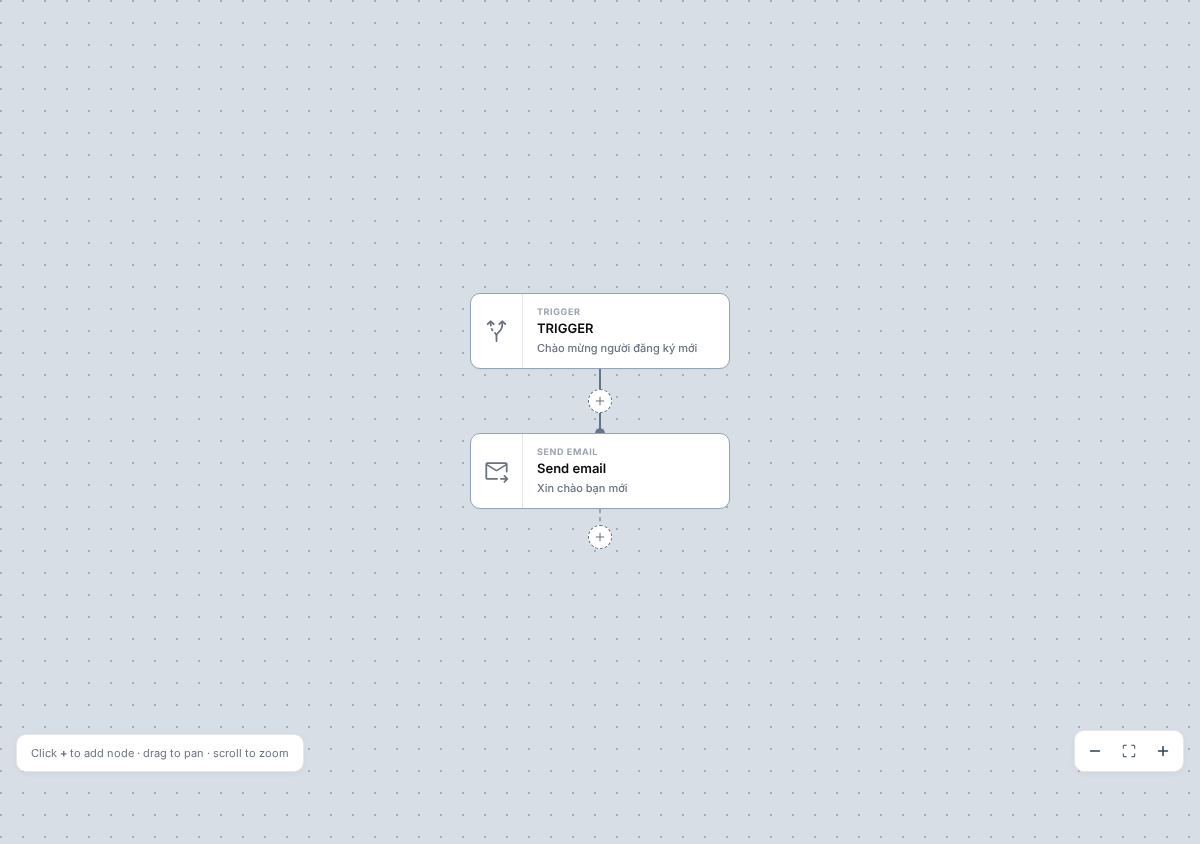
Workflow and steps
The workflow starts with the selected condition. Add and connect steps to define what happens next. Stable step groups include:
- Send email;
- Wait for a period or until a time;
- Condition to branch to Yes or No according to email Opens or Clicks;
- Subscriber actions, including Tags, fields, and Lists;
- Send a webhook request.
The designer displays steps on the workspace and opens settings when you select one. An incompletely configured step must be corrected before the workflow can operate correctly.
Email in Automation
Email is a separate workflow step. Configure its subject, sender, Tracking, and content; content can start from an Email Template and then be edited for the Automation.
Email is processed only when a Subscriber reaches that step. Thus one Automation can send different emails at different times to different Subscribers.
How do Subscribers move through an Automation?
The usual process is:
- A Subscriber meets the starting condition while the Automation is active.
- Mailix checks the List, Segment, and applicable subscription status.
- The Subscriber enters the first step after the starting condition.
- Steps run in order; a Wait holds the Subscriber until continuation, while a Condition chooses one of two branches.
- With no next step, the run is marked Complete. If a step cannot be processed, the run may move to Error.
Mailix creates only one entry for the same Subscriber in an Automation. A person with an existing run does not enter again automatically, even if they meet the condition again. The Subscribers page has separate management actions for individual cases.
Subscribers already in a List do not enter merely because you enable an Automation. The Subscribers page can manually add one or more people who have never entered the workflow to an active Automation.
Manage Subscribers in Automation
Automation status
| Status | Meaning |
|---|---|
| Active | The Automation can receive eligible Subscribers and run the workflow. |
| Paused | The Automation does not accept new entries. Its configuration and tracking data can still be viewed. |
Each Subscriber's status is tracked separately: not entered, running, waiting, complete, or error. A Subscriber can also be held manually on the Subscriber-management page.
Enable, pause, and resume
After creation, an Automation is Paused. Configure the starting condition and add at least one next step before selecting Enable; if the condition is not connected to a step, Subscribers cannot enter.
Mailix does not enable an Automation without a valid starting condition. Before enabling it, check email steps and the sending method because an incomplete step can cause a run to fail.
Select Pause to stop new entries. This does not recall sent email or delete recorded progress. Do not use Pause to recall an action already started.
Select Enable again for the Automation to receive new events. Events that occurred while paused are not confirmed to be added automatically.
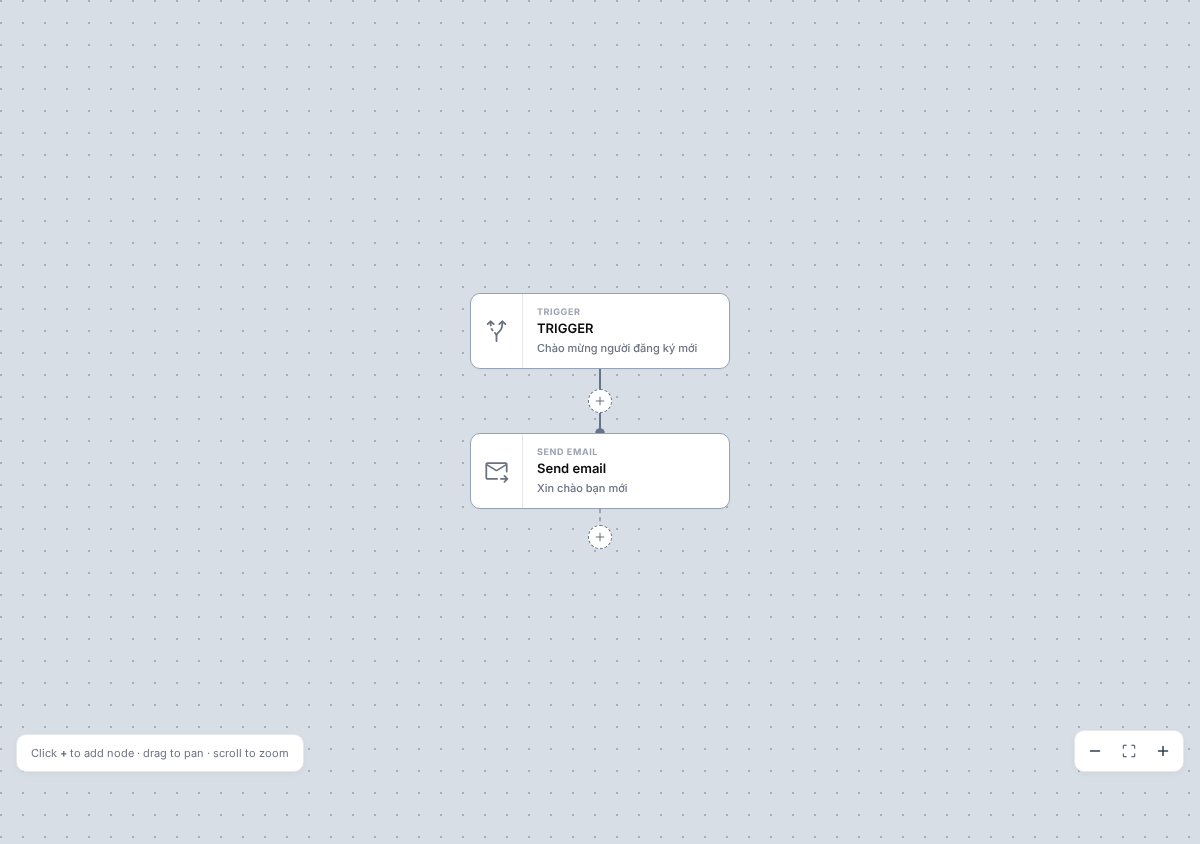
Track activity and results
Open the Automation menu and select Subscribers to view:
- the total Subscribers in the List and the number not yet in the workflow;
- how many are running, waiting, complete, or in error;
- the current step and progress history for each Subscriber;
- performance for each workflow step.
For an email step, its report shows recipients, delivered messages, send errors, Opens, Clicks, bounces, unsubscribes, and spam complaints. Opens and Clicks are meaningful only when the corresponding Tracking type is active.
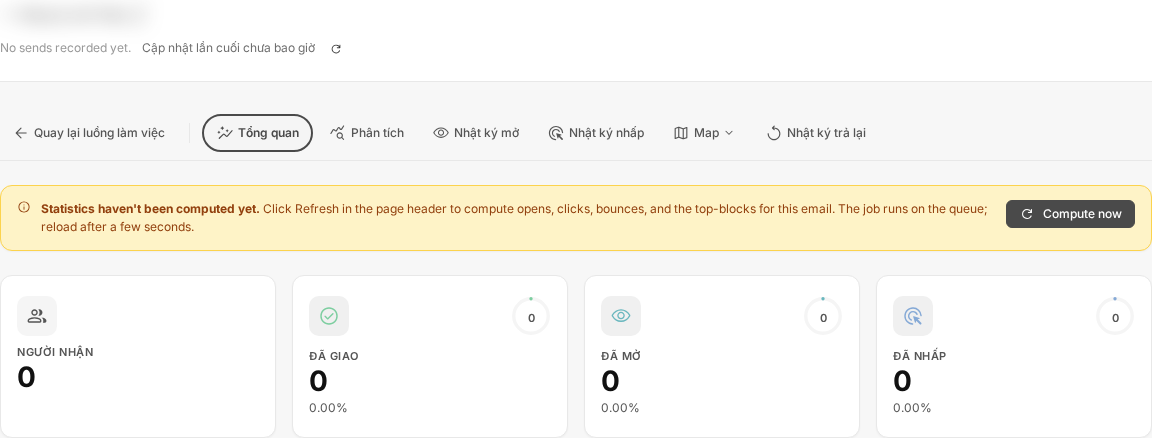
View the Automation email report
How is Automation different from an email Campaign?
| Automation | Email Campaign | |
|---|---|---|
| How it starts | According to a configured condition while active | You launch or schedule it |
| Recipients | Individual Subscribers enter according to conditions, Lists, and Segments | You select Lists or Segments for the send |
| Send time | When a Subscriber reaches the email step | According to Send now or the Campaign schedule |
| Multi-step workflow | Can send, wait, branch, and update Subscribers | Focuses on one Campaign send |
| Reports | By Subscriber progress and each email step | By the Campaign send |
Automation email does not appear as a regular Campaign in the Campaign list. It belongs to the workflow and has its own report at the email step.
Relationship to Lists, Segments, Tags, and Email Templates
- List: each Automation uses one List as its Subscriber scope. Some steps can copy or move Subscribers to another List.
- Segment: can limit which Subscribers in the List enter. Leaving a Segment after entry is not described as automatically removing a Subscriber from the workflow.
- Tag: adding or removing a Tag can be a starting condition; the workflow can also add or remove Tags.
- Email Template: an email step can choose a System Template or account Template. Later changes to the original do not automatically update selected content.
Email verification status is not a general Automation starting condition. At a send step, the email must still meet current sending conditions and exclusions. A person who unsubscribed is not added through a normal automated workflow, and sending depends on subscription status when processed.
Access and service plans
Some items or actions may not appear depending on the service plan, account permissions, or system configuration. Creation or copying may also be limited by the permitted number of Automations.
To send workflow email, the account needs an available sending method and a suitable sending limit. These requirements are independent of displayed Active status.
When Automation does not work as expected
Check:
- whether the Automation is enabled;
- whether a starting condition has been selected and connected to a step;
- whether the Subscriber belongs to the correct List and Segment and can receive email;
- whether the Subscriber has already entered this Automation;
- whether Wait, Condition, or Action steps are fully configured;
- whether each email step has a sender, subject, content, and Template;
- whether the account has an appropriate sending method, permission, and limit.
The Subscribers page shows whether a run is waiting, complete, or in error. For an email-step error, open that step's report for user-facing details.
Frequently asked questions
Is Automation the same as an email Campaign?
No. A Campaign is one send that you launch or schedule. Automation is a multi-step workflow in which each Subscriber enters according to conditions and receives email upon reaching the corresponding step.
Do existing Subscribers enter automatically when I enable Automation?
Not merely because you enabled it. Use the manual action on the Subscribers page to add eligible people who have never entered the workflow to an active Automation.
Can a Subscriber automatically enter the same Automation more than once?
Not in a normal automated workflow. Mailix keeps one run for each Subscriber-and-Automation pair.
Does pausing recall sent email?
No. Pausing stops new entries but does not recall email or undo an action already performed.
Can I see which step a Subscriber is on?
Yes. Open Subscribers from the Automation menu to view status, current step, and progress history.
Do Automation emails use Email Templates?
Yes. Choose a Template when configuring an email step, then edit the content specifically for that email.