Export Subscribers
Exporting lets you download subscriber data from a list as a CSV file. You can export the entire list or only the subscribers in a specific segment.
When should you export?
You can export when you want to:
- Save a copy of subscriber data for review or backup.
- Open the data in Excel, Google Sheets, or another spreadsheet application.
- Process the data outside Mailix.
- Move the data to another workflow when needed.
An export file may contain personal information. Store and share the file carefully.
Open Export
Go to:
Audience → Lists → open a list → Subscribers → Export
You can also open Export from a list's action menu.
If your account does not have permission to export, this option may not appear or you may be unable to access it.
Choose the data scope
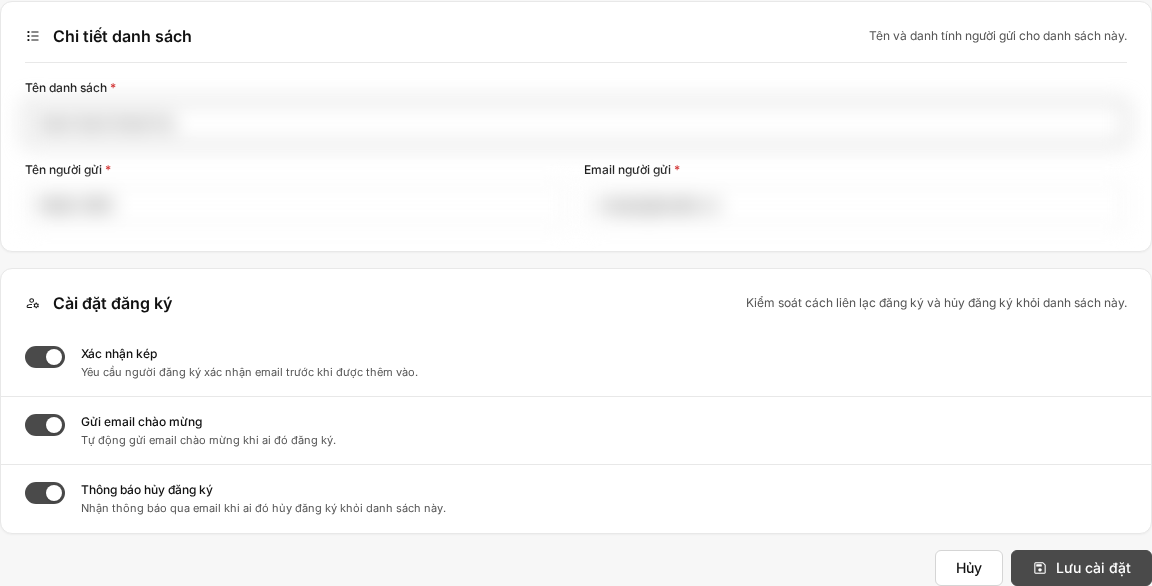
The Export page displays the list's number of subscribers and data fields. Here, choose one of the following two scopes.
All subscribers
Select Export the entire list to include every subscriber in the list in the CSV file.
This scope is not based on the filter currently used on the Subscribers page, and it does not export only the selected rows.
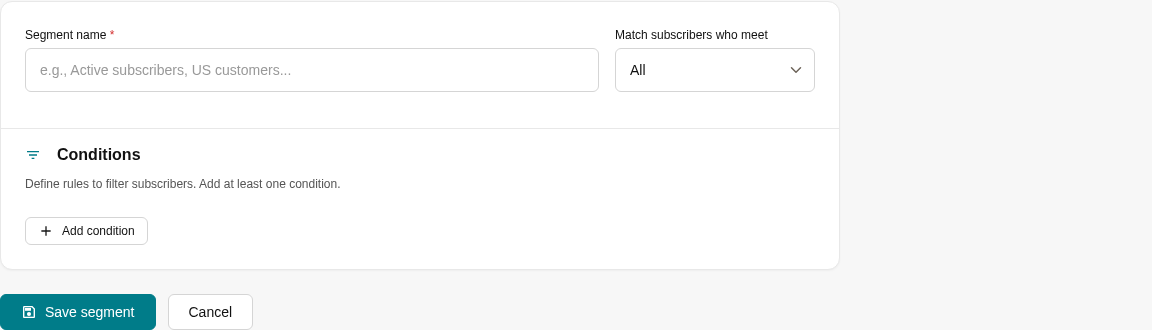
By segment
If the list has segments, you will see the Export a specific segment option.
Select this option, then select a segment from the list. Mailix exports only subscribers who meet that segment's conditions.
You can select only one segment for each export.
If the list does not have a segment, this option does not appear. You can still export the entire list.
Choose the data to export
Mailix does not provide a separate step for selecting individual columns before exporting. The file is generated automatically from the list's fields and some additional information.
If you only want to export a group of subscribers, use a segment to limit the number of rows. A segment does not change the columns included in the file.
Download the export file
- Select Export the entire list, or select a segment.
- Select Start export.
- Monitor the percentage and progress message.
- When the screen reports that the export is complete, select Download CSV file.
The export is processed in the background. If an export is running when you reopen the page, Mailix continues to display its progress.
You can select Cancel export while the file is being prepared. Mailix asks you to confirm before canceling.
Data in the export file
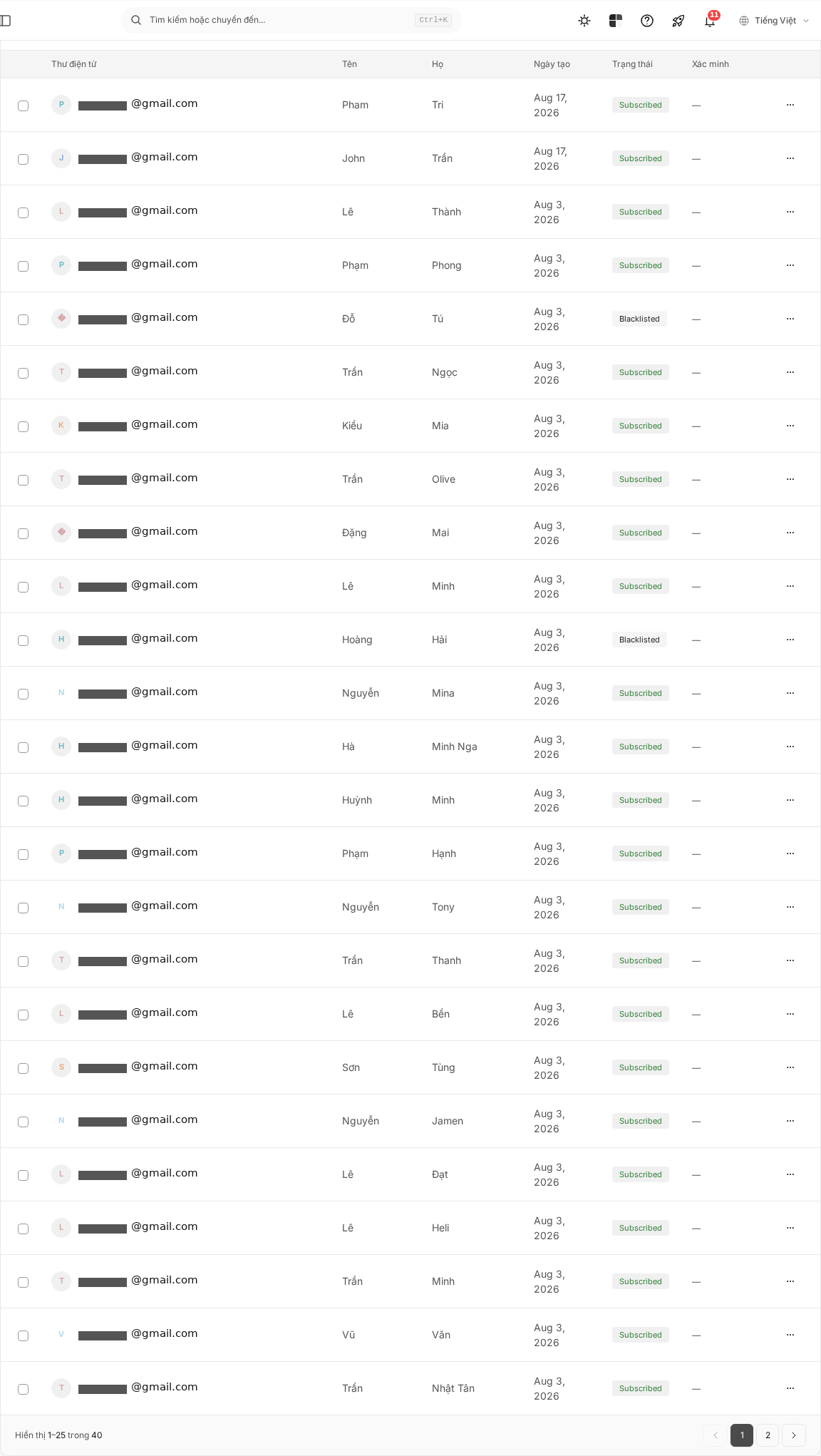
The CSV file contains:
- Email addresses.
- All fields belonging to the list, such as name or company if those fields have been created.
- Subscription status.
- The date and time when each subscriber was created and last updated.
Email is included among the list's fields and is added to the file. The field order is based on the list's current field structure.
The current export file does not include a tag column or email verification status.
Export by segment
A segment limits which subscribers are included in the file without changing the data in the list.
To export a segment:
- Select Export a specific segment.
- Open the segment selection list.
- Select a segment.
- Select Start export.
Only subscribers who meet the segment's conditions at the time of processing are included in the file.
When there is no data
If the list has no subscribers, Mailix can still complete the export and create a CSV file containing only the header row.
The same occurs when no subscribers match the selected segment. The file contains no subscriber data rows.
When you cannot export
Export is not available
Your account may not have permission to export lists. Contact the account administrator if you need to use this feature.
No segment selected
If you selected the segment scope but have not selected a specific segment, Mailix requires you to select one before starting.
Export failed
The progress screen displays a message if the export cannot be completed. Check the message, reload the page, and then start a new export when appropriate.
The file has no subscribers
Check whether the list contains data. If you exported by segment, check whether any subscribers match the segment.
Notes
- Exporting only reads and copies data. It does not change subscribers in Mailix.
- A CSV file may contain personal data. Share it only with people authorized to use the data.
- There is no option to export by the current filter or by selected rows.
- There is no separate column selector on the Export screen.
Frequently asked questions
Can I export an entire List?
Yes. Select Export the entire list, then select Start export.
Can I export a Segment?
Yes, if the list has a segment. Select Export a specific segment, then select a segment before starting.
Does the export file contain custom fields?
Yes. The file contains the list's existing fields, including Email.
Are tags exported?
No. The current export file does not include a tag column.
Is Subscriber status exported?
Yes. The file includes a subscription status column.
Why is Export not available to me?
This feature depends on account permissions. Contact the account administrator if you need export permission.
Does exporting change any data?
No. Exporting creates a file containing a copy of the data and does not edit subscribers in the list.