Manage Subscribers in an Automation
The Statistics page shows which Subscribers have not entered the workflow, which step they are on, and whether they have completed or encountered an error. Here, you can also add existing Subscribers to the workflow, hold a run, or retry it after correcting the cause of an error.
Open the Subscriber list
- Select Automation in the navigation bar.
- Open the action menu for the Automation you want to monitor.
- Select Manage subscribers.
Mailix opens the Automation's Statistics page.
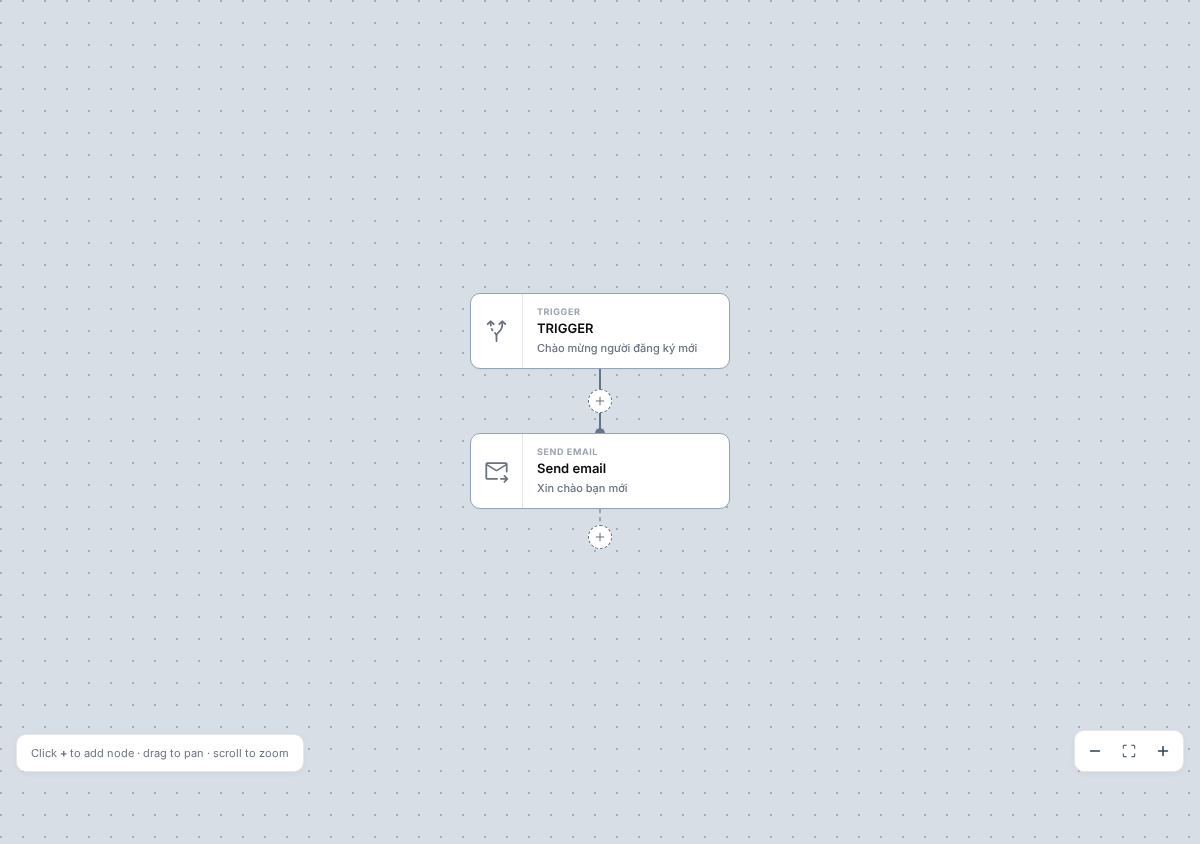 This page displays all current Subscribers in the primary List, including those who have never entered the Automation. Each page contains 25 people by default.
What does each row in the list mean?
Each row represents a Subscriber record in the primary List. Mailix includes that person's progress in the current Automation on the same row when progress exists.
Only one run is stored at a time for each Subscriber–Automation pair. Therefore, the same person does not have multiple rows for multiple runs in the same Automation.
Verified columns include:
- email address and Subscription status;
- current step or completed path;
- run status;
- time the Subscriber entered the workflow;
- latest activity and next processing time when waiting;
- action menu.
The page has no separate completion-time column. For a finished run, Latest activity and the final history entry show the last processing time.
Search, filter, and sort
The search box currently searches only by email address. You can filter by:
- all;
- not yet entered the workflow;
- has a run;
- Running;
- Waiting;
- Completed;
- Failed;
- held or not held.
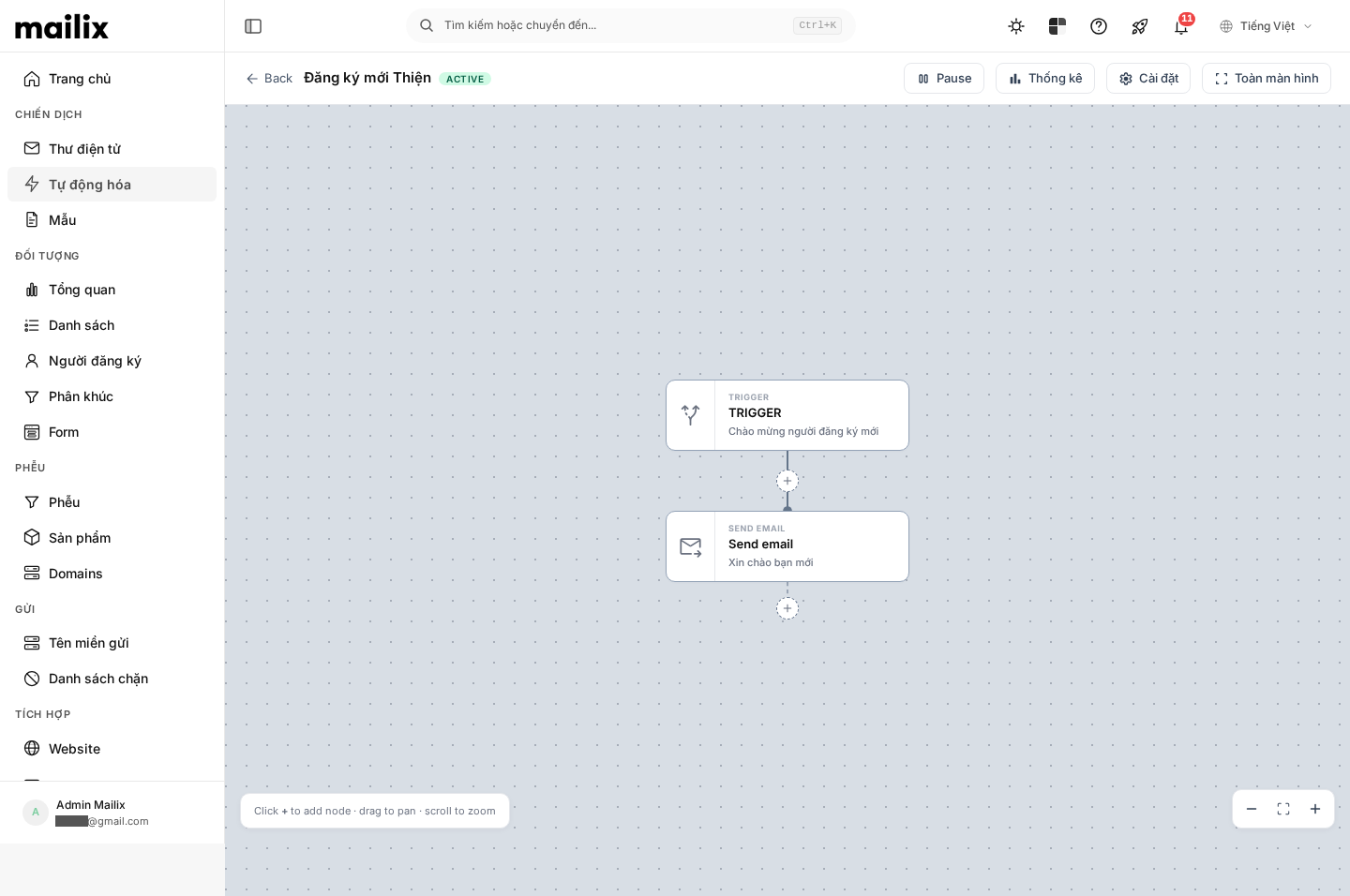 You can also sort by Subscription date, Subscriber update date, email, time of entry into the Automation, or the run's latest activity.
Run statuses
| Status | Meaning |
|---|---|
| Not entered | The Subscriber belongs to the primary List but has no run in the Automation |
| Running | The run is ready to process the current or next step |
| Waiting | The run is waiting for the scheduled time of a WAIT or CONDITION, or for an Email processing result |
| Completed | The run has traversed all available connections in the workflow |
| Failed | The run stopped because of a configuration, data, Email, or processing error that prevented it from continuing |
| Held | An additional label for an individually held Running or Waiting run |
Held does not replace Running or Waiting status. It indicates that Mailix will not automatically continue processing that run until you release it.
View the current step
The step column displays markers along the Subscriber's path. Select Progress to view the current or final step name:
- Email with its Subject;
- WAIT and its duration or scheduled time;
- CONDITION with the Email being checked;
- Tag, List, or field operation;
- Webhook;
- a step deleted from the current workflow.
For a Completed run, this is the last processed step. For a Failed run, this is the step where the error occurred; it does not mean that the Subscriber is still being processed there.
View a run's history
- Find a Subscriber who has a run.
- Select Progress.
- Review the run information and History section.
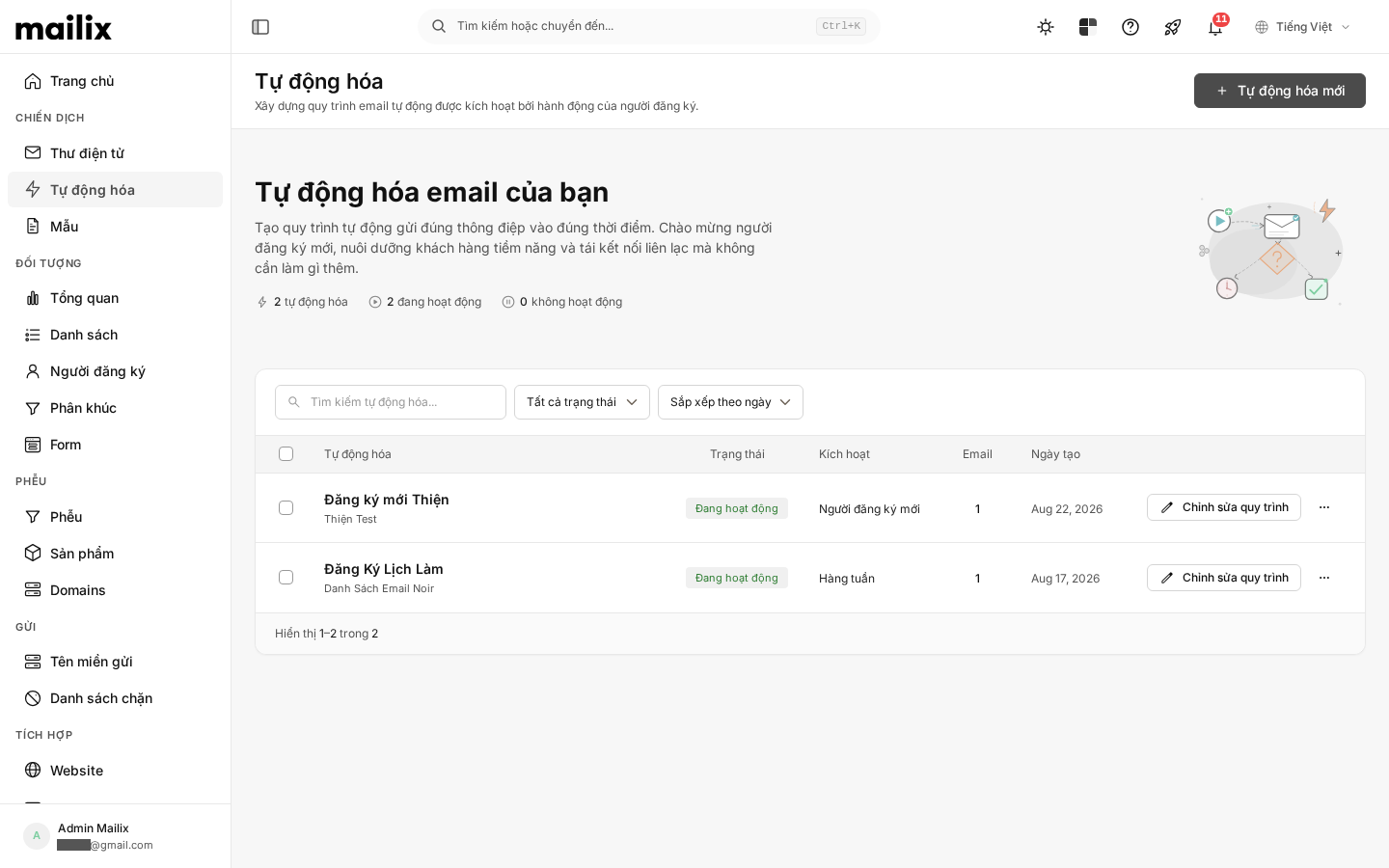 The screen displays:
- current Subscriber status and Verification status;
- workflow entry time, latest activity, and next processing schedule;
- Email steps sent, awaiting send confirmation, or unsuccessfully sent;
- configured wait duration and actual wait time;
- the YES or NO branch result of a CONDITION;
- applied Tag, List, or field operations;
- recorded Opens and Clicks;
- hold, release, or retry actions;
- the latest error if the run stopped.
An Email with Open or Click activity may link to the corresponding interaction details and Email Reports.
History after editing the workflow
Times and results already recorded in history are not processed again when you edit the workflow. However, step names and descriptions are matched against the current configuration. Consequently, a step whose content has changed may appear under its new label, while a deleted step is marked as deleted.
Subscribers who are Waiting
For Waiting status, the list displays the next processing time in the Account's time zone. Open Progress to see details of the WAIT or the period during which a CONDITION is monitoring activity.
Pausing the entire Automation does not move an already calculated deadline. After reactivation, an overdue run is processed during the next check.
If the WAIT configuration is changed after someone has begun waiting, that person retains the old deadline. History may therefore differ from the duration currently displayed on the step.
Add existing Subscribers to an Automation
The Automation must be ACTIVE, have a Starting Condition, and have its first step connected.
Add one person
- Filter by Not entered or search by email.
- Open the Subscriber's menu.
- Select Trigger now.
- Read the confirmation, then confirm the action.
This action bypasses the Starting Condition event and creates a normal run from the first step. Trigger now does not mean that the Starting Condition occurred. The Subscriber must still belong to the primary List, have no existing run, and match the saved Segment.
Important: Triggering one person now does not automatically restore their Subscription status. An unsubscribed or blocked record can move through non-Email steps, but Emails are still not sent. Use this action only when you understand which steps will change Tags, fields, or Lists.
Add everyone who has not entered the workflow
Select Trigger all, then confirm. Mailix processes people who:
- belong to the primary List;
- currently have Subscribed status;
- have no run in the Automation;
- match the saved Segment.
The action is processed in batches. The initial notification confirms only that the request was accepted; reload the page afterward to view the new metrics. People with an existing run are not run again, even if the confirmation text in the interface is worded more broadly.
Like Trigger now, Trigger all bypasses the Starting Condition event and begins at the first step. The important difference is that the bulk action processes only people whose status is currently Subscribed.
Can Subscribers enter again?
No, as long as the old run remains. A new event, Trigger now, or Trigger all does not create another run for the same Subscriber–Automation pair.
Subscribers with Completed or Failed runs do not automatically enter again either. After Delete activation, a new trigger begins from the start and the old history is gone.
Important: Do not use Delete activation and then trigger again as a routine retry method. Emails may be sent again; steps that add or remove Tags, update fields, Copy/Move Lists, WAIT, and CONDITION may also be performed again from the beginning.
Retry a failed run
Note: When retrying, Mailix uses the currently saved workflow, Email content, sender, and sending-method group. If you changed these after the error occurred, the result may differ from the original processing attempt.
After correcting the cause of the error:
- Filter by Failed status.
- Open the Subscriber's menu.
- Select Retry.
- Read the confirmation and confirm the action.
Retry retains the run and its history, adds a retry event, and tries to process the failed step again. It does not restart from the Starting Condition; Email and Tag, List, or field operations completed earlier are not run again.
Retry appears only for Failed status. Mailix rechecks Subscriber status, the sending method, and quota when an Email step actually sends.
For some Email errors, the step's old processing information may cause the run to remain Failed immediately after a retry; this action does not guarantee that the Email will be sent again. Do not use Retry to attempt to send to someone who has unsubscribed or is blocked. Review the new message and correct the cause before retrying again.
Retry multiple runs
When Failed runs exist, the Retry all failed runs button appears. One operation processes up to 500 runs, after which a notification reports how many runs were recovered and how many remain in error. If Failed runs remain, you can process another batch after checking the common cause.
Hold or continue a run
Hold
- Open the menu for a Running or Waiting run.
- Select Hold run.
- Confirm.
Mailix retains the step, status, and scheduled time. The Automation continues operating for other people.
Important: Holding does not recall an Email that has begun processing. If an Email is sending when you place the run on hold, it may still be delivered, but the run does not automatically advance while Held. Check its progress after releasing the hold.
Continue
Open the menu and select Release run. The run continues from the same step on the next due processing cycle. If the WAIT deadline has passed, the run is processed during the next check.
If the entire Automation is paused, releasing an individual run does not reactivate it. You still need to activate the Automation.
Use Advance in the Progress window
The Advance button asks Mailix to process the current step once, immediately. It does not skip the step and does not let you select a different destination step.
Important: For a WAIT that has started, Advance may end the wait early. For a waiting CONDITION, it may evaluate activity immediately and select a branch before the deadline. For an Email awaiting a sending result, this action does not guarantee that it will skip or resend the Email. Use it only after checking the current step and the effects of early processing.
The button is disabled for Completed or Failed runs. There is no separate action for selecting a destination step, marking a run complete, or skipping every type of step.
Delete a run and its history
Important: Delete activation permanently deletes the run, current step, hold status, progress, step history, errors, and Email interaction data associated with that run. No restoration action has been verified.
- Open the menu for a person with a run.
- Select Delete activation.
- Read the warning and confirm.
These three actions have different results:
| Action | Result |
|---|---|
| Delete activation | Deletes the run and history from the Automation; retains the record in the List and does not change its Subscription status |
| Unsubscribe | Retains the record and Automation history; subsequent Emails are not sent, but non-Email steps may continue |
| Delete Subscriber record | Deletes the record from the List and, consequently, deletes the associated run and history |
Warning: After Delete activation, the Subscriber can be triggered again from the beginning. Emails and previous Tag, List, or field changes may then be repeated. Use Retry for a Failed run instead of deleting it and starting again.
If an Email has begun processing, deleting the run does not recall it. Sending, Open, and Click data associated with the run are deleted along with the corresponding history link; aggregate metrics may need to be refreshed.
There is no separate Remove or Cancel action other than Delete activation.
When the Automation is paused
- New events and Trigger now/Trigger all actions do not add more people to the workflow.
- Running and Waiting retain their current status; WAIT retains its original time.
- Reactivation allows due runs to continue.
- Failed runs are not automatically retried, and Completed runs are not run again.
- Retry and Advance are separate management actions; they do not activate the entire Automation.
When the workflow is edited while Subscribers are running
Each subsequent processing cycle reads the current workflow configuration:
- completed steps do not run again;
- people who have not reached a step use its new configuration;
- a WAIT that has started retains its old deadline;
- a waiting CONDITION retains its old deadline but may use the current configuration when evaluated;
- an Email that has not started uses the latest content and sender;
- deleting the current step causes the run to become Failed on the next processing cycle.
If you select Retry after editing the workflow, Mailix still retries from the step saved as the failed step. If that step has been deleted, Mailix cannot automatically find a replacement step.
When Subscriber status changes
Subscribers who have unsubscribed, are unconfirmed or blocked, or are reported for spam do not receive an Email when they reach a SEND EMAIL step. An unsuccessful send normally still allows the workflow to continue to non-Email steps.
Resubscribing does not create a new run while the old run remains. It can affect only Emails not yet processed in the current run.
If the Subscriber record is deleted from the List, the row, run, and history associated with that record are also deleted. This differs from changing the status to unsubscribed: an unsubscribed record remains on the page, and non-Email steps may still continue.
How does Copy/Move to another List affect a run?
- Copy to list: retains the source record and creates or retains a record with the same email in the destination List. The current run remains attached to the source record.
- Move to list: copies the record to the destination List and then unsubscribes the source record. The current run continues with the source record, so subsequent Emails are not sent.
The record in the destination List does not automatically replace the current run. It may join a different Automation for the destination List if it later meets that Automation's Starting Condition.
Adding or removing a Tag may create a run in another Automation. A field change is written to the current record, but do not rely on this action to create trigger chains between Automations because that behavior is not stable.
When a run fails
- Filter by Failed and select Progress.
- Check the failed step and displayed message.
- For an Email, check the sender, content, sending method, Subscription status, and quota.
- If the step was deleted or its configuration changed, review the entire current path.
- Correct the cause before selecting Retry.
An error message may contain technical content from processing. Do not share a message containing sensitive data; if you do not understand the cause, send a screenshot with private information masked to your system administrator.
Frequently asked questions
Do existing Subscribers automatically enter an Automation?
Not merely because you create or activate the Automation. Use Trigger now or Trigger all if you want to add existing people to the workflow and they meet the corresponding conditions.
Does Retry resend Emails sent previously?
No. Retry starts processing again from the Failed step; Email steps completed earlier do not run again.
Does deleting someone from an Automation unsubscribe them from the List?
No. Delete activation deletes only the run and history in the Automation.
Does pausing an Automation freeze WAIT time?
No. The processing time remains unchanged, and overdue runs are processed after reactivation.
After editing the workflow, do active Subscribers use the old or new workflow?
They use the current configuration on their next processing cycle. Completed steps do not run again.
Can I view every processed step?
Yes. Select Progress to view history, waiting times, branch results, Emails, and completed operations.