Design an Email with the Builder
The email builder helps you design a Template with ready-made components without writing HTML yourself. You can add content, adjust its presentation, preview it, and save the Template to your account library.
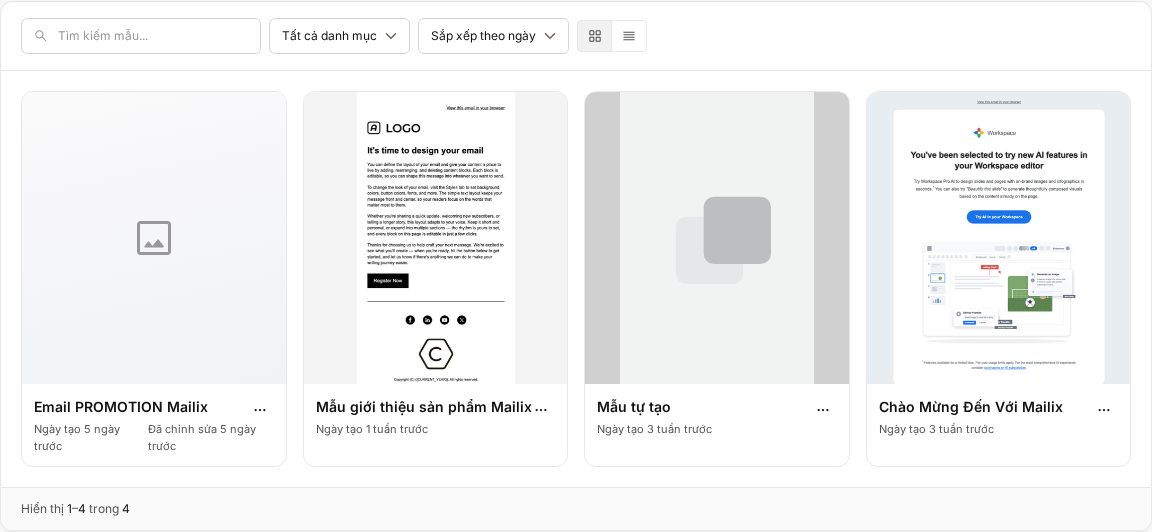
Open the email builder
To edit an existing Template, select:
Campaigns → Templates → Edit (Chiến dịch → Mẫu → Chỉnh sửa)
After you select Create & Design while creating a new Template, Mailix also opens that Template directly in the builder.
You need permission to edit Templates. If a Template has been switched to custom HTML, the edit action opens the HTML editor instead of the visual builder.
Get familiar with the builder interface
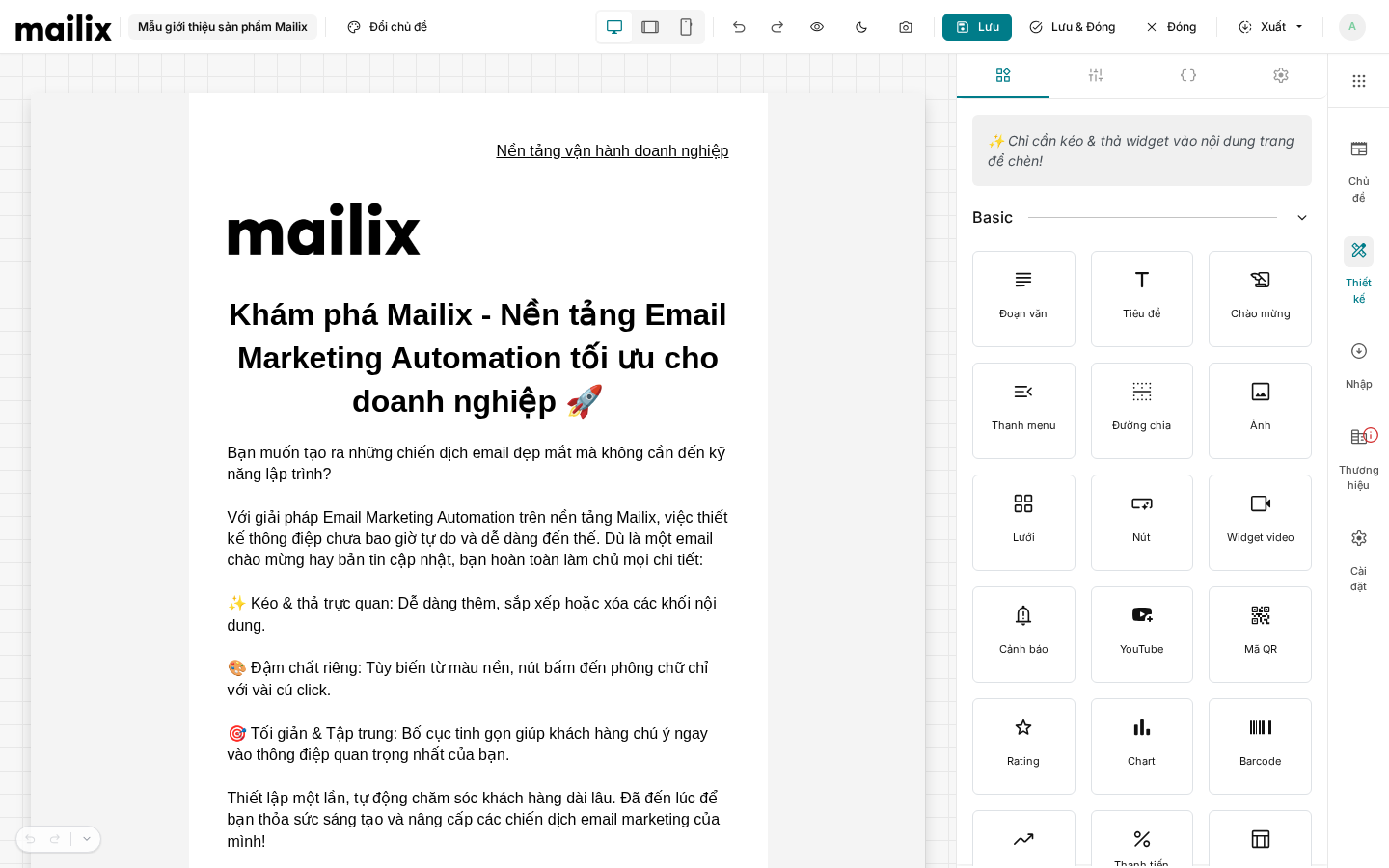
The builder contains these main areas:
- Top toolbar: change the theme, choose a preview size, undo, redo, preview, and save.
- Design area: displays the email and lets you select, add, or arrange content.
- Design panel: contains components that can be added to the email.
- Settings panel: displays the content and presentation options for the selected component.
- Global settings: adjust the presentation of the entire Template.
Select a component in the design area to open its corresponding settings. Available options vary by component type.
Add content to a Template
Open Design, then drag the component you want to use to the appropriate position in the email.
Available components include:
- Basic content: paragraph, heading, greeting, image, button, divider, spacer, menu, grid, and video.
- Ready-made presentation content: text layouts and image-and-text combinations with the image on the left, right, top, bottom, or both sides.
- Extended content: alert, YouTube, QR code, rating, chart, barcode, counter, progress, data table, photo gallery, social proof, diagram, and RSS.
- Lists and social media: feature list, bulleted list, and social-media icons.
Some accounts may have additional components provided by extensions. A slider component is not available in the current email builder.
Move and arrange content
Drag a component to a new position in the design area to change its order. With the Grid component, you can place content in each cell to create a multi-column layout.
When you select a component, the builder also provides actions to copy or delete it. Deletion has no confirmation dialog; if you delete something by mistake, use Undo immediately in the current editing session.
Edit text
Select a paragraph or heading and edit its content directly. Text-component tools let you adjust groups of properties such as font, font size, text style, color, alignment, line spacing, lists, and links.
Specific options appear only when the corresponding component is selected.
Add and change images
Add an Image component or select an image already in the Template. In the image settings, you can choose an account resource, upload a new image, change the image source, and adjust its size.
Depending on the component, you may also enter alternative text, add a link, align the image, or crop it. Check the image in preview mode after changing its size.
Add buttons and links
With a Button component, you can edit the button label, destination, and presentation style. For text, select the portion to link and use the editor's link tool.
Check the destination carefully before saving. Saving a Template does not verify that every external landing page is reachable.
Adjust layout and presentation
Select a component or layout area to open the appropriate settings. Depending on your selection, you can adjust:
- background color or background image;
- text color, font, and alignment;
- padding and spacing;
- borders and corner radius;
- size, width, and content arrangement.
The Desktop, Tablet, and Mobile buttons change the width of the preview area so you can check the layout. This is a simulation within the builder and does not guarantee that every email application will display it identically.
Personalize with Merge Tags
The builder provides an action for inserting variables into text, button labels, and link addresses. Merge Tags are replaced with the appropriate data when the Template is used in a Campaign.
In an independent Template, you can use common variables such as the Subscriber's email, Campaign information, List information, the current date, and system links. Custom Subscriber fields have full context only when the Template is used with a List in a Campaign.
You can also copy a variable from the Merge Tag area and paste it wherever you need it.
Merge Tags are not Tags used to categorize Subscribers.
Add system links
Link Merge Tags include unsubscribe, view-in-browser, and profile-update links. You can insert them into text, buttons, or suitable link addresses.
The builder allowing you to insert a link does not mean the Template satisfies every sending requirement. Mailix checks Campaign requirements when you prepare that Campaign for launch.
Change the theme
Important: Selecting a different theme applies it immediately, replaces all current Template content and layout, and saves the new theme. Mailix does not ask for confirmation, and you cannot use Undo to restore the content from before the theme change. Copy the Template first if you need to keep the current version.
To change the theme:
- Select Change theme (Đổi chủ đề) in the toolbar.
- View the thumbnails for Basic (Cơ bản) or Extended (Mở rộng) themes.
- Select the card you want to apply.
- Wait for the builder to reload with the new content.
The Template name does not change, but its content, layout, and thumbnail are replaced with the data from the selected theme. The selector has no separate preview step before applying a theme.
Preview a Template
Select the Preview icon in the toolbar to hide the design tools and view the current content in the design area. Select the icon again to return to editing mode.
This mode uses the state currently shown on screen, including unsaved changes. You do not need to save before previewing, but you must select Save or Save & Close if you want to keep those changes.
Merge Tags are not previewed with data for a specific Subscriber in the Template builder. This mode also does not send a real email. Previewing or sending a test in a Campaign context is a separate action.
Undo and redo
Select Undo to reverse a change or Redo to reapply the change you just reversed. You can also use:
Ctrl+ZorCommand+Zto undo;Ctrl+Shift+ZorCommand+Shift+Zto redo;Ctrl+SorCommand+Sto save.
Undo history belongs only to the current builder session. After closing or reloading the page, you cannot use that history to return to the state of an earlier session.
Save changes
The builder does not save automatically. Choose the appropriate action before leaving the page.
Save
Select Save to save the current layout and content and continue editing. Mailix displays a notification when the action is complete.
Save & Close
Select Save & Close to save the content and return to the Template library. If saving fails, you remain in the builder so you can resolve the error.
Close
Important: Close returns to the library immediately without saving or asking for confirmation. Any changes since the last save are lost; the Template keeps its previously saved version.
Switch to custom HTML
The builder has no direct button for switching to custom HTML. Save any changes you want to keep, close the builder, and then choose the Template's Custom HTML action in the library.
Important: After the first custom HTML save, the Template remains in HTML mode. The Edit action then opens the HTML editor and no longer opens the visual builder.
See Create an Email Template with custom HTML for this procedure.
When you cannot save or edit
- The Edit action is not visible: ask the account administrator to check your permissions.
- The Template no longer exists: Mailix returns you to the Template library; check which Template you need to open.
- Content is empty or design data is invalid: add valid content and save again.
- An image cannot be uploaded: check the file and try again in the resource area.
- Saving fails: remain on the page, read the notification, and try again. Do not select Close if you still have changes to keep.
- Editing opens the HTML editor: the Template has been switched to custom HTML and no longer uses the visual builder.
Saving a Template does not check whether every link is reachable, whether Merge Tag data exists for each recipient, or whether all Campaign sending conditions are met. Check these items again in the Campaign before sending.
Frequently asked questions
Does the builder save automatically?
No. Select Save or Save & Close to keep your changes.
Does closing the builder lose changes?
Yes, if you made changes after the most recent save. Close exits the builder immediately without saving or asking for confirmation.
Can I undo the action I just took?
Yes, during the current editing session. History is no longer available after closing or reloading the page, and it cannot restore content from before a Change theme action.
Does changing the theme keep the old content?
No. The new theme replaces the current content and layout immediately, without a confirmation dialog.
Can I add images?
Yes. Use the Image component and select or upload a resource in the component settings.
Can I use Merge Tags?
Yes. The builder supports inserting common Merge Tags. Fields specific to a List have full context when the Template is used in a Campaign with that List.
Can I preview before saving?
Yes. Preview mode uses the content currently shown on screen. However, you still need to save manually to keep your changes.
Can I return to the builder after switching to HTML?
No. After the first custom HTML save, the Template continues to be edited in HTML mode.
Does editing a Template update older Campaigns?
No. A Campaign that previously selected the Template has its own content copy and does not automatically update when the library version changes.
Next steps
Publication note: Replace the
(...)links with the official Customer Docs URLs before publishing this article to the production website.