Email Campaign Overview
Email Campaigns let you send email content to a group of recipients selected from Lists in Mailix. Each Campaign brings together recipients, sender information, the subject, content, send time, and post-send results.
What is an email Campaign?
You can use a Campaign to prepare an intentional email send, such as sending a newsletter or announcement to a group of Subscribers.
Mailix guides you through each required section before sending. After the Campaign starts, you can monitor its status and open the report to view results.
A regular Campaign differs from an Automation. A Campaign is prepared for a specific send; Automation is a separate area for email sequences that run according to Subscriber conditions or actions.
Access the Campaign area
On the left navigation menu, select:
Campaigns → Email
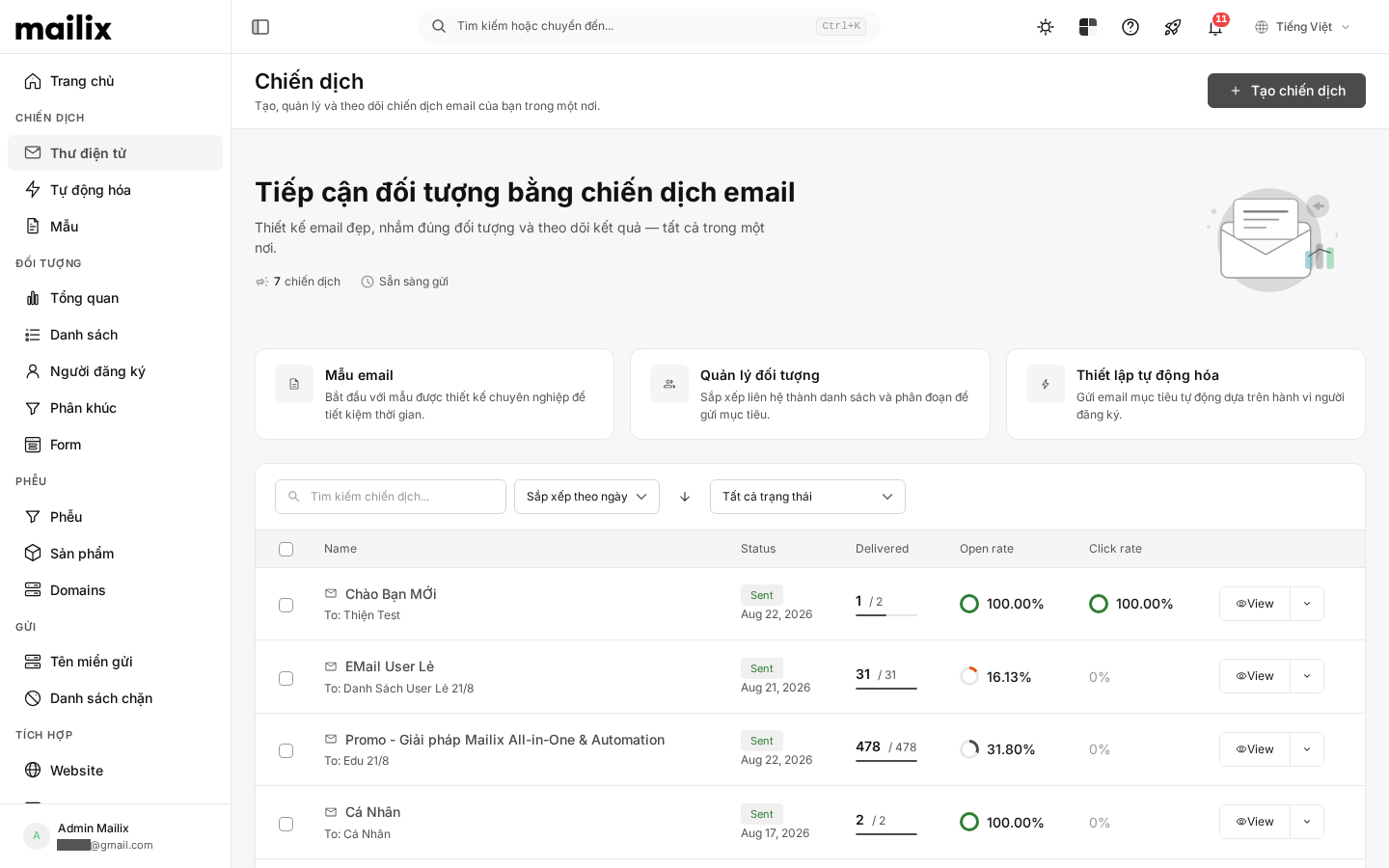
The Campaigns page opens. If the account has permission to create Campaigns, the Create campaign button appears at the top of the page.
 Depending on account permissions and service-plan limits, you may only be able to view Campaigns or may be unable to create another Campaign.
What is on the Campaigns page?
This page brings together the account's Campaigns. The table displays key information:
- The Campaign name and primary recipient List.
- The current status.
- The send date or scheduled time.
- The number of delivered emails compared with the total recipients while a Campaign is sending or after it is complete.
- The open rate and click rate for a completed Campaign.
- An action menu appropriate for the status and account permissions.
You can search by name, filter by status, sort by date or name, and move between results pages.
When there are no Campaigns, the page prompts you to create your first Campaign. The create button appears only when the account has permission and has not reached the applicable limit.
Campaign types
The current creation screen provides three options:
- Regular Campaign: Uses HTML content, Email Templates, and the email builder.
- Plain text: Uses text-only content without images or HTML formatting.
- A/B Test: Uses multiple variants to compare results according to the test settings.
Automation is also introduced on this screen but opens a separate area. It is not a regular Campaign type in the five-step workflow below.
What components does a Campaign have?
A regular Campaign has these main components:
- Recipients: One or more Lists, which can be combined with Segments and exclusions.
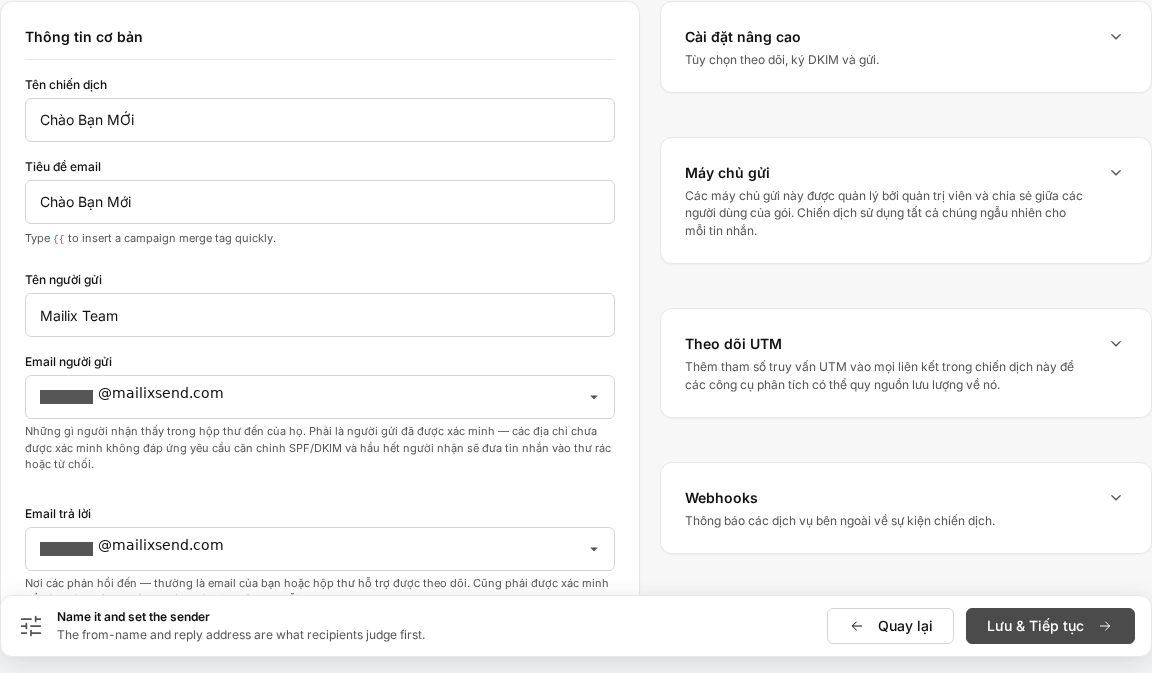
- Campaign information: The Campaign name and email subject.
- Sender: The sender name, sender email address, and reply-to email address.
- Content: An Email Template and design, custom HTML, or plain-text content, depending on the Campaign type.
- Tracking: Tracking for Opens, Clicks, and related options when enabled.
- Send time: Send immediately or schedule for a specific date and time.
Some advanced settings, such as a Tracking Domain or sending-server selection, may depend on the service plan and account configuration.
Basic Campaign workflow
For a Regular Campaign or Plain text Campaign, Mailix uses a five-step workflow:
- Recipients: Select Lists and Segments.
- Setup: Enter the name, subject, sender information, and Tracking settings.
- Template: Select or create the email content.
- Schedule: Choose to send immediately or schedule the send.
- Confirmation: Review required items before launching.
After launch, Mailix processes the send and updates the status. When data is available, open the Campaign to view its report.
 An A/B Test has a separate setup workflow for variants, split percentages, and selecting the winning variant.
Select recipients
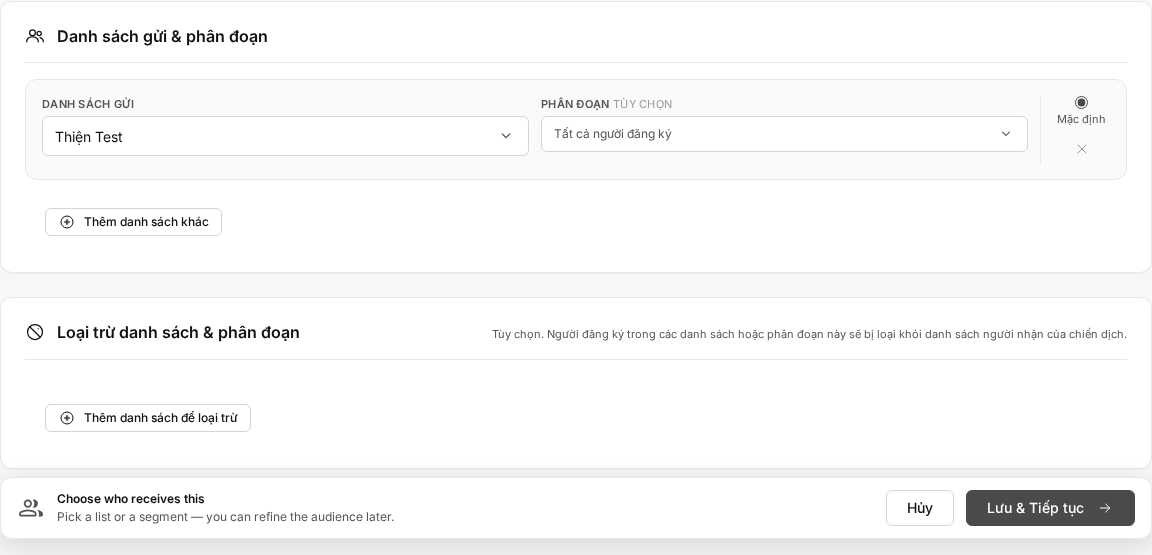
You can add multiple Lists to a Campaign. For each List, you can send to all eligible Subscribers or narrow the audience with one or more Segments.
Mailix also lets you exclude Lists or Segments. Subscribers in an exclusion are not included in the Campaign's recipient group.
Only Subscribers whose status and Verification results meet the sending settings are processed. Therefore, the actual recipient count may be lower than the total number of Subscribers in the selected Lists.
When the same email address appears multiple times in the recipient group, the system configuration may allow duplicate sends or retain only one record. Check the recipient count in the Confirmation step before sending.
Create email content
For a Regular Campaign, you can:
- Select a system-provided template.
- Select an account Email Template.
- Customize a template with the email builder.
- Use custom HTML.
For Plain text, enter the content directly in the text editor.
Campaigns also support preview text displayed beside the subject in the inbox. Some additional options may appear only after you have selected a template.

Check before sending
In the Confirmation step, Mailix summarizes and checks important elements, including whether:
- There are eligible recipients.
- There is an email subject.
- There is a sender name and email address.
- There is email content.
- A sending method is available.
- The account meets the applicable sending conditions.
This screen also lets you preview the Campaign and send a test email. You must resolve any blocking error before launching the Campaign.
Send now or schedule
In the Schedule step, choose one of two methods:
- Send now: Start sending after you complete the Confirmation step and launch.
- Schedule for later: Select a send date and time in the account's time zone.
The interface also has sending-time settings that limit the periods when sending is allowed. These settings are covered in detail in the scheduling guide.
Campaign statuses
The main statuses you may encounter include:
| Status | Meaning |
|---|---|
| New | The Campaign is being prepared and has not been launched |
| Scheduled | The Campaign is waiting for the selected send time |
| Queued | The Campaign has been launched and is waiting to begin processing |
| Sending | Mailix is sending email to eligible recipients |
| Completed | Sending has finished and the report can be viewed |
| Paused | Processing is currently stopped and can resume when conditions allow |
| Error | Sending encountered an error that needs to be reviewed |
An A/B Campaign also has statuses related to waiting for or sending the winning variant. These statuses are explained in the separate A/B Test article.
After sending
Open a sent Campaign to view its report. The overview report includes metric groups such as:
- Recipients and delivered emails.
- Opens and open rate.
- Clicks and click rate.
- Bounces.
- Unsubscribes.
- Spam reports and failed email sends.
- Clicked links and interaction data over time.
The metrics may not appear immediately. When the interface provides a refresh button, you can use it to request updated report data.
Common actions
Depending on the status and account permissions, the action menu may let you:
- Open or edit the Campaign.
- View the report.
- Copy the Campaign to create a new one.
- Resend the Campaign when it has an eligible status.
- Send a test email.
- Pause or resume sending.
- Archive the Campaign.
A delete action may also appear. This action cannot be undone in the interface and is not covered in detail in this overview.
When a Campaign cannot be sent yet
If you cannot launch the Campaign yet, check each of the following:
- Whether the Campaign has eligible recipients.
- Whether the subject, sender, and content are complete.
- Whether the sender email address meets the account's Verification requirements.
- Whether the account has an available sending method.
- Whether the account has reached a limit or is restricted from sending by its service plan.
- Whether the Confirmation screen still displays a blocking error.
If there is no List or Subscriber yet, prepare the email audience before creating the Campaign.
Frequently asked questions
Are Campaigns and Automations the same?
No. A Campaign is used for a send that you prepare and launch. Automation is a separate area for email sequences that run according to conditions or actions.
Can I use multiple Lists in one Campaign?
Yes. You can add multiple Lists, select Segments within each List, and configure exclusions.
Will an email address in multiple Lists always receive only one email?
This cannot be guaranteed for every account. Duplicate-sending behavior depends on the system configuration. Check the recipient count in the Confirmation step before launching.
Can I schedule a Campaign?
Yes. You can select the send date and time in the Schedule step.
Can I send a test before the official send?
Yes. The Confirmation step provides an action for sending a test email to a valid email address.
Why is the recipient count lower than the Subscriber count?
Exclusions, subscription status, and email Verification results may make some Subscribers ineligible to receive the Campaign.
Where can I view results after sending?
Open the Campaigns page, and then select the sent Campaign to view its report.