Create a survey in a Funnel
A survey in Mailix is a Survey-type Funnel step. Its questions, page design, and results are all managed from this step.
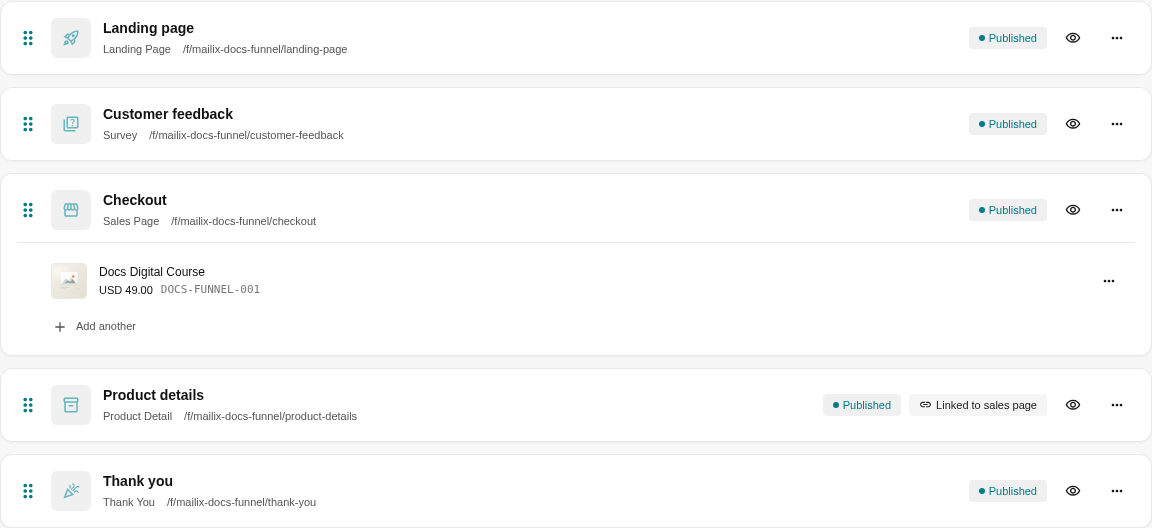
Create a Survey step
- Open the Funnel and select the Steps tab.
- Select Add step.
- Enter a name and select the Survey type.
- Choose a template, then save.
Add questions
Open the Survey step's menu and select Manage questions. You can add:
| Question type | Answer method |
|---|---|
| Short text | One line of text. |
| Long text | Multiple lines of text. |
| Dropdown | Select one option. |
| Radio button | Select one displayed option. |
| Checkbox | Select one or more options. |
For each question, enter a label, optional help text, and choose whether an answer is required. Choice-based questions need options.
 Drag questions to change their order, then save. If you remove a question from the list and save, it no longer appears on the form.
Design the survey page
Select Design page for the Survey step. The survey area is inserted into the step's design; its questions come from the configuration you just saved.
Preview the page to check labels, choices, required fields, and the experience on different screens. Both the step and the Funnel must be published for customers to submit responses at the public address.
After a customer submits
Mailix saves one response together with each answer and records a survey conversion. If the Funnel has a Thank You step, the customer is directed to it; otherwise, they see a thank-you message.
The survey can identify a Subscriber when the link contains valid Subscriber information belonging to the List attached to the Funnel. Other responses are displayed as anonymous visitors. A survey does not automatically turn every respondent into a Subscriber.
View and export results
Open the Survey step menu and select Survey results. You can:
- select a date range;
- view the total and identified response counts;
- view statistics by question;
- search the response list;
- open pages of results;
- export CSV.
Delete questions or a survey
Important: Deleting the entire Survey step deletes its questions, responses, and associated results. No restore function is displayed. Export CSV first if you need to retain the data.
Changing questions does not transform earlier answers into the new configuration. Saved results retain the question content from the time of the response, but the current report may present data according to the questions that still exist.