Create an Email Template
You can create an account-owned Email Template from a ready-made layout in the System Templates collection. After creation, Mailix opens the builder so you can customize the content.
Before you begin
You need permission to create and manage Templates. An account with view-only access will not show the Create Template (Tạo mẫu) button.
You do not need to create a Campaign, List, or Subscriber first. The Template creation screen requires only a Template name and a System Template as the starting point.
Open the Template creation screen
From the main menu, select:
Campaigns → Templates → Create Template (Chiến dịch → Mẫu → Tạo mẫu)
If the library does not yet contain any Templates for the account, you can also select Create your first Template (Tạo mẫu đầu tiên) in the empty state.
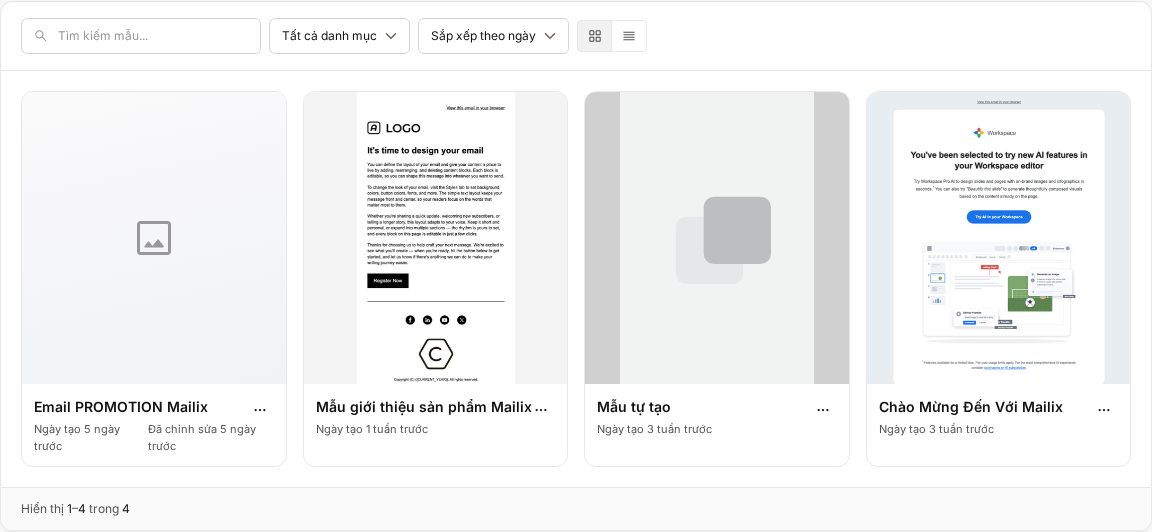
Mailix opens the Create Template screen, which includes the Template name field, the System Templates collection, a category filter, a search field, and the Create & Design button. Select All Templates (Tất cả mẫu) to return to the library without creating a Template.
Name the Template
The Template name field identifies the Template in the library and when you select a Template for a Campaign.
- A Template name is required.
- The prefilled value is My new Template (Mẫu mới của tôi).
- Mailix does not require names to be unique, so two Templates may have the same name.
- You can rename the Template after creating it.
The Template name is not the email subject. The subject, sender, reply-to address, and preview text are configured in each Campaign.
Choose a System Template to begin
You must choose a System Template before you can create a new Template. Each card in the collection displays a thumbnail and design name.
To find a suitable layout:
- Select a displayed category or select All (Tất cả).
- Enter a keyword in the search field if needed.
- Use the pagination controls when the collection has many results.
- Select the System Template card you want to use.
The selected Template is marked and the Create & Design button becomes available. You can select a different card before creating the Template.

Categories only filter the collection. This screen has no field for assigning a category yourself to the new Template. The new Template keeps the category of its source layout.
Can I preview a System Template before choosing it?
The Create Template screen displays thumbnails but does not provide a separate Preview (Xem trước) action for System Templates. Select a card to use that layout as the starting point.
After the Template has been created, you can use Preview from the library to check the saved content.
Create the new Template
After entering a name and choosing a layout:
- Check the Template name again.
- Check that the intended System Template card is selected.
- Select Create & Design.
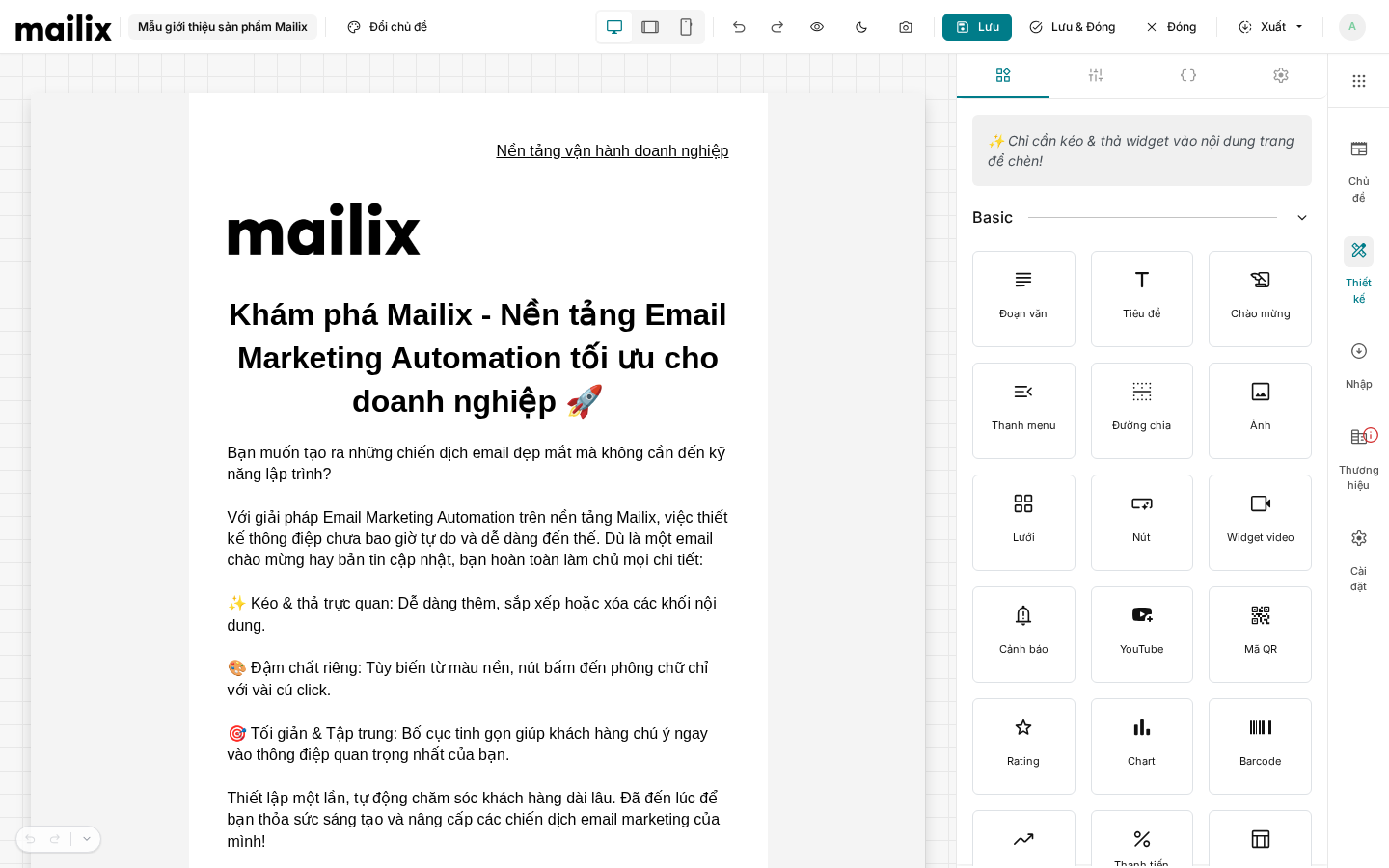
Mailix creates an account-owned Template, copies the content and design from the System Template, and opens the new Template in the builder.
The System Template is only the starting source. Editing the new Template does not change the System Template.
After creating the Template
The Template already exists in the library before the builder opens. The initial copy retains the System Template's HTML content, layout, styling, Merge Tags, links, thumbnail, and category when applicable.
The new Template belongs to the account, not exclusively to the member who created it. Other members of the same account can see or edit the Template if they have the appropriate permissions.
Save content after editing
Creating a Template and saving changes in the builder are separate actions:
- Create & Design creates the Template from the initial content and then opens the builder.
- Save keeps your changes and remains in the builder.
- Save & Close keeps your changes and returns to the Template library.
- Close returns to the library without saving the current changes.
If you close the builder immediately after creation, the Template remains in the library with the initially copied content. Edits that were not saved in the builder are not retained.
Mailix does not describe builder content as being saved automatically. Select Save or Save & Close before leaving the page if you changed the content.
How do I use custom HTML?
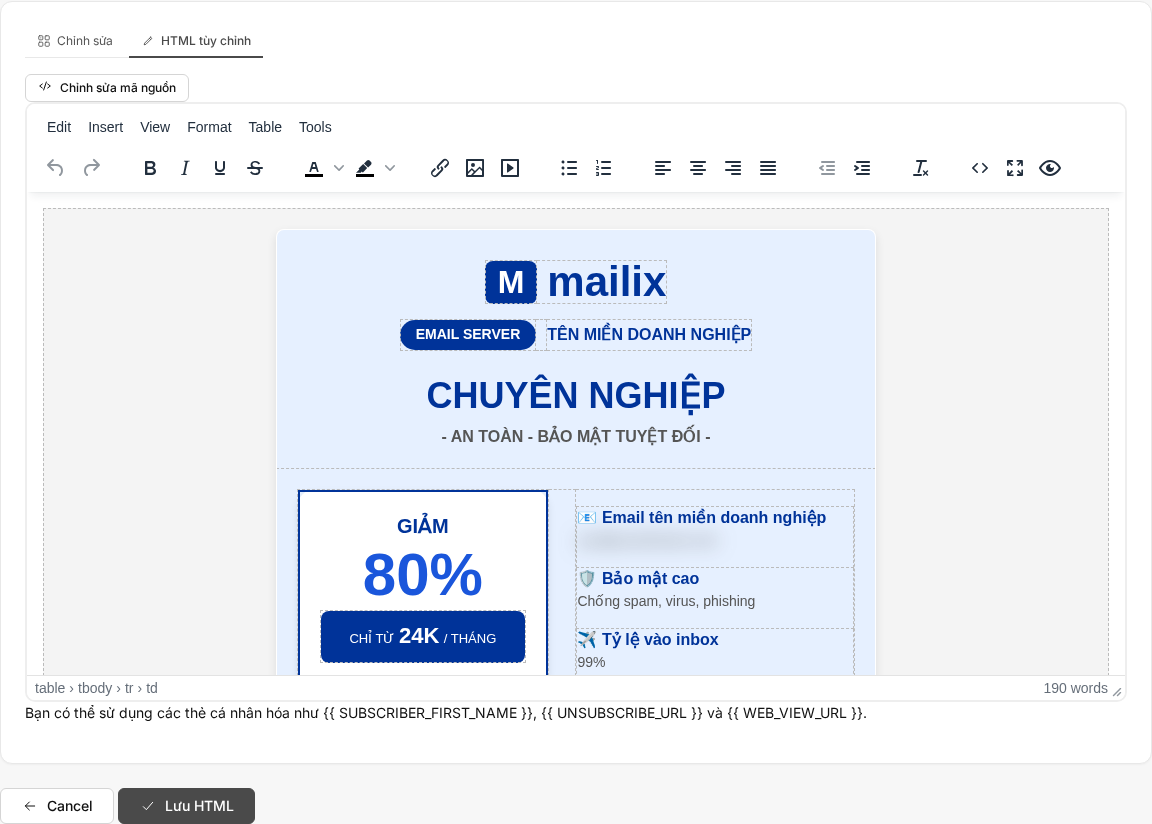
The creation screen does not offer an option to start directly with custom HTML. First create the Template from a System Template. Then, in the Template library, choose the action to switch the Template to Custom HTML (HTML tùy chỉnh).
Important: After the first custom HTML save, the Template remains in HTML mode and cannot return to the visual builder.
See Create an Email Template with custom HTML for this procedure.
Merge Tags and system links
Content copied from a System Template may already contain Merge Tags and system links. Creating a Template does not require you to select a List, because Subscriber data is used only when the Template is applied to a Campaign.
The creation screen does not check the email subject, sender, preview text, or Campaign sending conditions. Successfully creating a Template does not mean that a Campaign using it is ready to send.
When you cannot create a Template
- Template name is missing: enter a name and try again.
- No System Template is selected: select a card in the collection. The Create & Design button is available only after a selection is made.
- The source Template is no longer visible: reload the collection and select an available Template.
- The collection has no results: clear the keyword or switch to All.
- The collection cannot load: use the retry action on the screen.
- The Create Template button is not visible: ask the account administrator to check your permissions.
If the form reports a required-field error, the name and selected Template may be restored so you can correct them and submit again. If the source Template no longer exists, select a different Template.
Frequently asked questions
Must I choose a System Template?
Yes. The current creation workflow requires a name and a System Template. The Create & Design button is unavailable until a Template is selected.
Can I create a completely blank Template?
No independently blank Template option has been verified on this screen. Choose a suitable System layout and then edit it in the builder.
Is the Template name the email subject?
No. The Template name is used only to manage the Template in Mailix. The email subject is entered in each Campaign.
Can two Templates have the same name?
Yes. Mailix requires a non-empty name but does not require names to be unique.
Does editing a new Template edit the System Template?
No. Mailix creates an account-owned copy before opening the builder.
Can I change the layout after creating the Template?
Yes. The builder provides a layout-change action for the Template being edited. Check the current content before applying a different layout.
Can I use HTML directly from the creation screen?
No. Create the Template first, then switch the existing Template to Custom HTML.
Do I need a List before creating a Template?
No. A List is not a requirement on the Template creation screen.
Do I need to save in the builder?
Yes, if you want to keep changes made after the Template was created. Select Save or Save & Close before leaving the builder.
Next steps
Publication note: Replace the
(...)links with the official Customer Docs URLs before publishing this article to the production website.