Add and Connect a Website
Connecting a Website allows one shared code snippet to load published Subscription Forms linked to that Website.
Open the Websites area
Select Websites in the navigation bar.
 This page displays the URL, status, number of linked Forms, and creation date. You can search by Website name, sort, edit, connect, disconnect, or delete.
Add a Website
- Select Add Website.
- Enter the complete Website URL, for example
https://www.example.com. - Select Add Website.
 The URL is required, must have a valid format, and the Website must be publicly accessible when it is added. Mailix reads the page title to set the display name. If the page has no title, the URL or a default name may be used.
Each URL variation is saved exactly as entered. Consistently use the protocol and www variation that visitors actually access. The interface recommends HTTPS, but no HTTPS-only acceptance requirement has been verified.
Copy the connection code
After adding the Website, Mailix opens its edit page. Under Tracking code, select the copy icon.
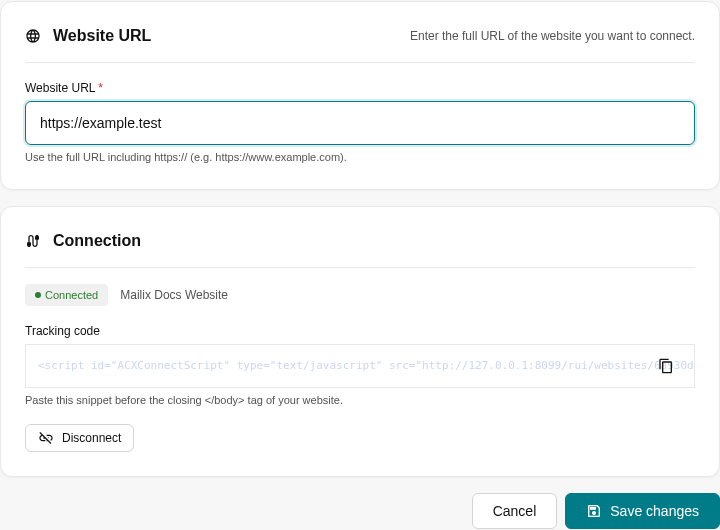 Paste the entire code before the closing
 </body> tag on pages that need to load Forms. Do not change the identifier in the code.
If you do not manage the Website source code, send the code to the Website administrator. No separate DNS configuration is required.
Test the connection
After installing the code:
- Open or reload the public Website.
- Return to Mailix and reload the Websites page.
- If the status remains Inactive, select Connect to check it.
Connected status means Mailix found or received a signal from the connection code. This status does not by itself prove that a particular Form is linked, published, and configured correctly.
Link a Form
After the Website is connected, open the Form designer and select Integrate with Website. Select this Website, then publish the Form.
One Website can be linked to multiple Forms. The Forms column on the Websites page displays the number of Forms referencing the Website, including Draft Forms.
Disconnect a Website
Select Disconnect and confirm. The status changes to Inactive, but Form links are retained.
Important: Disconnecting does not remove the code from the Website. If the code continues to load, the Website may automatically return to Connected status. To stop the connection reliably, remove the code from the Website before or immediately after disconnecting.
Reconnect
If the code remains installed and valid, reloading the Website may restore its status. You can also select Connect to check again after installing the code.
If you changed the URL, save the new URL, install or check the code on the corresponding Website, and then test the connection.
Delete a Website
Important: Deleting a Website makes its connection code unavailable. This action does not delete Forms or Subscribers, but linked Forms do not automatically move to another Website.
- Open the Website menu.
- Select Delete.
- Read the warning and confirm.
After you add the same URL again, the new Website has different connection code. Replace the old code and relink the Forms you need.
When you cannot connect
Check that:
- the URL includes the full protocol and is publicly accessible;
- the complete code is pasted on the page;
- the code element retains the correct identifier;
- the Website changes have been published;
- the page has been reloaded after installing the code;
- the Website's content management system or security policy is not blocking the code.
The connection message may state that Mailix cannot find the code or read the page content. Do not share Website administration details when requesting support.
Permissions and availability
A read-only Account cannot add, edit, connect, disconnect, or delete Websites. The Websites module may be absent depending on system configuration. No separate limit on the number of Websites has been verified.