View Automation Email Reports
Email Reports show how many Subscribers were processed at a SEND EMAIL step and how they interacted. Each Email step has its own report; this is not a Campaign report.
What is an Automation Email report?
The report aggregates sends and interactions associated with one Email step in the workflow. If the Automation has multiple Email steps, each step has its own scope and metrics.
The Recipients count is the number of distinct Subscribers with a successful or failed sending record at this Email step. It is not every Subscriber in the List, nor is it necessarily everyone who has passed through the workflow.
Open an Email report
- Select Automation in the navigation bar.
- Open the Automation menu and select Manage subscribers.
- Under Step performance, select the SEND EMAIL step you want to view.
- Select View details.
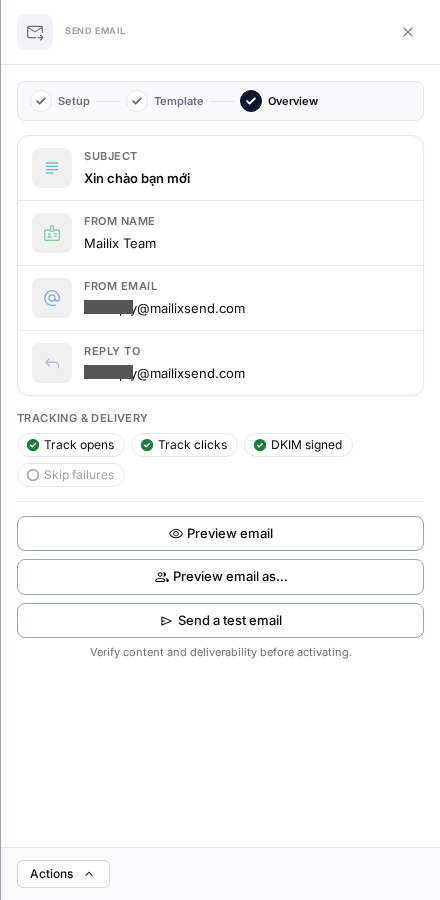 The report page contains Overview, Insights, Open log, Click log, Open/Click maps, and Bounce log areas. The page name uses the currently saved Email Subject.
Key metrics
| Metric | Meaning |
|---|---|
| Recipients | Number of distinct Subscribers with a record at the Email step |
| Delivered | Number of Subscribers whose send was recorded as successful |
| Failed | Number of Subscribers with a failed sending record |
| Opened | Number of distinct Subscribers with at least one recorded Open |
| Clicked | Number of distinct Subscribers with at least one recorded Click |
| Bounce | Number of Subscribers whose Email bounced |
| Unsubscribed | Number of Subscribers with an Unsubscribe action attributed to the Email |
| Spam reports/complaints | Number of Subscribers with a Complaint response recorded for the Email |
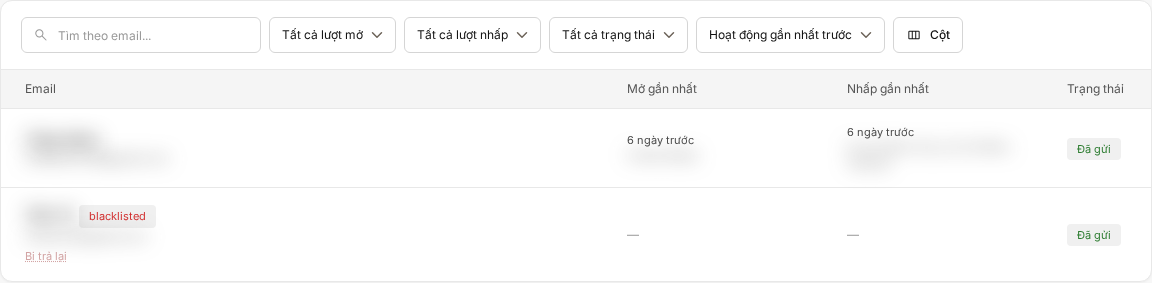 The report has no separate Skipped or Pending metric. A Failed run also does not necessarily appear in the Failed metric if no sending record was created for the Email.
What is the difference between Sent and Delivered?
In the Insights list, a successful record is labeled Sent. The Overview card calls the same result group Delivered.
In this report, Delivered means that Mailix recorded the send as successful through the sending method. This metric does not guarantee that the Email reached the inbox. A Bounce is recorded later and does not reduce the Delivered metric.
How is the Open rate calculated?
Mailix calculates:
Open rate = Number of distinct Subscribers who opened ÷ Number of Delivered Subscribers
Multiple Opens by the same Subscriber are counted only once in the rate. The Open log may still show multiple Open events for that person.
How is the Click rate calculated?
Mailix calculates:
Click rate = Number of distinct Subscribers who clicked ÷ Number of Delivered Subscribers
This is not the Click rate among people who opened. The report does not display a separate click-to-open metric.
Why might Opens or Clicks be zero?
- The Email has no successful sends.
- No Open or Click activity has been recorded.
- The corresponding Tracking was disabled for new sends.
- The Overview cards have not been calculated or refreshed since recent activity.
When Open or Click Tracking is disabled, those sends remain in the Delivered denominator. Therefore, the aggregate rate for the same Email step may be lower when some sends do not collect the corresponding interaction type.
Track clicked links
The Top links section lists the URLs with the most Clicks. The number beside a URL is the total number of Click events, so repeated Clicks by one person can increase it.
Open the Click log to view the Subscriber, URL, Click time, network address, and location when that data is available.

View Subscribers and sending history
Open Insights to view Subscribers with records at the Email step. You can:
- search by email address;
- filter by opened/not opened, clicked/not clicked, and sending status;
- sort by latest activity or latest send;
- add columns for List fields;
- open details for an Open, Click, Bounce, Complaint, or sending error when available.
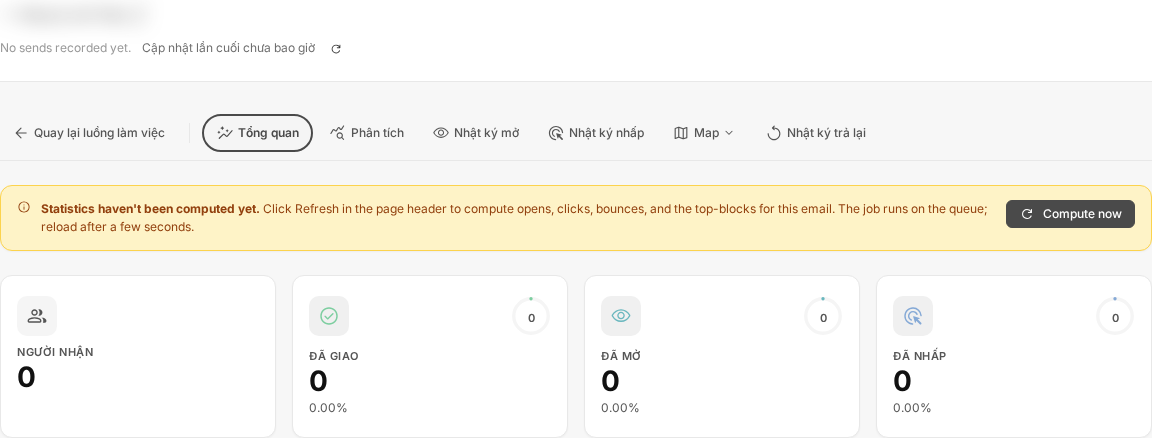 If the same person has multiple sending attempts at this step, the list may show multiple rows, while metric cards count distinct Subscribers. No CSV export action has been verified for the report.
Bounces, Unsubscribes, and Complaints
- Bounce: open the Bounce log to view the Subscriber, hard/soft type, reason, and time.
- Unsubscribe: Overview displays the count and rate; there is no separate log tab.
- Complaint/spam: Overview displays the count and rate. Details may appear on the Subscriber row in Insights; there is no separate spam tab.
After someone unsubscribes, is blocked, or is reported for spam, subsequent Email steps do not send to the now-ineligible record. The current Email report retains previously recorded data until the related data is deleted.
Open and Click maps
The Map menu lets you open a location map for Opens or Clicks. The map displays only events with suitable location data. The existence of Opens or Clicks does not mean the map will always have data points.
Reports and CONDITION steps
A CONDITION step checks recorded Open or Click data for the selected Email in the same Automation. Report logs and the CONDITION both depend on the corresponding Tracking data.
Important: If a subsequent CONDITION checks Opens or Clicks, enable the corresponding Tracking before sending. Disabling Tracking does not delete old events, but new sends do not create the data that the CONDITION needs to check.
When the Email is edited while the Automation is running
The report continues aggregating for the same Email step; editing the Subject, sender, content, or Tracking settings does not create a new report.
- Metrics may include sends from multiple versions of the content or sender.
- The page title reflects the currently saved value, not a separate label for each old send.
- Top links and the Click log may contain URLs from both old and new content.
- Tracking changes affect only sends after the change; old data is not deleted.
How does retrying a failed run affect the report?
Retry retains the run and begins processing again from the Failed step. Email steps completed earlier are not sent again.
If the retry creates another sending record at the Email step itself, Insights may show multiple attempts for the same person. Delivered and Failed count distinct Subscribers within each group, so one person can be counted in both groups.
How does deleting related data affect the report?
Important: Delete activation deletes the run and its related sending, Open, Click, and Unsubscribe records. After the metrics are refreshed, counts may decrease and the Subscriber row may no longer appear.
Permanently deleting the Subscriber record also deletes the sending and interaction data associated with that record. Unsubscribing does not delete recorded report data.
Important: Deleting the SEND EMAIL step deletes the step's separate Email, and its report is no longer accessible. Sending and interaction data associated with that Email is also removed from the report scope.
Does pausing the Automation delete the report?
No. Pausing does not reset metrics. After reactivation, new sends and interactions continue to be aggregated into the same report.
A manual trigger creates a normal run. If the Subscriber reaches the Email step and has a sending record, the result is counted together with the others; the report has no separate filter for manually triggered entries.
How quickly does data update?
Metric cards, Top links, countries, and first/last sending times use aggregates calculated on request; they are not automatically recalculated when you open the page. The Last updated line shows the oldest update time among the main data groups currently displayed.
To request recalculation:
- Select the Refresh icon.
- Wait for the notification that the request was accepted.
- Reload the page afterward to view the new metrics.
The Insights list, Open/Click/Bounce logs, and maps read existing data when the page loads. Consequently, they may change before the Overview cards. Do not treat the report as real-time data.
When the report has no data
Check whether:
- any Subscribers have reached the Email step;
- the Email step has content, a sender, and an available sending method;
- Insights contains a sending record or sending error;
- Open/Click Tracking was enabled for the sends you want to view;
- Overview data has been refreshed.
If the Email step or its attached Email was deleted, the report is no longer accessible. Permission to view the Automation is also checked again when the report page is opened directly. Some items may not appear depending on permissions, the plan, or Account configuration.
Frequently asked questions
Are test Emails counted in the report?
No. A test Email does not create a record in the Email step's report and does not increase the report's Opens or Clicks.
Does disabling Tracking delete old data?
No. The new setting applies to subsequent sends; events already recorded remain in the report.
Does editing the Email create a new report?
No. Metrics continue to be aggregated for the same Email step.
Why can Delivered plus Failed exceed Recipients?
After a retry, the same Subscriber may have both a failed and a successful record. They are counted once in each group but only once under Recipients.
Can I download the report?
The Automation Email report currently has no data export or download button.