Set Up the Campaign Sender and Content
After selecting Recipients, use the Setup step to name the Campaign, enter the email subject, define sender information, and configure Tracking options.
What will you be able to do?
After completing this article, you can:
- Distinguish the Campaign Name from the Email Subject.
- Set the Sender Name, Sender Email, and Reply-to Email.
- Enable or disable Open and Click Tracking.
- Set a Tracking Domain, UTM parameters, and sending server if the account supports them.
- Save the setup and move to the Template step.
Open the Setup step
In the Campaign creation workflow, complete the Recipients step and select Save & Continue. Mailix opens the second step:
Campaigns → Email → open a Campaign → Setup
You can also select Setup directly in the step bar while the Campaign can still be edited.
 This article applies to Regular Campaigns and Plain text Campaigns. A/B Tests use a separate setup workflow.
Name the Campaign
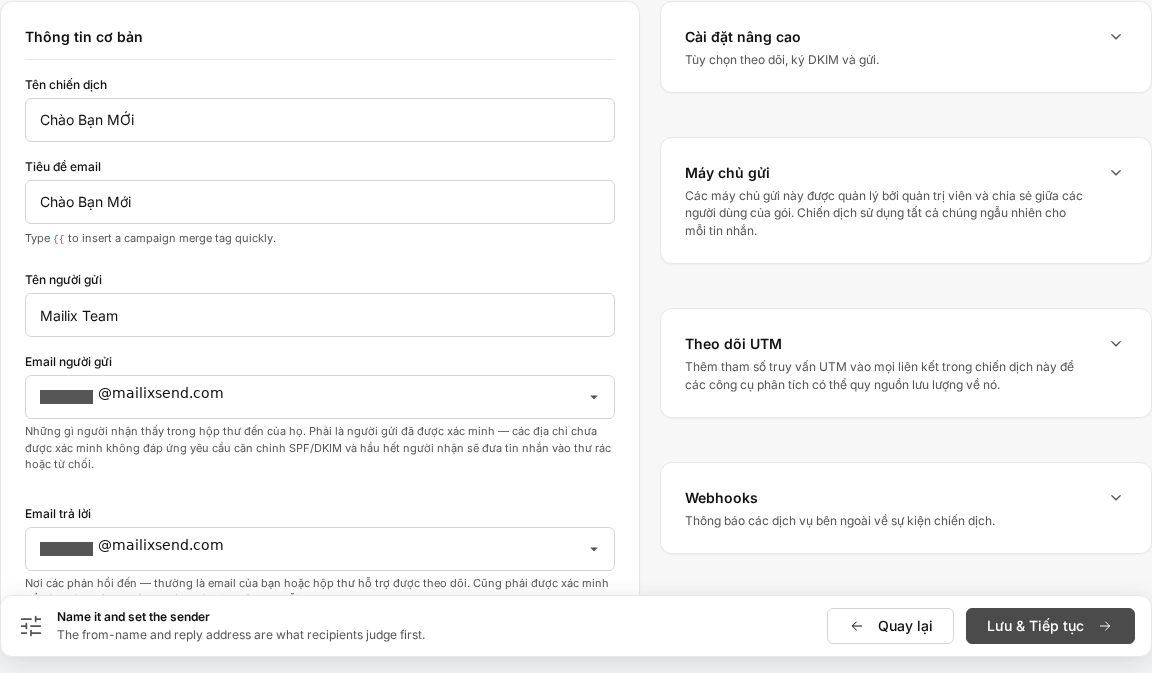
Enter a name in the Campaign name field. This name helps you identify and manage the Campaign in Mailix.
- This field is required.
- The interface accepts up to 150 characters.
- The initial name of a new Campaign is Untitled.
- The name does not have to differ from the names of all other Campaigns.
The Campaign name is not the content displayed in the subject line of the email sent to Subscribers.
Enter the email subject
Enter the content recipients will see in the subject line in the Email subject field.
- This field is required.
- The interface accepts up to 150 characters.
- The subject has no default value for a new Campaign.
Personalize the subject
The subject supports Merge Tags. Enter {{ to open the suggestion list, and then select the information you want to insert.
Available Merge Tags depend on the List marked Default and that List's Fields. When sending, Mailix replaces each Merge Tag with the corresponding Subscriber data.
A Merge Tag in the subject is different from a tag used to categorize Subscribers.
Where is the preview text?
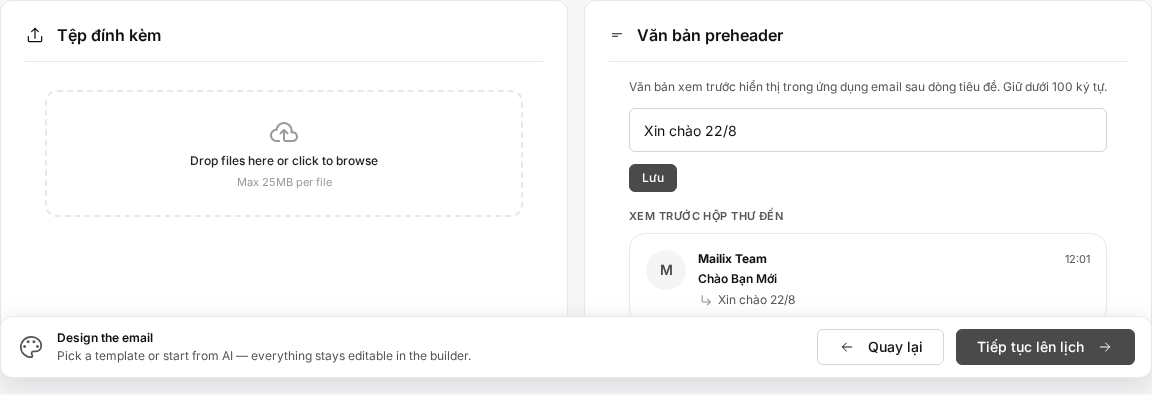
Preheader text is the preview text that may appear beside or after the subject in an email application. This field is not in the current Setup step.
You enter and save Preheader text in the Template step, in the inbox preview area. This is covered in Select and Design an Email Template for a Campaign.
Set up the sender
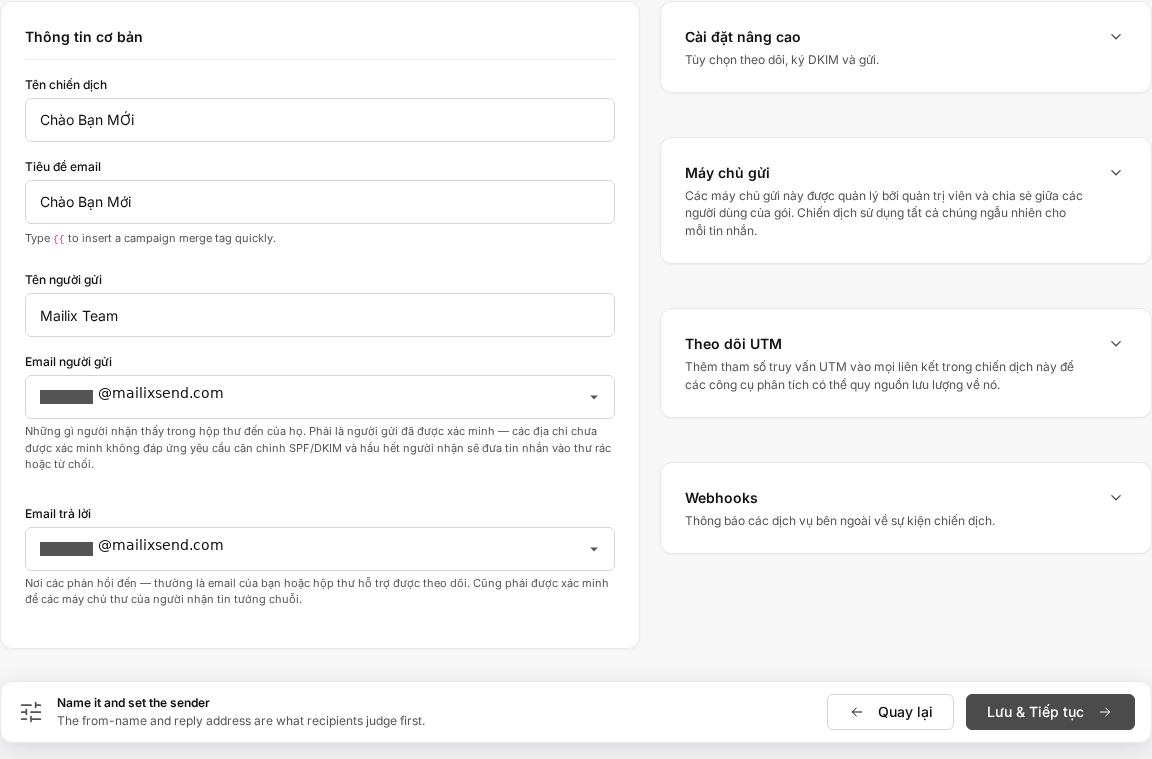
Sender information consists of three separate fields.
Sender Name
The Sender Name is the name recipients see in their inbox.
- This field is required.
- You can change the prefilled value.
- The saved value is used when sending the Campaign.
Sender Email
The Sender Email is the address displayed in the sender section of the email.
- This field is normally required and must have a valid email format.
- Mailix displays a list of verified addresses or Sending Domains for you to select.
- Depending on the sending-method configuration, Mailix may allow an unverified address or require a verified address.
- If the address does not meet the requirements, the interface displays a warning or prevents saving.
Some configurations use the sending server's default address. In that case, requirements for the Sender Email and Reply-to Email may differ from those in the standard form.
Reply-to Email
The Reply-to Email receives responses when a recipient selects Reply in their email application.
- This field is normally required.
- The value must have a valid email format.
- The Reply-to Email can differ from the Sender Email.
- When you select a Sender Email from the suggestion list and the Reply-to Email is blank, Mailix automatically fills the Reply-to Email with the same address. You can still change it afterward.
Where do the default values come from?
When you open the Setup step, Mailix processes sender information in this order:
- Retain the Sender Name and Sender Email already saved in the Campaign, if present.
- If these fields are blank, use the values from the List marked Default in the Recipients step.
- The Reply-to Email is not automatically taken directly from the List settings. This field may be filled when you select a Sender Email from the suggestion list.
If you change the Default List after saving sender information, Mailix retains the Campaign's existing values instead of automatically overwriting them.
Track Opens and Clicks
Open Advanced settings to view the two Tracking options. Both are enabled by default when a new Campaign is created.
Open Tracking
When Open Tracking is enabled, Mailix records Opens for display in the Campaign report.
If it is disabled, Mailix does not record Open data for this Campaign. Metrics and reports related to Opens will not have the corresponding Tracking data.
Click Tracking
When Click Tracking is enabled, Mailix records when recipients click links in the email content.
If it is disabled, Mailix does not create Click Tracking data for the Campaign's links. Click reports will not have the corresponding data.
Tracking Domain
If the service plan allows a Tracking Domain, the Tracking Domain section appears under Advanced settings.
You can:
- Select a verified Tracking Domain.
- Select No (use default) to use Mailix's default Tracking address.
- Search the list if the account has multiple domains.
Depending on the service plan and account configuration, this section may not appear. Some plans may require a Campaign to select a Tracking Domain before sending.
If there is no verified domain, the interface provides a link to the area for adding one. See Set Up a Tracking Domain for the complete workflow.
UTM Tracking
Open the UTM Tracking section and enable Enable UTM Tracking if you want to add traffic-source information to external links in the email.
Mailix provides five optional fields:
| Field | Identification purpose |
|---|---|
| Source | The source that generated the visit |
| Medium | The marketing channel for the visit |
| Campaign name | The name used in the analytics tool |
| Term | Keyword information when needed |
| Content | Distinguishes links or content positions |
Each field can be left blank and accepts up to 255 characters. A blank UTM field is not added to the link.
UTM parameters are applied to external HTTP or HTTPS links. Mailix does not add UTM parameters to email addresses, phone numbers, or internal system links. If a link already has the same UTM parameter, the existing value in the link is retained.
Select a sending server
The Sending server section displays the sending methods available to the Campaign.
Behavior depends on the service plan:
- If the sending method is managed by the service plan, you may be able to view the list but not change the selection.
- If the account can select its own sending servers, you can use all available servers or narrow the selection to specific servers.
By default, Use all servers randomly is enabled. When you disable this option, you need to select at least one server. If you select multiple servers, Adjust weights lets you distribute email volume proportionally among them.
If there is no available sending server, the screen displays a message in this section. The Campaign needs an available sending method before it can be launched.
Note: Selecting specific sending servers depends on the service plan, account permissions, and system configuration. Not every account can change this section.
Campaign Webhooks
The Webhooks section is optional and is intended for accounts that need to notify an external service when a Campaign has an Open, Click, or Unsubscribe event.
Select Manage to view the number of configured Webhooks or add a Webhook. Webhook management is saved through a separate workflow and does not depend on the general save button in the Setup step.
If you do not use an external technical integration, you can skip this section.
Save the setup
After reviewing the information:
- Enter the Campaign name and Email subject.
- Check the Sender Name, Sender Email, and Reply-to Email.
- Check the Tracking options and advanced settings you need.
- Select Save & Continue.
Mailix validates the data before saving. If it is valid, the changes are retained and you move to the Template step.
This step does not automatically save the entire form. If you leave the page before selecting Save & Continue, unsaved changes may be lost.
You can select Back to return to the Recipients step. Save the setup first if you want to retain the data you just entered.
Common errors
- Campaign name missing: Enter the name used to manage the Campaign.
- Email subject missing: Enter the subject line recipients will see.
- Sender Name missing: Add the sender's displayed name.
- Invalid Sender Email or Reply-to Email: Check the address format.
- Sender Email not permitted: Select an address or Sending Domain that meets the account configuration.
- No server selected after disabling Use all: Select at least one server or enable the use-all mode again.
- Selected server is no longer available: Select again from the current list.
- UTM value is too long: Shorten the field that exceeds the 255-character limit.
- Cannot edit: The account may lack permission, or the Campaign may no longer allow changes.
Error messages appear at the top of the page and beside the related field. Correct the information and select Save & Continue again.
Frequently asked questions
Is the Campaign Name the Email Subject?
No. The Campaign Name is used for management in Mailix. The Email Subject is the content recipients see in their inbox.
Do recipients see the Campaign Name?
The Campaign Name is not used as the subject line sent to recipients. Recipients see the Email Subject, sender information, and email content.
Can I use a different Sender Email and Reply-to Email?
Yes. The Sender Email determines the address displayed in the sender section; the Reply-to Email determines where responses are received.
Why does Mailix prefill sender information?
When the Campaign has no sender information of its own, Mailix uses the Sender Name and Sender Email from the Default List.
Can I change sender information?
Yes. You can edit the fields while the Campaign still allows changes. The Sender Email must meet the Verification requirements or rules of the applicable sending method.
Why are some options missing or read-only?
The Tracking Domain and ability to select a sending server depend on the service plan, account permissions, and system configuration.
Does disabling Open Tracking affect Reports?
Yes. Mailix does not record Campaign Opens when this option is disabled, so related Reports do not have Open Tracking data.
Does disabling Click Tracking affect Reports?
Yes. Mailix does not record Clicks on Campaign links when this option is disabled, so related Reports do not have Click Tracking data.
Can I return to edit the Setup step?
Yes, while the Campaign still allows editing. Select Setup in the step bar, update the information, and save it again.
Is this the step where I design the email content?
No. The Setup step stores identification, sender, and Tracking information. You select a template, design the content, and enter Preheader text in the Template step.