Copy, Rename, and Delete Email Templates
The Template library provides actions for creating a copy, changing the displayed name, or deleting a Template you no longer need. These actions apply to account-owned Templates, including Templates that use the builder and Templates that use custom HTML.
Open a Template's action menu
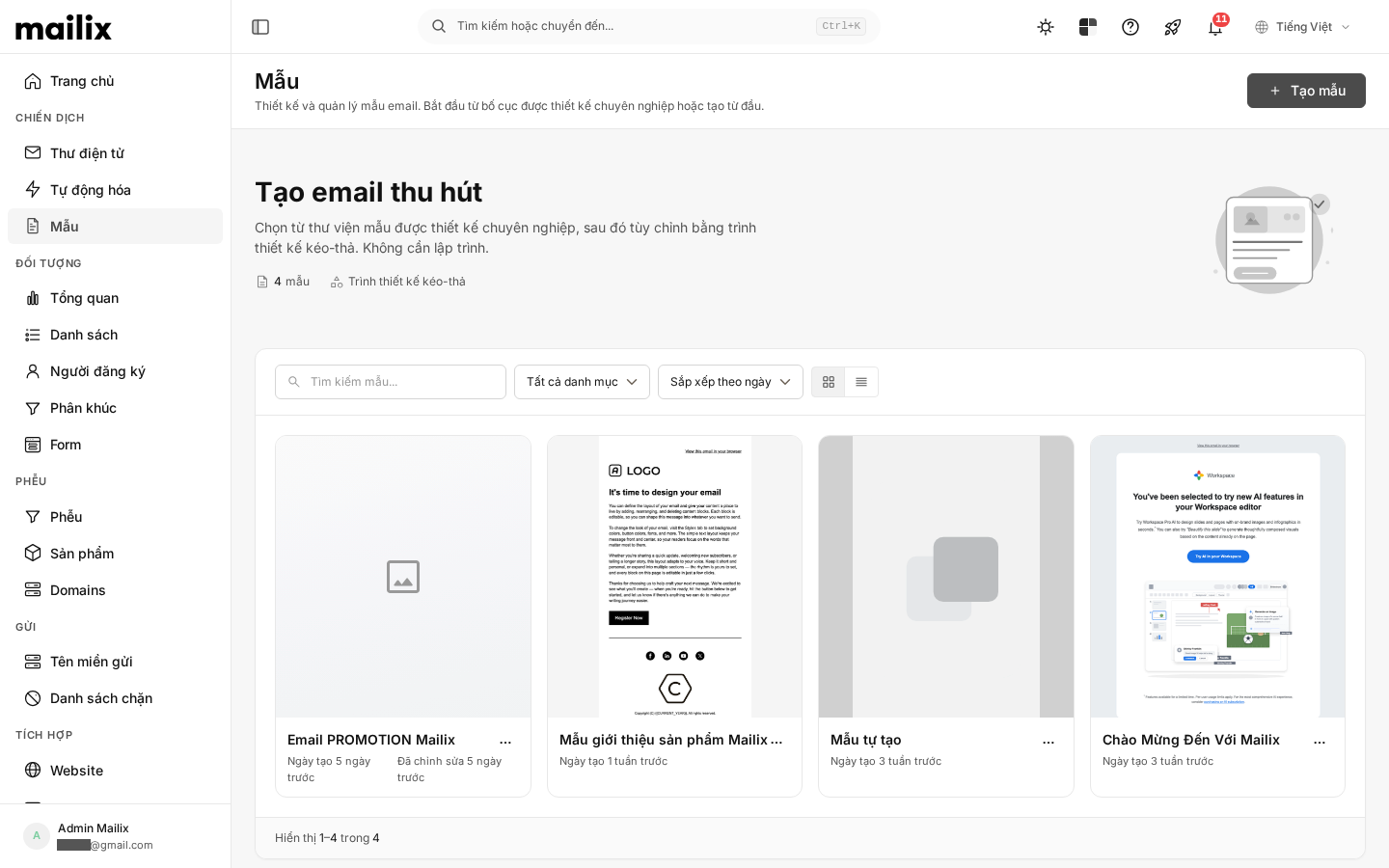
From the main menu, select:
Campaigns → Templates (Chiến dịch → Mẫu)
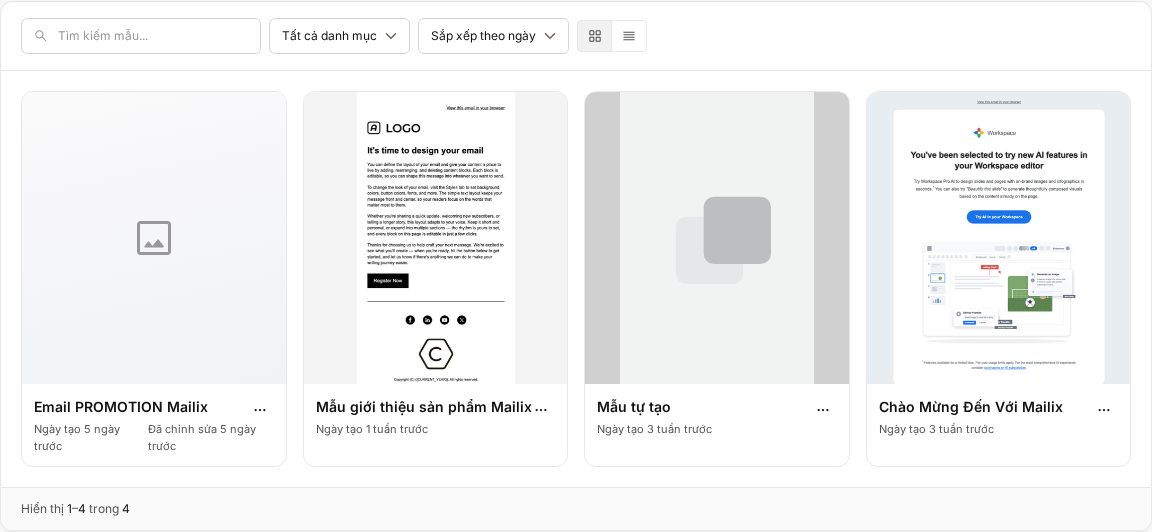
Find the Template you want to manage, then select the three-dot icon on its card or row.
The menu may include:
- Open designer or Edit HTML, depending on the Template type;
- Edit as custom HTML for a Template currently using the builder;
- Preview;
- Rename;
- Copy;
- Delete.
In grid view, some labels may appear in English. The corresponding Vietnamese UI labels are Copy (Sao chép), Rename (Đổi tên), and Delete (Xóa).
System Templates are not in this management list. Use a System Template as the source when creating a new Template instead of editing, renaming, or deleting it directly.
Copy a Template
Copying creates an independent Template in the same account. The original Template is not changed.
- Open the Template menu.
- Select Copy (Sao chép).
- Check or change Name for the copy (Tên cho bản sao).
- Select Create copy (Tạo bản sao).
The prefilled name has the form Copy of [Template name]. A name is required but does not need to be unique, so you can use a name that matches another Template.
After the copy succeeds, the dialog closes and the library refreshes to show the new Template.
What does a copy retain?
A copy retains:
- HTML content;
- design and layout data;
- theme;
- Merge Tags and links in the content;
- category;
- thumbnail, if the original Template has one;
- the Template's editing mode.
Images and resources referenced in the content continue to use their existing addresses. Copying a Template does not create a separate copy of each resource file.
The Undo/Redo history is not copied because it exists only in the current editing session.
If the Template uses the builder
The copy continues to open in the builder and retains the saved content, layout, and design settings.
If the Template uses custom HTML
The copy remains a custom HTML Template, retains the HTML content, and opens with Edit HTML. Copying does not switch an HTML Template back to the builder and does not require another HTML-switch confirmation.
Does copying a Template affect existing Campaigns?
No. A copy does not replace the original Template in any Campaign and is not automatically applied to an existing Campaign.
When a Template is selected in a Campaign or A/B Test variant, Mailix creates a separate content copy for that context. Creating another copy in the library does not change content that was used previously.
Rename a Template
Renaming changes only the displayed name used to find and identify the Template in the library.
- Open the Template menu.
- Select Rename (Đổi tên).
- Edit the Template name (Tên mẫu) field. The current name is prefilled.
- Select Save (Lưu).
The name cannot be empty. Mailix does not require unique names, so two Templates may have the same name.
After saving succeeds, the dialog closes and the library displays the new name.
Does renaming change the content?
No. Renaming does not change:
- content or layout;
- builder or custom HTML mode;
- category;
- thumbnail;
- Merge Tags, links, or resources in the content.
Renaming a Template in the library also does not rename a Campaign or edit the content of Campaigns that used the Template previously.
Delete a Template
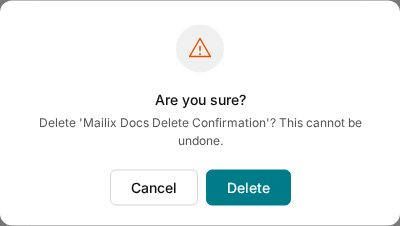
Important: Deleting a Template is permanent. Mailix has no Trash, Undo, or Template-recovery action in the interface. Copy the Template or check it carefully before confirming deletion.
To delete a Template:
- Open the Template menu.
- Select Delete (Xóa).
- Read the message showing the Template name and the warning that the action cannot be undone.
- Select Delete in the confirmation dialog.
After processing, the library reloads. The deleted Template no longer appears for editing, previewing, or selection in a new Campaign.
What data is deleted with a Template?
Deleting a Template removes the account-owned Template and its design or HTML content, layout data, category relationship, and Template-specific thumbnail.
Images or files referenced from the resource library are not deleted by this action. If you no longer need them, manage them separately in the resource area.
Deletion works the same way for builder Templates and custom HTML Templates.
Does deleting a Template affect Campaigns that used it previously?
No. Regular Campaigns, scheduled Campaigns, sent Campaigns, and A/B Test variants that selected the Template all retain their separate content copies.
Deleting a Template from the library does not remove the content or reports for those Campaigns. However, the deleted Template is no longer available for a new Campaign or variant.
What is different about custom HTML Templates?
Name-management and deletion actions are the same as for builder Templates. The differences concern copying and editing:
| Action | Builder Template | Custom HTML Template |
|---|---|---|
| Copy | The copy continues to use the builder. | The copy continues to use HTML. |
| Rename | Does not change the mode. | Does not change the mode. |
| Edit | Opens the builder. | Opens the HTML editor. |
| Delete | Permanently deletes the Template. | Permanently deletes the Template. |
Copying or renaming an HTML Template is not a way to return to the visual builder.
Can I manage multiple Templates at once?
The library currently has no multi-select box or bulk-action menu. Copy, rename, or delete each Template from its own menu.
When an action is unavailable
- The Template library is not visible: ask the account administrator to check your Template-view permission.
- The menu is visible but Copy, Rename, or Delete is unavailable: the account may have view-only access. You need Template-management permission.
- The copy or new name is empty: enter a name and submit the form again.
- The Template no longer exists: reload the library. It may have been deleted in another session.
- Copying or renaming fails: keep the dialog open, read the notification, and try again.
- The Template still appears after deletion: reload the list and check your permissions; an unauthorized action may not delete the Template.
No separate quota or Template-count limit has been verified for these actions.
Frequently asked questions
Does copying create a completely independent Template?
Yes. You can edit or delete the copy without changing the original Template. Image and resource addresses in the content may still be shared.
Can a copied HTML Template return to the builder?
No. The copy retains custom HTML mode.
Can two Templates have the same name?
Yes. A name is required but does not need to be unique.
Does renaming change the content?
No. It changes only the Template's displayed name in the library.
Does deleting a Template delete old Campaigns?
No. Campaigns that used the Template retain their own content copies.
Can a deleted Template be restored?
There is no restore action in the interface. Treat deletion as permanent.
Does deleting a Template delete uploaded images?
No. Deleting a Template does not clean up files referenced in the resource library; the Template-specific thumbnail is deleted with the Template.
Can I delete a System Template?
No. Customers manage only account-owned Templates. System Templates are used as sources when creating new Templates.
Next steps
- Email Template Overview
- Create an Email Template
- Design an email with the builder
- Create an Email Template with custom HTML
Publication note: Replace the
(...)links with the official Customer Docs URLs before publishing this article to the production website.