Read the Campaign overview report
The overview report helps you evaluate the results of a Campaign after it starts sending. This report covers the entire Campaign, unlike the report for each Email step in an Automation.
Open the overview report
Go to Campaigns, open the Campaign you want to view, then select Overview.
 You need permission to view the Campaign. When the Campaign has no recipients or has not processed any sends, the metrics may be 0.
Key metrics
| Metric | Meaning |
|---|---|
| Recipients | The number of Subscribers within the Campaign's recipient scope |
| Delivered | The number of sends Mailix recorded as successful |
| Failed | The number of sends recorded as errors |
| Opened | The number of unique Subscribers with at least one recorded open |
| Clicked | The number of unique Subscribers with at least one recorded click |
| Bounce | The number of unique Subscribers with a bounce response |
| Unsubscribed | The number of unique Subscribers who unsubscribed from the Campaign |
| Complaints | The number of unique Subscribers with a recorded complaint response |
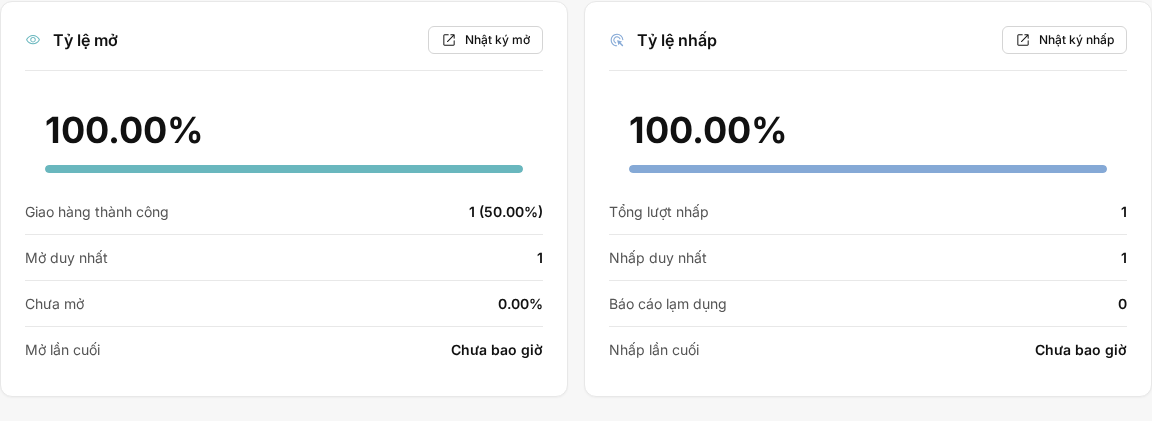 Delivered here means the sending method accepted the message or Mailix recorded the send as successful. This metric does not guarantee that the message reached the inbox. A later bounce also does not reduce the Delivered count.
What are the rates calculated from?
- Delivery rate = Delivered ÷ Recipients.
- Open rate = Unique Subscribers who opened ÷ Delivered.
- Click rate = Unique Subscribers who clicked ÷ Delivered.
- Bounce, unsubscribe, and complaint rates = the number of unique Subscribers with the corresponding event divided by Delivered.
These rates are 0 when there have been no successful sends. See Understand open rates and opens and Understand click rates and links to interpret engagement data correctly.
Go from the overview to detailed data
From the report navigation bar, you can open:
- Subscribers to view results by Subscriber;
- Links to view the URLs that were clicked;
- Map to view the geographic distribution of opens and clicks;
- Sending logs to view delivery, bounce, complaint, open, click, and unsubscribe logs.
 The log pages include email search, time-based sorting, and pagination. They reflect individual events, while the overview cards generally use unique Subscriber counts.
How is the report updated?
The overview cards use the most recently calculated aggregate data. The Last updated line indicates how current this section is. Select the refresh icon to request an update; the new numbers may not appear immediately in the same view.
Open, click, and sending logs are read separately, so they may appear before the overview cards are updated. Therefore, a temporary difference between the logs and the overview does not necessarily mean data has been lost.
When the report has no data
Check the following in order:
- Whether the Campaign has started sending.
- Whether any Subscribers are within the sending scope.
- Whether there have been successful sends or all sends are still pending or have failed.
- Whether open and click tracking was enabled for the messages that were sent.
- Whether the overview was refreshed after the latest activity.
Frequently asked questions
Do Recipients always equal Delivered plus Failed?
Not necessarily. Some recipients may still be pending or may have been skipped before a sending result was recorded.
Is the click rate the number of clicks divided by the number of opens?
No. The Campaign report divides the number of unique Subscribers who clicked by Delivered.
Is the Campaign report the same as an Automation Email report?
No. This report covers an entire Campaign. An Automation report belongs to an individual Email step in the flow, although some rates are calculated in the same way.
Next steps
Understand open rates and opens