Design a Form
The designer lets you arrange Subscription fields and edit the popup's content and formatting before placing the Form on a Website.
Open the designer
Go to Forms, then select the Form name or Design.
 The top bar displays the name, status, device view, Undo, Redo, Preview, Save, and Close. The sidebar contains Layout, Design, and Settings.
Add fields
The Form's field group comes from the linked List. Drag the field you need from the sidebar into the Form area.
Available field types depend on the List and include Email, text, text area, number, dropdown, multiselect, checkbox, radio button, date, date and time, and phone.
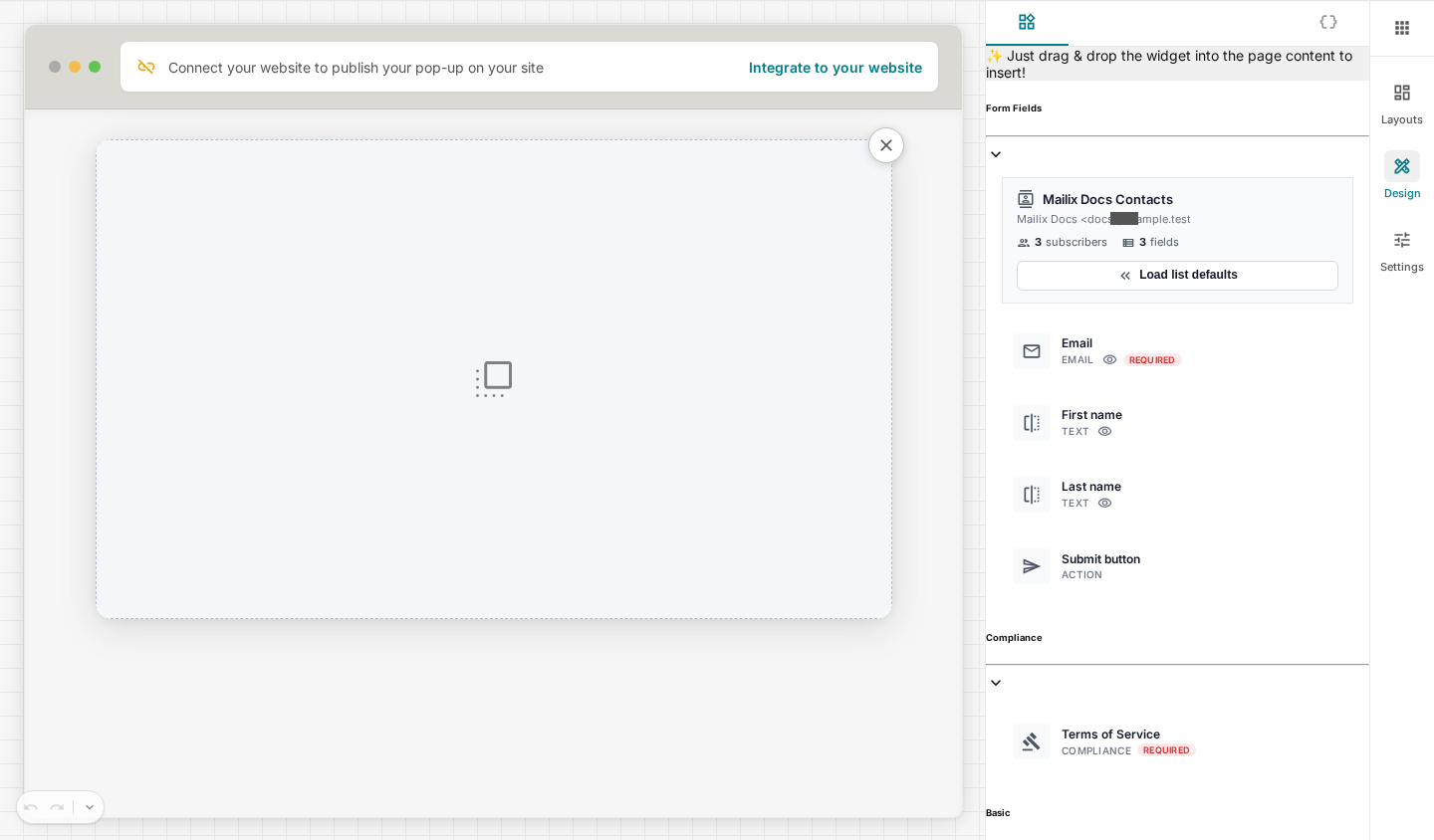 Each Form must contain exactly one Email field. A field cannot appear more than once.
Required fields
Every field marked as required in the List must also be present in the Form. The field's required status is locked in the designer; to change it, open the List's field management area.
Select Load List defaults when you need to restore the default fields and submit button to the Form area.
Note: After changing the List, reload the default fields and check the entire Form. A field from the old List cannot be saved if it does not exist in the new List.
Edit field labels and display
Select a field in the design area to open its applicable controls. Depending on the field type, you can edit the label, placeholder, initial value, error message, and presentation.
Options for dropdown, checkbox, or radio fields come from the List field configuration. Update them in the List if you need to change the available choices.
Add a submit button and consent checkbox
The Form needs at least one Submit button so visitors can complete their Subscription. You can edit the button text and formatting.
The designer also provides a terms/consent component. Each Form can contain only one such component, and it must be inside the Form area. If it is required, the visitor must select it before the data can be saved.
Adjust layout and appearance
You can drag and drop blocks to rearrange content, add text or images, and use an element's control panel to adjust color, font, background, spacing, border, and alignment when those options appear.
The desktop, tablet, and phone buttons change the viewport so you can check the layout. This is a design view; also check the actual Website after publishing.
Change the Layout
Open Layout and select another Template to replace the initial appearance.
Important: Changing the Layout replaces the current design content with a copy of the new Template and saves the change immediately. No function has been verified for restoring the old content after the page reloads. Make sure you intend to replace the entire layout before selecting one.
Form and popup display settings
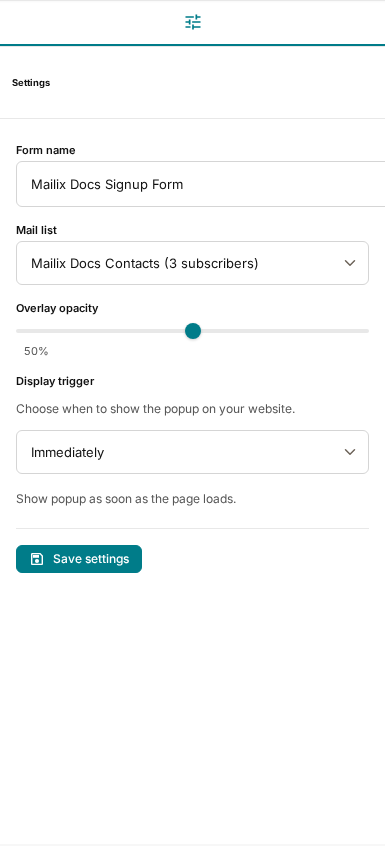
Open Settings to edit:
- Form name;
- List;
- overlay opacity;
- when the popup appears;
- the delay in seconds or clicked element, depending on the display method.
Select Save settings. Settings and design content are saved through two separate actions.
Note: The On exit intent display method may cause the browser to show an additional leave-page warning. Test the experience on the actual Website before using it.
Preview
Select Preview to view the version you are editing, even before saving its content. Previewing is not the same as publishing and does not prove that the Website connection code works.

Save the Form
Select Save or use Ctrl+S/Cmd+S. Mailix saves only when the Form meets the main requirements:
- it contains exactly one Email field;
- it has a Submit button;
- it contains all required List fields;
- it does not repeat a field;
- it does not contain fields deleted from the List;
- the terms component is not duplicated and is correctly placed inside the Form.
No autosave has been verified. The Close button returns to the Forms page without warning about unsaved changes. Select Save and Save settings before closing.
Undo and Redo
Undo and Redo apply to changes made in the current design session. After reloading the page or changing the Layout, do not rely on this history to restore old content.
When you cannot save
Read the error list in the Unable to save form window, correct each field, and save again. If you recently changed List fields, reload the designer to obtain the latest field list.