Configure Email in a Workflow
The SEND EMAIL step sends an email to each Subscriber when they reach the corresponding point in the workflow. You need to configure sender information, content, and tracking before activating the Automation.
Add an Email step
- Open the Automation in the designer.
- Select + where you want to send the email.
- Select SEND EMAIL.
- Select the newly added step to open its settings.
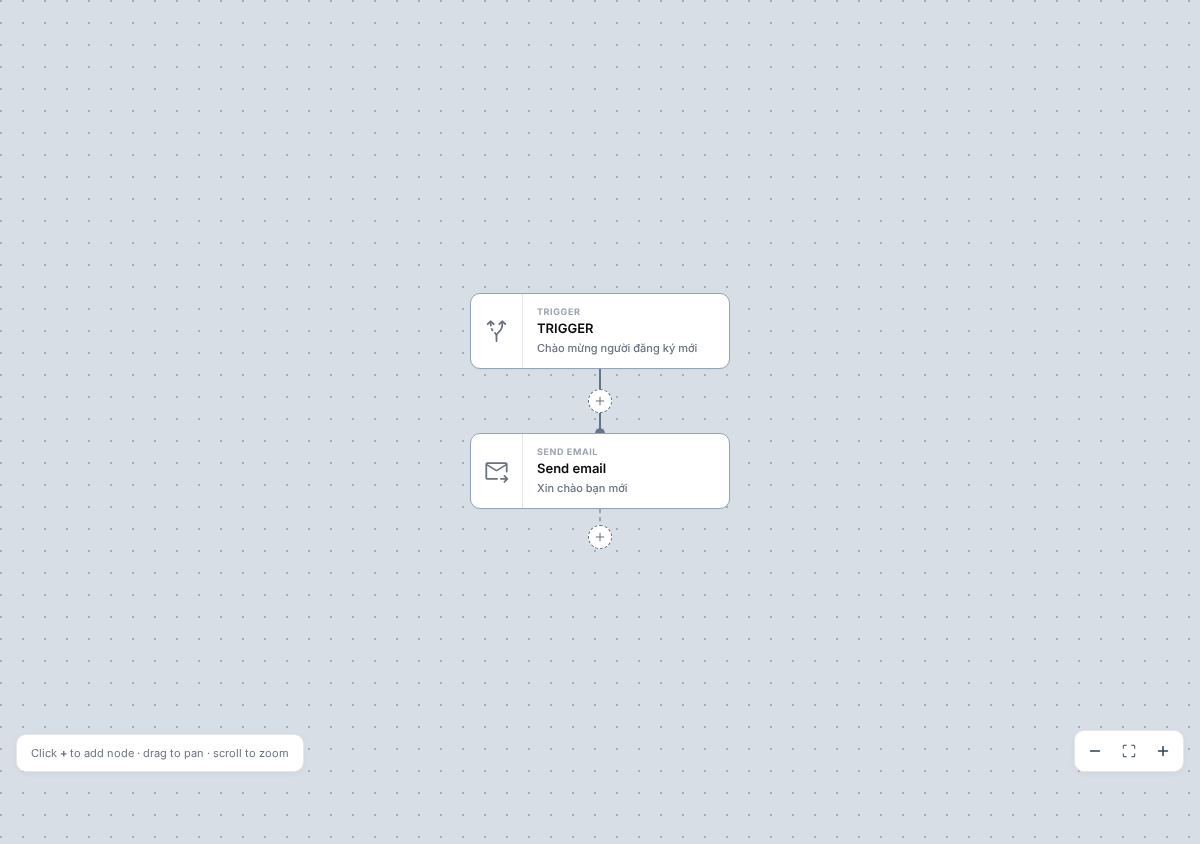 The step is immediately added and saved to the workflow, but initially has no email or content. You can still add subsequent steps, but the Email step cannot send until both Setup and Template are complete.
How is an Automation Email different from a Campaign?
An Automation email is separate content attached to a step in the workflow. It is not a Campaign and does not appear in the Campaigns library.
You do not select a recipient List or Segment for each Email step. Recipients are Subscribers from the primary List who are moving through the Automation and have reached this step. Email is sent per run instead of as a bulk or scheduled Campaign send.
Each Email step has its own Reports for sending, Opens, and Clicks.
Set the email subject
In Setup, enter the Subject. This is the subject recipients see in their inbox and also the label used to identify the Email in the designer.
- Subject is required and limited to 200 characters.
- Email does not have a separate internal name field.
- The Setup screen currently has no preheader field.
Configure the sender
Complete these fields:
- From name: sender name, required, with a maximum of 100 characters;
- From email: a valid sender address, required;
- Reply-to: the address that receives replies, optional. If left blank, Mailix uses the From email address.
From name and From email are prefilled from the primary List when that List has the corresponding information. Select a sender address available to the Account; whether an address can be used may depend on sender Verification settings and the sending method.
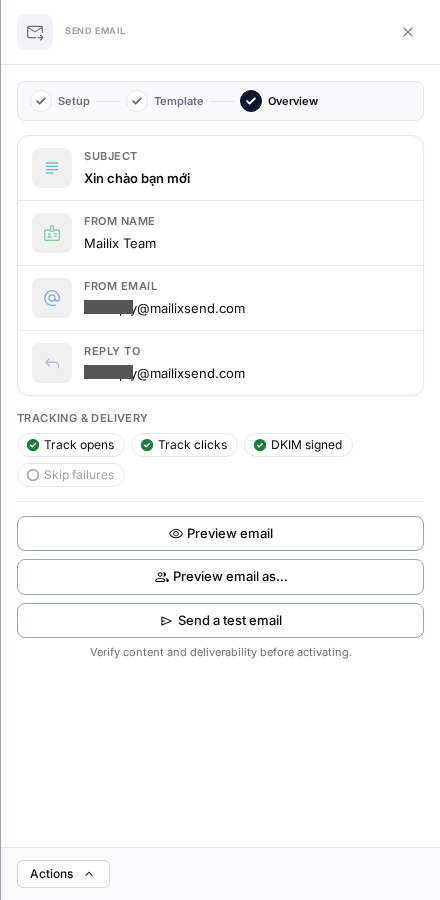 Select Save & Continue to create the Email section and proceed to content selection. This is a separate save action; your entries are not automatically saved before you select this button.
Select or design content
After saving Setup, select Browse templates. You can:
- select System to use a system template;
- select My templates to use an Email Template from the Account;
- select Custom HTML to upload a ZIP file, edit source code, or use the visual editor.
The library displays the name, a preview image, and up to 12 templates per page. No search or category filter has been verified on this screen.
After content is available, select Edit content to open the appropriate builder or HTML editor. The builder saves content through its own save action. The Email screen has no separate Plain text mode; Mailix generates the text part from the HTML content when preparing to send.
Use custom HTML
On the Custom HTML tab, you can:
- upload a ZIP file containing
index.htmland related assets; - write or paste HTML in the source editor with preview;
- edit content in the visual editor.
Applying custom HTML replaces the Email step's current content. If you later select another template, the new template also replaces the content attached to the step. Check the preview before making the change.
Use an Email Template
When you select a system or Account template, Mailix creates a separate content copy for this Email. Therefore:
- subsequently editing or deleting the source template does not update or remove the Email content;
- editing the Email in the Automation does not modify the source template;
- selecting Change template replaces the current content copy with a new copy.
Personalize with Merge Tags
You can use Merge Tags for the email and Subscriber fields. Custom fields come from the Automation's primary List. A Merge Tag is not a Tag used to categorize Subscribers.
The standard preview uses sample data. You can also select Preview email as… to view the content with data from a Subscriber in the primary List.
If a Subscriber has no value for a field, its replacement content may be blank. Preview with suitable data before activating the Automation.
Unsubscribe and system links
The builder supports system links such as Unsubscribe, view in browser, and update information. Links are generated for the Subscriber and List associated with the send.
Depending on the plan and system configuration, the builder may require an Unsubscribe link before saving. Successfully saving custom HTML does not by itself prove that the Email meets every sending requirement; retain a valid Unsubscribe link in the content and check the preview.
Track Opens and Clicks
In Setup, two options are enabled by default:
- Track opens: records Opens;
- Track clicks: records Clicks through tracked links.
This data appears in the Email's Reports and is used by a subsequent CONDITION step.
Important: If a CONDITION step checks Opens or Clicks for this Email, keep the corresponding type of Tracking enabled. Without suitable Tracking data, the Subscriber follows the NO branch after the waiting period expires.
A CONDITION step can select only an Email in the same Automation. The designer does not enforce that the selected Email precedes the CONDITION, so you need to verify the logical order yourself.
Select a sending method
The Email step does not have its own sending-server selector. When sending, Mailix selects from the Account's available sending methods according to the current configuration and weights.
If the Account has no available sending method or no active plan, the Email cannot be sent. There is also no separate sending schedule for each Email; to delay it, place a WAIT step before the Email.
Preview the Email
After selecting content, select Preview email to open the HTML preview personalized with sample data. Select Preview email as… if you want to choose a Subscriber from the primary List.
The preview uses the most recently saved content and does not send a real email.
Send a test Email
- In the Email overview, select Send a test email.
- Enter one valid email address.
- Confirm the send.
You can enter only one address at a time. The test Email uses sample Subscriber data and the Account's sending method. A successful test consumes one send from the sending quota; a failed test does not. A test Email does not create an Automation run or sending metrics for the Email in the workflow.
Save the Email
The sections are saved independently:
| Section | How to save |
|---|---|
| Subject, From name, From email, Reply-to, and Tracking | Select Save & Continue when creating, or save again on the Setup tab when editing |
| Template selection | Applied immediately after successful selection |
| Builder content | Use the builder's save action |
| Custom HTML | Use the save action in the HTML editor |
| ZIP upload | Content is applied when the import succeeds |
No general autosave has been verified. Closing the Setup panel or leaving the content editor before saving may discard unsaved changes.
When is an Email step considered complete?
In the designer, the warning is removed from the Email step when:
- the Email section has been created and attached to the step;
- the Email has a template or HTML content.
Also check the Subject, sender, content, system links, sending method, and quota before activation. Mailix does not check all these items when you select Activate; therefore, being able to activate does not guarantee that the Email can be sent.
What happens when a Subscriber reaches the Email step?
Mailix checks the Subscription status, selects a sending method, creates personalized content, and then sends it.
- If the sending method accepts the email, Mailix records the send and moves the Subscriber to the next step. “Sent” does not mean the email is guaranteed to reach the inbox.
- If the sending method rejects the email or the Subscriber is no longer eligible to receive it, Mailix records the unsuccessful send and the workflow continues to the next step.
- If a system error occurs, no sending method is available, the sending quota is exhausted, or the configuration cannot be processed, the run may stop with an error status.
- If the sending method is temporarily subject to rate or time restrictions, the send is delayed for a later retry.
Subscribers who have unsubscribed or are blocked
Mailix creates an outgoing email only when the Subscriber record is currently Subscribed. Subscribers who have unsubscribed, are unconfirmed or blocked, or have been flagged because of a spam complaint are not restored to Subscribed status merely because they reach an Email step.
That send is recorded as unsuccessful, and the workflow continues along the current connection. Subsequent non-Email steps can still be processed.
Email Verification statuses such as Deliverable, Risky, or Unknown are not used as separate filters in the current Email step. Eligibility at send time is based on Subscription status; do not extend Campaign Verification filters to Automation behavior.
Sending quota
Real Emails and successful test Emails both use the active plan's sending quota. When the quota is exhausted, a run may stop at the Email step until the problem is resolved. The exact quota depends on the plan and Account configuration.
Edit an Email while the Automation is active
Mailix allows you to edit sender information, content, the template, and Tracking while the Automation is ACTIVE, without a general warning.
Important: Subscribers who have already received the Email are not changed or sent it again. Subscribers who have not reached the step use the latest saved configuration when they arrive. An Email already being processed is not guaranteed to switch to the new content.
Tracking changes affect only data that can be collected from subsequently sent emails; they do not recreate Open or Click data for emails already sent. For major changes, pause the Automation, save and preview, and then reactivate it.
Email and the Open/Click CONDITION step
When configuring a CONDITION, you select an Email in the same Automation and a waiting period for Open or Click activity.
- Keep the corresponding Tracking enabled before the Email is sent.
- Place the Email before the CONDITION on the Subscriber's path.
- Do not delete an Email referenced by a CONDITION.
If you delete the Email step, the step's separate content is also deleted. An existing CONDITION does not fully report the error automatically; when the Email or Tracking data can no longer be found, the result follows the NO branch. Update or delete the related CONDITION before deleting the Email.
When an Email is not sent
Check these items in order:
- The Email step has content and no longer shows a warning.
- Subject, From name, From email, and Reply-to have been saved with valid values.
- The Account has an active plan, an available sending method, and remaining quota.
- The Subscriber remains Subscribed to the primary List.
- The content contains the system links required by the Account configuration.
- The Automation is ACTIVE, and the Email step is correctly connected in the workflow.
If the run has an error status, retry it from the Subscriber management area; do not add a duplicate Email step merely to send it again.
Frequently asked questions
Is an Automation Email a Campaign?
No. It is an email belonging to a workflow step and is sent to each Subscriber when they reach that step.
Do I need to select a recipient List for an Email step?
No. The Automation is already attached to a primary List; recipients are Subscribers moving through the workflow.
Does editing an Email Template update the Automation Email?
No. When you select a template, Mailix creates a separate content copy for the Email.
Does a test Email use the sending quota?
Yes. A successful test uses one send; a failed test does not deduct a send.
Does disabling Tracking affect a CONDITION step?
Yes. A CONDITION without the corresponding Open or Click data follows the NO branch when its waiting period expires.
Do unsubscribed Subscribers receive Automation Emails?
No. Mailix does not create an outgoing email for a record that is no longer Subscribed.
Can an Email step send more than once in the same run?
No. The workflow has no loops; each Email step is traversed at most once during a run. An Automation can still contain multiple distinct Email steps.
Does Move to list before an Email affect sending?
It can. Move to list unsubscribes the record from the source List while the current run remains attached to that record. When it reaches the subsequent Email, the record is no longer Subscribed, so the Email is not sent.