Choose a Starting Condition
A starting condition identifies the event that causes Mailix to evaluate adding a Subscriber to an Automation. Choose a condition type, complete its options, and connect it to the first workflow step.
What is a starting condition?
When an Automation is Enabled:
- A matching event occurs for a Subscriber in the primary List.
- Mailix checks the starting-condition configuration and the Subscriber's eligibility.
- If the Subscriber has never entered this Automation and the condition is connected to a next step, Mailix adds them to the workflow.
A Subscriber already in the List, or one who met the condition earlier, does not automatically create a new entry.
How many starting conditions does an Automation have?
Each Automation has exactly one starting condition. You cannot add a second starting condition or combine multiple starting conditions with And/Or.
You can change the current condition type. Changing it replaces the options entered for the old type when you save, so check the complete configuration before continuing.
Open the starting condition
- Open the Automation in the designer.
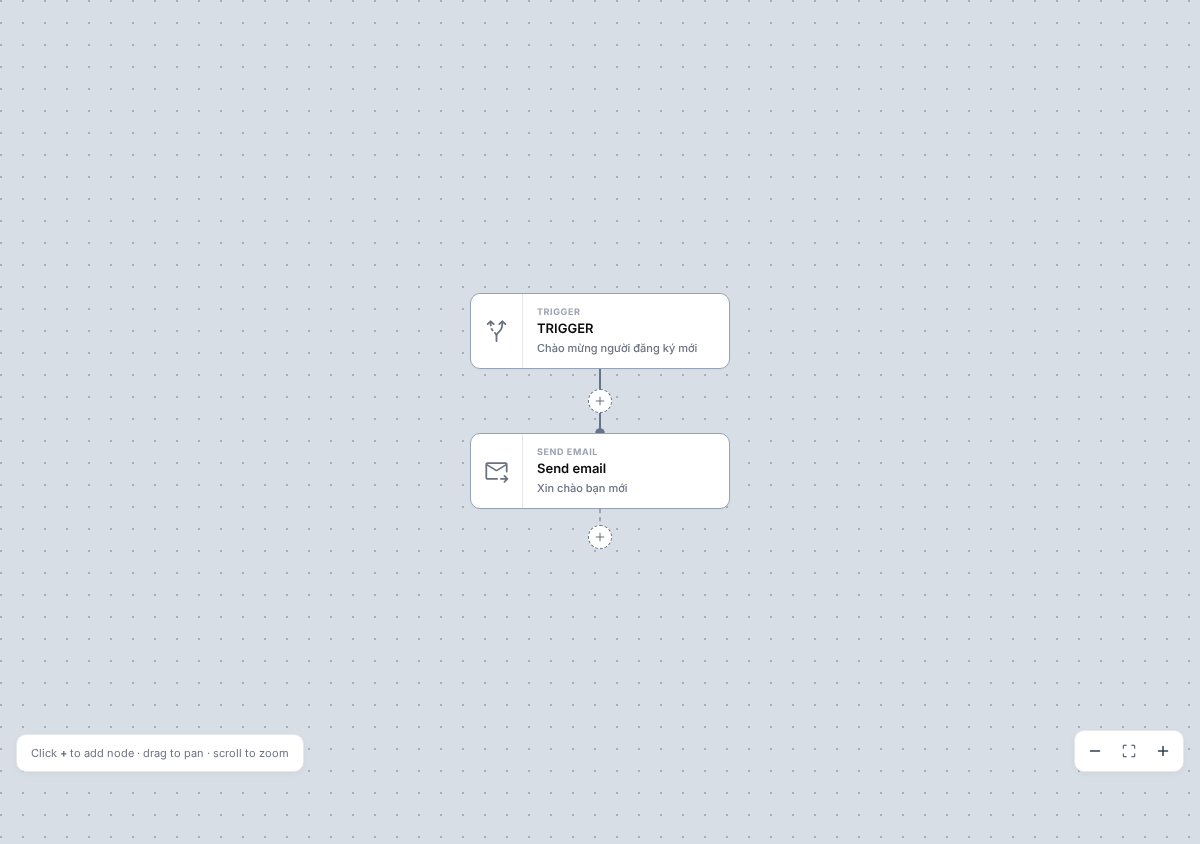
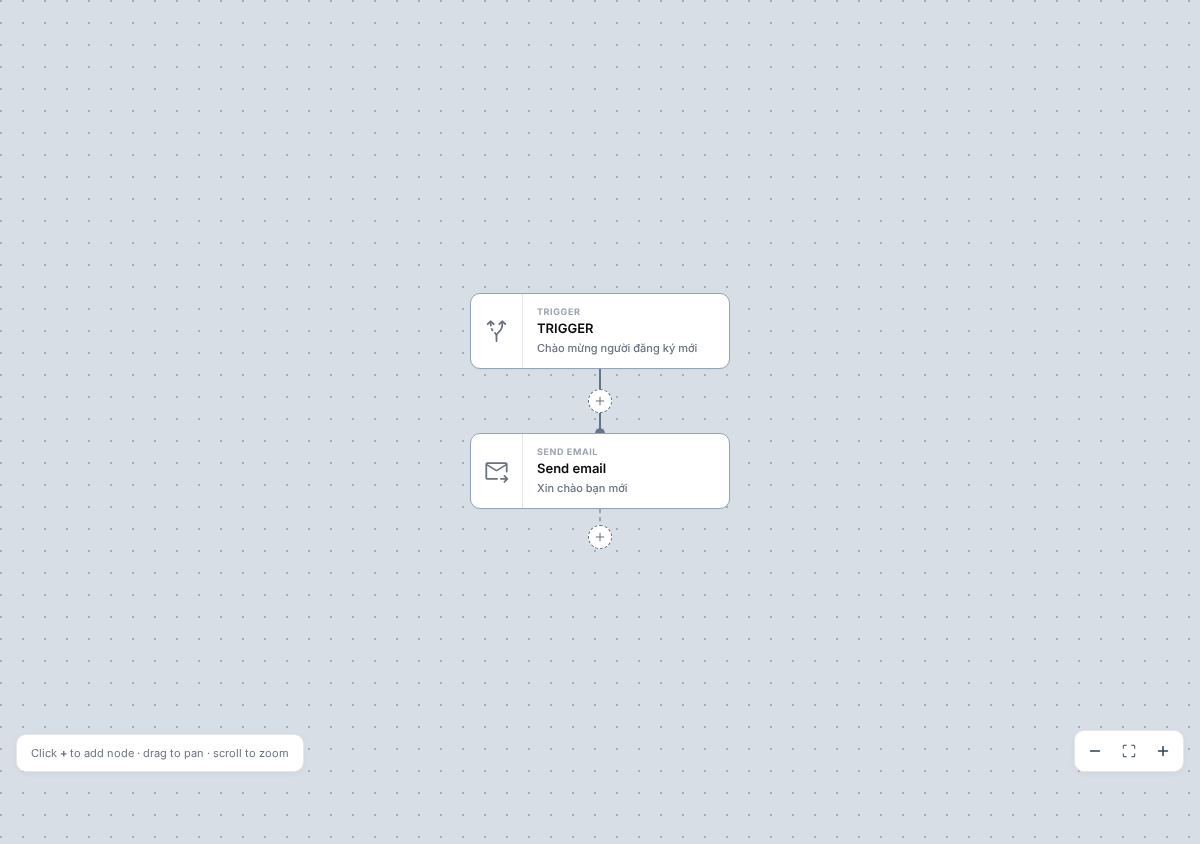
- Select the first step at the top of the workflow.
- If no condition type exists, select Choose a trigger. If one exists, select Change to change the type.
- Complete the options in the adjacent panel and select Save.
You need permission to edit Automations. You can edit a starting condition while an Automation is active, but changes apply only to new events; Subscribers already in the workflow do not restart because of the change.
Supported starting conditions
| Condition | When Mailix evaluates a Subscriber |
|---|---|
| New Subscriber | When the Subscriber confirms or changes to a subscribed status in the primary List |
| Subscriber unsubscribes | When the Subscriber unsubscribes from the primary List |
| Tag added | When Tag information is updated and the Subscriber has at least one configured Tag |
| Tag removed | When one of the configured Tags is actually removed from the Subscriber |
| Field updated | When the selected field changes to the configured value |
| Birthday | On the annual date in the selected date field, optionally with a period before that date |
| Subscriber-added date | On the anniversary of the Subscriber's creation date, optionally with a period before that date |
| Specific date | On the configured date and time |
| Weekly recurrence | On the selected weekdays and time |
| Monthly recurrence | On the selected days of the month and time |
Date and schedule conditions are evaluated only while the Automation is Enabled. Time is based on the account time zone, or the system time zone when the account has no separate setting.
When a Subscriber joins or leaves a List
Automation always uses the primary List chosen at creation. You cannot choose another List in the starting-condition section.
- New Subscriber is evaluated when the person confirms or changes to a subscribed status. Merely creating an unsubscribed record is not enough to start the workflow.
- Subscriber unsubscribes is evaluated when the unsubscribe action occurs. This condition can add someone who has just unsubscribed to the workflow, but it does not make them eligible to receive email.
Importing a Subscriber into a List triggers New Subscriber only when the system is configured to process import events.
When a Tag is added or removed
You can enter multiple Tags in the configuration. Mailix evaluates a Subscriber when at least one matching Tag is present.
Tag added
The condition is evaluated after a Tag update, when the Subscriber has at least one configured Tag. A Tag that existed before the Automation was enabled does not automatically add the Subscriber.
Tag names are matched case-insensitively.
Tag removed
The condition is evaluated only when a matching Tag is actually removed. The Tag name must match the configuration with the same capitalization.
Not every screen or Tag-update method emits the same event. If the workflow does not start, check that the action really added or removed the Tag and check its spelling.
When a field changes
Choose a field belonging to the primary List and enter the value to match. A Subscriber is evaluated when that field actually changes and its new value exactly equals the configured value.
Note: Although the interface may display other comparison methods, the current stable starting condition uses exact matching against the new value.
Subscriber edits that use Mailix's field-update mechanism can create this event. Do not assume that every import source or integration triggers it; test with the exact process your account will use.
Configure date or schedule conditions
Depending on the condition type, save:
- Birthday: date field, send time, and an optional period before the date.
- Subscriber-added date: send time and an optional period before the date.
- Specific date: date and time.
- Weekly recurrence: at least one weekday and a time.
- Monthly recurrence: at least one day of the month and a time.
If a month does not contain the selected day, that run does not occur in that month. Birthday conditions evaluate only Subscribers with a valid date in the selected field.
Why check again after creating an Automation?
Important: The Automation creation screen reliably keeps only the starting-condition type. Tags, fields, values, dates, and schedules must be reopened, completed, and saved in the designer.
After creating the Automation:
- Open the Starting Condition step.
- Confirm the condition type.
- Re-enter the required options.
- Select Save.
- Check that the step label has updated.
The designer's starting-condition section has no stable Segment option. Do not rely on a Segment selected on the creation screen to limit entries.
Save or change the starting condition
Edits are not saved automatically. Select Save to keep changes. Closing the configuration panel, selecting Cancel, or leaving it before saving keeps the most recently saved version.
To change the condition type:
- Select Change.
- Select the new type.
- Re-enter its options.
- Select Save.
There is no separate confirmation before the old configuration is replaced. Subscribers already in the workflow continue from their current position; the new type is used for subsequent events.
The starting condition must connect to a next step
Mailix may let you Enable an Automation that has only a condition type. However, if the starting condition is not connected to a next step, a matching event does not create a Subscriber entry.
Therefore, being able to enable it does not mean the workflow is operational. Before enabling, save the condition and connect it to the first step.
Do existing Subscribers enter automatically?
No. Enabling an Automation does not rescan the List and add people who met the condition earlier.
- Event conditions require a new event after the Automation is enabled.
- Date or schedule conditions evaluate eligible Subscribers when the configured time arrives.
- Adding an existing Subscriber manually is a separate action.
Can a Subscriber enter again?
Each Subscriber has only one entry in a given Automation. Once they have entered, another matching event does not create a second entry, even after the earlier run completes or errors.
This rule also helps limit loops when Automations change one another's Tags.
How does Subscriber status affect entry?
Normally, a Subscriber must have a subscribed status in the primary List to enter. Unsubscribe is an exception because it processes the event in which that person just unsubscribed.
Entering the workflow does not guarantee email delivery. At an email step, unsubscribe, block or spam-report status, and other sending conditions may cause email to be skipped. Email verification status is not a general Automation-entry condition.
Can Automations trigger one another?
Yes, for some Tag actions:
- Automation A adding a Tag can create an event for Automation B using Tag added.
- Automation A removing a Tag can create an event for Automation B using Tag removed.
Field updates in one Automation do not create a stable event for another Automation's field condition. Do not design a workflow around that chain.
When connecting Automations through Tags, check the direction of the effect. The one-entry rule limits repetition within one Automation, but multiple Automations can still change one another's data in sequence.
Choices that may appear but are not available
Some choices depend on the version, plan, extensions, or system configuration. Use only conditions with complete configuration and support in your account.
Do not use an external-application or abandoned-cart choice as the main workflow when the account has no integration and an administrator has not confirmed the process.
When a starting condition does not work
Check in order:
- whether the Automation is Enabled;
- whether detailed options were entered and Save selected;
- whether the starting condition is connected to the first step;
- whether the Subscriber belongs to the primary List and has a suitable status;
- whether the Subscriber has already entered this Automation;
- whether the Tag name, field, or value matches the configuration;
- whether date, time, and time zone are correct;
- whether the plan and system configuration support the feature.
If the selected List or field no longer exists, choose available data and save the condition again.
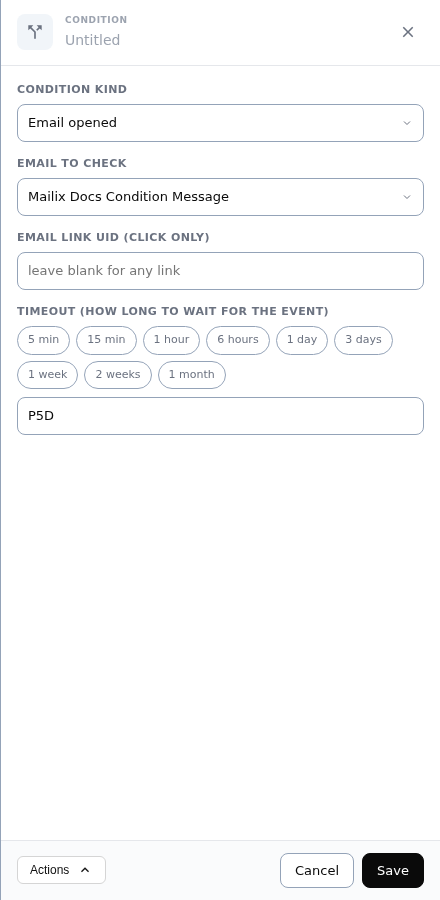
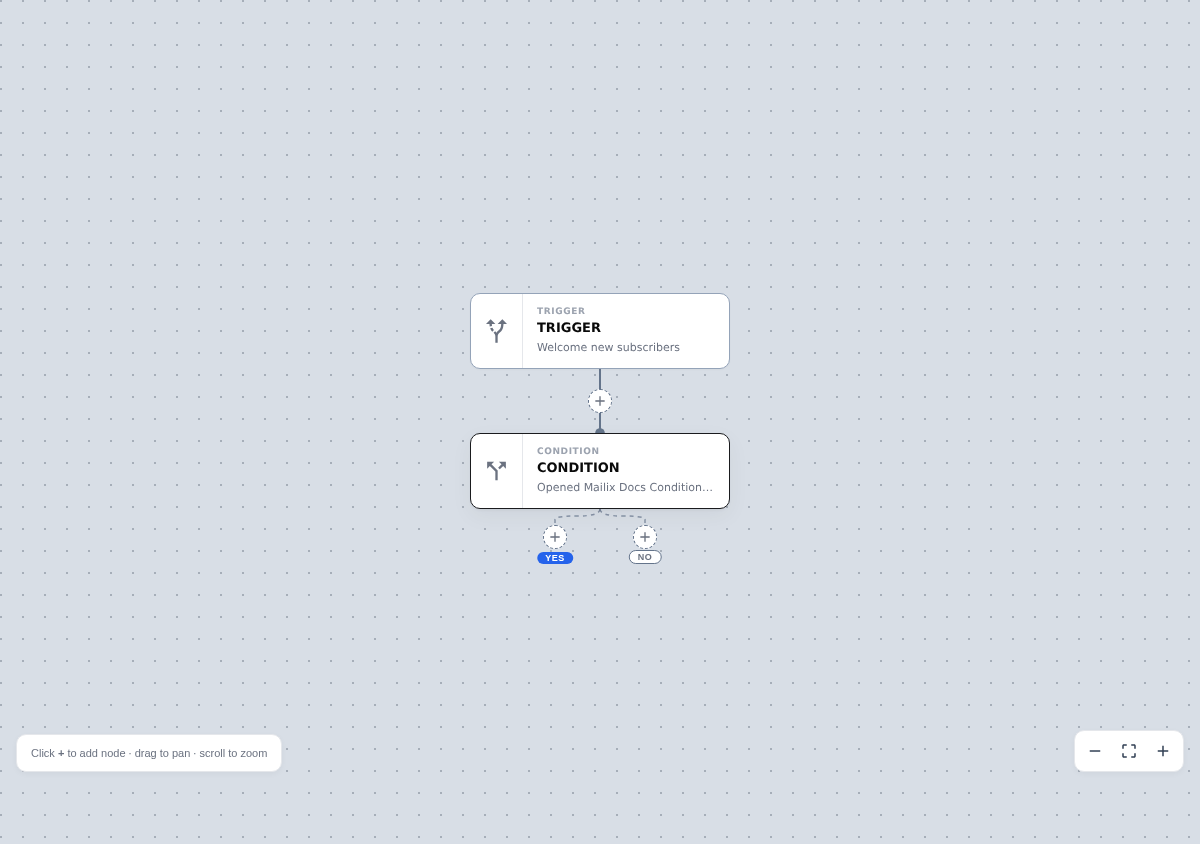
How does a starting condition differ from a Condition step?
- Starting condition decides which Subscribers enter the Automation.
- Condition step checks a Subscriber already in the Automation to decide which branch they follow.
An Automation has one starting condition but can have branch steps later in the workflow.
Frequently asked questions
Can I use multiple starting conditions?
No. Each Automation has one starting condition.
Does changing the condition type restart Subscribers already running?
No. People already in the workflow continue from their current position. The new condition applies to subsequent events.
Does adding a Tag that already existed add a Subscriber?
The Tag merely existing is not enough. A Tag update must occur after the Automation is enabled, and the Subscriber must not have entered previously.
Does an unsubscribed Subscriber receive workflow email?
An unsubscribe condition can add the person so non-email steps can run. It does not restore subscription status or make them eligible for email.
Does the Segment on the creation screen limit the starting condition?
Do not rely on that choice. Design the starting condition around the primary List and the options saved in the designer.