Create and Manage Segments
Segments help you find a group of subscribers within the same list based on conditions. For example, you can group subscribers by stored information, tags, verification results, or email open and click activity.
Segments automatically identify matching subscribers. The results can change when subscriber information or activity changes.

Access Segments
Go to:
Audience → Lists → open a list → Segments → View all
The Segments page displays the total number of segments, the number of subscribers in the list, and the size of each segment. You can search for a segment by name or select a segment to view matching subscribers.
If there are no segments yet, the page displays an empty state and a Create your first segment button.
The Segments section may not appear if this feature is disabled or the account does not have access permission.
Create a new Segment
From an existing list:
- Open Segments.
- Select New segment or Add segment.
- Enter the Segment name.
- Select the All or Any matching method.
- Select Add condition.
- Set the field, comparison method, and value for the condition.
- Add other conditions if needed.
- Select Save segment.
The segment name and matching method are required. You must also have at least one valid condition.
After the segment is saved successfully, Mailix returns you to the Segments page and displays a notification confirming that the segment was created.
Mailix does not require the segment name to differ from every existing name. However, you should use a unique, recognizable name to avoid selecting the wrong segment.
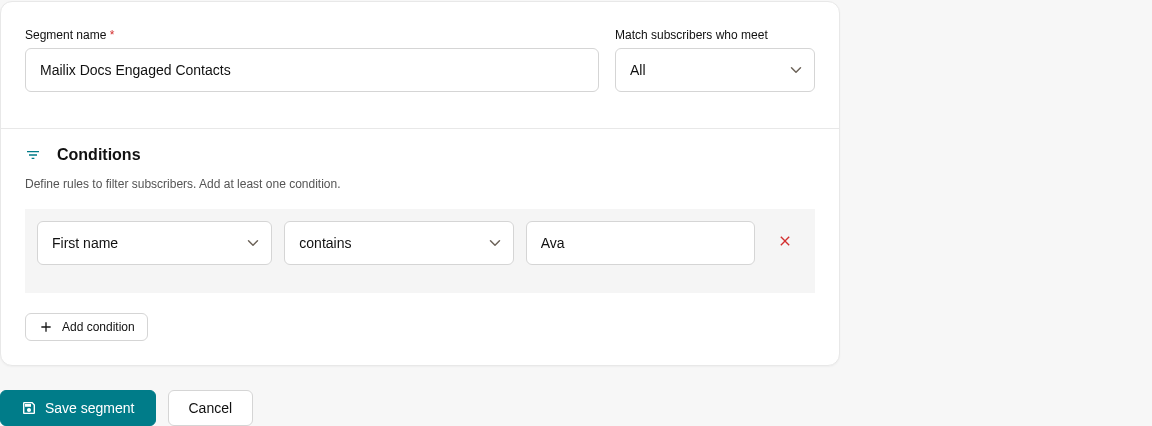
Set up conditions
Each condition has three parts:
- The information or activity to check.
- The comparison method.
- The value used for comparison.
The verified condition groups include:
| Condition group | What you can check | Main comparison methods |
|---|---|---|
| List fields | Email and the list's fields | Equals, does not equal, contains, does not contain, starts or ends with, greater than, less than, is blank, or is not blank |
| Date fields | Fields with the date type | Is after, is before, is, is not, is blank, or is not blank |
| Email verification | Email verification result | Equals or does not equal a verification result |
| Tag | A specific tag | Has the tag or does not have the tag |
| Open activity | Number of days since the most recent email open | Greater than or less than the entered number of days |
| Click activity | Number of days since the most recent link click | Greater than or less than the entered number of days |
| Created date | When the subscriber was added | Within the most recent number of days |
Available fields depend on the individual list. Therefore, your selection list may differ from another account or list.
For email verification results, the verified stable values are Deliverable, Undeliverable, Unknown, and Risky.
The current condition screen does not provide separate options for subscription status, update date, a specific campaign, a specific link, automation, the blacklist, or spam reports.
Combine multiple conditions
Mailix provides two ways to combine conditions:
All
The subscriber must meet all conditions.
Example:
- Has the
Khach-hangtag. - And the Province/City field equals
Hồ Chí Minh.
The Province/City field in this example appears only if your list already has this field.
Any
The subscriber only needs to meet at least one condition.
For example, the segment can include a subscriber who has the Khach-hang tag or has a Deliverable verification result.
A segment uses only one matching method for all its conditions. The current interface does not support nested condition groups.
Use tags in a Segment
- Select Tags in the condition list.
- Select the condition for having or not having the tag.
- Enter a tag name.
The tag name is entered directly, with no suggestion list. Enter the exact name, including capitalization.
Each tag condition checks one tag. If you need to check multiple tags, add multiple conditions and select the appropriate All or Any matching method.
With the condition for not having a tag, subscribers who have never had a tag assigned may not appear in the current results. Check the matching subscribers page after saving.
See Add and Remove Tags for Subscribers.
View matching Subscribers
The create and edit form does not provide a live preview.
After saving:
- Return to the Segments page.
- Open the segment's action menu.
- Select View subscribers. You can also select the segment in the Segment size chart.
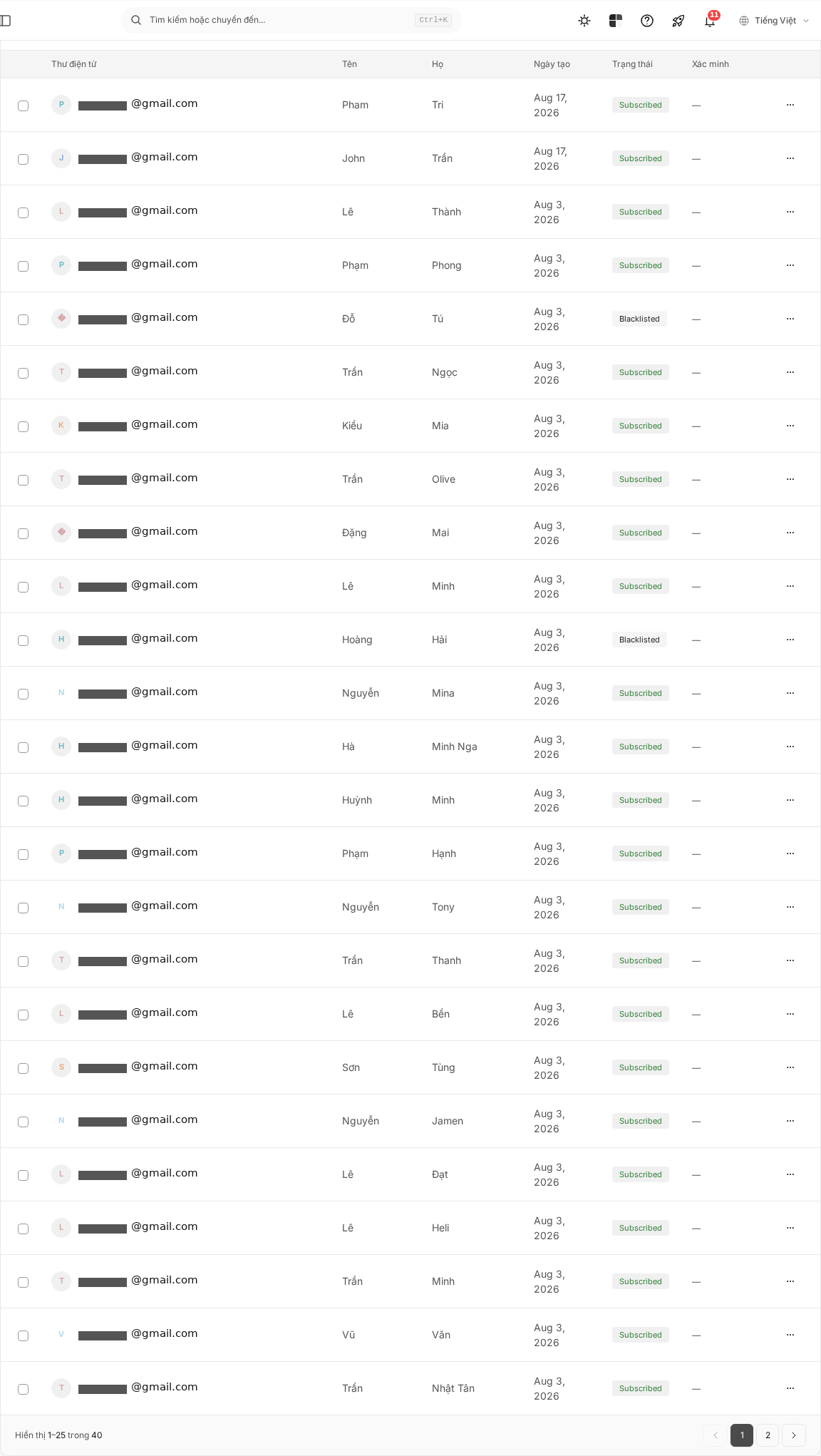
The results page displays the number of matching subscribers. You can:
- Search by email address or field.
- Filter by subscription status.
- Sort by creation date, update date, or email address.
- Move between pages when there are many results.
- Open a subscriber to view or edit the subscriber.
Edit a Segment
- Open the list's Segments page.
- Select the segment name, or open the menu and select Edit.
- Change the name, matching method, or conditions.
- Select Add condition if you need another condition.
- Select the × icon on a condition to remove it.
- Select Save segment.
You must retain at least one condition. If you remove all conditions, Mailix requires you to add a condition before saving.
After you save, the segment results are recalculated using the new set of conditions.
How does a Segment change?
A segment does not create copies of subscribers. Each time you view or use it, Mailix identifies the subscribers who currently meet its conditions in the original list.
Therefore:
- A subscriber can belong to multiple segments at the same time.
- Subscribers can automatically appear or stop appearing when data changes.
- You do not need to manually add subscribers to or remove subscribers from a segment.
- Editing information, tags, or related activity can change the results.
Use a Segment when sending a Campaign
In the campaign recipient-selection step, select a list first, and then select one or more segments belonging to that list.
If you do not select a segment, the campaign uses all eligible subscribers in the list. The interface also lets you use a list or segment to exclude a group of recipients.
A campaign can use multiple lists, and each list has its own segments. Check the recipient section carefully before continuing.
Delete a Segment
- Open the segment's action menu.
- Select Delete.
- Check the segment name in the confirmation dialog.
- Confirm the deletion.
Deleting a segment does not delete subscribers from the list. However, the segment and its conditions will no longer be available.
Before deleting, check any campaigns that use the segment. Deletion may remove the segment selection from related recipient configurations.
When a Segment has no Subscribers
The results page displays a message when no subscribers match. Check the following:
- Whether the matching method is All or Any.
- Whether the tag name uses the correct capitalization.
- Whether the condition value matches the data in the list.
- Whether the field used in the condition still exists.
- Whether the date range or number of days is too narrow.
If a field used in the segment is deleted, the related condition is also removed. Open and review the segment after changing the list's fields.
Frequently asked questions
Do Segments update automatically?
Yes. Results are determined from current subscriber data and can change when the data changes.
Can a Subscriber belong to multiple Segments?
Yes. A subscriber appears in every segment whose conditions they meet.
Can I use a tag as a condition?
Yes. You can check whether a subscriber has or does not have a specific tag.
Can I combine multiple conditions?
Yes. Select All to require every condition to be true, or Any to require only one condition to be true. The current interface does not provide nested condition groups.
Can I send a Campaign to a Segment?
Yes. In the recipient-selection step, select the list containing the segment, and then select one or more segments.
Does deleting a Segment delete Subscribers?
No. Subscribers remain in the original list.
Why does a Segment have no Subscribers?
There may not be any subscribers who meet the conditions. Check the matching method, each value, tags, and data in the related fields.
Why is the Segments section not available to me?
The feature may be disabled, or your account may not have access permission.