Email Template Overview
Email Templates help you prepare and save HTML content for reuse in multiple Campaigns. You can start from a system layout, customize it with the builder, or switch a Template to custom HTML.
What is an Email Template?
An Email Template is a reusable content design. A Template can contain layout, text, images, styling, links, and Merge Tags.
An Email Template is not a Campaign. Recipients, the email subject, preview text, sender information, Tracking, and send time are configured in each Campaign.
Open the Email Template library
From the main menu, select:
Campaigns → Templates (Chiến dịch → Mẫu)
The Templates page lists the Email Templates in your account. Account permissions determine whether you can only view Templates or can create and manage them.
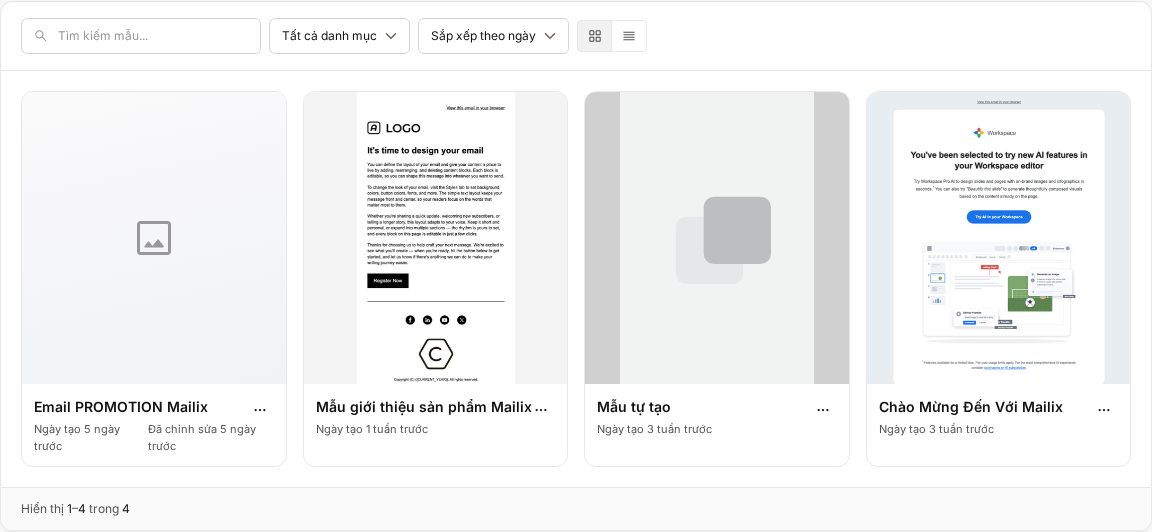
What is in the Template library?
You can view Templates in a grid or list. Each Template has a name, thumbnail, category when applicable, creation date, and most recent edit time.
The library supports:
- Search by Template name.
- Filter by category.
- Sort by date or name.
- Switch between grid and list views.
- Edit, preview, copy, rename, or delete Templates according to your permissions.
When there are many Templates, results are split across multiple pages.
How are System Templates different from My Templates?
| Template type | Characteristics |
|---|---|
| System Templates | Ready-made layouts you can choose when starting a Template or selecting content for a Campaign. You cannot edit the original directly in your account library. |
| My Templates | Templates belonging to your account, created from a System Template and saved as a separate copy. Users with the appropriate permissions can edit and manage them. |
The standalone Templates page lists only My Templates. The System Templates collection appears when you select Create Template (Tạo mẫu).
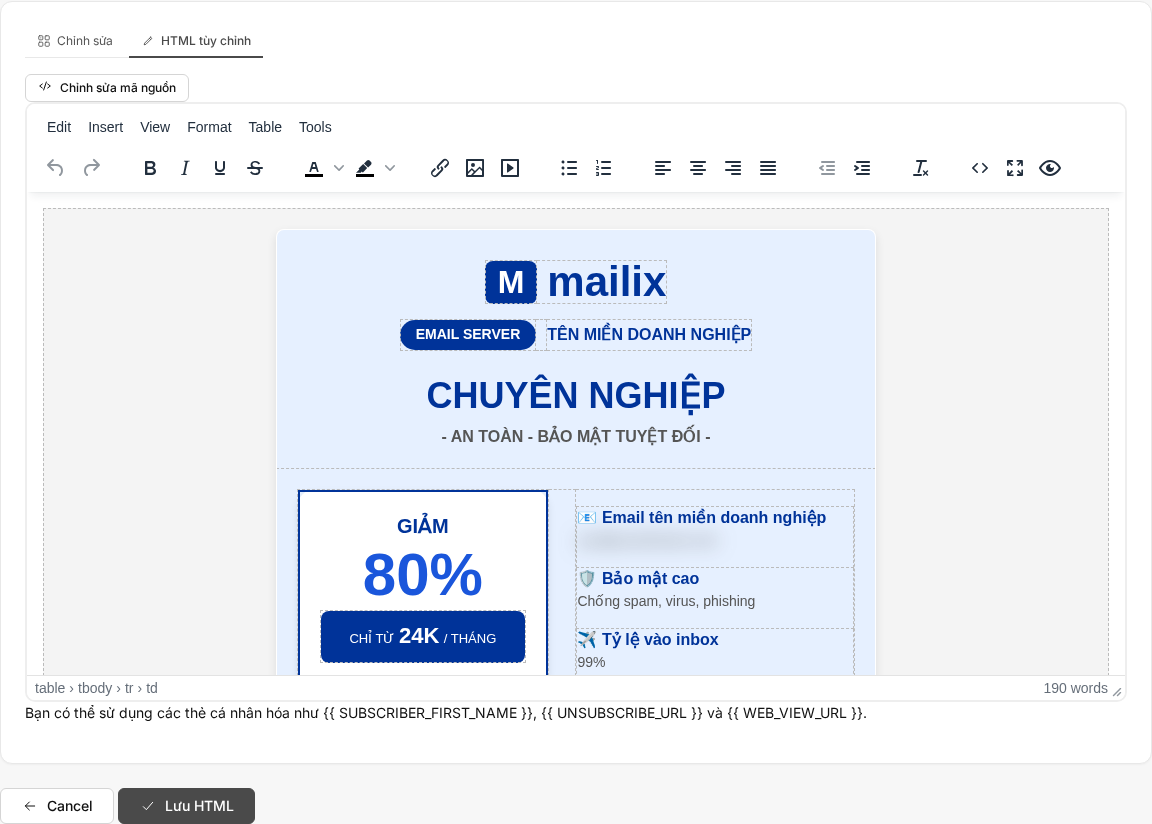
Ways to create an Email Template
Mailix supports these workflows:
- Start from a System Template: name the Template, choose a layout, and open the builder to customize it.
- Copy My Template: create an independent copy containing all of the current Template's content and design.
- Switch to custom HTML: replace the content of a created Template with your HTML.
Important: After custom HTML is saved for the first time, the Template remains in HTML mode and cannot return to the visual builder. Mailix asks you to confirm before switching.
Detailed procedures are described in Create an Email Template, Design an email with the builder, and Create an Email Template with custom HTML.
Email builder
The builder lets you adjust layout and content visually. You can work with text, link, and image components, then save the content back to the Template.
The documentation does not describe content as being saved automatically. Use the builder's save action before leaving the page. A Template switched to custom HTML opens in the HTML editor instead of the builder.
What does an Email Template contain?
An Email Template stores the HTML design, including content, layout, styling, and the resources used in the design. A Template can also contain Merge Tags and system links.
The following information is not saved as part of an independent Email Template:
- Campaign name and email subject.
- Preview text.
- Sender name, sender email address, and reply-to email address.
- Recipients, send schedule, and Tracking settings.
You configure that information in the Campaign that uses the Template.
Personalize content with Merge Tags
A Merge Tag is a placeholder for data that is filled in when an email is prepared for a Subscriber. A Template can contain Merge Tags for Subscriber data and system functions such as unsubscribing or viewing the email on the web.
Merge Tags are not Tags used to categorize Subscribers. Actual values and the required checks are determined when the Template is used in a Campaign.
Saving a Template does not mean that the Campaign is ready to send. Mailix may check content and system links while preparing the Campaign for sending.
Use a Template in a Campaign
At the Campaign's Template step, you can choose a System Template or My Template. Mailix copies the selected content into a separate version for the Campaign.
This means:
- You can use the same Template in multiple Campaigns.
- Editing content in a Campaign does not change the original Template.
- Editing or renaming a Template later does not update Campaigns that used the Template previously.
- Deleting a Template from the library does not delete the content copy already made in a Campaign.
Preview a Template
Select Preview (Xem trước) for a Template in the library to open a preview of its HTML content. The preview helps you check the saved design; it is not a real sent email and does not include all of a Campaign's information.
Manage created Templates
Depending on account permissions, the action menu for My Templates lets you:
- Edit with the builder or the corresponding HTML editor.
- Copy into a new independent Template.
- Rename a Template in the library.
- Delete a Template.
Warning: Deleting a Template cannot be undone in the interface. Confirm that you selected the correct Template before proceeding.
See Copy, rename, and delete Email Templates for each procedure.
Email Templates and Plain-text Campaigns
The Template library is for HTML content. A Plain-text Campaign accepts content directly and does not use the HTML Template collection or email builder.
Email Templates in an A/B Test
Each A/B variant can select and edit its own Template. Content is copied into the variant, so editing the variant does not change the Template in the library. See Create an A/B Test Campaign for the separate workflow.
When you cannot find an Email Template
- You have no My Templates: select Create Template, name it, and choose a System Template to begin.
- No results are found: clear the search term or select All categories (Tất cả danh mục).
- The Create Template button or management actions are not visible: your account may have view-only Template permissions.
- You cannot open the Template area: ask the account administrator to check your access permissions.
This workflow does not display a Template quantity limit or a separate plan-specific limit.
Frequently asked questions
Is an Email Template a Campaign?
No. A Template stores a reusable content design. A Campaign adds recipients, subject, sender, send schedule, and sending settings.
Does a Template save the subject and sender?
No. The email subject, sender, reply-to address, and preview text belong to each Campaign.
Can I use one Template in multiple Campaigns?
Yes. Each time you select a Template, Mailix creates a separate content copy for that Campaign.
Does editing a Template update Campaigns that used it previously?
No. Campaigns that used a Template keep their own content copy.
Does deleting a Template remove the content from Campaigns that used it?
No. Content copied into a Campaign is independent of the Template in the library.
Can I edit a System Template directly?
Not in the account library. Choose a System Template when creating a Template so Mailix creates a separate copy belonging to your account, then edit that copy.
Can I create a Template with custom HTML?
Yes. After creating a Template, choose to switch to Custom HTML (HTML tùy chỉnh) and enter your HTML. The first save switches the Template to one-way HTML mode.
Can I use a Template for a Plain-text Campaign?
No. A Plain-text Campaign uses its own content field and does not use the HTML Template library.
Next steps
- Create an Email Template
- Design an email with the builder
- Create an Email Template with custom HTML
- Copy, rename, and delete Email Templates
Publication note: Replace the
(...)links with the official Customer Docs URLs before publishing this article to the production website.