List and Subscriber Overview
A list is where you collect and manage people who receive your email. Each list has its own subscribers, custom fields, segments, and settings.
This guide introduces the Lists area before you create or manage detailed data.
What you will learn
After reading this guide, you can:
- Distinguish lists from subscribers.
- Open Lists and choose a list to manage.
- Recognize the main areas inside a list.
- Choose the right next step to add and manage subscribers.
What is a list?
A list is a group of people you want to manage together. For example, you might use separate lists for customers, newsletter subscribers, or event attendees.
Each list can have:
- Default sender information.
- Subscription-confirmation and welcome-email settings.
- Custom fields for storing subscriber data.
- Segments for filtering subscribers by conditions.
- Forms and pages related to subscribing or unsubscribing.
What is a subscriber?
A subscriber is a record stored in a list. Email is required. Depending on the list setup, a subscriber can also have a name, phone number, date of birth, or other custom fields.
Subscribers have their own status, such as subscribed, unconfirmed, unsubscribed, or blocked. The status helps you understand whether an address can receive a campaign.
How are lists and subscribers related?
You need at least one list before adding subscribers. When you add records manually or import data, you choose the list that receives them.
A person can appear in multiple lists when their email address is added to each list. You can also copy or move subscribers between lists when needed.
The general path is:
List → Open a list → Subscribers → Add or import data → Manage audience
After that, choose the appropriate list or segment when preparing an email activity.
Open the Lists area
In the left navigation, open Audience (Đối tượng), then select Lists (Danh sách).
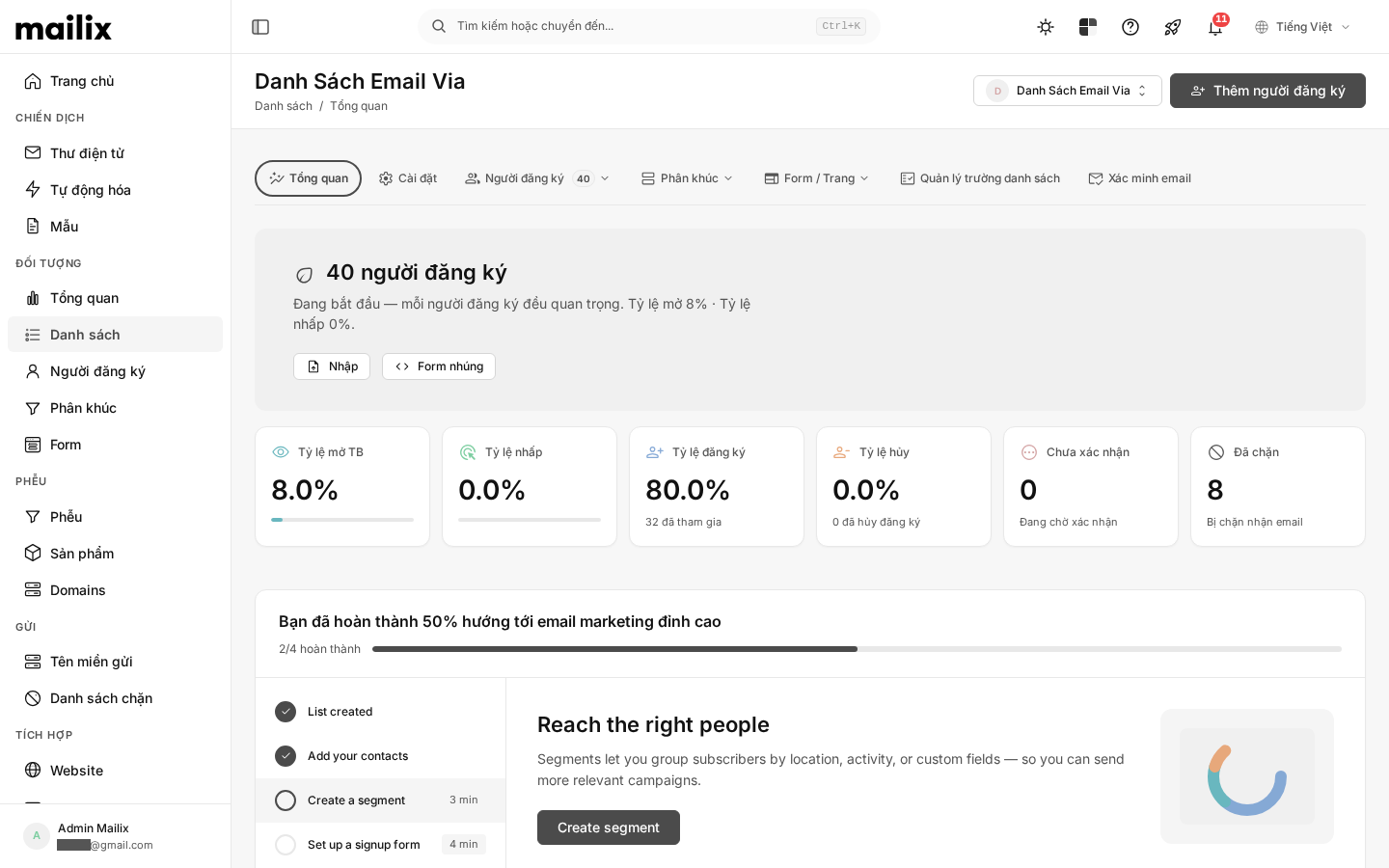
The Lists page shows the lists in your account. Here you can:
- Search and sort lists.
- Open a list overview or view its subscribers.
- Quickly access actions such as adding subscribers, importing, exporting, managing fields, and changing settings.
- Create, copy, or delete a list when your account has the required permission.
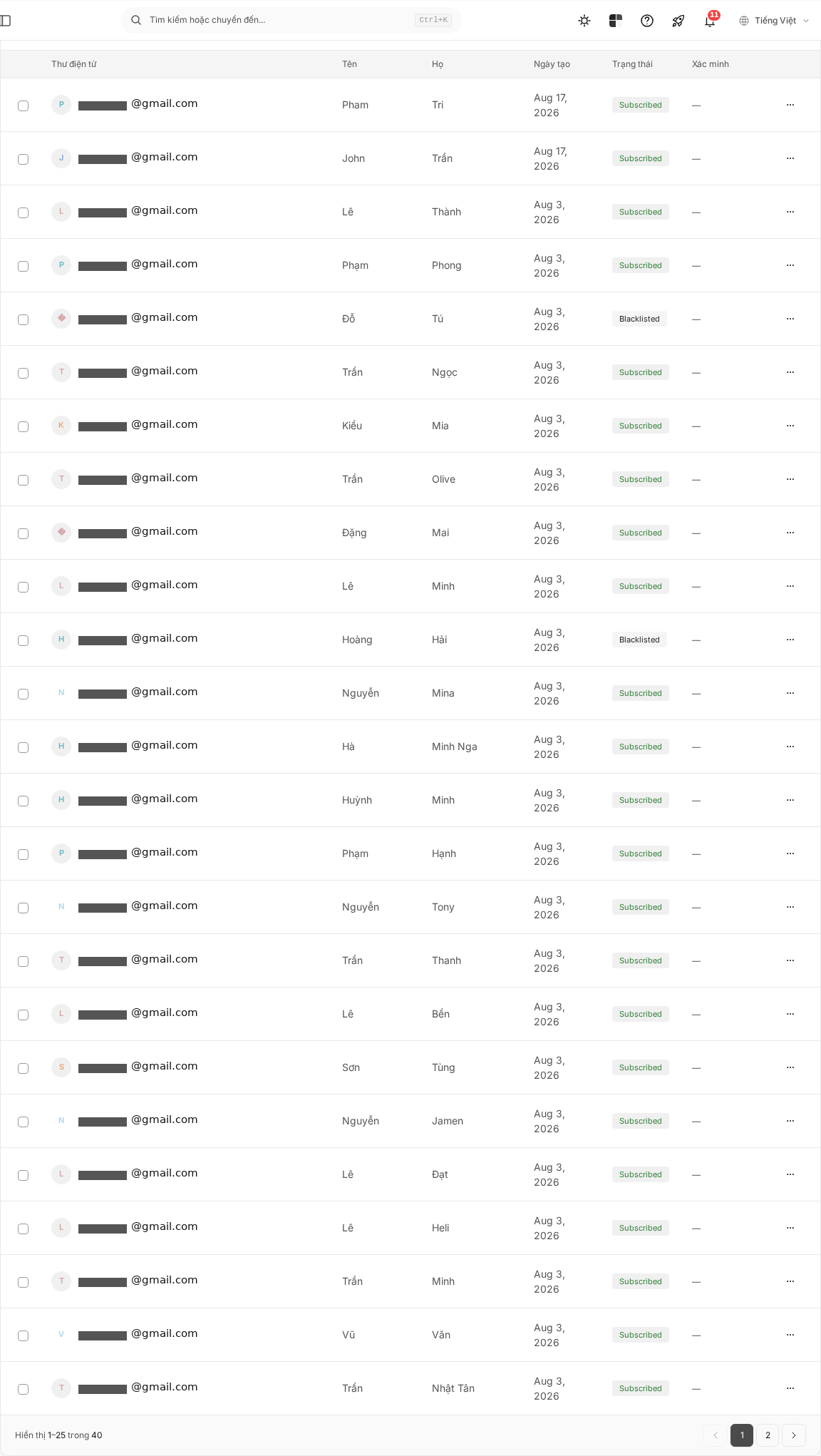
Some items may be hidden depending on the plan, account permissions, or system configuration.
Open a list
On the Lists page, select the name of the list you want to manage. Mailix opens that list's overview page.
You can also use a list's action menu to go directly to subscribers, segments, fields, or settings.

Main areas inside a list
Overview
The Overview area gives you a quick view of list status and activity. It is also the starting point for common tasks.
Subscribers
The Subscribers area shows the people in the list. You can search, filter, sort, and open an individual subscriber to view or edit the record.
The same menu provides entry points to add subscribers manually, import them, or export them when your account is allowed to use those actions.
Segments
A segment creates a smaller group from the subscribers in a list based on conditions. This item may be hidden when the account or system does not allow segments.
Data fields
Data fields define the information stored for each subscriber. The email field is required. Add other fields to match the data you need to manage.
Settings
The Settings area lets you edit the list name, sender information, and options for subscription confirmation, welcome emails, and unsubscribe notifications.
Forms & Pages
This area contains forms, pages, and emails used for subscribing, confirming, updating information, or unsubscribing. Available options can depend on account configuration.
Main list actions
Depending on your permissions, you can:
- Create a list.
- Open and edit a list.
- Copy a list.
- Manage subscribers, segments, and data fields.
- Open the list's forms and pages.
- Delete a list.
Check carefully before deleting. Deleting a list also deletes the subscribers belonging to it.
Main subscriber actions
Inside a list, you can:
- Add a subscriber manually.
- Import multiple subscribers from a file.
- Search, filter, and sort data.
- Open and edit an individual record.
- Change subscription status when permitted.
- Copy or move subscribers to another list.
- Export data.
- Perform certain actions for multiple subscribers at once.
The related guides explain these actions in detail.
When the account has no lists
The Lists page shows guidance for creating the first list. If your account has permission, you see a button to begin.
When there is no list, the Subscribers or Segments menu item takes you back to Lists. Create a list before adding data.
When a list has no subscribers
The Subscribers page shows an empty state and an add-subscriber button. You can also open the import area to add many people from a file.
If a search or filter returns no results, Mailix shows a message saying that no subscribers were found. Try another keyword or filter.
Notes for new users
- Create a list before adding or importing subscribers.
- Choose the correct destination list before adding data.
- Use a segment when you need a smaller group within the same list.
- Do not confuse deletion with unsubscribing. Deletion removes the record from the list; unsubscribing keeps the record with a status that excludes the person from campaigns.
- Some features may be hidden because of the plan, account permissions, or system configuration.
Frequently asked questions
Why cannot I open the Subscribers page?
You need at least one list. Open Audience → Lists (Đối tượng → Danh sách) and create the first list if the account has none.
Why cannot I see Segments, Import, or Export?
These items depend on the plan, account permissions, or system configuration. Check the account permissions or contact your Mailix account administrator.
Why does the Subscribers page show no data?
The list may not have subscribers. If you are using search or filters, clear the current conditions and check again.
Is deleting a subscriber the same as unsubscribing?
No. Deleting removes the record from the list. Unsubscribing keeps the record but prevents that person from receiving campaigns.