Create a Subscription Form
When creating a Form, you set its internal name, select the List that receives the data, and choose an initial Form Template. You edit the detailed content during the subsequent design step.
Before you begin
You need:
- permission to create Forms;
- at least one List;
- at least one Form Template in the library.
If there are no Form Templates, the creation screen displays a message asking you to contact the administrator. A Form cannot be created without a Template.
Open the Form creation screen
Go to Forms, then select Create form. If no Forms exist, select Create your first form.
 The creation screen opens as a window over the current page.
Enter the Form name
Enter the Form name. This name is used for management in Mailix and is not a required title displayed to visitors.
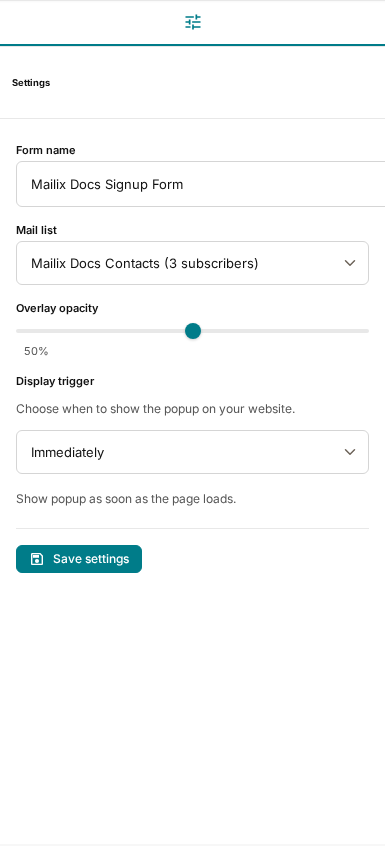
The default name is Untitled form. You can change it later under Settings in the designer. No requirement for a unique name has been verified.
Select a List
Under Connect to List, select one of the Account's Lists. Each Form is attached to one List at a time.
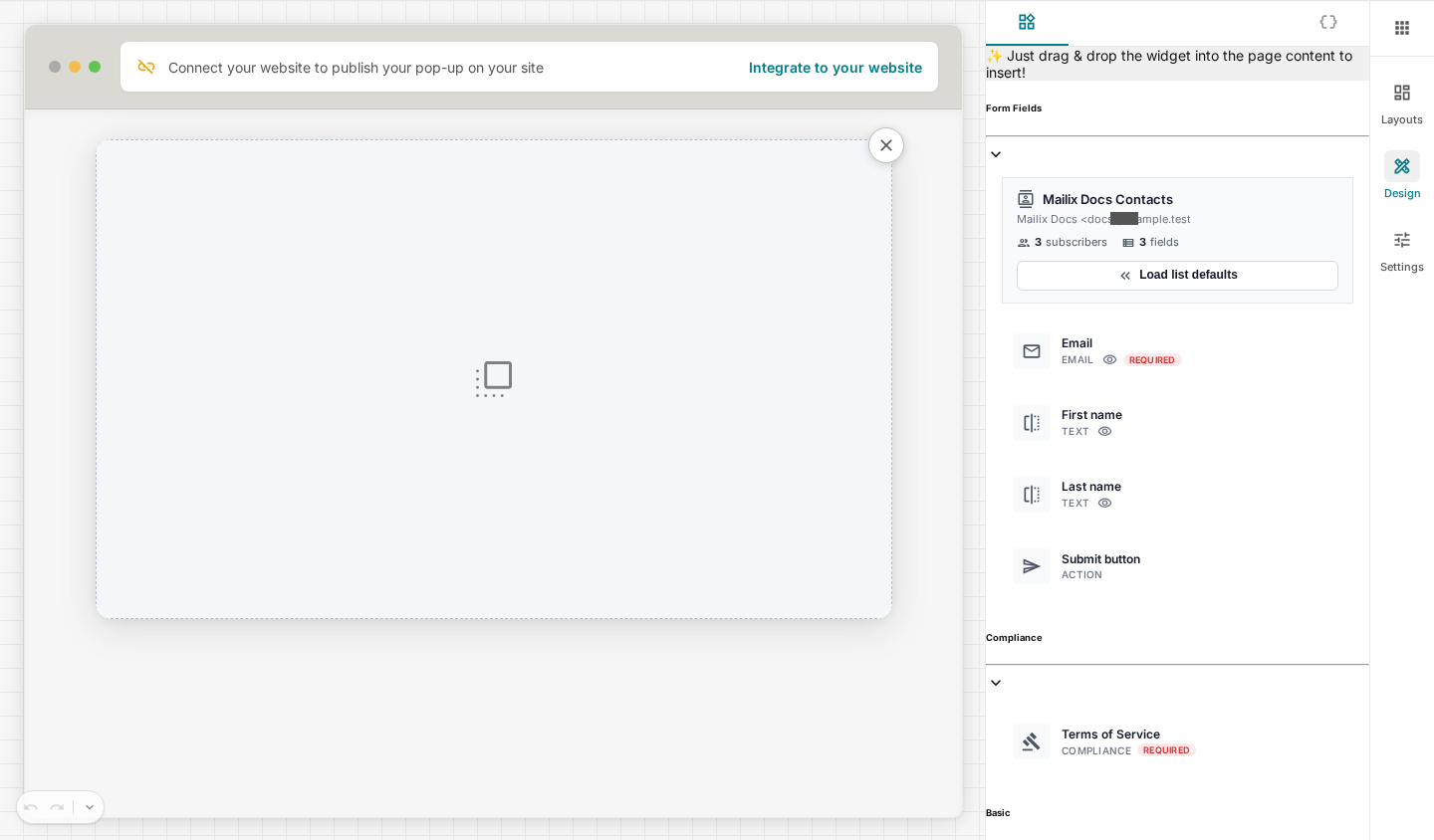 The List determines:
- where Subscribers are saved;
- which fields can be added to the Form;
- which fields are required;
- whether Subscription confirmation is required.
An empty List can still be selected. If there are no Lists, create one before continuing.
Select a Form Template
Select a Template on the Basic or Advanced tab. The first Template on the open tab is selected automatically when available.
 The Template is copied into the Form's own content. Later changes to the source Template do not automatically update the created Form.
Create the Form
- Check the Form name.
- Select the List.
- Select the Form Template.
- Select Create form.
Mailix saves the Form with Draft status and opens the designer directly.
 The Form is not linked to a Website and does not appear on one merely because it has been created.
What is saved during creation
| Information | Result |
|---|---|
| Form name | Saved for management |
| List | Saved as the destination for Subscribers |
| Form Template | Copied as the Form's own design content |
| Status | Draft |
| Website | Not linked |
Cancel Form creation
Select Cancel to close the creation screen. Until you select Create form, no new Form is saved.
After the Form has been created and the designer opens, returning to the Forms page does not delete the newly created Form.
When you cannot create a Form
Check that:
- a Form name has been entered;
- a List has been selected;
- a Form Template has been selected;
- the Account has permission to create Forms;
- the Forms module is available.
If a List or Template was deleted while the creation screen was open, close the screen, reopen it, and select data that still exists.
Frequently asked questions
Can I start with a blank Form?
No completely blank starting option has been verified. Select a Form Template, then edit its content in the designer.
Can I change the List after creation?
Yes, under Settings in the designer. After changing it, reload the List fields and save the design to avoid retaining fields that are no longer appropriate.
Is a Form automatically published when created?
No. A new Form always has Draft status.