Create an Email Campaign
Mailix uses a step-by-step workflow to help you prepare recipients, sender information, content, and the send time. This article explains how to start a new Campaign and provides an overview of each step.
What will you be able to do?
After completing this article, you can:
- Open the Campaign creation screen.
- Select the appropriate Campaign type.
- Start the setup workflow.
- Understand the purpose of the five steps in the workflow.
- Save completed work and return to continue later.
Before you begin
To create a new Campaign, the account must have creation permission and must not have reached the service plan's Campaign limit.
You do not have to have recipients or a sending method when selecting the Campaign type. However, to complete the workflow and send email, you will need:
- At least one List to select in the Recipients step.
- At least one eligible Subscriber so the Campaign has recipients.
- Complete sender information and email content.
- A sending method available to the account.
- An account that meets the applicable sending conditions and limits.
Note: Creating a Campaign and sending a Campaign happen at different times. Successfully creating one does not mean the Campaign is ready to send.
Create a new Campaign
Go to:
Campaigns → Email → Create campaign
You can also select the action for creating a new Campaign on the Dashboard if this action appears.
 Mailix opens the Create new campaign screen so you can select a Campaign type.
If the Campaigns page has no data, the interface also prompts you to create your first Campaign.
Select a Campaign type
The creation screen provides three options:
| Campaign type | Appropriate when |
|---|---|
| Regular Campaign | You want to use templates, images, buttons, and HTML email design |
| Plain text | You want to send text-only content without images or HTML formatting |
| A/B Test | You want to compare variants before sending the appropriate version to the remaining recipients |
 Select Create for the type you want to use.
When you select Regular Campaign or Plain text, Mailix creates the Campaign immediately and takes you to the Recipients step.
A/B Test opens a separate setup workflow. See Create an A/B Test Campaign for details.
Campaign setup workflow
Regular Campaigns and Plain text Campaigns use five steps:
- Recipients
- Setup
- Template
- Schedule
- Confirmation
 The step bar shows the section currently open and marks sections that have enough information. You can select the Recipients, Setup, Template, and Schedule steps directly. The Confirmation step opens only after the preceding required sections are complete.
The Back buttons return you to the previous step. Save the section you are entering before moving to another area.
Step 1: Recipients
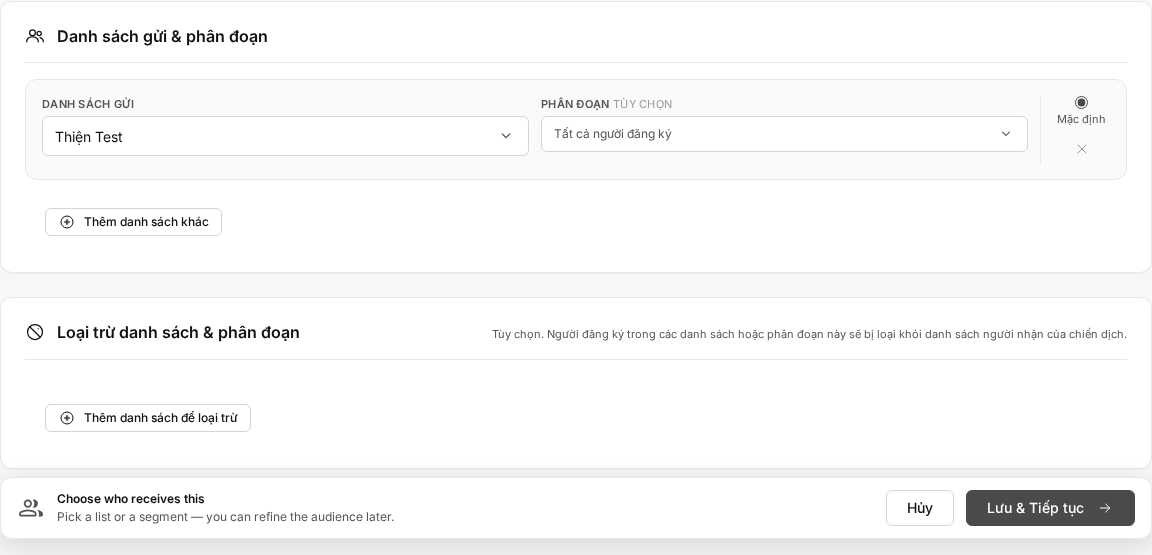
Select at least one List. You can narrow the recipients with Segments or add exclusions if needed.
Select Save & Continue to save the selection and open the Setup step.
If there are no Lists, the selection screen reports that no List was found. You need to create a List before you can complete this step.
See Select Lists and Segments for Recipients.

Step 2: Setup
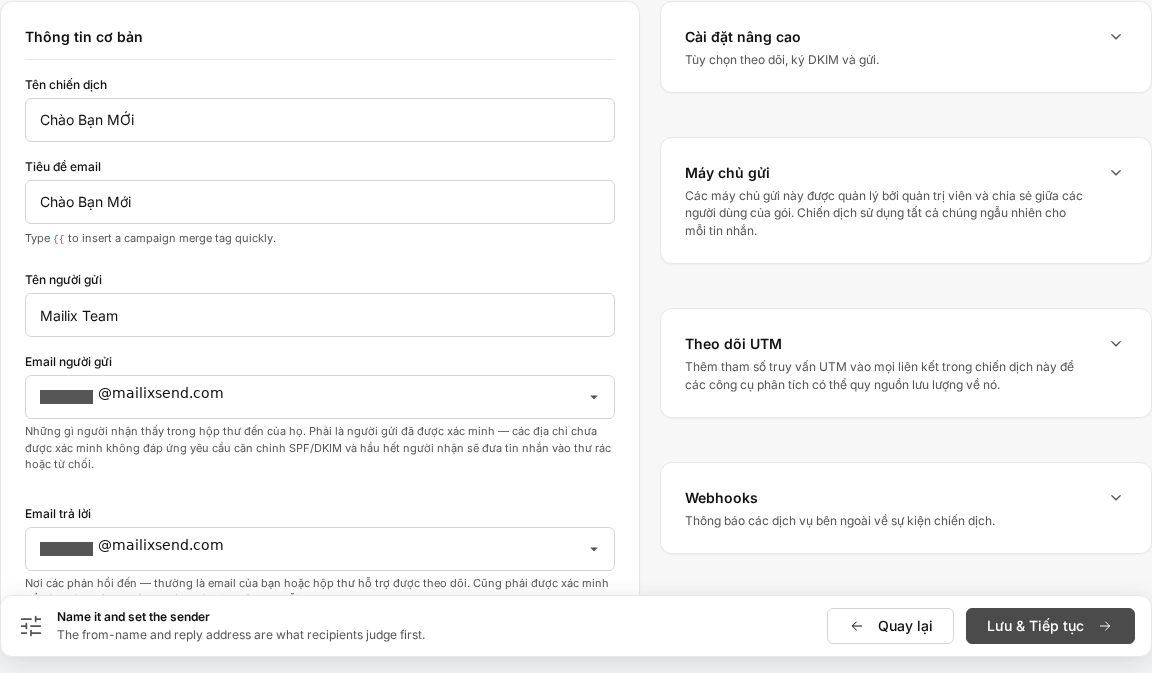
This step brings together the Campaign's primary information:
- Campaign name.
- Email subject.
- Sender name and email address.
- Reply-to email address.
- Open and click Tracking.
- Some advanced sending or Tracking settings when supported for the account.
Select Save & Continue after completing all required fields.
See Set Up the Campaign Sender and Content.
Step 3: Template
The content of this step depends on the Campaign type:
- For a Regular Campaign, select a system template or account template, or use custom HTML. You can then edit the design with the appropriate tool.
- For Plain text, enter the content directly in the text editor.
Inbox preview text and some additional options may also appear in this step.
See Select and Design an Email Template for a Campaign.
Step 4: Schedule
Choose one of two methods:
- Send now after completing the Confirmation step and launching.
- Schedule for later at a date and time you select.
Select Save & Continue to open the Confirmation step.
Step 5: Confirmation
Mailix summarizes important sections for you to check before sending, including recipients, subject, sender, content, sending method, and account conditions.
If a blocking error remains, return to the related section and complete it. When all conditions are met, you can launch the Campaign.
This screen also provides actions for previewing and sending a test email.
See Review and Confirm Before Sending.
How is a Campaign saved?
The Campaign is created as soon as you select a type and select Create. At this point:
- The Campaign has the temporary name Untitled.
- Its displayed status is New.
- The Campaign appears on the Campaigns page even if you have not completed the remaining steps.
Sections are saved separately during setup:
- The Recipients, Setup, and Schedule steps are saved when you select Save & Continue.
- Plain-text content is saved when you continue from the Template step.
- Templates, designs, custom HTML, and preview text have separate save actions on their screens.
Mailix does not automatically save the entire workflow as one unit. If you enter data but leave the screen before saving, those changes are not recorded.
You can return to the Campaigns page, find the Campaign with New status, and select Edit to continue. This action reopens the workflow at the Recipients step; the step bar indicates which sections are complete.
Campaign name and email subject
These two pieces of information have different purposes:
- The Campaign name helps you identify the Campaign in Mailix.
- The Email subject is the content recipients see in their inbox.
You enter both in the Setup step. Both fields are required before you can continue. The Campaign name does not have to be unique across the account; you can change it when you return to the Setup step.
If you cannot continue
Check the following situations:
- Create campaign button not visible: The account may not have creation permission.
- Campaign type selection screen does not open: The account may have reached its Campaign limit.
- No List available to select: Create a List, and then return to the Recipients step.
- The List has no eligible Subscribers: You can continue preparing some sections, but cannot launch while the recipient count is zero.
- Setup step cannot be saved: Check the name, subject, sender name, sender email address, and reply-to email address.
- Schedule or Confirmation step does not open: Complete the recipients, setup information, and content first.
- Campaign cannot be launched: Check the sending method, account limits, and errors on the Confirmation screen.
An error message appears in the step containing invalid data. Correct the marked field and save again.
How do Regular Campaigns and Plain text differ?
Both types use the same recipient-selection, setup, schedule, and confirmation steps. The primary difference is the content:
- A Regular Campaign uses HTML email and supports templates and the email builder.
- Plain text uses a text-only content area.
If you need a layout, images, or buttons, select Regular Campaign. If you only need a simple text message, select Plain text.
Cancel or leave the workflow
In the Recipients step, the Cancel button returns you to the Campaigns page. The Campaign that was created beforehand remains with New status.
No confirmation dialog for leaving the workflow has been verified. If you want to retain recently entered work, select Save & Continue or the screen's save action before moving to another page.
Frequently asked questions
Do I need to create a List first?
You can select a type and create the Campaign record first. However, you need at least one List to complete the Recipients step.
Do I need to configure email sending before creating a Campaign?
Not at the time of creation. You need an available sending method before launching the Campaign.
Can I leave and return to continue later?
Yes. The created Campaign remains visible with New status. Only sections that have been saved are retained.
Is the Campaign name the email subject?
No. The Campaign name is used for management in Mailix; the email subject is displayed to recipients.
Can I change recipients later?
Yes. While the Campaign can still be edited, you can return to the Recipients step and save a new selection.
Can I send immediately or schedule the Campaign?
Yes. Choose the sending method in the Schedule step.
Should I choose Regular Campaign or Plain text?
Choose Regular Campaign when you need HTML design, templates, images, or buttons. Choose Plain text when you only need text content.
When should I use an A/B Test?
An A/B Test is appropriate when you want to compare multiple variants and select a winner according to the test settings. This type uses a separate workflow.