Design an Automation Workflow
The designer arranges the steps Mailix performs after a Subscriber meets the Starting Condition. Each Subscriber moves through connected steps until the path ends or an error stops the run.
Before designing
You need:
- permission to edit Automations;
- an Automation with its primary List selected;
- an opened, completed, and saved Starting Condition;
- the Starting Condition connected to the first step.
See Choose a starting condition if the first step still shows a warning.
Open the designer
- Select Automation (Tự động hóa) in the navigation bar.
- Find the Automation to design.
- Select its name or Edit (Chỉnh sửa).
After creating a new Automation, Mailix takes you directly to this screen.
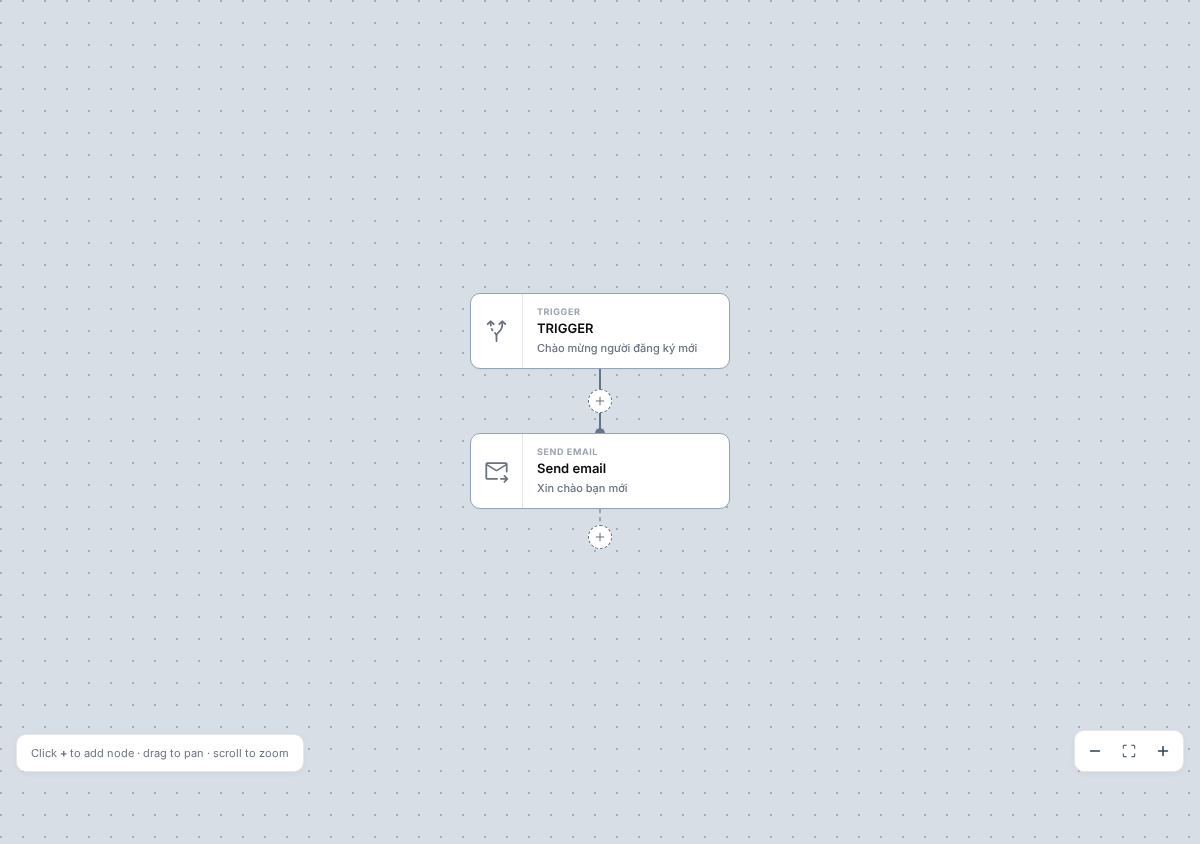
The designer includes:
- a diagram area showing the Starting Condition, steps, and connections;
- + controls for adding or inserting steps;
- a configuration panel that opens when you select a step;
- ACTIVE or PAUSED status and activation/pause actions;
- zoom, fit-to-screen, and full-screen tools.
Drag an empty area to move the viewport. Scroll to zoom, or use the zoom-out, fit, and zoom-in buttons.
In what order does the workflow run?
A typical workflow runs in this order:
Starting Condition → first step → next step → complete
Normally each step has one next step. A Condition step has two outputs, YES and NO; a Subscriber follows only the matching branch.
The workflow does not support connecting back to an earlier step, assigning multiple parent steps to one step, or merging two branches into one step. When a path has no next step, the run completes there.
Add a step
- Select + at the desired location.
- Choose a step type in the Add node window.
- Mailix adds and connects the step at that location.
- Complete the configuration panel that opens.
- Select Save if the step has a save button.
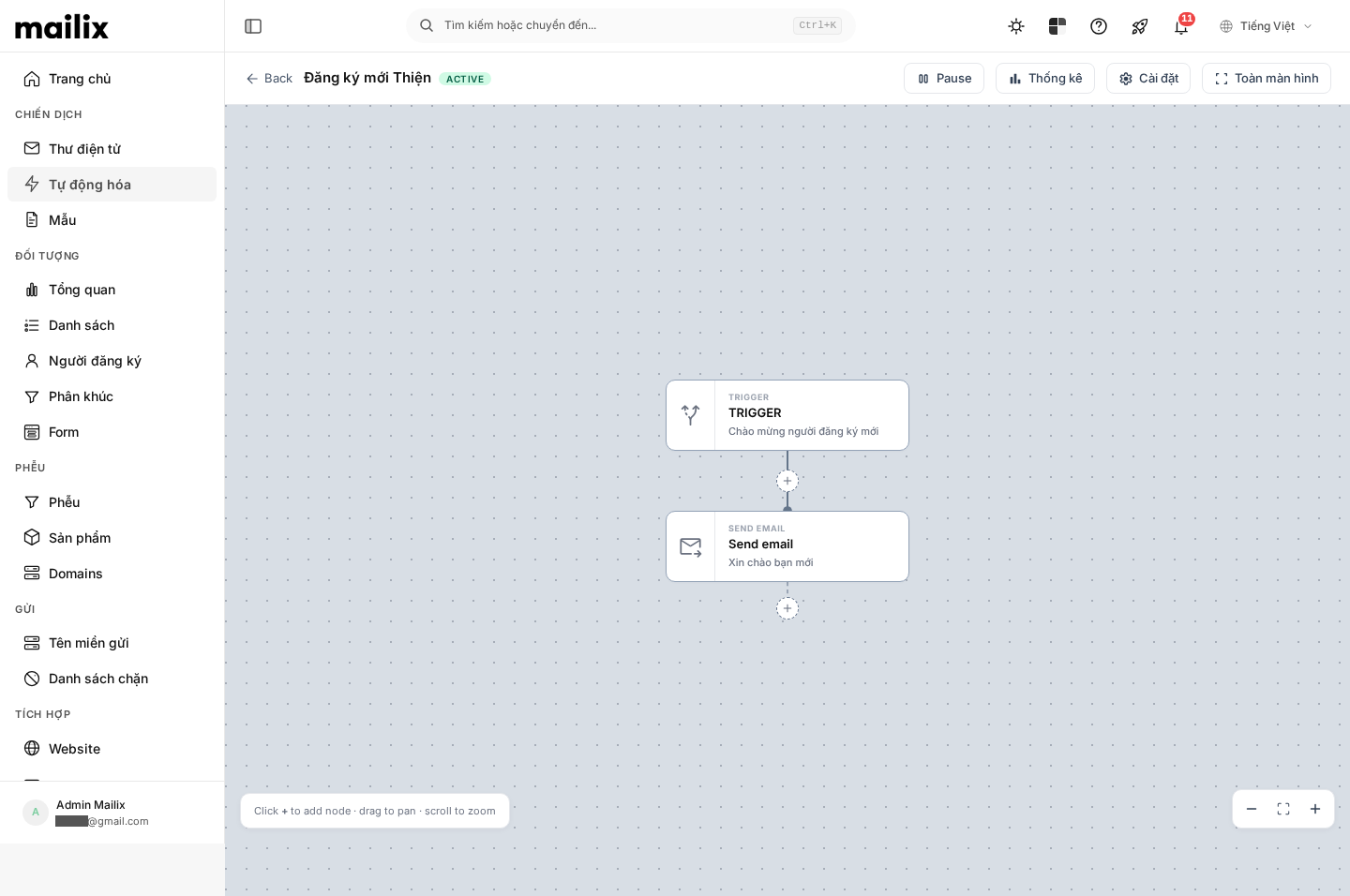
You can select + at the end of a branch or directly on the connection between two steps.
Supported step types
| Step | Purpose |
|---|---|
| SEND EMAIL | Send configured email to a Subscriber |
| WAIT | Wait for a duration or until a specific date and time |
| CONDITION | Wait and check whether a Subscriber opened or clicked email, then choose YES or NO |
| OPERATION | Add/remove Tags, copy/move Subscribers to another List, or update a field |
| WEBHOOK | Send basic data to a saved address or connection configuration |
Webhook requires an appropriate connection and may not be available for every account. This article focuses on common Subscriber-processing steps.
Add an Email step
Select +, then SEND EMAIL. The new step is not ready until you complete sender information and select or create email content.
After a successful send, the Subscriber moves to the next step. If sending fails and cannot be processed, the run may stop in an error state.
See Configure email in a workflow for details.
Add a Wait period
Select WAIT, then choose one of:
- For a duration: wait for a period such as 30 minutes, 2 days, or 1 week.
- Until a date / time: wait until a specific date and time.
While waiting, the Subscriber remains at this step. When the deadline arrives, Mailix moves them to the next step. If a fixed time has already passed when the step is processed, the Subscriber continues immediately.
When an Automation is paused
Pausing prevents new events from adding Subscribers and stops the Automation's periodic checks. A Wait deadline remains a fixed point in time; it is not postponed by the pause duration.
When reactivated, people whose wait has expired are processed at the next check. Email already placed into sending before the pause may still complete; pausing is not recall or an absolute freeze of all in-progress work.
Branch with a Condition
The CONDITION step currently checks email activity in the same Automation:
- whether an email was opened;
- whether an email or link in it was clicked.
Choose the email to check and how long Mailix should wait for the event. At the end of the wait, Mailix checks the data at that time:
- matching activity: follow YES;
- no matching activity: follow NO.
This is not a Tag, field, List, or Segment check. The condition is evaluated once when the monitoring period ends and does not keep changing branches afterward.
Each branch has its own +. A branch with no next step ends the run when the Subscriber enters it.
Add or remove a Tag
- Add an OPERATION step.
- Choose Add tag(s) or Remove tag(s).
- Enter one or more Tags.
- Select Save.
Adding an existing Tag or removing a missing Tag does not create a duplicate Tag or break the workflow.
Note: Adding or removing a Tag can trigger another Automation using the corresponding Starting Condition. Check related Automations to avoid unintended chains.
Copy or move Subscribers to another List
In an OPERATION step, choose:
- Copy to list: create or retain a Subscriber copy in the destination List while keeping the person in the source List;
- Move to list: copy to the destination List, then unsubscribe the person from the source List.
If the Subscriber is already in the destination List, Mailix does not create a duplicate. The action may be skipped if the destination List no longer exists or has reached its Subscriber limit.
After Move to list, the current run may continue through non-email steps. Later email steps may not send because the Subscriber was unsubscribed from the source List. That unsubscribe may also trigger another Automation watching the source List's unsubscribe event.
Update a field
- Add an OPERATION step.
- Choose Update field.
- Choose a field belonging to the primary List.
- Enter the new value.
- Select Save.
The new value overwrites the field's current value. You can enter an empty value to clear saved content.
Do not use this step to trigger another Automation watching field changes; that trigger chain is not stable.
Connect steps
Connections determine processing order. The designer creates a connection when you select + and add a step at that location.
- + at the end of a step adds the next step.
- + on a connection inserts a step in the middle.
- + YES or + NO adds a step to that branch.
- An unconnected step or branch ends the run there.
Insert a step in the middle
For A → B, select + on the connection and add X. Mailix changes it automatically to A → X → B; you do not need to reconnect B manually.
If X is a Condition step, the old continuation is placed on the YES branch and NO is left empty for you to complete.
Does moving a step change processing order?
There is no drag action for changing step order. Mailix arranges cards automatically according to their connections.
Dragging an empty area only moves the viewport; it does not change the workflow. To change order, insert a step at the new location and delete the old step after checking its configuration.
Delete a step
Important: Deletion is saved immediately. Deleting an Email step also removes its email and content from the Automation. If a Subscriber is currently at the deleted step, their run may enter an error state at the next processing.
Select a step, open Actions, then choose:
- Delete (keep children): delete the current step and connect its direct parent to its child. If it is the last step, the parent's connection is also removed.
- Delete with children: delete the current step and every step after it.
Mailix asks for confirmation before deletion. A Condition has two branches, so it cannot keep children; deleting it removes both branches behind it.
There is no action to copy a step or directly change a normal step to another type. A Wait step can be switched between duration and fixed-time waiting while retaining its connection position.
Save changes
Different actions are saved in different ways:
| Action | How it is saved |
|---|---|
| Add or delete a step | Saved immediately after success |
| Choose the insertion position and connection | Saved with the new step |
| Edit WAIT, CONDITION, OPERATION, WEBHOOK, or the Starting Condition | Select Save in the configuration panel |
| Configure Email | Saved section by section in the Email setup process |
| Move or zoom the viewport | Does not change workflow structure |
The designer does not automatically save content being entered in a configuration panel. Closing the panel, selecting Cancel, or leaving before Save discards unsaved edits; no general leave-page warning has been verified.
Edit while an Automation is active
Mailix allows adding, editing, and deleting steps while an Automation is ACTIVE and shows no general warning before changes.
Important: A running workflow reads the new structure at its next processing. Pause the Automation before major changes to avoid breaking runs at a deleted or replaced step.
Common effects:
- A person who passed a step does not run it again.
- A person who has not reached a step uses its new configuration when arriving.
- A person waiting keeps the scheduled time; changing duration does not recalculate an existing wait.
- A person waiting at a Condition keeps the old deadline but may be checked using the new condition configuration when it expires.
- Sent email does not change. People who have not reached an Email step use its new configuration; an email already processing is not guaranteed to switch content.
- Deleting the step where a Subscriber is currently located can cause that run to fail.
Check before enabling
Before selecting Activate (Bật), check:
- the Starting Condition is saved and connected to the first step;
- no card has an unconfigured icon or message;
- each Email step has complete information and content;
- each Wait step has a valid duration or time;
- each Condition has an email to check and a wait period;
- both YES and NO branches have the intended paths;
- Tag, List, and field steps have the required data;
- Webhook has an address or connection configuration;
- sending method, sending limit, and Subscriber limit are available.
When activating, Mailix reliably checks only that the Automation has a Starting Condition type. Being able to activate does not mean the workflow is fully configured; incomplete cards may cause a step to be skipped, end early, or make a run fail.
When a step fails
Valid steps are processed in order and then move to the next step. Behavior depends on the step type:
- serious configuration or send errors may stop a run;
- a List operation lacking data or capacity may be skipped and the workflow continue;
- a Webhook that cannot call its external address does not block the next step, but a completely unconfigured Webhook may make the run fail;
- a branch with no next step is a normal ending.
If a Subscriber is no longer eligible to receive email, an Email step is skipped and the run may stop with a send error. Non-email steps are not automatically skipped only because subscription status changed.
Track each run at Manage Subscribers in Automation.
Frequently asked questions
How many steps can I add?
No separate step limit has been verified in the designer. Automation use and email sending still depend on the plan, permissions, and account limits.
Does dragging a step elsewhere change its run order?
No. There is no card-drag action for order. Dragging empty space only moves the viewport.
Does deleting a step delete later steps?
It depends on the choice. Delete (keep children) retains and reconnects a child; Delete with children removes everything after it. A Condition can only be deleted with its child branches.
Are waiting Subscribers affected if I change the duration?
The scheduled time for an existing wait is not recalculated. The new configuration applies when another Subscriber starts the Wait step.
Can two branches reconnect to the same step?
No. Each step has only one parent, so two branches cannot merge into one step.
Why is the Automation enabled but a Subscriber does not continue?
Check the Starting Condition, connections, warnings on each step, Subscriber status, and relevant limits. An Automation can be enabled while its workflow still lacks a connection or complete step.