Manage Fields in a List
Fields help you store the necessary subscriber data in each list. You can create new fields, change how they are displayed, and arrange the fields to suit your needs.
What is a Field?
Every list always has an Email field. You can add other fields, such as full name, phone number, date of birth, or a group of choices.
These fields help you:
- Store information in addition to Email.
- Enter and edit subscriber data.
- Map columns during import.
- Filter subscribers with segments.
- Choose the information displayed in the subscriber table.
Open Fields
Go to:
Audience → Lists → open a list → Manage list fields
You need permission to edit the list to open this area and save changes.
Existing Fields
Each field is displayed as a card. Its summary shows:
- The field label.
- The field type.
- The Merge Tag.
- Whether the field is required.
- Whether the field is set to visible or hidden.
Select a card to open its settings. The Email field is locked, so it does not have an editing section.
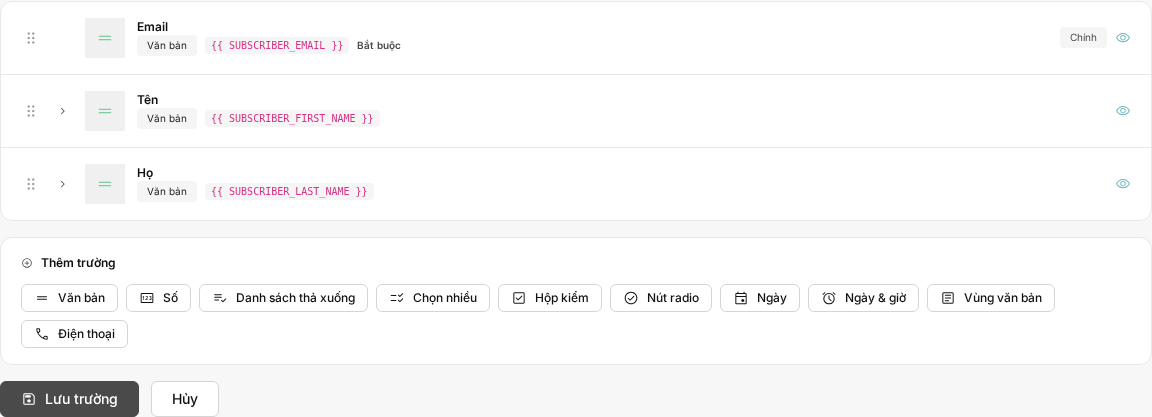
Create a new Field
- Under Add field, select the type of field to create.
- Enter a Label so users know what information to provide.
- Enter an identifying name for the Merge Tag.
- Enter a Default value if needed.
- Enable or disable Required and Visible.
- For a choice field, add the necessary choices.
- Select Save field.
By default, a new field is visible, is not required, and has no default value.
After the field is saved successfully, Mailix returns to the same page and displays the Field saved successfully notification.
Choose a Field type
Mailix provides the following field types:
| Field type | Used to store |
|---|---|
| Text | Short content such as a full name, company, or address |
| Number | A numeric value |
| Dropdown | One item selected from a list |
| Multiselect | One or more selected items |
| Checkbox | One or more marked choices |
| Radio button | One selected choice |
| Date | A specific date |
| Date & time | A date with a time |
| Text area | Long or multiline content |
| Phone | A phone number |
The field type is selected when the field is created and cannot be changed in the current editing section. If you select the wrong type, consider creating a new field and transferring the necessary data before deleting the old field.
Configure a choice Field
The Dropdown, Multiselect, Checkbox, and Radio button types require at least one choice.
Each choice consists of:
- Label: The content users see.
- Value: The data Mailix stores when that choice is selected.
You can add multiple choices, edit a Label or Value, and delete a choice that is no longer used. The current interface does not provide a separate drag-and-drop action for reordering choices.
Required, Visible, and Default value
Required
When Required is enabled, users must provide a value for the field when the applicable form enforces this requirement. On the add or edit subscriber screen, a required field is marked with an asterisk.
Visible
When Visible is enabled, the field appears in the primary information group on the subscriber form and can be included in a subscription form.
A hidden field may appear in the advanced fields area when adding or editing a subscriber. Therefore, hiding a field does not delete the field or its stored data.
Default value
The default value is used as the initial value when a form does not yet have data for the field. How you enter the default value varies by field type, such as number, date, or date and time.
For a choice field, the default value must correspond to the choice's Value, not only its displayed Label.
Merge Tag
A Merge Tag is the field's identifying name that lets Mailix use its data in related workflows, including personalized email content.
On the management page, the complete Merge Tag appears in a format such as {{ SUBSCRIBER_FIRST_NAME }}. When entering it, you only need to provide the field-specific name, such as FIRST_NAME.
This name:
- Is required.
- Is converted to uppercase.
- Uses only letters, numbers, and underscores.
- Must differ from the Merge Tags of other fields in the same list.
Note: If you change a Merge Tag, content using the old Merge Tag may no longer retrieve the correct data. Check Email Templates and related content before changing it.
A Field's Merge Tag is not the tag used to categorize subscribers.
Arrange Fields
Hold the drag icon at the top of a field card, and then drag the card to the desired position.
The new order is saved as soon as you drop the card. The Email field also appears in the sortable list and can be moved, but it always remains required and visible.
Edit a Field
- Select the card for the field you want to change.
- Update the Label, Merge Tag, or Default value.
- Adjust Required and Visible if needed.
- Update the choices if the field is a choice type.
- Select Save field.
You cannot change the type of an existing field on the current screen.
The Email Field
Email is the primary field in every list and has its own rules:
- It always exists.
- It is always required.
- It is always visible.
- Its Label or Merge Tag cannot be changed on the current screen.
- It cannot be deleted.
- Its position can be changed by dragging and dropping it.
If you try to open the link for deleting the Email field, Mailix rejects the action and reports that this required field cannot be deleted.
Delete a Field
- Open the card for the field you want to delete.
- Select Delete field.
- Read the warning and confirm.
Important: Deleting a Field removes access to subscriber data stored in that field. This action cannot be undone in the verified interface. Export or review any data you need to retain before confirming.
When you delete a field used in a segment, the related condition is also deleted. Review the segments after changing fields.
If the field's Merge Tag is used in an Email Template or Campaign content, that content may no longer display data as it did before. Check related content before deleting the field.
The Email field is protected and cannot be deleted.
Where are Fields used?
- Adding and editing subscribers: Fields are displayed as suitable input boxes or choices.
- Import: Columns in the file can be mapped to existing fields in the list.
- Segments: Email and other fields can be used as conditions.
- Subscriber table: Fields can be selected as displayed columns.
- Export: The export file includes Email and the list's fields.
- Email content: Merge Tags can insert data specific to each subscriber.
Creating a new field directly on the Import screen has not been verified as a complete workflow. Create the field on the Manage list fields page before importing.
When changes cannot be saved
Check the following:
- Every field has a Label.
- Every field has a Merge Tag.
- Merge Tags contain only letters, numbers, and underscores.
- No two fields use the same Merge Tag.
- Every choice field has at least one choice.
- Every choice has a Label and Value.
- The account has permission to edit the list.
Errors are displayed on the page so you can correct the information and save again.
Frequently asked questions
Can I create additional Fields?
Yes. Open Manage list fields, select a field type, and complete the settings.
Can I require Subscribers to have a Field?
Yes. Enable Required for that field. The Email field is always required and cannot be disabled.
Can I change the Field order?
Yes. Drag the field card to its new position. The order is saved after you drop it.
Is a Merge Tag the same as a Subscriber tag?
No. A Merge Tag identifies a Field and can be used to insert data. A subscriber tag is used to mark and categorize subscribers.
Can I delete the Email Field?
No. Email is the primary field and is always required and visible.
Does deleting a Field cause data loss?
Yes. Data associated with that field will no longer be accessible through the Field. Review and save any necessary data before deleting it.
Why does a Field not appear in the primary area when adding a Subscriber?
The field may have Visible disabled. Check the form's advanced fields area, or enable Visible again on the management page.