Set up fulfillment and view sales
In the Funnels area, Fulfilment is how Mailix delivers digital content after a sale, such as license keys, emails, or notifications to another system. It is not where you configure shipping fees, delivery regions, inventory, or taxes.
Open fulfillment settings
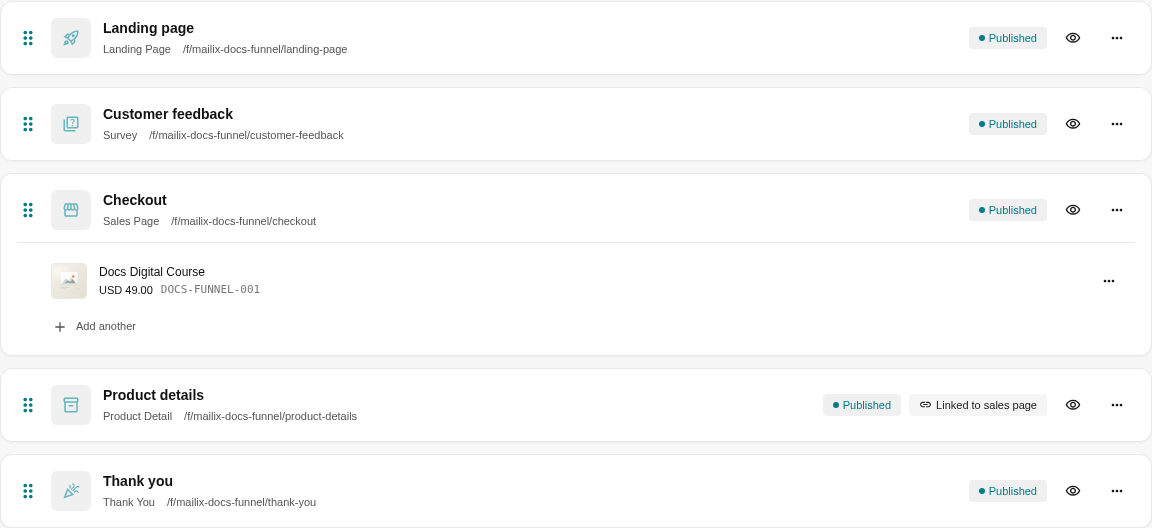
Open the Funnel, then select the Fulfilment tab. You can enable one or more fulfillment methods appropriate for the product.
Issue keys to buyers
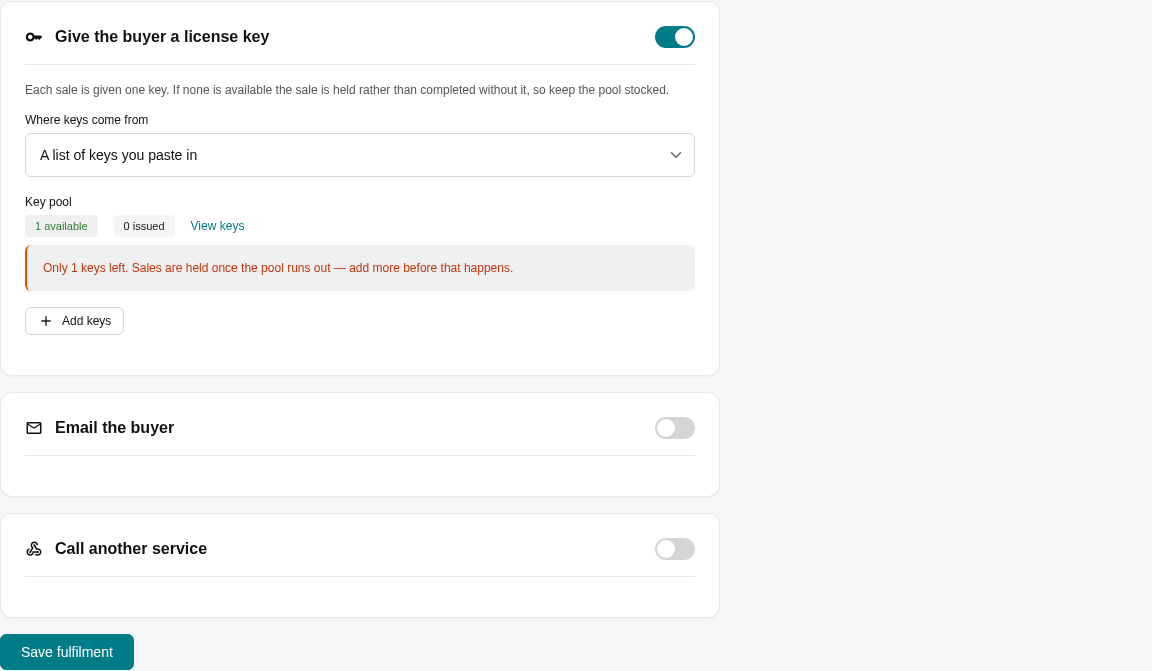
You can obtain keys from:
- a list of keys entered into Mailix; or
- an address on your own system, if the account supports this connection method.
For a key list, enter one key per line. Duplicate keys are ignored. Keys already issued to buyers cannot be removed from the list.
Important: When the key inventory is empty, a transaction that requires a key is held instead of being completed without one. Monitor the remaining keys and add more before they run out.
Send a post-sale email
Enable email, select a sender, enter a subject, and create a separate content version for the Funnel. You can open the builder to edit the email. If you choose to send through the Funnel's List, the Funnel must be attached to a List with an appropriate sending method.
Saving the settings does not automatically create email content. Use Create email from template, design the email, and save it before accepting transactions.
Notify another system
When used, you can configure a request to be sent to an address on your own system after the transaction is fulfilled. Failure of this notification does not cancel the transaction; you can retry it from the Sales tab.
Do not enter secrets where other people in the account can see them unless necessary.
Save and check the configuration
Select Save fulfilment. Mailix checks the enabled components, such as key inventory, key source, sender, email content, or connection address. Resolve every warning before opening sales.
View sales and statuses
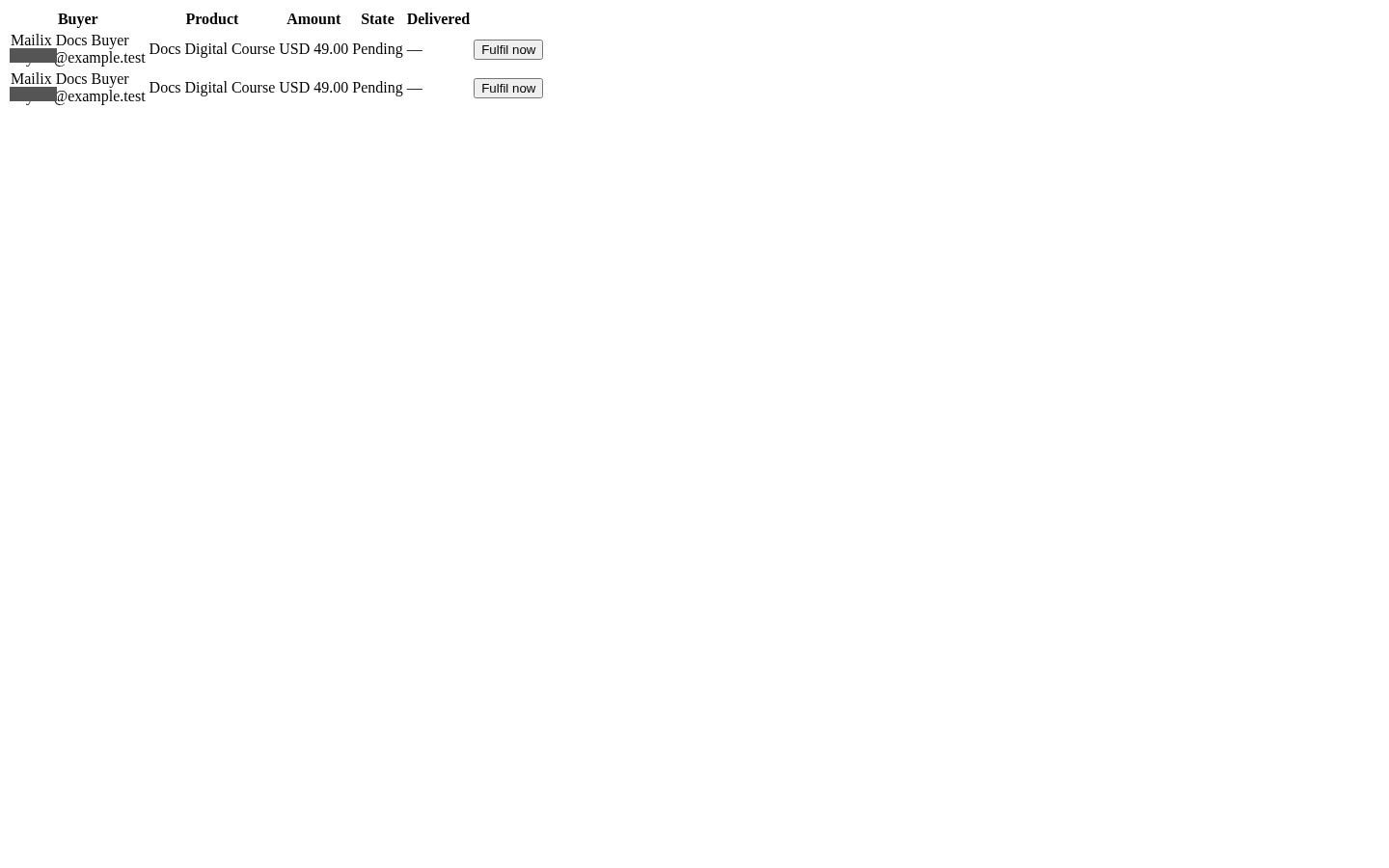
Open the Sales tab to view the buyer, product, amount, currency, transaction status, and fulfillment result.
| Status | Meaning |
|---|---|
| Waiting for approval | An offline payment is waiting for you to confirm that the funds were received. |
| Pending | The transaction has not completed fulfillment. |
| Held | Fulfillment encountered an error and needs review. |
| Fulfilled | The line item's primary fulfillment has completed. |
| queued / sent / failed | Separate statuses for a post-sale email or notification. |
Important: Select Approve payment for an offline payment only after you have actually confirmed that the funds arrived. This action confirms the transaction and begins fulfillment; Mailix does not check your bank account for you.
For a held transaction, Fulfil now attempts the current fulfillment again. For a failed individual email or notification, use the corresponding retry action. The Sales tab has no cancellation or refund action; handle that through your payment method.
Sales do not mean funds received
Amounts in Sales and reports reflect recorded transaction values by currency. They do not prove that funds reached the bank, were reconciled, or can no longer be refunded.