Add and Remove Tags for Subscribers
A tag is a short label that helps you mark and categorize subscribers. A subscriber can have multiple tags.
Where are tags used?
In the current interface, tags are used in:
- The edit page for an individual subscriber.
- The action menu when multiple subscribers are selected.
- The subscriber import process.
- Segment conditions.
Mailix does not have a standalone tag management page in the verified interface. You manage tags directly on a subscriber or in a related workflow.
Add tags to a subscriber
Go to:
Audience → Lists → open a list → Subscribers → open a subscriber
Then:
- Find the Tags area near the subscriber's primary information.
- Select the + icon.
- Enter a tag name. If you enter multiple tags, separate them with commas.
- Press Enter to confirm.
Mailix saves the tags immediately and reloads the page to display the result. You do not need to select Save changes in the information form.
Tags are entered directly. This interface does not provide suggestions or autocomplete for existing tags.

Remove a tag from a subscriber
- Open the subscriber edit page.
- Find the tag you want to remove.
- Select the × icon on that tag.
Mailix removes the tag and reloads the page to display the new list of tags. This action affects only the subscriber you have open.
Add or remove tags in bulk
You can update tags for multiple subscribers in a single action:
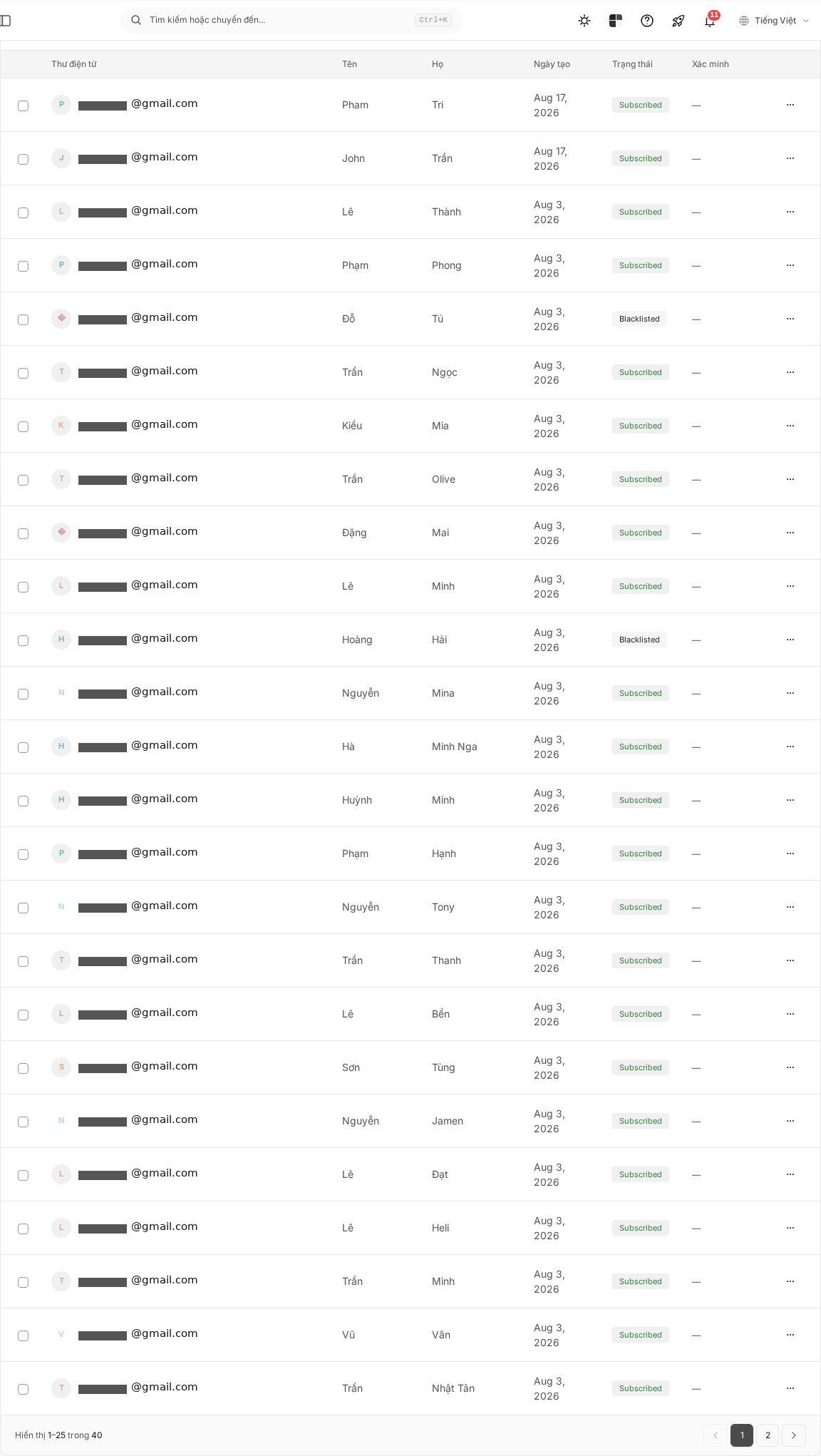
- Open a list's Subscribers page.
- Select individual rows, the entire current page, or all results matching the filter.
- Open Actions.
- Select Add tags or Remove tags.
- Enter one or more tags, separated by commas.
- Confirm the action.
When removing tags in bulk, only tags that match the text you enter are removed. Enter the exact tag name, including capitalization.
You must select at least one subscriber and enter at least one tag. If the account has permission only to view the list, the tag update action cannot be performed.
Tags during import
An import file can contain a column named tags. In each row, you can enter multiple tags separated by commas.
- For a new subscriber, the tags in the imported row are added to that subscriber.
- For a subscriber who already exists in the list, the current tags are retained by default.
- If you choose to update existing subscribers and enable the option to overwrite tags, the current tags are replaced by data from the
tagscolumn. - If you choose to skip existing subscribers, their tags do not change.
Check the tags column carefully before enabling overwrite. Values in the file may replace all current tags belonging to an existing subscriber.
See Import Subscribers for information about preparing the file and choosing how to handle existing data.
Use tags in Segments
When creating a segment condition, you can select Tags and enter the tag name to check.
The condition supports two cases:
- The subscriber has the entered tag.
- The subscriber does not have the entered tag.
Enter the exact tag name in use. When a subscriber's tags change, whether that subscriber matches the segment condition may also change.
Detailed instructions for creating conditions are provided in Create and Manage Segments.
Notes
- Tags are free-form text; you do not have to select them from an existing tag library.
- Leading and trailing whitespace in a tag name is removed when the tag is added on the edit page.
- A tag that exactly duplicates an existing tag is not added a second time.
- Use consistent capitalization to avoid creating tags that are almost identical.
- Mailix does not have a standalone Tags area in the verified interface.
- There is no verified feature for renaming a tag across all subscribers.
- There is no verified feature for deleting a tag from the entire account through a separate action.
- The current subscriber export file does not include tags in the CSV data.
Frequently asked questions
Can I add multiple tags to a Subscriber?
Yes. Enter the tags separated by commas, then press Enter.
Can I remove a tag later?
Yes. Open the subscriber and select the × icon on the tag you want to remove.
Can I add tags to multiple Subscribers at the same time?
Yes. Select the subscribers, open Actions, and then select Add tags. You can also select Remove tags to remove tags in bulk.
Can an import add tags?
Yes. Use the tags column in the import file and separate multiple tags with commas. For existing subscribers, tags are retained by default unless you enable the option to overwrite tags.
Can tags be used to create Segments?
Yes. A segment condition can check whether a subscriber has or does not have a specific tag.
Can I rename a tag for all Subscribers?
There is no verified feature in the current interface for renaming a tag across all subscribers. You need to update tags on individual subscribers or use an appropriate bulk action.
Can I delete a tag across the entire account?
There is no verified page or action for deleting a tag across the entire account. Bulk tag removal is performed within the list and group of subscribers you select.
Can I export tags?
Not in the current subscriber export file. The generated CSV file does not contain a Tags column.