Manage and Edit Subscribers
The Subscribers page helps you find contacts in a list, check their status, and update their information when needed.
Open a list's Subscribers page
Go to:
Audience → Lists → open a list → Subscribers
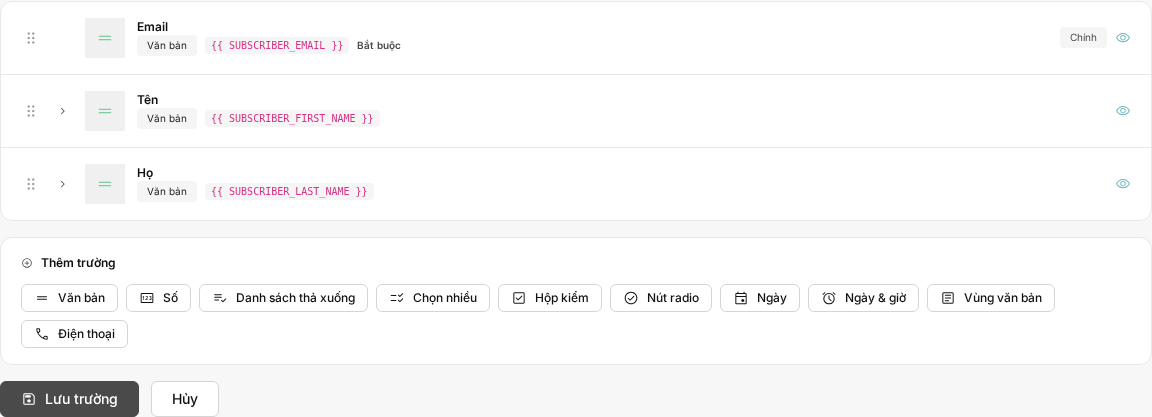
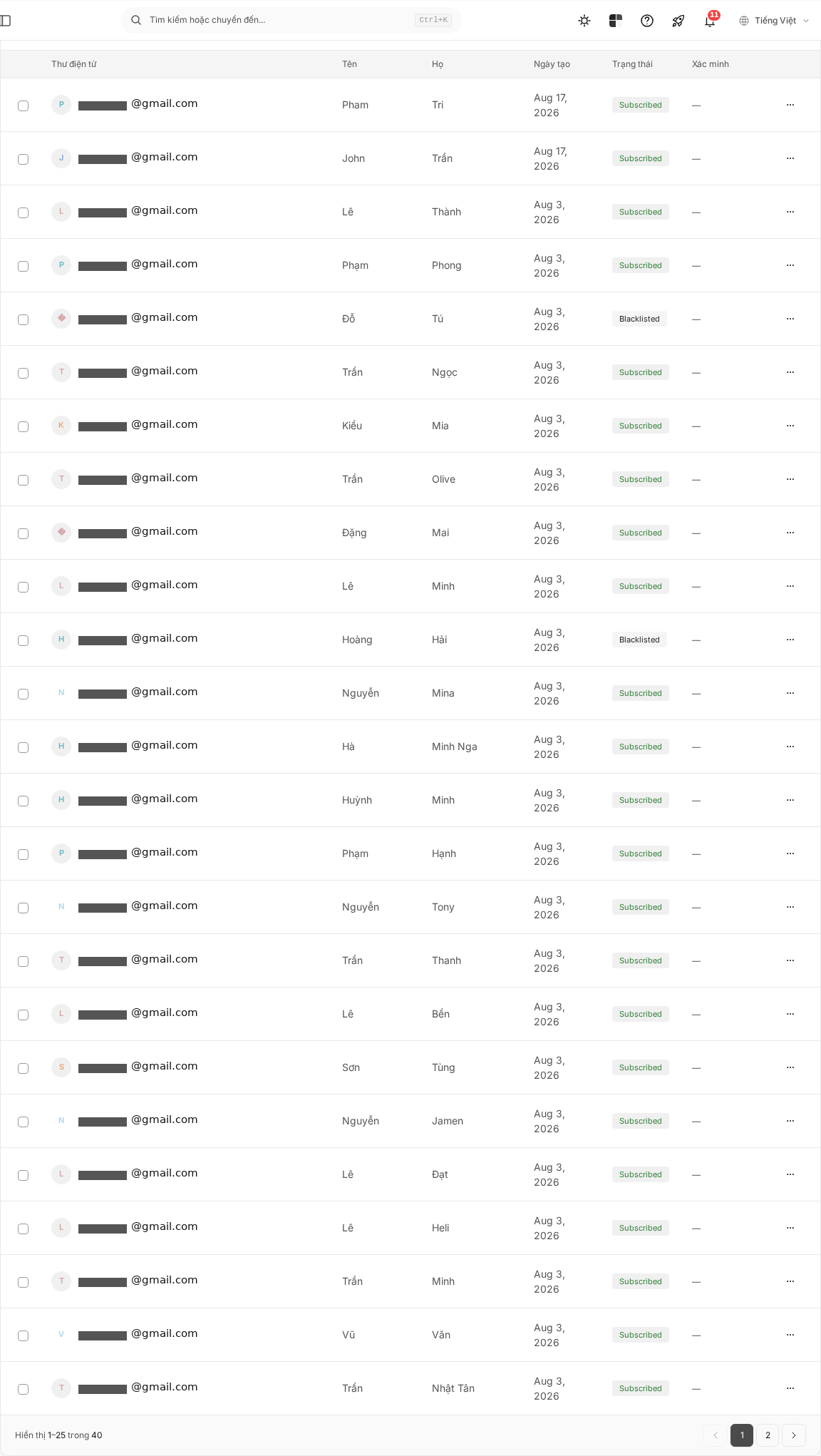
Each row in the table represents a subscriber. The table always displays the email address, subscription status, and email verification result. You can also display additional fields, the creation date, and the update date.
Depending on account permissions, system configuration, or enabled add-on features, some columns and actions may not appear.
Find subscribers
Enter a keyword in the Search by email or name... box. Mailix searches email addresses and the list's fields.
If you use multiple keywords, results must match the entered terms. Try shortening the keywords if you cannot find the subscriber you want.
Filter subscribers
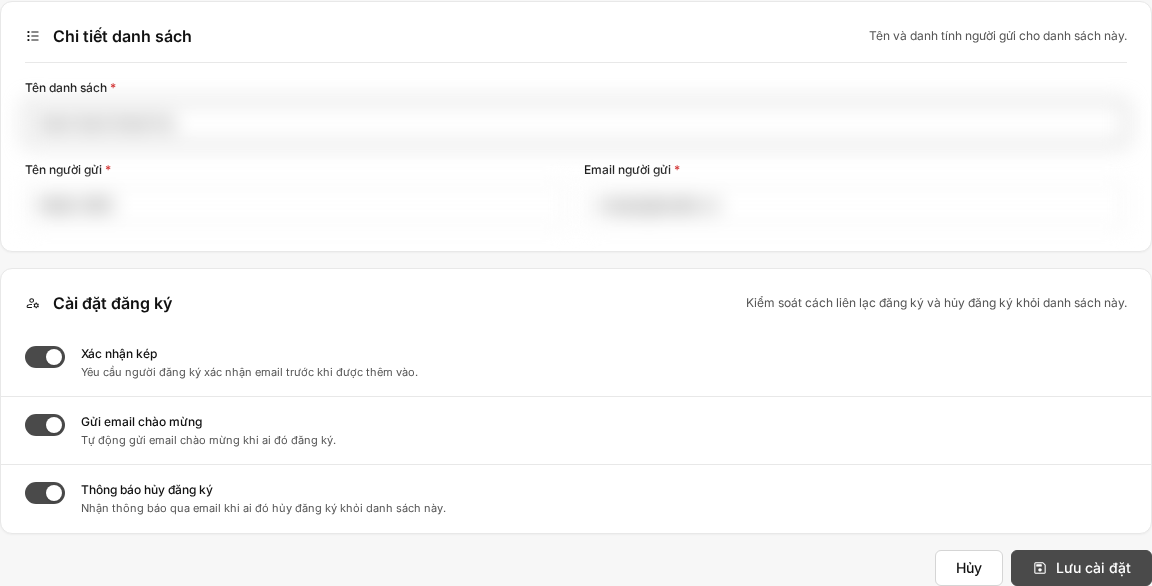
You can filter by subscription status:
- Subscribed: Can receive campaigns sent to the list.
- Unsubscribed: Has stopped receiving email from the list.
- Unconfirmed: Has not completed the subscription confirmation step.
- Blocked: The address is currently blocked.
You can also filter by email verification result:
- Deliverable.
- Risky.
- Undeliverable.
- Unknown.
- Unverified.
You can use both filters together with the search box. To return to all data, select All statuses and All verifications, then clear the keyword.
Sort the list
Under Sort by, you can select:
- Date added.
- Sort by email.
- Recently updated.
Select the direction icon beside the option to switch between ascending and descending order. When there are many results, use the pagination bar at the bottom of the table to move between pages.
Choose the information to display
Select Columns to change the information shown in the table.
You can enable or disable:
- The list's fields.
- Created at.
- Updated at.
- Columns provided by add-on features, if any.
Email, subscription status, and email verification result remain the table's primary columns. After making your selections, select Apply.
Open and edit a subscriber
You can open the edit page in one of two ways:
- Select the email address in the table.
- Alternatively, open the action menu at the end of the row and select Edit.
On the edit page:
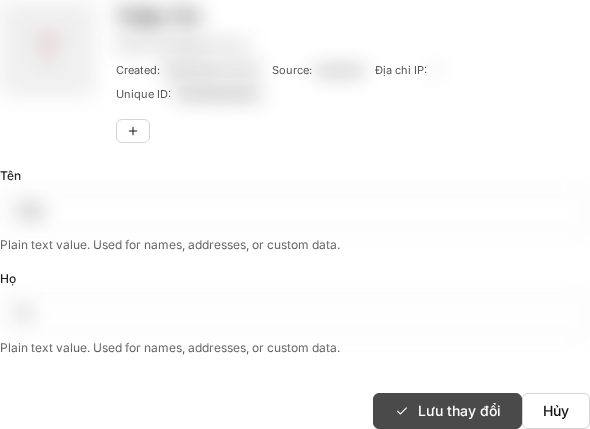
- Confirm that you have opened the subscriber you need to update.
- Change the full name or any displayed fields.
- Complete every field marked with an asterisk.
- Select Save changes.
After the changes are saved successfully, Mailix keeps you on the edit page and displays a notification confirming that the subscriber was updated.
The email address is displayed to identify the subscriber, but it cannot be edited in this form.
Update fields
The fields in the form depend on each list's configuration. In addition to the full name, you may see text, number, multiline text, selection list, checkbox, date, date and time, or phone number fields.
Some additional fields may appear under Other channels and advanced fields. This section appears only when the list has corresponding fields.
When a field is marked with an asterisk, you must enter or select a value before saving. If you leave an optional field blank and then save, that field's current value may be deleted.
Add and remove tags
Tags appear near the subscriber's primary information on the edit page.
- Select the + icon to enter one or more tags. When entering multiple tags, separate them with commas and then confirm.
- Select the × icon on a tag to remove it from the subscriber.
Adding or removing tags is applied separately; you do not need to select the information form's Save changes button.
Subscriber status
The current status appears in the table and next to the email address on the edit page. You may encounter these statuses:
- Subscribed.
- Unsubscribed.
- Unconfirmed.
- Blocked.
- Reported spam.
Status cannot be edited in the information form. For eligible subscribers, the table's action menu may display Subscribe, Unsubscribe, or Send confirmation email.
Check the current status and consent to receive email before confirming a change.
Other actions
The action menu may also let you copy or move a subscriber to another list. When you select multiple rows, you may see additional bulk actions.
Depending on account permissions, some actions may be unavailable. Copying or moving may also be limited by the destination list's service plan.
Note: Some actions may affect the subscriber's email-receiving status or data. Check carefully before confirming.
This article does not provide detailed instructions for deleting, blocking, moving, or performing bulk actions.
When you cannot find a subscriber
If the list does not yet have any subscribers, the page displays an empty state with an Add subscriber button.
If a search or filter returns no results, Mailix displays No subscribers found. Try the following:
- Check the email address or keyword again.
- Remove some of the keywords.
- Select All statuses.
- Select All verifications.
When you cannot save changes
Check the following:
- All fields marked with an asterisk have been completed.
- The data matches the field type, such as a number or date field.
- You have permission to edit subscribers in this list.
An error for an individual field appears near that field. Correct the data, then select Save changes again.
Because the email address cannot be edited in the edit form, a duplicate-email error cannot result from changing the email address here.
Frequently asked questions
Can I find a Subscriber by email address?
Yes. The search box supports email addresses and data in the list's fields.
Can I filter by status?
Yes. You can filter by Subscribed, Unsubscribed, Unconfirmed, or Blocked. You can also use the email verification filter.
Can I change a Subscriber's email address?
Not in the current edit form. The email address is displayed as read-only.
Can I add tags while editing?
Yes. Select the + icon in the Tags area, enter a tag, and confirm. You can also remove each existing tag.
Can I change Subscriber status?
Status is not part of the information form. Depending on the status and account permissions, the table's action menu may provide Subscribe, Unsubscribe, or Send confirmation email.
Why are some actions not available to me?
Some actions depend on the subscriber's status, account permissions, service plan, system configuration, or enabled add-on features.
Can I choose which columns appear in the table?
Yes. Select Columns, enable or disable the fields you want to view, and then select Apply.