Pause, resume, resend, and archive a Campaign
After you create or launch a Campaign, the available actions change with its current status. This guide explains the differences between Pause, Resume, Resend, Copy, Archive, and Delete so you can avoid sending by mistake or losing Reports data.
Campaign statuses
| Status | Meaning |
|---|---|
| New | The Campaign is being set up and has not started sending. |
| Scheduled | The Campaign is waiting for its saved sending time. |
| Queued | The Campaign is waiting for the sending process to start. |
| Sending | Mailix is processing the Campaign's Recipients. |
| Paused | A request has been made to stop processing. This status may appear alongside the Campaign's preceding stage. |
| Sent or Complete | The Campaign's sending process has ended. |
| Error | The Campaign encountered an error during preparation or sending. |
The Paused and Error statuses may be displayed alongside the preceding processing status. For example, a Campaign that is sending can become paused without becoming a new Campaign.
Actions change with status
Open Campaigns → Email, find the Campaign, then open the actions menu at the end of its row.
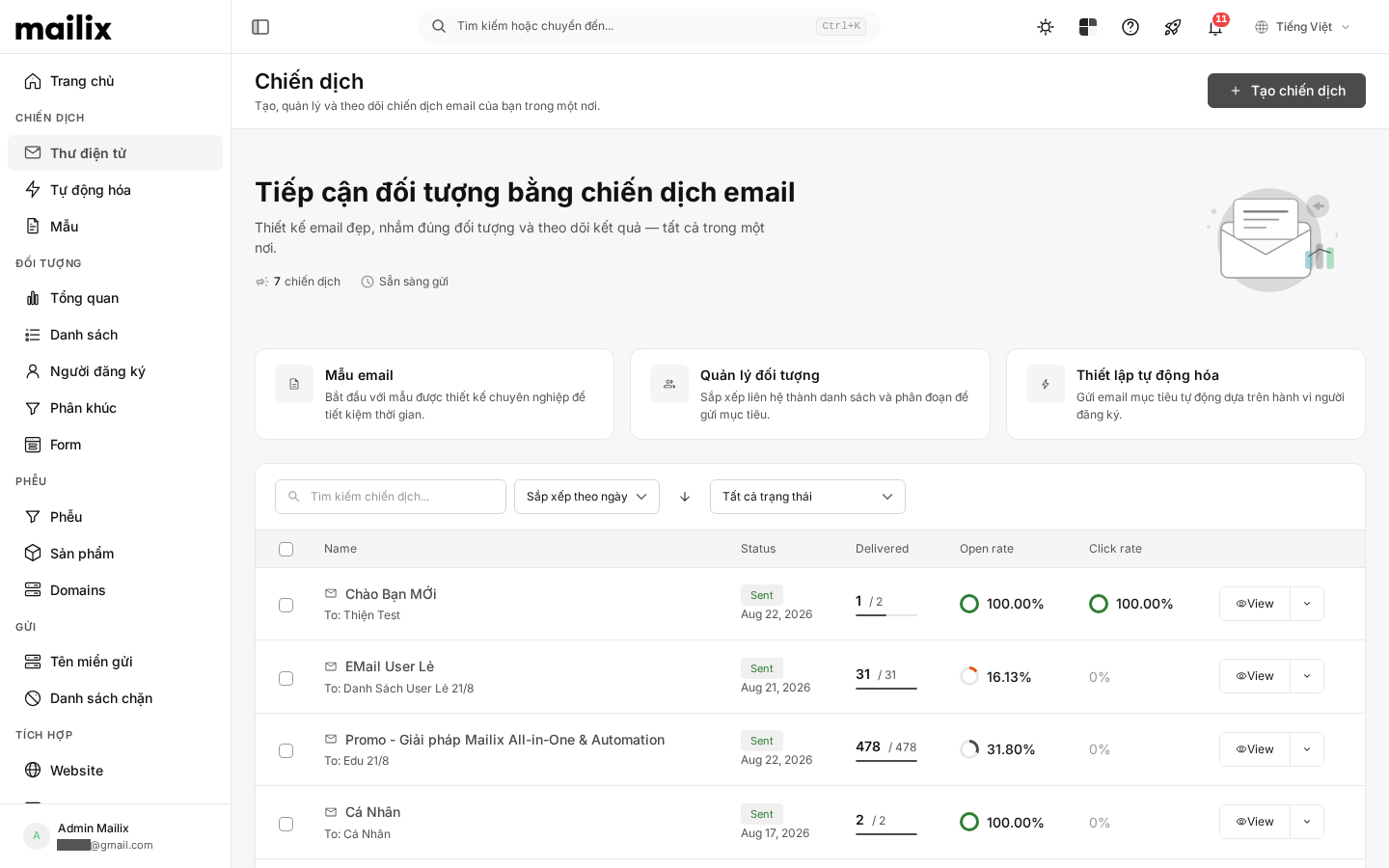 Depending on the status and Account permissions, the menu may include:
- Edit while the Campaign still allows changes.
- View or Reports when you need to monitor results.
- Pause when the Campaign is scheduled, queued, or sending.
- Resume when the Campaign is paused, has an error, or is scheduled.
- Resend for a completed, paused, or failed Campaign.
- Copy, Send test email, Archive, or Delete when the corresponding conditions are met.
If an action is not visible, check the Campaign status and Account permissions. The presence of an action in the menu does not mean that it is suitable for every sending stage.
Pause a Campaign
You can pause a Campaign that is waiting for processing or is already sending:
- Open the Campaign's actions menu.
- Select Pause.
- Read the confirmation and agree to pause.
- Check the status again on the Campaign page.
 Pausing cancels pending work and marks the Campaign as Paused. Emails already sent cannot be recalled. An email that began processing immediately before you paused may still finish.
The unprocessed portion of the Recipients waits until you select Resume.
Important: Do not use Pause as a way to cancel a sending schedule. For a Scheduled Campaign, this action has not been verified to stop the saved schedule reliably. If you need to change the time, edit the Schedule step before the sending time.
Resume a Campaign
To resume a paused or failed Campaign:
- Open the actions menu.
- Select Resume.
- Confirm the action.
- Monitor the Queued or Sending status.
 Resume uses the same Campaign and existing Reports. Mailix does not restart the entire send:
- Addresses processed previously are not sent to again.
- New Subscribers who match the current List or Segment selection may be included in the remaining portion.
- People who have unsubscribed, been blocked, been deleted, or no longer meet the current conditions are not included in the remaining portion.
- Sends already recorded as errors are not retried automatically by Resume.
Current conditions for sending methods, Account limits, and sending hours still apply. If the conditions are no longer met, the Campaign may resume partially and then change to Error.
Scheduled Campaigns
A Scheduled Campaign can be opened to edit its time before sending begins. The saved selection is displayed again in the Schedule step.
The verified interface does not provide a separate Unschedule action. Do not use Archive to cancel a schedule because archiving does not stop sending. If you must prevent a saved schedule, act before the sending time and check the status again after the change.
For details about selecting the date, time, and time zone, see Schedule a Campaign.
Resend a Campaign
Resend continues to use the same Campaign; it does not create a new Campaign or new Reports. Because the same Campaign's Tracking data is changed, select the correct resend scope.
Important: Resend all deletes existing Tracking data and resets the Campaign Reports for the new send. Review the current Reports before using this option. If you need to retain the old Reports and create a separate send, Copy the Campaign instead of resending all.
Verified options include:
| Option | People who may receive the resend | Effect on data |
|---|---|---|
| Not received | New matching Subscribers and addresses with failed sends | Clears error records so those addresses can be retried |
| Not opened | Recipients without a recorded Open, addresses with failed sends, and new matching Subscribers | Clears the corresponding Tracking data so this group can receive the resend |
| Not clicked | Recipients without a recorded Click, addresses with failed sends, and new matching Subscribers | Does not require the Recipient to have opened the earlier email; clears the corresponding Tracking data so this group can receive the resend |
| Resend all | All currently eligible Subscribers | Deletes old Tracking data and recalculates Reports from the new send |
To resend:
- Open the Campaign's actions menu.
- Select Resend.
- Select the Recipient scope.
- Review the warning about Tracking data.
- Confirm the resend.
The Resend action starts processing; a success message does not mean that every email has finished sending. Mailix uses the current Recipient, content, sender, and sending-method configuration. Check the sending limit before confirming because the Campaign may stop partway through if it no longer meets the conditions.
Copy a Campaign
Copy creates a New Campaign for you to review in the setup workflow. This is the appropriate option when you want to retain the old Campaign's Reports and prepare a separate send.
The copy retains these verified main sections:
- Lists, Segments, and exclusions.
- The subject, sender, and email content.
- Tracking settings and sending-hours restrictions.
- The Campaign's sending-method selection.
The copy does not retain the old Campaign's sending schedule, status, progress, or Reports. You must name the copy and review all steps again before launching. Creating the copy may be blocked if the Account has reached its Campaign-count limit.
Archive a Campaign
Archive consolidates the Campaign's historical data and clears detailed logs. The Campaign remains in the regular list; archiving is not a temporary action and is not the same as deleting.
Important: Archiving does not stop a Campaign that is sending and does not cancel a sending schedule. It clears detailed Tracking data, so some Reports details may no longer be available. Archive only completed Campaigns and only when you no longer need that detailed data. The current interface has no verified Unarchive action.
To archive a completed Campaign:
- Open the actions menu.
- Select Archive.
- Read the warning and confirm.
- Wait for Mailix to process the archive request.
An archived Campaign is not moved to a separately verified archive tab. Find the Campaign in the regular list.
Delete a Campaign
Delete is permanent. Mailix deletes the Campaign, related content, and Reports data; the interface has no verified recovery method.
If you delete a Campaign that is waiting or sending, unprocessed work is canceled. Emails already sent cannot be recalled. Use Delete only when you are certain that you no longer need the Campaign or its Reports.
Monitor a Campaign that is sending
While the Campaign is sending, the list page displays the number sent compared with the estimated total and a progress bar. Open the Campaign to view the available Reports.
The total may change based on currently eligible Subscribers. Pause retains the data already recorded; Resume adds results to the same Reports.
When a Campaign encounters an error
Select the Error indicator to view the information provided by Mailix. Then:
- Check the sending method, Account limits, and Campaign settings.
- Correct the cause if the status permits editing.
- Select Resume to process the remaining portion, or Resend if failed addresses need to be retried.
- Monitor the status and progress after the action.
There is no separate verified Retry action. Resume and Resend have different scopes, so do not use them interchangeably.
When applying a bulk action to multiple Campaigns, Mailix applies it only to Campaigns with a suitable status. Check each status again after the action because the general message does not confirm that every item was changed.
Frequently asked questions
Does pausing recall emails already sent?
No. Pausing only prevents unprocessed work from continuing. Sent email cannot be recalled; an email that already started processing may still finish.
Does resuming send every email again from the beginning?
No. Mailix continues the same Campaign and removes previously processed addresses from the remaining portion. To retry addresses with failed sends, use the correct option under Resend.
Will a Subscriber who unsubscribes while the Campaign is paused still receive email?
When the Campaign resumes, Mailix recalculates currently eligible Recipients. People who unsubscribed or were blocked during the pause are not included in the remaining portion.
Can I change a scheduled Campaign?
Yes, while the status and Account permissions still allow editing. Make the change before the sending time and check the saved schedule again. Do not rely on Pause or Archive to cancel a schedule.
Does Resend create new Reports?
No. Resend uses the same Campaign and changes the existing Tracking data. If you need a separate send and separate Reports, use Copy, then review the copy before sending.
Does copying a Campaign copy its Reports?
No. The copy is a New Campaign and does not retain the old sending history or Reports.
Does archiving delete the Campaign?
No. The Campaign still exists, but detailed logs are cleared after historical data is consolidated. Some Reports details may no longer be available.
Can I unarchive a Campaign?
There is no Unarchive action in the verified interface.
Can a deleted Campaign be recovered?
There is no verified recovery action. Deleting also removes the related content and Reports data.
Can a failed Campaign be resumed?
Yes, if the Account permissions and current sending conditions allow. Resume processes the remaining portion; it does not automatically retry addresses already recorded as errors.