Publish and Unpublish a Form
Publishing adds the Form to the connection code for its linked Website. Unpublishing removes the Form from that code when the Website reloads.
Before publishing
Check that:
- the Form has exactly one Email field and one Submit button;
- all required fields are present;
- content and settings have been saved;
- the Form is linked to the appropriate Website;
- the Website has Connected status and still contains the connection code;
- you have previewed the Form.

Publish from the designer
- Select Save to validate and save the content.
- Select Publish on the top bar.
- Wait for the page to reload and check for the Published badge.
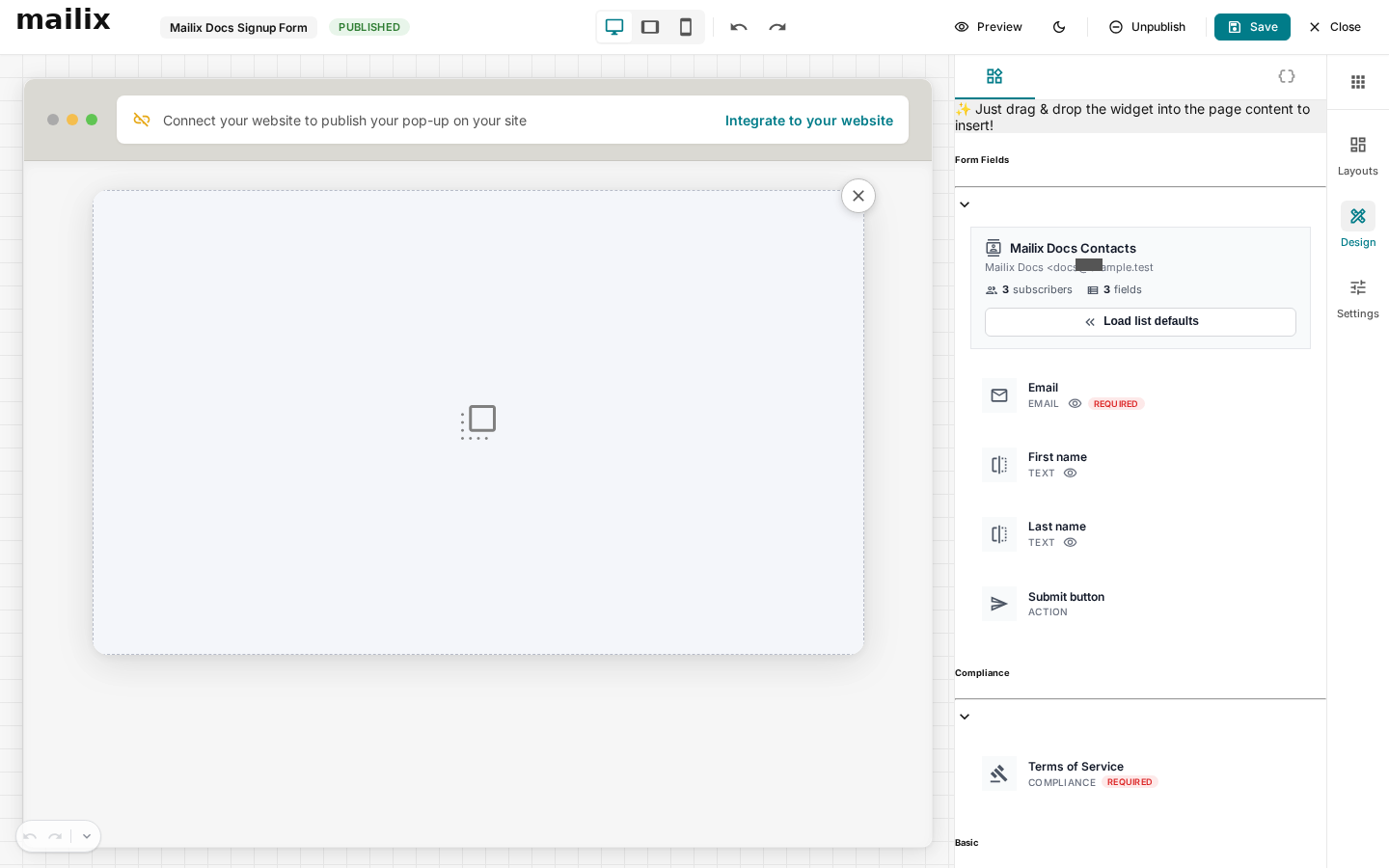 You can also open the Form menu on the Forms page and select Publish.
Important: Publishing from the list page does not fully validate Form content. In the designer, publication may still proceed even if the latest save reported an error. Always confirm that Save succeeded before publishing.
When does the Form appear on the Website?
The Form appears only when all these conditions are met:
- its status is Published;
- it is linked to a Website;
- the Website is Connected;
- the Website connection code loads on the page;
- the popup display condition is met.
The Website needs to reload to receive the latest Form list. Publishing does not automatically insert code into the Website.
Edit a published Form
You can continue to open and edit a published Form. Visitors receive only saved content; unsaved changes are not placed on the Website.
After saving, newly loaded popups use the current content. Visitors who opened the Form earlier may still see the version loaded in their session.
Unpublish a Form
In the designer, select Unpublish. On the Forms page, open the Form menu, select Unpublish, and confirm.
 The Form returns to Draft status. Its Website link and Form content are retained so you can edit or republish it.
How does unpublishing affect the Website?
When the Website reloads the connection code, the Draft Form is no longer added to the page. Other published Forms on the same Website are unaffected.
Important: Unpublishing does not completely disable the Form's loading or submission path. A page that loaded the Form before you unpublished it may still submit data, and the direct Form path has not been verified as disabled. If you need an emergency stop, unpublish the Form, unlink it from the Website, and remove the related display code from the Website.
Republish
After editing:
- Save the content and settings.
- Preview the Form.
- Select Publish.
- Reload the Website and verify the display condition.
Previously collected Subscribers are not deleted when you unpublish or republish.
How is deleting a Form different from unpublishing it?
| Action | Form content | Website link | Saved Subscribers |
|---|---|---|---|
| Unpublish | Retained | Retained | Retained |
| Delete Form | Deleted, with no verified undo | No longer used | Remain in the List |
Important: Use Unpublish if you only want to pause display. Delete only when you are certain the Form content is no longer needed.
When a published Form does not appear
Check whether:
- the Form is linked to the correct Website;
- the Website has Connected status;
- the connection code remains on the Website;
- the page has been reloaded;
- the delay, first-visit, Click, or exit condition has occurred;
- the browser is blocking code or cookies required for the selected display method.