Using the Mailix Dashboard
1. What is the Dashboard?
The Dashboard gives you a quick view of account usage and email-sending performance. You can:
- Track the number of lists, campaigns, and subscribers.
- Review email metrics from the last seven days.
- Follow sending volume over time.
- Open common tasks quickly.
- Review recent campaigns, account activity, and subscriber status.
2. Open the Dashboard
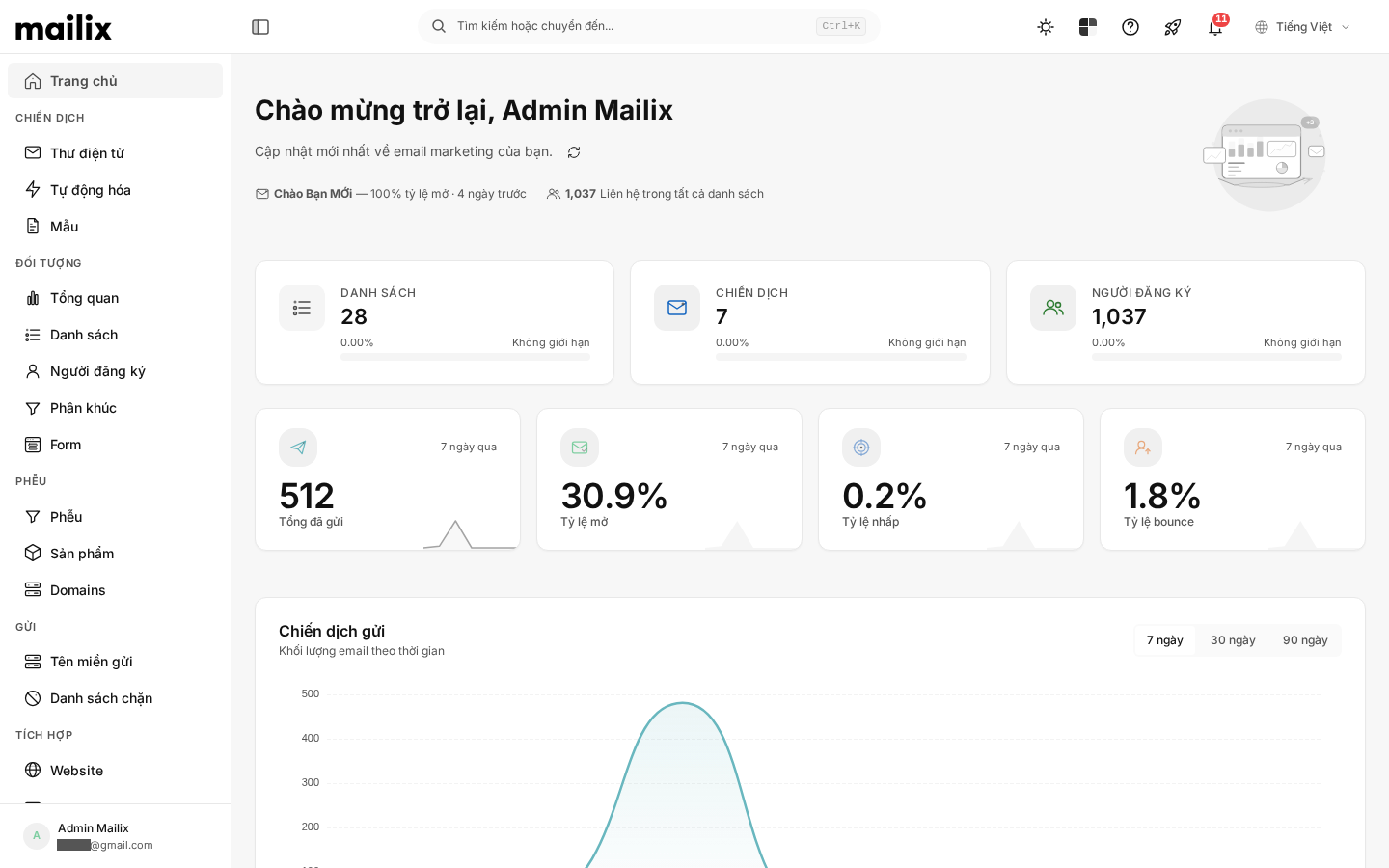
After signing in, select Home (Trang chủ) in the left navigation. The Dashboard is the main overview page for the customer area.
3. Welcome area
The top of the Dashboard shows a greeting with your name. Depending on available data, it can also show:
- The most recently sent campaign.
- The latest campaign open rate.
- The time since the most recent send.
- The total contacts across all lists.
- A reminder to send your first campaign when the account has none.
Next to the update message is Refresh dashboard data (Làm mới dữ liệu bảng điều khiển). Use it to request fresh Dashboard numbers. Processing may take a short time before new values appear.
The welcome area can also show the latest campaign name, its open rate, the time since the last send, total contacts across all lists, and a reminder to send a first campaign when none exists.
The latest-campaign information reflects the most recent send recorded for the account.
The total contact figure combines subscribers from every list belonging to the account.
If the account has not sent a campaign, the welcome area keeps the first-campaign reminder visible.
4. Getting Started checklist
The Getting Started checklist helps a new account complete the essentials before sending email.
It contains four steps:
Create your first email list
A list stores and manages subscribers. Select Create List (Tạo danh sách) to begin building an audience.
Add subscribers to a list
After creating a list, select Import Contacts (Import liên hệ) to add subscribers. You can also manage subscribers inside each list.
Send your first campaign
Select Create Campaign (Tạo chiến dịch) to design an email, choose recipients, and prepare the send.
Set up email sending
This step checks whether the account has a suitable sending method. Depending on your plan, Mailix may provide sending capability or require a sending-server setup.
The Dashboard shows completed steps out of four. The checklist disappears when all four are complete.
Each item includes a description, an estimated duration, and an action button. Mailix marks an item complete when its corresponding account condition is met. The checklist remains visible while at least one item is unfinished.
5. Account usage
The Dashboard has three usage cards:
- Lists: the number of lists in the account.
- Campaigns: the number of campaigns in the account.
- Subscribers: the total subscribers across all lists.
Each card shows:
- the amount currently used;
- the percentage used;
- the limit for the current plan; and
- a progress bar for quick comparison.
If a resource is unlimited, the card shows Unlimited (Không giới hạn). At 80% or more, the bar changes to a warning color; review your plan limit before adding more data.
Use these cards to decide whether to review your plan or clean up existing data before creating more resources.
The progress bar is a visual indication of consumption and does not change the account limit.
The warning color indicates that the current usage is approaching the plan limit.
6. Email metrics for seven days
The Dashboard shows four metrics for the last seven days.
Total sent
The number of emails recorded as sent recently. It indicates the scale of your latest sending activity.
Open rate
The percentage of emails with at least one unique open compared with all emails sent in the same period. Use it to evaluate the sender name, subject, and send time.
Click rate
The percentage of emails with unique clicks compared with all emails sent. It indicates subscriber engagement with links and calls to action.
Bounce rate
The percentage of emails that produced a bounce compared with all emails sent. A bounce usually means the message could not be delivered successfully.
When there has been no sending activity, these metrics may be zero.
Open rate and click rate use unique opens and unique clicks. Bounce rate is based on messages recorded as bounced, so each rate describes a different part of delivery or engagement.
All four metrics use the same seven-day reporting window shown at the top of this section.
7. Sending Campaign chart
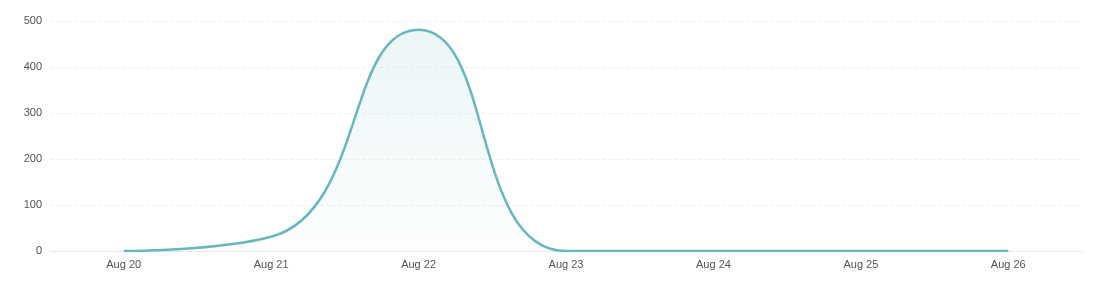
The Sending Campaign chart shows email volume over time. Choose 7 days, 30 days, or 90 days. Hover over the chart to inspect a value at a specific time.
Below the chart, Mailix shows when the data was calculated and a Refresh (Làm mới) button. Refresh requests an update for the selected period. If no emails were sent in that period, the Dashboard shows No sending activity in this period. Try a longer period or refresh again.
Changing the period changes the data displayed. Hover over a point to inspect its value at that time. Refresh requests new data for the selected period; it does not change the selected period.
The selected period remains active while the chart is refreshed.
8. Quick actions
Quick actions open common tasks:
- New Campaign: start an email campaign.
- Import Contacts: open Lists and choose where to add contacts.
- Create List: open Lists to create and manage lists.
- View Report: open the campaign list and choose a campaign.
Both Import Contacts and Create List currently take you to Lists. Choose the appropriate list or action there.
Use View Report to open the campaign list and then select the campaign whose report you want to read.
The quick-action links are shortcuts; they do not replace the normal list or campaign permissions.
9. Recent campaigns
Recent Campaigns shows up to five campaigns updated most recently. Each row may show the campaign name, current status, open rate for a completed campaign, and the latest update time for an unfinished campaign.
Select a campaign name to open its overview, or select View all (Xem tất cả) to open the complete campaign list. If the account has no campaigns, the area shows No campaigns yet (Chưa có chiến dịch).
The list is limited to the five most recently updated campaigns.
Campaign status and available metrics depend on whether each campaign has finished sending.
10. Activity log
The Activity Log shows recent account activity. Each item may include the related person or account, the activity time, and a description of what happened. Up to six activities are shown. If there is no data, the message is No activity yet.
11. Top campaigns
Top Campaigns highlights campaigns with strong open rates. The Dashboard can show up to five campaigns with their rank, name, open rate, and a visual comparison bar. This area appears only when suitable campaign data exists.
This comparison area is shown only when the account has enough suitable campaign data; it is not an empty placeholder on a new account.
12. Top countries
Top Countries shows countries with opens from the most recently sent campaign. Rows may include the country, a flag, opens, and a comparison bar. This is not an account-wide aggregate; it is based on opens from the latest sent campaign and appears only when country data is available.
The country results describe the latest sent campaign, not all historical campaign activity.
13. Subscriber overview
Subscriber Overview appears when the account has subscribers.
The donut chart groups subscribers into Subscribed, Unconfirmed, Blocked, and Spam reports. The detail panel shows each count, its percentage of total contacts, a comparison bar, and total contacts across all lists. A group with zero members may be omitted from the donut while remaining in the detail list.
These categories describe account state and are separate from email-verification results: a subscriber can be subscribed while an address is not deliverable.
14. A new account Dashboard
When an account has no lists, subscribers, or campaigns, the Dashboard focuses on getting started. It shows a reminder to send the first campaign, the Getting Started checklist, usage cards, zero email metrics, the empty Sending Campaign chart, quick actions, and the No campaigns yet message.
Top Campaigns, Top Countries, and Subscriber Overview do not appear until suitable data exists. The recommended order is:
- Create the first email list.
- Add subscribers to the list.
- Set up email sending if required.
- Create and send the first campaign.
Until these prerequisites are met, the Dashboard intentionally emphasizes setup guidance and empty states instead of performance comparisons.
15. Frequently asked questions
Why have Dashboard numbers not updated?
Some numbers are updated through system processing and may not appear immediately. Use the relevant refresh button and wait briefly before checking again.
If the values are still unchanged after processing completes, refresh the Dashboard again.
Why is an area missing?
Some areas appear only when their data exists:
- the Getting Started checklist disappears after all four steps are complete;
- Top Campaigns and Top Countries require suitable campaign and open data; and
- Subscriber Overview requires subscribers.
Why is the chart empty?
The chart appears only when an email was recorded as sent during the selected period. Try 30 days or 90 days, then select Refresh and check again.
Why does quota differ from total sent?
Quota tracks lists, campaigns, and subscribers against account limits. Total sent and Sending Campaign track email activity, so the values measure different things.
When should I use Refresh?
Use Refresh after sending a campaign, importing subscribers, or making a change that is not yet reflected on the Dashboard. The welcome-area refresh requests updated Dashboard data; Refresh below the chart requests updated data for the selected period. Wait briefly after either action because values may not change immediately.