Change or cancel your subscription plan
You can switch to an offered plan, manage renewal, or end the subscription. Available actions depend on the plan type and payment method.
Change plans
- Open Account settings → Subscription.
- Select Change plan.
- Select an available plan and review the price, billing period, and entitlements.
- Confirm and complete payment if required.
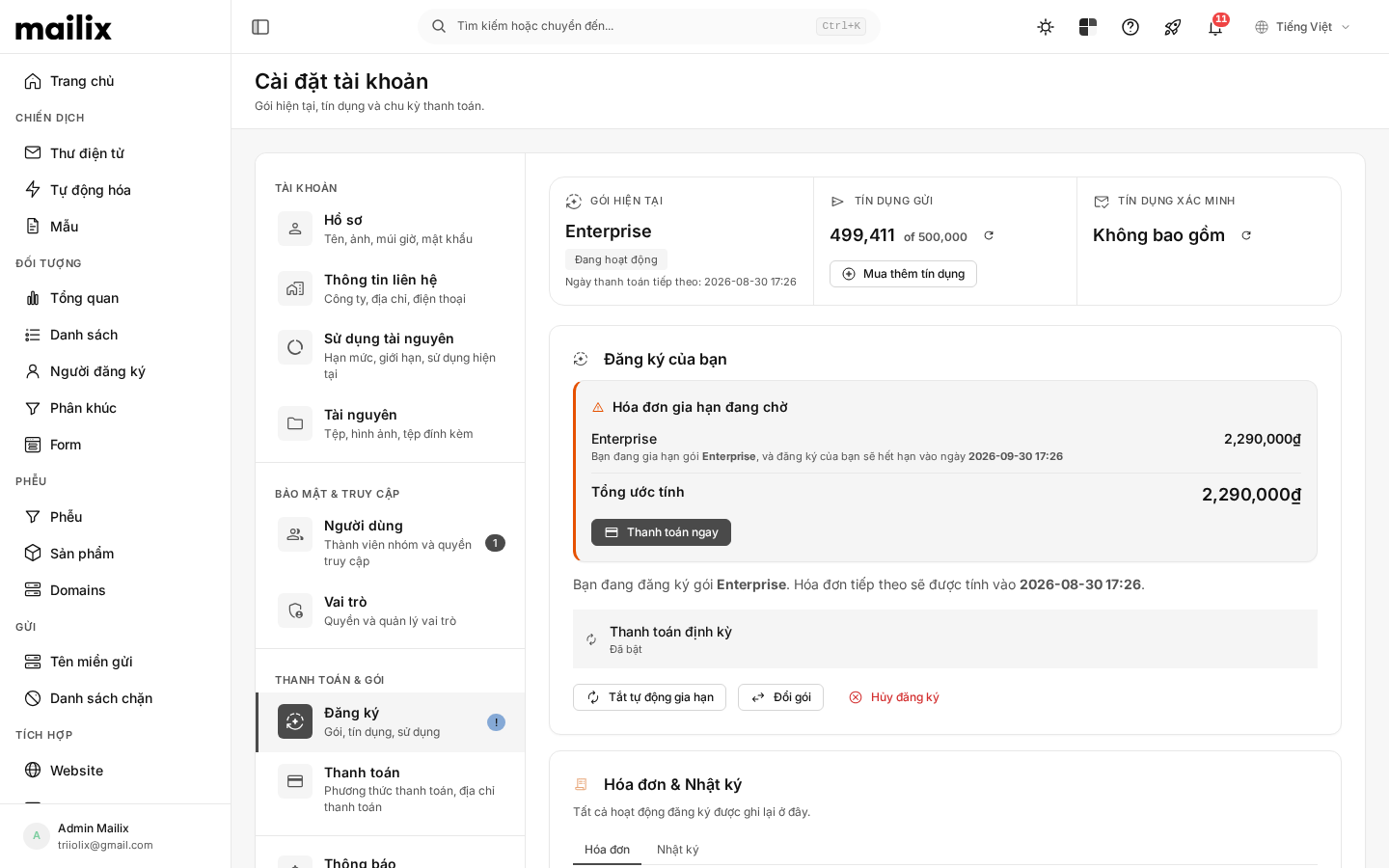 The change may complete immediately, wait for payment in Mailix, or take you to the provider's payment page. The plan changes only when the corresponding flow finishes. There is no single price-difference rule for every provider.
If you are on a trial, the interface may warn that changing plans ends the trial and starts a new term immediately.
Turn off automatic renewal
Select Turn off renewal to prevent the next renewal from being created. The current plan continues until the displayed expiration date. If you want to continue before it expires, select Turn on renewal while that action remains available.
Cancel immediately
Important: Cancel subscription ends the current plan immediately, not at the end of the term. You may lose access to plan features immediately after confirmation. If you only want to stop the next renewal, use Turn off renewal.
- Check the plan and the resources that depend on it.
- Select Cancel subscription.
- Read the warning and confirm.
The page does not promise to automatically delete data when you cancel, but access or the ability to create additional resources may change. Export important data before canceling.
Cancel a plan-change invoice
If a plan change is awaiting payment, you can cancel that invoice. Canceling removes the pending plan-change request; it does not cancel the currently active plan.