Create a New List
A list is where you store and manage subscribers. Create at least one list before adding subscribers manually or importing them into Mailix.
What you will learn
After completing this guide, you can:
- Create a new list.
- Enter the list name and sender information.
- Choose how subscriptions, welcome emails, and unsubscribe notifications are handled.
- Open the overview page for the list you created.
Open the list creation screen
From the left navigation, select:
Audience → Lists → Create List (Đối tượng → Danh sách → Tạo danh sách)
The Create List button appears only when your account has permission to create lists. If you cannot see it, check your account permissions or contact your Mailix account administrator.
Step 1: Enter list information
In List Details, complete the three required fields:
- List Name: the name you use to identify the list in Mailix.
- Sender Name: the name subscribers see as the sender.
- Sender Email: the email address used as the sender identity.
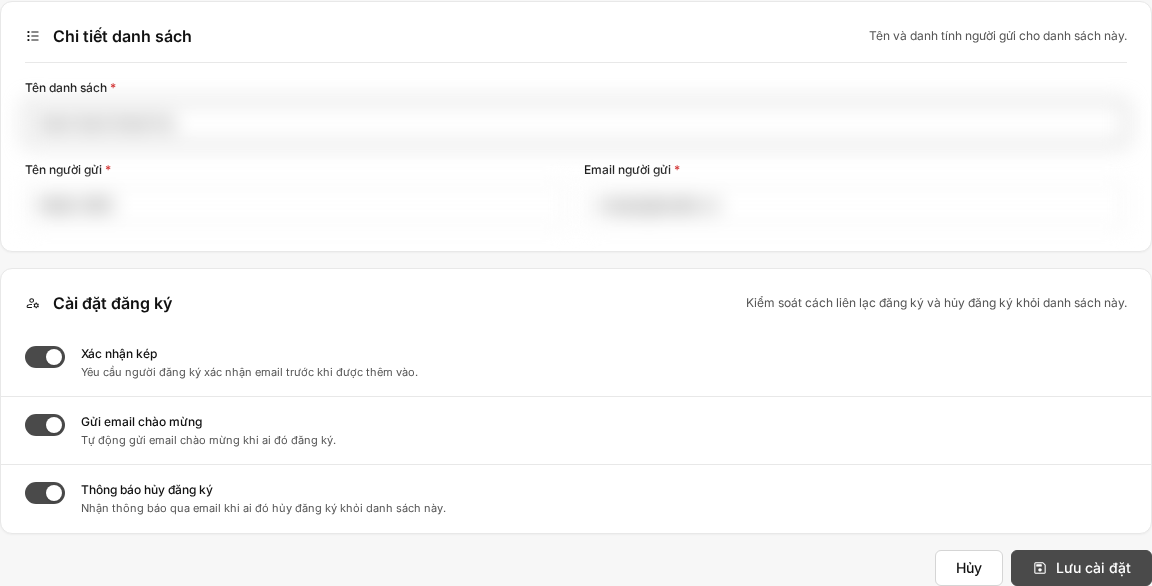
Mailix may prefill the sender name and email from your account details. Review them and change them if necessary.
The sender email must be valid. If a required field is empty or the email format is invalid, Mailix displays an error before creating the list.
Step 2: Check sender information
Review Sender Name and Sender Email carefully. These values identify the sender associated with the list.
Use a name recipients can recognize and an address appropriate for your business email activity.
Step 3: Configure subscriptions
Under Subscription Settings, review these options:
Double opt-in
When enabled, a subscriber must confirm their email address before the subscription is completed.
Send a welcome email
When enabled, Mailix automatically sends a welcome message when someone subscribes.
Unsubscribe notification
When enabled, you receive an email notification when someone unsubscribes from the list.
The initial state of these options depends on your system configuration. Review each option before saving.
You can edit related email content and forms after the list is created.
Step 4: Save the list
After reviewing the information, select Create List (Tạo danh sách).
If the data is valid and your account has not reached its limit, Mailix will:
- Create the list.
- Show a success message.
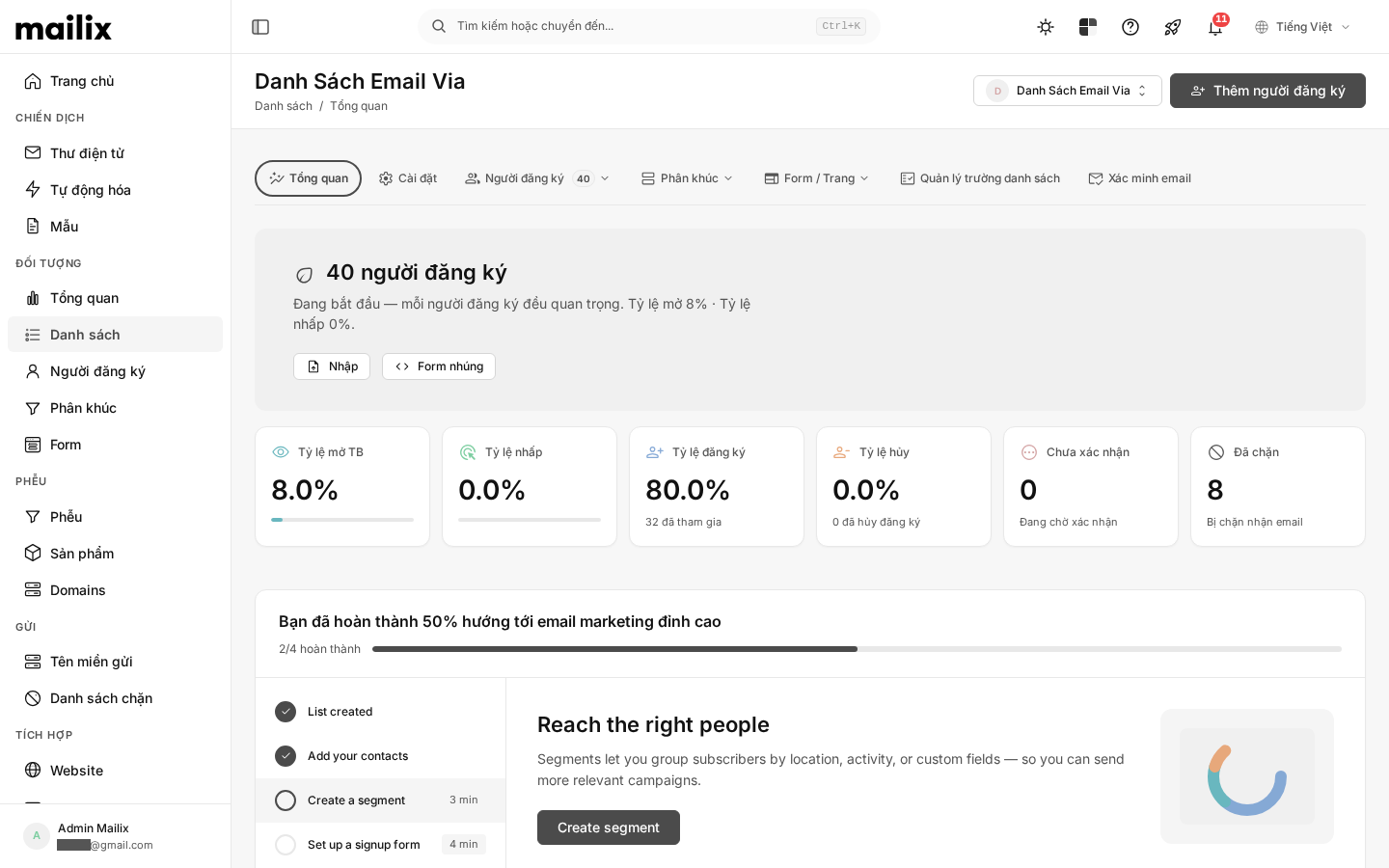
- Take you to the Overview page for the new list.
From the overview page, you can add or import subscribers.
When you cannot create another list
The number of lists you can create depends on your account plan. When the limit is reached, Mailix keeps the information you entered and displays an error.
Check your plan or contact your Mailix account administrator. There is no single fixed limit for every account.
Notes
- List name, sender name, and sender email are all required.
- Check the sender email before saving.
- Use a clear internal list name so lists are easy to distinguish.
- Review all three options under Subscription Settings; their initial values can vary by system configuration.
- After creating the list, add subscribers manually or import them from a file.
Frequently asked questions
Why cannot I see the Create List button?
Your account may not have permission to create lists. Contact your Mailix account administrator to check your access.
Why cannot I create another list?
Your account may have reached its plan limit, or the current plan may not allow additional lists. Check the message on screen and contact your administrator if needed.
Must I enter a sender email?
Yes. Sender Email is required and must use a valid email format. Mailix may prefill it from your account details, but you should still review it before saving.
What is double opt-in?
Double opt-in requires a subscriber to confirm their email address before completing the subscription. You can enable or disable it under Subscription Settings.
What should I do after creating a list?
Add subscribers manually when you have only a few addresses. For a larger audience, use the import feature.