Import Subscribers
Importing lets you add multiple subscribers from a file to an existing list. You can map columns in the file to fields in Mailix, choose how to handle existing email addresses, and track progress directly on screen.
Before you begin
Prepare the following:
- A list that will receive the imported data.
- A CSV, TXT, or XLSX file.
- A first row containing column headers.
- A unique name for each column, with no blank or duplicate names.
- A column containing email addresses.
Save the file with UTF-8 encoding so Vietnamese characters and other special characters display correctly.
You should also check for and remove unnecessary duplicate rows before importing. This makes the results easier to review.
Open the subscriber import
Go to:
Audience → Lists → open a list → Subscribers → Import subscribers
Some screens in the Lists area also have an Import button that opens the same feature. If your account does not have permission to import, this option may not appear or you may be unable to access it.
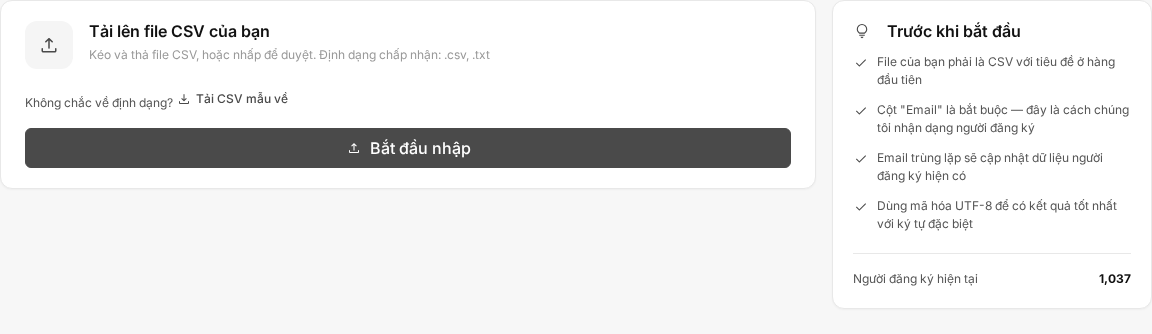
Step 1: Upload the file
- Select Start import.
- Drag the file into the upload area, or click the area to select a file from your device.
- Select a CSV, TXT, or XLSX file.
- Wait for Mailix to upload the file and read its structure.
- Select Next: Map fields.
For CSV and TXT files, the data must use a comma-delimited structure. For XLSX files, Mailix reads the data from the first sheet.
If the file cannot be uploaded, check its format before trying again.

Step 2: Map the data columns
Mapping connects a column in the file to the corresponding field in Mailix.
For example:
| File column | Mailix field |
|---|---|
| Full name | Full name |
| Phone | Phone |
This is only an example. Other than Email, the available fields depend on the individual list.
Mailix displays the column headers it has read from the file. The system may suggest mappings when a column name closely matches a field in the list.
Check every column before continuing:
- The column containing email addresses must be mapped to Email.
- Select the corresponding field for each column you want to import.
- Do not select columns you want to skip.
- Do not map multiple source columns to the same Mailix field.
If the list does not yet have a field you need, exit the import process and create that field in the custom-field management area before starting again.

Step 3: Choose how to handle existing email addresses
Mailix lets you choose one of two ways to handle an email address from the file that already exists in the current list.
Update existing subscribers
This is the default option.
Mailix uses the data in the mapped columns to update a subscriber with the same email address. Their current information may therefore change.
Note: Check the file before choosing to update. Blank cells in mapped columns may overwrite the subscriber's current values.
If the file has a status column, the interface may let you overwrite the status. If the file has a tags column, the interface may let you overwrite tags. These two options are not enabled by default.
When the overwrite options are not enabled, the subscriber's current status and tags remain unchanged.
Important: Overwriting status can return an unsubscribed subscriber to Subscribed status if the file contains the corresponding status. Use this option only after checking the data and confirming that you have an appropriate basis for updating the subscription status.
Skip existing subscribers
Mailix adds only email addresses that are not yet in the list. Subscribers who already exist in the list are not changed.
This option is more appropriate when you only want to add new contacts without updating existing data.
How are duplicate email addresses handled?
- An email address that already exists in the same list is handled according to your choice of Update existing subscribers or Skip existing subscribers.
- An email address that already exists in another list can still be added to the current list.
- Mailix normalizes capitalization and whitespace in email addresses before processing them.
If the file contains multiple rows with the same email address, you should clean up duplicate data before importing so the results are easier to review.
Subscriber status during import
New subscribers are created with Subscribed status by default.
Importing does not send a subscription-confirmation email. Enabling double opt-in for the list also does not give newly imported subscribers Unconfirmed status.
Importing also does not send the list's welcome email.
If the file has a status column, the supported values are:
subscribedunsubscribedunconfirmed
You do not need to add this column if you only want to import new subscribers with the default status. Be especially careful when using the status column to update existing data.
Step 4: Start and monitor the import
After choosing how to handle existing email addresses, select Start import.
Mailix processes the data in the background. The progress screen displays:
- The number of rows processed out of the total number of rows.
- The completion percentage.
- The status or a progress message.
If the process encounters an error, the screen may display a message and a Retry button. Check the error or log before starting again.
How is invalid data handled?
- Rows with a blank email address are skipped.
- Rows with an invalid email address are skipped.
- Other valid rows can still be processed.
Check the format of data fields before importing, especially dates and custom fields.
Subscriber limits
Imports are still subject to the subscriber limits for the account and list. The specific limits depend on your plan.
If a limit is reached while an import is being processed, the process may stop after some of the data has already been imported.
Before importing again, check the list to avoid unintentionally importing or updating data.
Cancel an import
While the import is being processed, you can select Cancel import. Mailix asks you to confirm before canceling.
Note: Canceling an import does not undo data that was imported beforehand.
After canceling, check the list before running another import.
When an import is complete
The progress screen indicates when the import is complete. You can view:
- The total progress processed.
- The number of skipped rows, if any.
- The Download log button.
The log helps you review progress and rows with invalid email addresses. The screen does not separately show the number of newly added subscribers, updated subscribers, or duplicate email addresses.
View recent imports
The Import page displays up to the five most recent imports. For each import, you can see:
- The time it was performed.
- The number of rows processed out of the total number of rows.
- The source of the import.
- Its status: running, completed, failed, or canceled.
This list is a quick view, not a complete history page.
When an import encounters an error
File not accepted
Check the file extension. Mailix accepts CSV, TXT, or XLSX files for this process.
Invalid column headers
Make sure that:
- Every column has a name in the first row.
- No two columns use the same header.
Email not mapped
Select the column containing email addresses and map it to the Email field.
A field is mapped more than once
Check the selected columns and remove the duplicate mapping. Each Mailix field can receive data from only one source column.
Some email addresses were not imported
Check for blank email addresses, invalid email addresses, and the import log. Existing email addresses may also remain unchanged if you chose to skip them.
Import stopped because of a limit
Check the subscriber limits for the account and list. Then check the data that was already imported before running the import again.
Import failed
Read the on-screen message and download the log if the button appears. If a Retry button is available, check the file and existing data before selecting it.
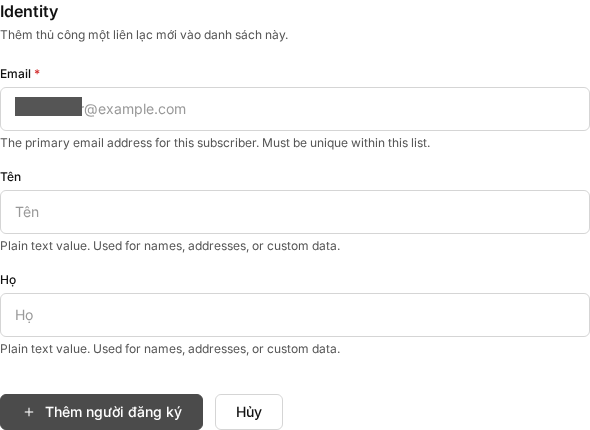
How do importing and manual entry differ?
| Item | Manual entry | Import |
|---|---|---|
| Entry method | Enter each contact in a form | Import multiple rows from a file |
| Invalid email address | The form cannot be saved | The invalid row is skipped; other valid rows can continue |
| Existing email address | Does not create or update a subscriber | You can choose to update or skip it |
| Custom fields | Complete them directly | Map them from columns in the file |
| Confirmation email | Not sent | Not sent |
| Welcome email | May be sent if the option is enabled for the list | Not sent |
| Progress | Displays the result after saving | Provides a progress screen and log |
Frequently asked questions
Can I import an Excel file?
Yes, if the file is in XLSX format.
Does the file have to contain a column named “Email”?
No. The column can have a different name, but you must map the column containing email addresses to the Email field in Mailix.
What happens to an existing email address?
You can choose to update the mapped fields or skip the existing subscriber. If you only want to add new email addresses, select Skip existing subscribers.
Does importing send a confirmation email?
No. Importing does not send a subscription-confirmation email.
Does importing send a welcome email?
No. Importing does not send the list's welcome email.
Why does the number of rows in the file differ from the number of subscribers added?
Possible causes include blank email addresses, invalid email addresses, existing email addresses, the selected duplicate-handling option, subscriber limits, or skipped rows.
Can I cancel an import?
Yes. Select Cancel import and confirm. Subscribers processed before the cancellation are not automatically deleted.
Can I import someone who has unsubscribed?
An unsubscribed person who is already in the list keeps their status by default. Do not enable status overwriting unless you have an appropriate basis for changing their subscription status.