Create and publish a Funnel
You can start with an existing template or create a blank Funnel, then add steps and publish it when ready.
Create a Funnel
- Open Funnels from the navigation bar.
- Select Create Funnel.
- Choose a template to start with or select the blank option.
- Enter a Name. You can add a description.
- Select Create Funnel to save it.
The name is required. Mailix automatically creates the friendly part of the address from the name; you can edit it later in settings.
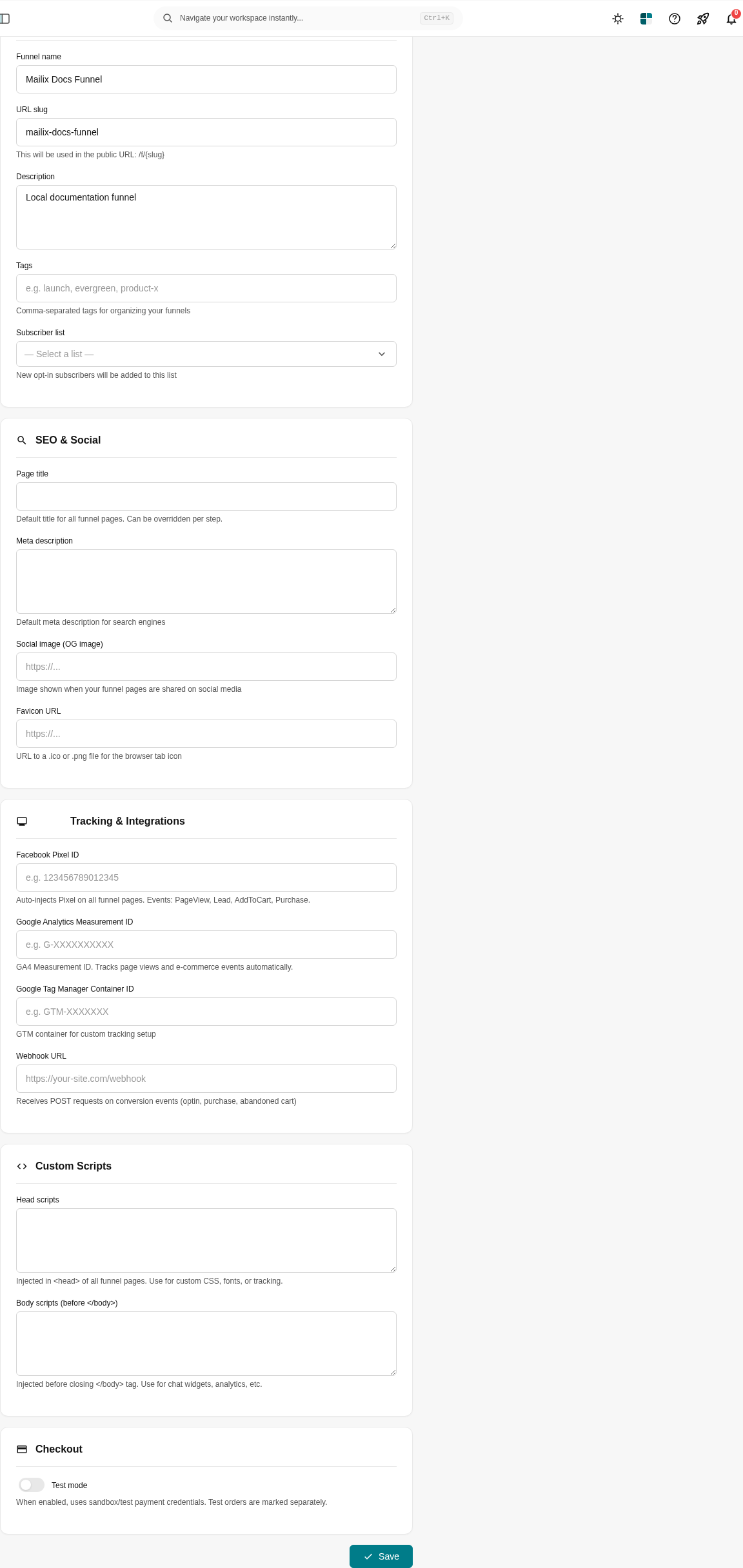
 After creation, Mailix opens the Funnel edit page. A new Funnel is a Draft, so it is not public yet.
Complete the draft
Before publishing:
- add at least one step;
- design the step's content;
- enable published status for the step you will use;
- check the address and forwarding links;
- add products, surveys, or payments if the journey needs these components.
Select Preview for each step to check the page without changing the Funnel's status.
Publish the Funnel
In the Funnel list or edit page, select Publish. The status changes to Published, and the public address can serve the published starting step.
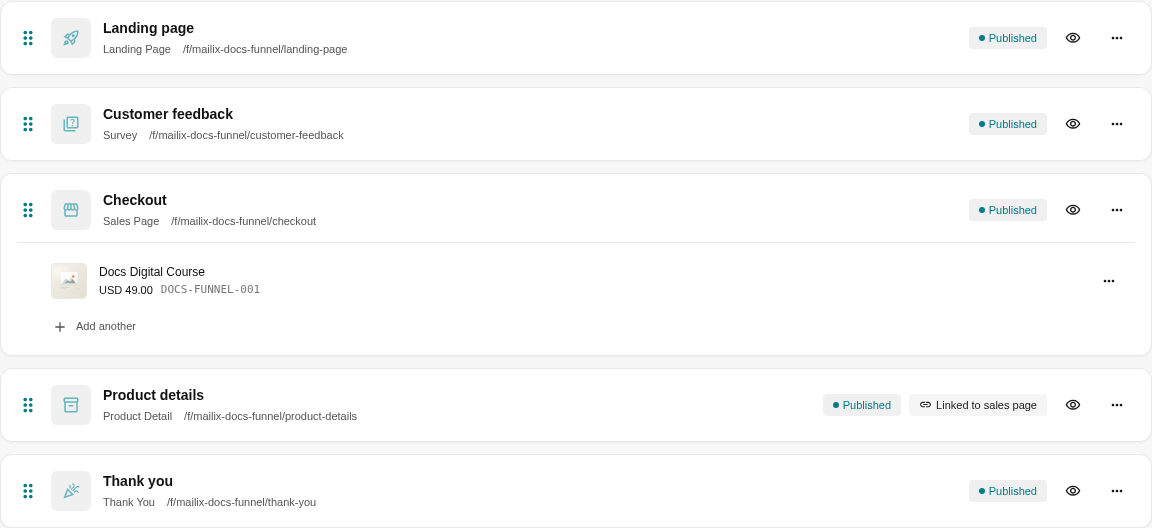
Note: Publishing the Funnel does not automatically publish steps that are in Draft status. Without a published step, customers have no starting page to open.
Edit a published Funnel
Saved changes to the current settings, steps, or designs are used the next time the page opens. There is no separate published version that you redeploy after every edit. Use Preview and consider Unpublish before making a major change.
Unpublish and republish
Select Unpublish to stop serving the Funnel's public address. Existing content, steps, and data are not deleted. When ready, select Publish to use the same Funnel again.
Duplicate a Funnel
Select Duplicate from the actions menu to create a new draft Funnel. The copy includes the step structure, designs, survey questions, and existing product links. Products in the catalog are not created as new copies, and the original Funnel's activity data, orders, and domain do not become data belonging to the copy.
Delete a Funnel
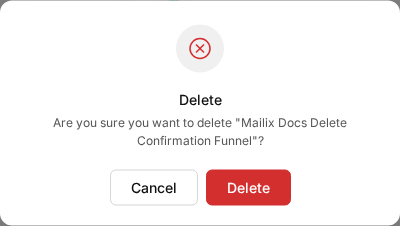
Important: Deleting a Funnel stops its public address and deletes the steps, designs, domain, views, conversions, survey answers, and fulfillment data associated with it. No restore action is displayed. Export or save any required data before confirming.
- Open the Funnel's actions menu.
- Select Delete.
- Check the correct Funnel name in the confirmation dialog, then continue.
Transaction records created earlier may remain in the shared orders area, but they are no longer presented as sales for the deleted Funnel.