Create and design Funnel steps
Each step is one page in the journey. The order in the step list determines the sequence you design for visitors.
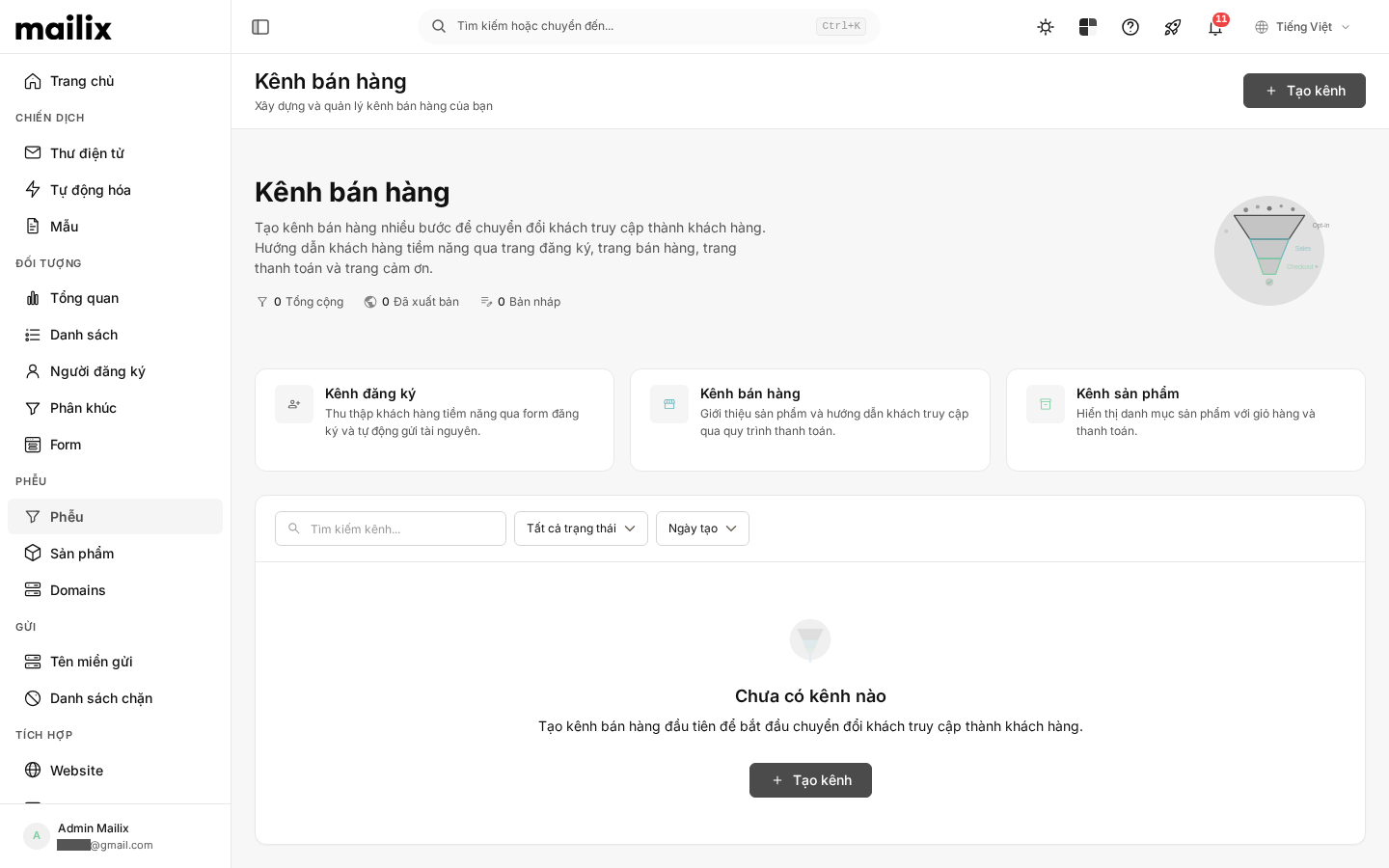
Open the step list
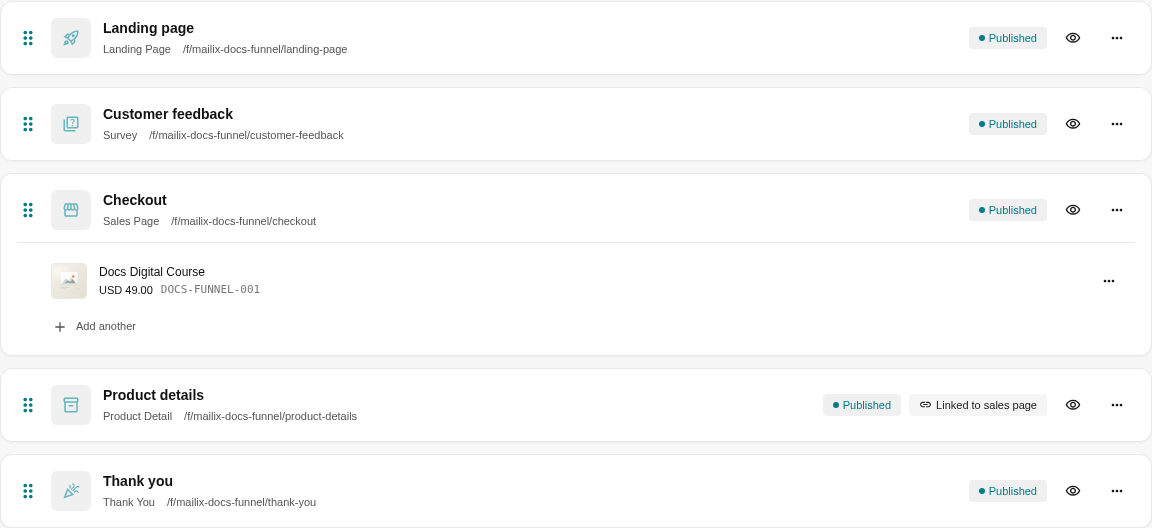
Open Funnels, select a Funnel, then open the Steps tab. Here you can see each step's name, type, path, and status.
Add a step
- Select Add step.
- Enter a name and select the step type.
- Choose an appropriate page template.
- Save the step, then open Design page.
Supported step types include:
| Step type | Purpose |
|---|---|
| Landing | Present content or an offer. |
| Opt-in | Collect signup information. |
| Survey | Display a survey. |
| Thank You | Confirm or thank someone after an action. |
| Sales | Present multiple products for customers to choose from. |
| Product Detail | Display product details. |
| Upsell / Downsell | Offer an additional product or an alternative. |
| Custom | A custom page for another purpose. |
When you create a Sales step, Mailix also creates a linked Product Detail step. Only the design of this child step can be edited; duplication or deletion is performed together with the parent Sales step.
Design the content
Select Design page, choose a template if the step does not have one, then edit it in the builder. Select save in the builder to record the content. Saving step settings and saving the design are separate actions.
 Specialized steps need the corresponding component in their design, such as a signup form, survey, or product area. Preview and test the journey before making it public.
Set the name, path, and status
Under Edit settings, you can change:
- the step name;
- the step type;
- the path segment;
- the Published status.
A Draft step is not served at the public address, even when the Funnel is published.
Preview
Select the preview icon in the step's row. Preview uses saved content and does not automatically publish the step or Funnel.
Arrange the steps
Drag the icon at the beginning of each row to change the order. The new order is saved after the sorting action and is used by reports when presenting the flow between steps.
The order does not automatically create every button or page-navigation link within the design. You must still check each page's button actions.
Duplicate a step
Select Duplicate to copy the step's settings, design, survey questions, and product links. The copy is a separate step in the same Funnel.
Delete a step
Important: Deleting a step deletes its design and data directly associated with it, including the step's views, conversions, and survey answers when applicable. No restore function is displayed. Old links to the step do not automatically redirect to another step.
- Open the step's actions menu.
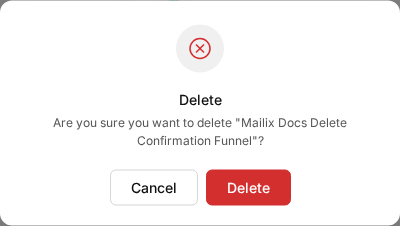
- Select Delete.
- Confirm that you are deleting the correct step.
Deleting a Sales step also deletes the child Product Detail step created with it. Products in the catalog are not deleted merely because you delete a step or remove a product from one.
When the Funnel is active
Saved content, settings, and order are used for subsequent page views. Because there is no separate deployment version, preview before making major edits to a public Funnel.