Manage members and roles
A member is a user who can sign in to the same account. A role determines which areas and actions they are allowed to use.
Access requirements
Only members with permission to manage the entire account can open the Team users and Roles areas. The number of members is limited by the plan when the account has this quota.
Add a member
- Open Account settings → Team users.
- Select Add user.
- Enter the name, email, password, and phone number if required.
- Select a role.
- Select Save.
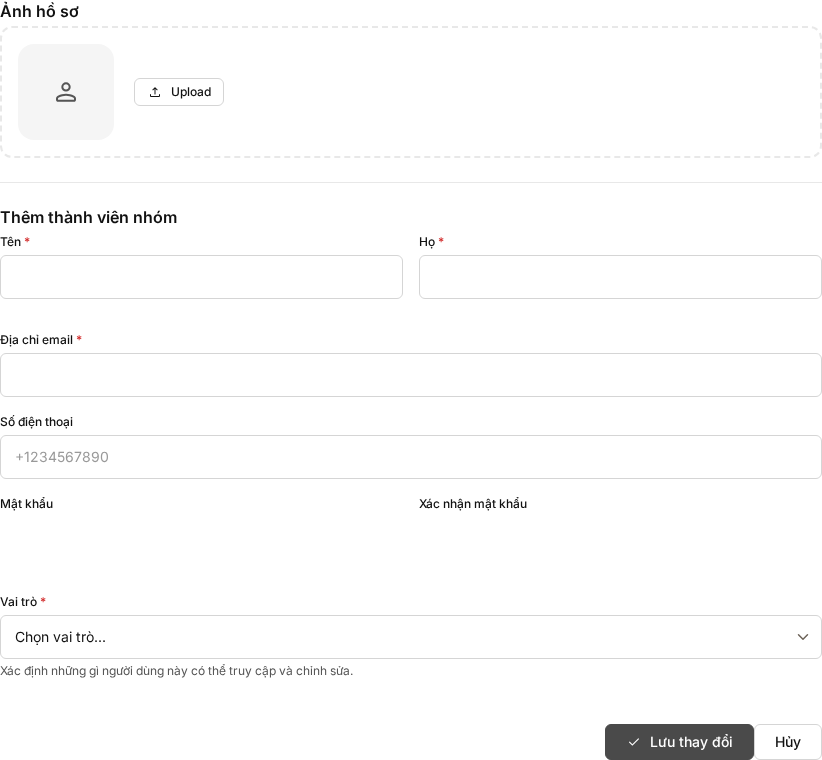 Mailix creates the user directly with the password you enter; this screen has no invitation, resend-invitation, or pending-invitation flow. Set a temporary password, do not post it publicly, and ask the member to change it immediately after their first sign-in.
Create a role
- Open Account settings → Roles.
- Select Create role.
- Enter a name and description.
- Select the customer-facing permissions in each group.
- Save the role.
Default roles may be view-only; custom roles can be edited when the account allows it. This documentation does not list technical permission names because the interface list is the authoritative source for your account.
Edit or disable a member
Select a member to change their information, password, or role. The list also has actions to enable and disable users. Disabling a user prevents further access but does not delete shared data they created.
The system prevents a role change if it would leave the account without an administrator.
Delete a member or role
Important: Deleting a member revokes that person's sign-in access. Shared account data is not transferred to their personal account. Ensure that at least one administrator remains and review their assigned work before deleting.
Deleting a role may affect members who use it. Only roles that the account has permission to delete can be removed; default roles may be protected.