Select Lists and Segments for Recipients
The Recipients step determines which Subscribers the Campaign will send to. You can send to an entire List, narrow the audience with Segments, or exclude groups that should not receive the email.
What will you be able to do?
After completing this article, you can:
- Select one or more Lists for a Campaign.
- Select one or more Segments within each List.
- Exclude a List or Segment.
- Understand why the recipient count may be lower than the total Subscriber count.
- Save the selection and move to the next step.
Open the Recipients step
Go to:
Campaigns → Email → open a Campaign → Recipients
When you create a new Regular Campaign or Plain text Campaign, Mailix also takes you directly to the Recipients step. This is the first step in the Campaign setup workflow.
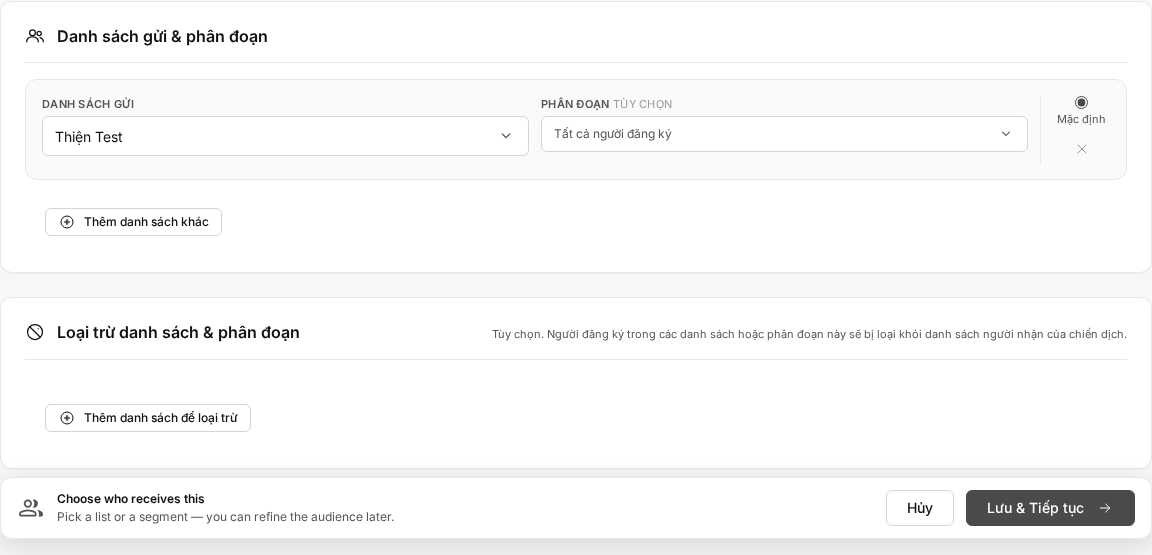 You need permission to edit the Campaign. While the Campaign can still be edited, you can select the Recipients step again in the step bar to view or change the saved selection.
Select recipient Lists
In the Sending lists & segments area:
- Open the Sending list field.
- Select the List you want to use.
- To send to the entire List, keep All subscribers selected in the Segment field.
- Select Add another list if you want to use an additional List.
You must select at least one List before saving. Each List can be selected only once in this area.
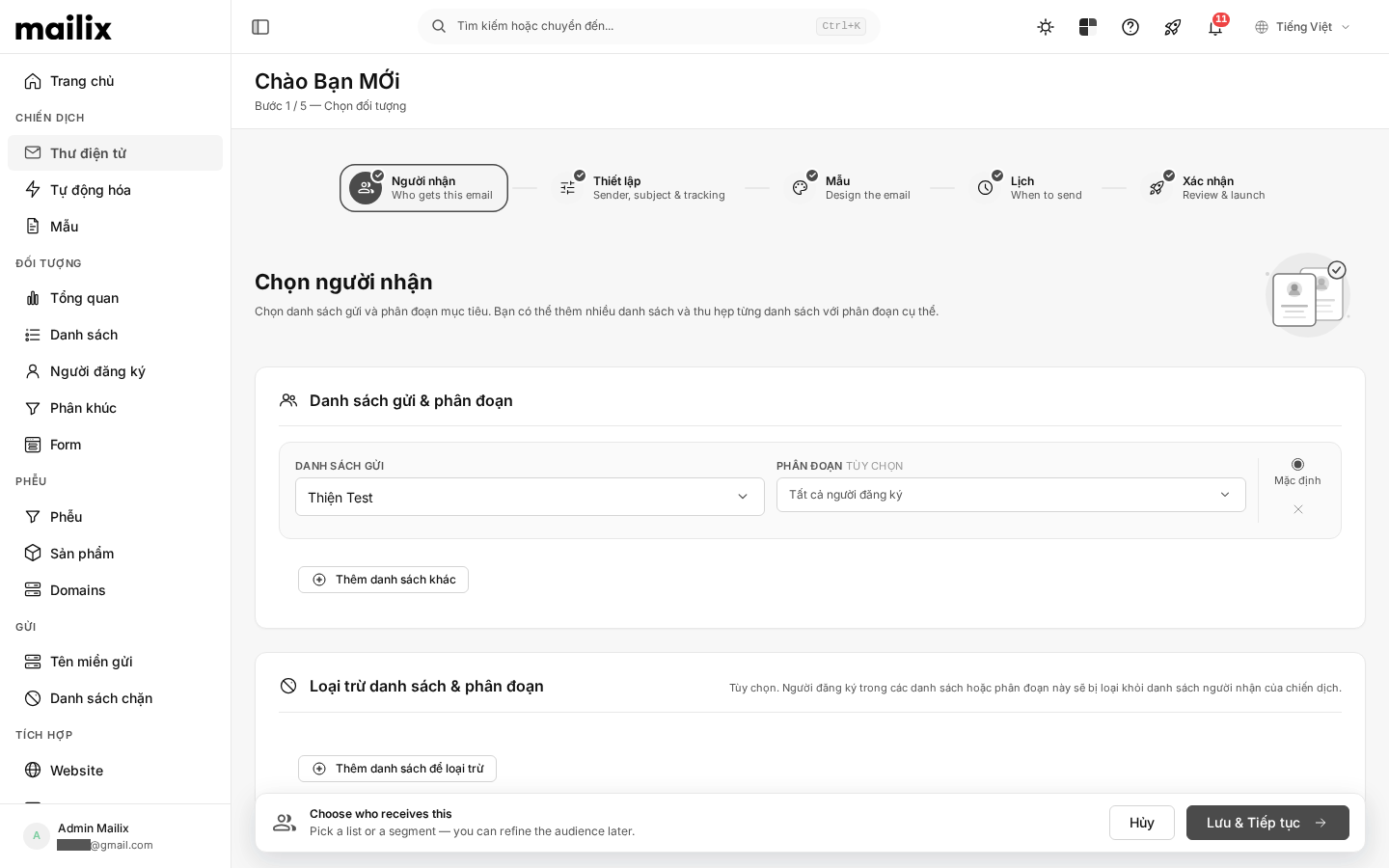 The number displayed beside the List name is the total number of Subscribers in that List. It is not the Campaign's final recipient count because Segments, exclusions, subscription status, and other sending conditions are not yet fully reflected.
A List with no Subscribers can still be selected. However, the Campaign cannot be sent if no eligible recipients remain after all conditions are applied.
Select Segments
Segments let you send email to a subset of Subscribers in a List.
- Select the List first.
- Open that List's Segment field.
- Select one or more Segments.
Mailix combines selections as follows:
- No Segment selected: Uses the entire List.
- One Segment selected: Uses Subscribers who match that Segment.
- Multiple Segments selected within the same List: Uses Subscribers who match at least one selected Segment.
- Segments selected from multiple Lists: Combines the results of the selected Lists and Segments.
A Segment is a dynamic group. Results can change when Subscriber information or tags change. See Create and Manage Segments to understand how to set up conditions.
Select the default List
When using multiple Lists, mark one List as Default. The first List is initially selected as the default, but you can move the Default designation to another List.
Mailix uses the default List as reference information for some other Campaign sections, such as default sender information and data used in email content. Marking a List as the default does not mean the Campaign sends only to that List.
Exclude recipients
The Excluded lists & segments area is optional. Use it when a List or Segment should not receive the Campaign.
- Select Add list to exclude.
- Select the List to exclude.
- Keep All subscribers to exclude the entire List, or select one or more Segments to exclude only those groups.
Mailix creates the recipient group from the selected Lists and Segments, and then removes Subscribers who match the exclusions. If the same Subscriber record belongs to both the recipient group and an exclusion, the exclusion takes priority.
Note: An email address can exist as separate records in multiple Lists. Excluding one List does not mean that the address is excluded from every other List.
Example: You select the entire Customers List and then exclude the Purchased product A Segment in that same List. Subscribers in the excluded Segment are removed from the recipient group from this List.
If an email address appears more than once
An email address can appear in multiple selected Lists or Segments.
How duplicate email addresses are handled depends on the Mailix system configuration:
- When deduplication is applied, Mailix selects one record for that email address. A record in the default List is preferred when available.
- Some system configurations may allow duplicate sends to records with the same email address.
The Recipients step does not provide an option for enabling or disabling this behavior. If sending only once per address is mandatory, confirm the configuration with the Mailix administrator before sending.
Which Subscribers are eligible to receive email?
Being present in a List or Segment does not guarantee that a Subscriber will receive email.
| Status | Eligibility for the send |
|---|---|
| Subscribed | May be eligible if the remaining conditions are met |
| Unsubscribed | Not eligible |
| Unconfirmed | Not eligible |
| Blocked | Not eligible |
| Reported spam | Not eligible |
You cannot bypass these statuses in the Recipients step.
How do Email Verification results affect recipients?
Under the verified default settings:
- Deliverable: Eligible for consideration in the send.
- Unverified: Still eligible for consideration in the send.
- Undeliverable, Risky, and Unknown: Not included in the default group of results that can be sent to.
The Campaign does not automatically run Email Verification when you select recipients. Verification results also do not replace subscription status or consent to receive email.
Depending on the system configuration, the result groups permitted for sending may differ. See Verify Email Addresses in a List to understand these results.
How is the recipient count calculated?
Mailix processes the selection in these main layers:
- Combine the selected Lists and Segments.
- Remove records in excluded Lists or Segments.
- Retain only Subscribers with an eligible status when preparing to send.
- Apply the Email Verification results permitted for sending.
- Handle duplicate email addresses according to the system configuration.
You need to distinguish between two metrics:
- The number beside a List name is the total Subscriber count for that List alone.
- The number in the Confirmation step reflects the List, Segment, and exclusion selections, but may still be higher than the number of emails actually sent because Verification results and deduplication are applied during sending.
The recipient count can also change if Subscribers change status, Segment data changes, or Lists are updated before the Campaign runs.
Save the recipient selection
After reviewing the selections:
- Make sure at least one List is selected.
- Check the default List.
- Check recipient and excluded Segments.
- Select Save & Continue.
Mailix replaces the old recipient configuration with the current selection and takes you to the Setup step. When you return to the Recipients step, the saved selections are displayed again.
Unsaved changes are not retained if you leave the screen. Select Save & Continue before moving to another section.
When there are no eligible recipients
Check each of the following:
- No List available to select: Create a List, and then return to the Campaign.
- The List has no Subscribers: Add or import Subscribers.
- The Segment has no results: Review the Segment conditions.
- The exclusions remove all recipients: Remove or narrow the exclusions.
- Subscribers do not have Subscribed status: Check their status in the List.
- Verification results are not in a permitted sending group: Review the Verification results and applicable configuration.
The Recipients step lets you save an empty List or a Segment with no results. However, the Confirmation step reports that action is required when the recipient count is zero.
If you cannot save, check whether every recipient row and exclusion row in use has a List selected. The feature may also be unavailable for editing if the account lacks permission or the Campaign no longer has a status that allows changes.
Recipient-selection examples
Send to an entire List
Select a List and keep All subscribers.
Send to one Segment
Select the List, and then select the Segment to send to. Only Subscribers matching the Segment are included in the recipient group from that List.
Send to multiple Lists
Select Add another list, and then select each List. Mailix combines the selected groups.
Send to a group and exclude a Segment
Select a List or Segment in the recipient area. Then add the Segment that should not receive the Campaign to the exclusion area.
Frequently asked questions
Can I select multiple Lists?
Yes. Select Add another list to add each List. Each List appears only once in the recipient area.
Can I select multiple Segments?
Yes. You can select multiple Segments within one List and select Segments from multiple Lists. Within the same List, a Subscriber only needs to match at least one selected Segment.
What happens if an email address is in two Lists?
The result depends on the system's deduplication configuration. Mailix may select one record for the address or allow duplicate records to be processed. The Recipients step does not provide an option to change this behavior.
Do unsubscribed people receive email?
No. Only Subscribers with Subscribed status are considered for sending.
Can an unverified email address receive email?
Under the verified default settings, Unverified email addresses remain in the group permitted for sending. This does not mean the email has been confirmed or is guaranteed to be delivered.
Why is the recipient count lower than the total Subscriber count?
Segments, exclusions, subscription status, Verification results, and duplicate-email handling can all reduce the number of emails actually sent.
Why does a Segment contain Subscribers while the Campaign displays fewer?
Some Subscribers in the Segment may be excluded or may no longer have an eligible status. The count can also change when the Segment's data changes.
Can I change recipients after saving?
Yes, while the Campaign can still be edited. Reopen the Recipients step, change the selection, and then select Save & Continue.
Does a Campaign automatically verify email addresses before sending?
There is no automatic Email Verification step in the verified Campaign workflow. Mailix uses existing Verification results to determine sending eligibility.