Create a New Automation
When creating an Automation, choose a Starting Condition type, enter a name, and attach the Automation to a List. Mailix then opens the designer so you can complete the condition and add workflow steps.
A new Automation is created in Paused status. Creating it does not automatically add Subscribers to the workflow or send email.
Before you begin
You need:
- permission to create and manage Automations;
- at least one List in the account;
- to be below the Automation limit for the service plan;
- the Automation module enabled by an administrator.
The List may have no Subscribers yet. However, without a List you cannot complete the creation screen.
Open the Automation creation screen
- Select Automation (Tự động hóa) in the navigation bar.
- Select New Automation (Tự động hóa mới) at the top of the page.
If the account has no Automations yet, you can also select Create your first Automation (Tạo Tự động hóa đầu tiên) in the empty state.
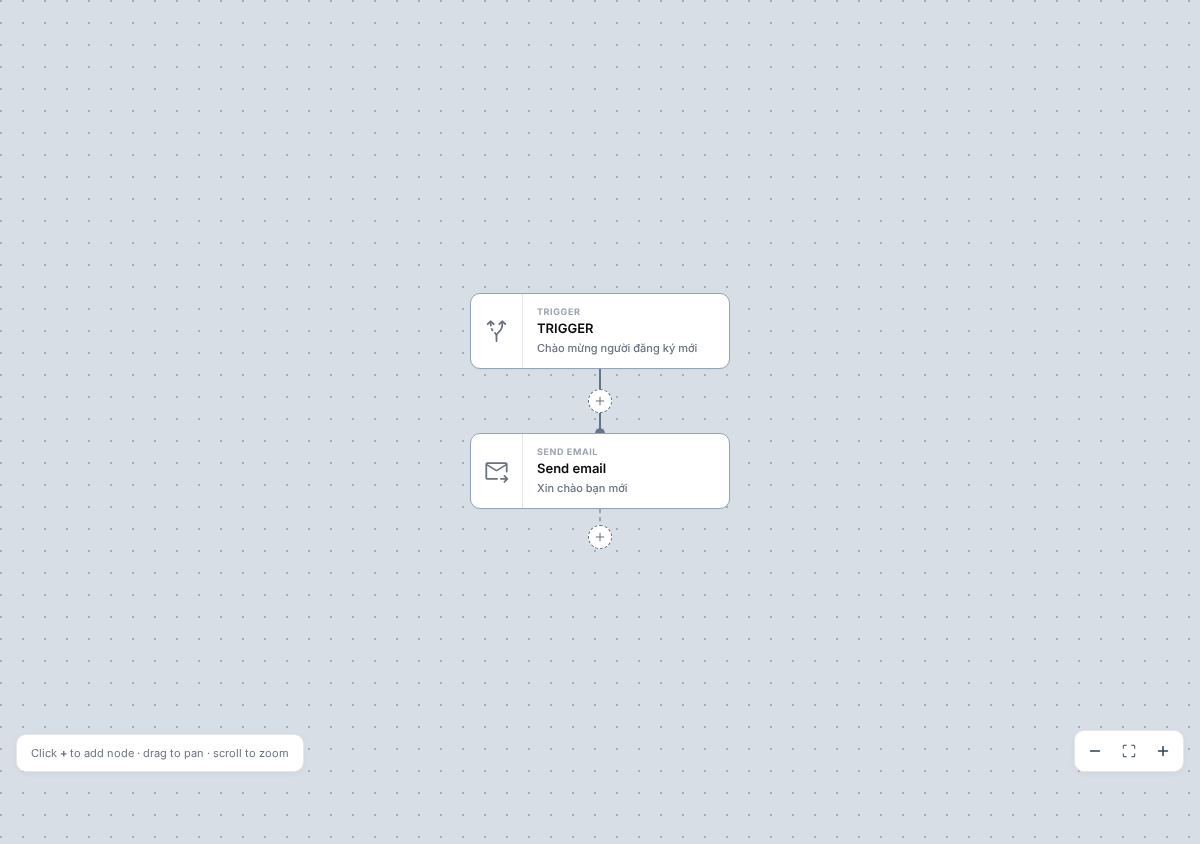
The creation screen has two steps:
- Choose a Starting Condition type.
- Enter a name, choose a List, and check the initial options.
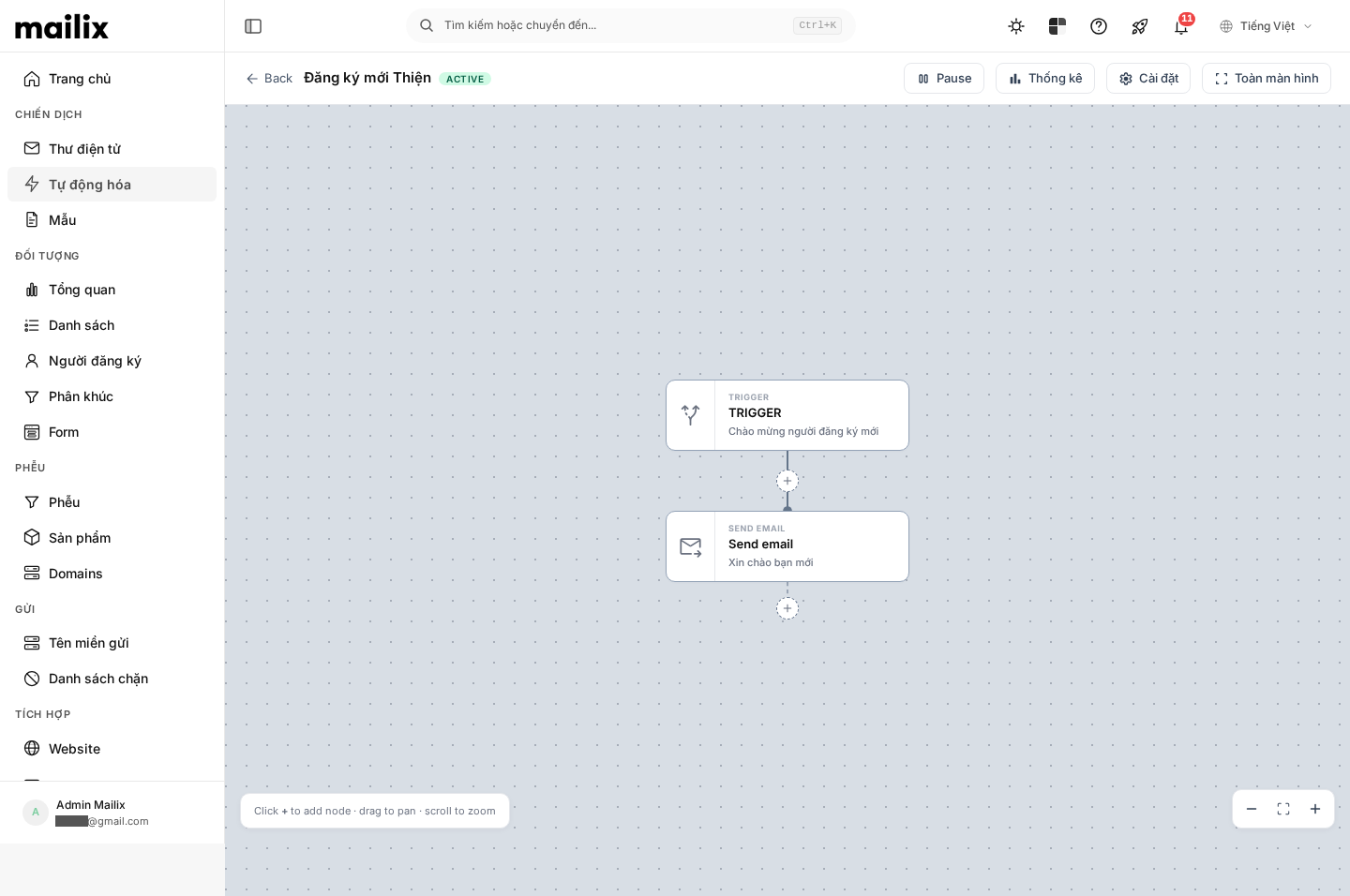
Choose a Starting Condition type
In the first step, choose the event that starts the Automation. When you select a card, Mailix moves to the configuration step automatically.
Stable condition groups include:
- a Subscriber joining or leaving a List;
- a Tag being added or removed;
- a Subscriber field being updated;
- a request sent by an external application.
Other choices may appear depending on the system version or configuration. Use them only after an administrator confirms that the corresponding feature is enabled.
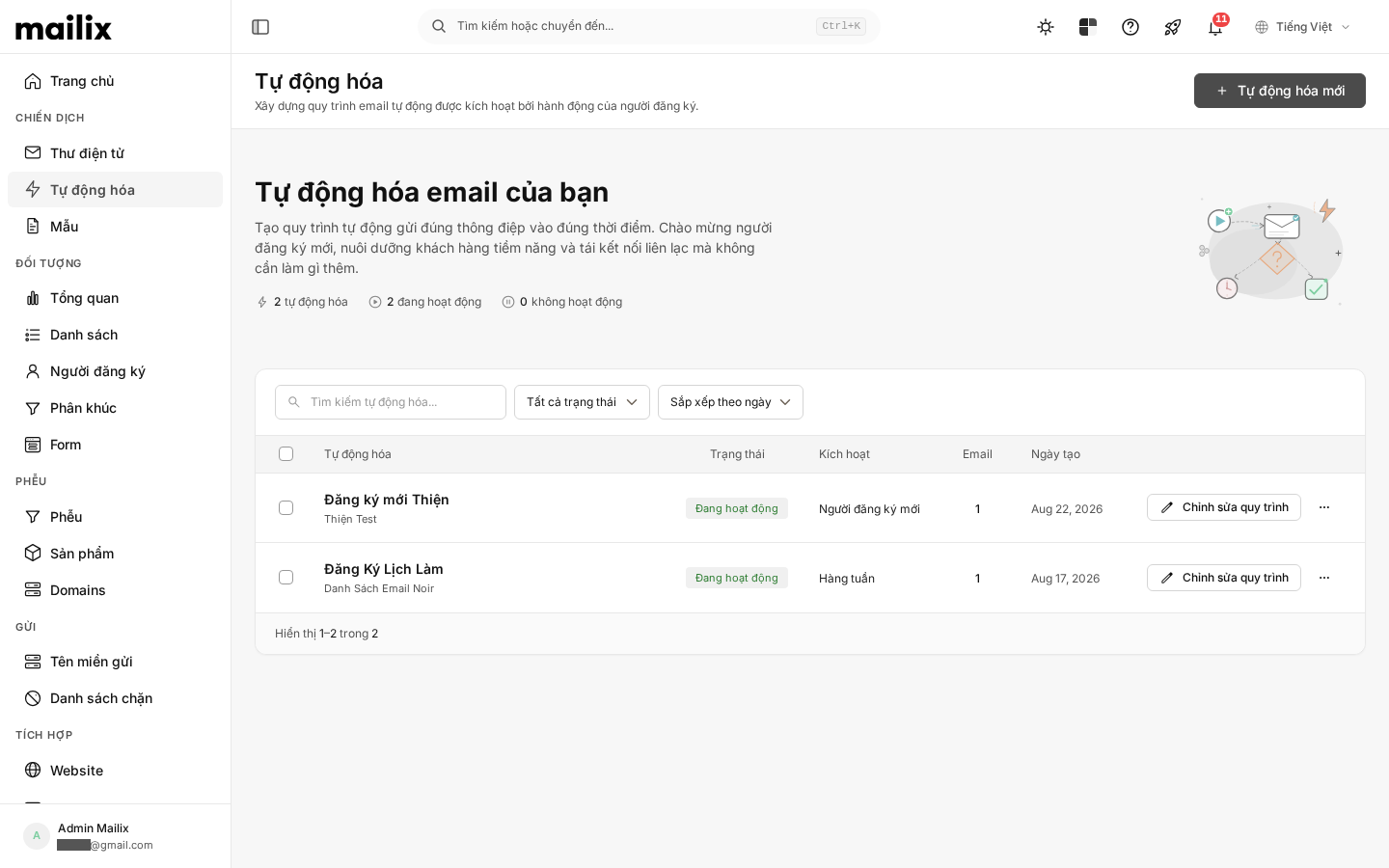
This step chooses only the condition type. Check the detailed values again in the designer after the Automation is created.
Name the Automation
Enter a recognizable name, such as Welcome new Subscribers.
The name is required and is used only to manage the Automation in Mailix. It is not the email subject.
Mailix does not require unique names. You can reuse a name, but distinct names help prevent confusion. You can rename the Automation later in its settings.
Choose a List
Each Automation is attached to one List. Choose the List containing the Subscribers evaluated by the starting condition.
A List is required and only one List can be selected during creation. An empty List can be selected, but the Automation will not yet have Subscribers to process.
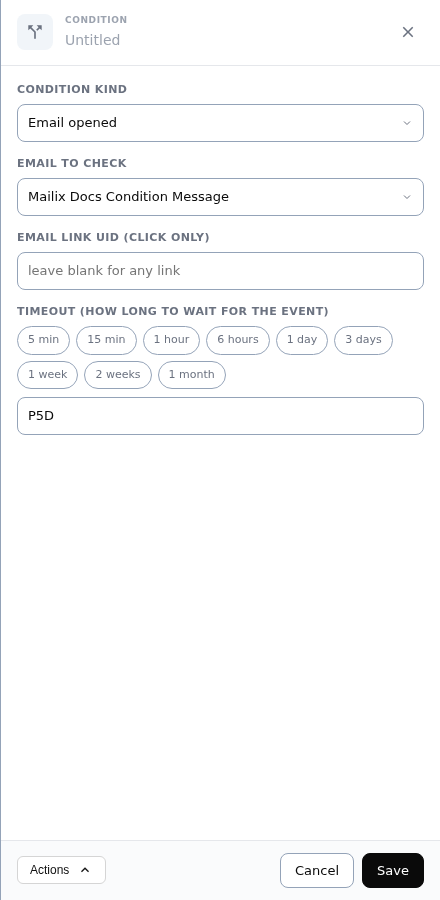
The screen may show a Segment option after you choose a List. This option is not reliably retained during creation. Do not rely on the Segment value on this screen; check the Subscriber scope after opening the designer.
Create the Automation
Follow this order:
- Choose a Starting Condition type.
- Enter the Automation Name.
- Choose a List.
- Select Create Automation (Tạo tự động hóa).
While processing, the Create button is disabled to prevent submitting the same request again from the screen.
If the information is valid and the account has capacity, Mailix creates the Automation and sends you to the workflow designer.
What happens after creation?
After creation succeeds:
- the Automation exists in the account;
- the selected name and List are saved;
- a Starting Condition step is created with the selected condition type;
- the workflow has no processing step after the Starting Condition yet;
- the initial status is Paused;
- Mailix opens the workflow designer.
If you leave the designer immediately, the Automation still remains in the list. Returning to the previous page after creation does not delete it.
Check the Starting Condition after creation
Important: The creation screen reliably retains only the Starting Condition type. Detailed choices such as a Tag, field, comparison value, date, or schedule may not be fully retained at this step.
As soon as the designer opens:
- Select the Starting Condition step.
- Check the condition type again.
- Re-enter and save every required option shown for that condition type.
- Add at least one next step to the workflow.
See Choose a starting condition for details.
Complete the Automation before enabling it
After creation, you still need to:
- complete the Starting Condition;
- connect the Starting Condition to the first step;
- add and configure the required steps;
- fully configure each email step, if any;
- check the sending method and sending limit;
- review the workflow and select Enable (Bật).
Mailix may allow a status change once a Starting Condition type exists, but that does not mean an empty workflow or incomplete step will operate. If the Starting Condition is not connected to a step, Subscribers cannot enter the workflow.
Does a new Automation run immediately?
No. A new Automation is Paused and does not yet receive Subscribers.
After completing and checking the workflow, select Enable. Enabling it does not automatically add every existing Subscriber merely because they are in the List.
Go back before creating
During configuration, select Back (Quay lại) to return to the Starting Condition list. This does not create an Automation.
You can also select the Automation breadcrumb to return to the list before selecting Create. The screen has no separate Cancel button.
When you cannot create an Automation
Check these cases:
- No name entered: enter an Automation name and try again.
- No List selected: choose a List before continuing.
- No Starting Condition type selected: return to the first step and choose a type.
- Automation limit reached: the limit depends on the service plan; delete an unneeded item or contact the account administrator.
- No permission: ask the administrator for Automation-management permission.
- List no longer available: reload the page and choose an existing List.
When the request fails, Mailix displays a notification and re-enables the Create button so you can correct the information and try again. There is no guarantee that all dynamic choices will be retained if you reload the page.
Frequently asked questions
Do I need a List before creating an Automation?
Yes. Every Automation must be attached to a List.
Can one Automation use multiple Lists?
Not during creation. An Automation has one primary List; workflow actions can work with other Lists, but this principle does not change.
Can I limit by Segment during creation?
The screen may display a Segment, but this choice is not reliably saved during creation. Check the Subscriber scope again after opening the designer.
Do I need to configure the Starting Condition again?
Yes. The condition type is retained, but detailed options may not be saved. Always open the Starting Condition step and check it before enabling the Automation.
Can two Automations have the same name?
Yes. Distinct names are recommended for easier management.
Do existing Subscribers enter automatically?
Not merely because you create or enable an Automation. Adding existing Subscribers to the workflow is a separate action.
Why do I not see the Create button or some choices?
Buttons and choices may depend on account permissions, the service plan, enabled modules, or system configuration.