Schedule a Campaign
The Schedule step lets you choose when the Campaign starts sending and limit the time windows during which emails may be sent.
What will you accomplish?
After completing this guide, you can:
- Choose to send immediately or select a later date and time.
- Check which time zone is being used.
- Allow sending at any time or restrict sending hours for each day.
- Save your selection and move to the Confirm step.
Before opening the Schedule step
The Campaign must have all of the following:
- Recipients.
- A Campaign name, Email subject, and sender information.
- Plain Text content or an Email Template.
If any section is missing, Mailix returns you to the incomplete step instead of opening the Schedule step.
The sending method, sending limits, and final conditions are checked in the Confirm step. Saving the Schedule step does not mean that all sending conditions have been met.
Open the Schedule step
After completing the Template step, select Proceed to Schedule. Mailix opens the fourth step:
Campaigns → Email → open the Campaign → Schedule
You can also select Schedule on the step bar while the Campaign can still be edited and has complete Recipients, Setup, and content.
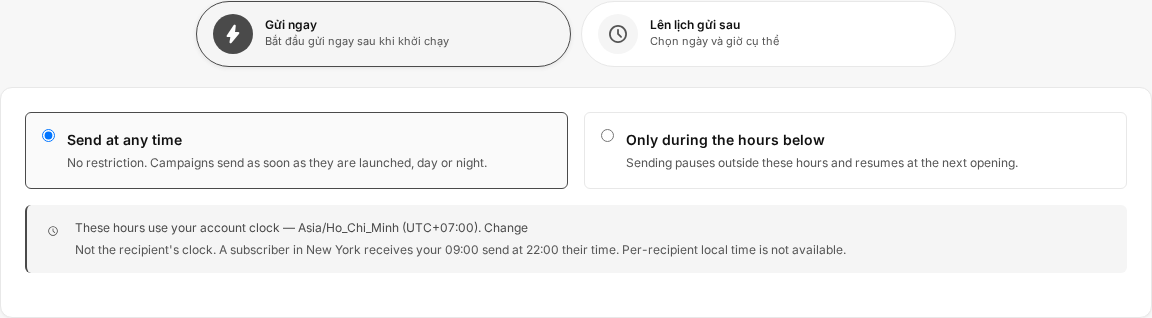 Regular Campaigns and Plain Text Campaigns use the same step. A/B Tests have a separate scheduling workflow.
Select Send now
Send now is the default option when the Campaign does not have a later sending time.
- Select Send now.
- Check the sending-hours restrictions.
- Select Save & Next.
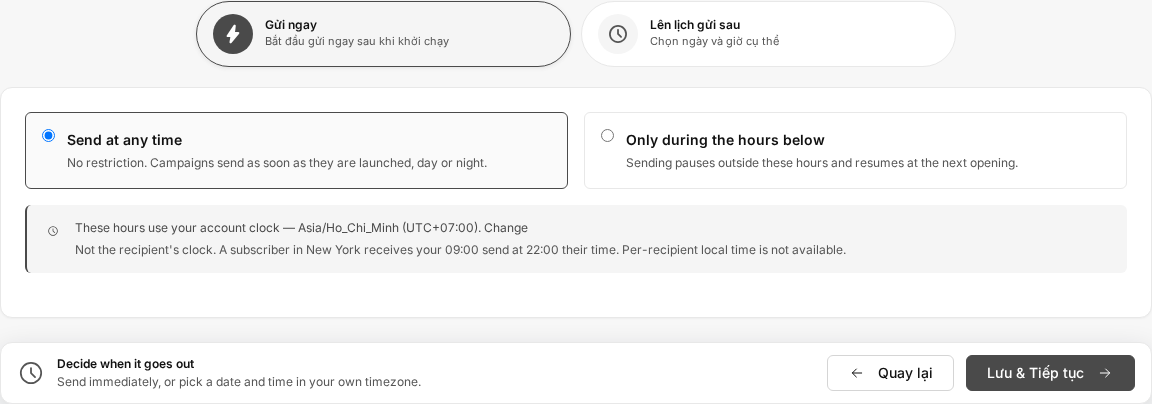 For a new Campaign, selecting Send now and saving the Schedule step does not send the email immediately. Mailix moves you to the Confirm step. The Campaign starts only after the final launch action.
Important: If the Campaign already has the Scheduled status, changing it to Send now may change its processing time as soon as you save. Make this change only after reviewing the entire Campaign.
Select Schedule for later
Use Schedule for later when you want to choose a specific time.
- Select Schedule for later.
- Select a date in the Date field.
- Select a time in the Time field.
- Check the time zone displayed below the date and time section.
- Check the sending-hours restrictions.
- Select Save & Next.
After you save, Mailix records the time and may display the Campaign with the Scheduled status before you complete the Confirm page.
Important: Check the Recipients, sender, and content before saving a later sending time. Do not treat the Confirm page as the only step that activates a saved schedule.
Select a valid date and time
The date and time are entered with the browser's picker. Mailix uses the format accepted by the Date and Time fields.
Select a time in the future. The current interface does not set the earliest allowed time directly on the date and time fields.
If you save a time that has passed or is too close to the current time, the Campaign may be processed immediately instead of waiting. Therefore, review the time before selecting Save & Next.
If you leave a field blank or enter an invalid value, Mailix may be unable to save the schedule. Select a complete date and time, then try again.
How is the time zone determined?
The sending date, sending time, and sending-hours restrictions use the Account's time zone. The time zone in use is displayed directly in the Schedule step.
This is not a separate time zone for each Subscriber. For example, the same sending time is calculated using the Account clock even if Subscribers are in different countries.
If the time zone is incorrect, select the change link in the time-zone notice to open the Account profile. After updating it, return and review the sending schedule.
Restrict sending hours
In addition to the start time, the Schedule step lets you define the hours during which the Campaign may continue sending email.
There are two options:
- Send at any time: do not restrict the sending day or time.
- Only during the hours below: send only during the configured time windows.
These names appear in English in the verified interface.
Send at any time
Select Send at any time if the Campaign can send continuously after it starts.
This is the default option when the Campaign has no sending-hours restrictions.
Send only during selected time windows
Select Only during the hours below to configure times for each day of the week.
You can:
- Use a quick configuration displayed on the screen.
- Enable or disable individual days.
- Add multiple time windows to one day.
- Select start and end times in 15-minute increments.
- Copy a time window to other days.
- Block a time window from the open schedule.
The end time must be later than the start time within the same window. To send across midnight, divide the period into two windows on consecutive days or use the on-screen tool to block a time window.
You must retain at least one permitted sending window. A schedule with no open time windows is rejected.
What happens outside the sending window?
If the start time arrives while the sending window is closed, Mailix holds the Campaign and continues when the next window opens.
If the window closes while the Campaign is sending, sending pauses at the nearest processing boundary and resumes in the next window. As a result, a small number of emails may still be processed just after the displayed end time.
The on-screen summary indicates whether the schedule is open or closed, the total open time during the week, and the next opening time.
Save the sending schedule
After reviewing the options:
- Select Send now or Schedule for later.
- If sending later, check the date, time, and time zone.
- Select the appropriate sending-hours restriction mode.
- Select Save & Next.
Mailix saves the time and sending-hours restrictions, then opens the Confirm step.
The Schedule step does not save automatically when you only change options on the screen. If you leave the page before selecting Save & Next, unsaved changes may be lost.
Status after saving
The status depends on the selection and the Campaign's previous status:
- For a new Campaign with Send now selected, the Campaign usually remains in a preparation status until it is launched in the Confirm step.
- When you select Schedule for later, Mailix saves the time and changes the Campaign to Scheduled at this step.
- When you change a Scheduled Campaign to Send now, the old time is removed, but the status may continue to display Scheduled until the Campaign is processed further.
Because the Scheduled status may appear before you complete the Confirm page, treat saving a later sending schedule as an effective change.
Relationship with the Confirm step
After you save, the Confirm step displays one of these two results again:
- Send immediately after launch.
- The selected date and time.
Here, Mailix also checks the Recipients, content, sender, sending method, and Account conditions. See Review and confirm before sending for the final checks.
Because of the status behavior for the later-send option, do not rely entirely on not having selected the launch button on the Confirm page to delay a saved schedule.
Change the selected time
Before the Campaign starts sending
While the Campaign can still be edited:
- Open the Campaign.
- Select the Schedule step.
- Change the mode, date and time, or sending-hours restrictions.
- Select Save & Next.
- Review the settings in the Confirm step.
Saved selections are loaded again when you return to the Schedule step.
After the Campaign has started sending
The ability to make changes depends on the Campaign status. The interface may still allow the editing area to open in some statuses, but changes to a Campaign that is already sending must follow the separate status-management workflow.
Do not use this guide to change a Campaign that is sending. See Pause, resume, resend, and archive a Campaign when that guide is published.
When the schedule cannot be saved
- A previous step is incomplete: add any missing Recipients, Setup information, or content.
- The date or time is missing: select both fields when using Schedule for later.
- The time has passed: select a new time in the future.
- There are no permitted sending windows: add at least one window or select Send at any time.
- The end time is invalid: select an end time later than the start time.
- The time does not use the permitted increments: select the time again using 15-minute increments in the sending-hours section.
- The Account time zone is invalid: update the time zone in the Account profile, then try again.
- Editing is unavailable: check the Account permissions and the Campaign's current status.
Sending limits, the number of emails that can be sent, and the sending method are not fully confirmed in this step. Those issues may appear only in the Confirm step.
How do Send now and Schedule for later differ?
| Option | Expected start time |
|---|---|
| Send now | Starts after the Campaign is launched and also follows any sending-hours restrictions. |
| Schedule for later | Starts at the selected time, or waits for the next open window if that time falls outside the sending-hours restrictions. |
Frequently asked questions
Does selecting Send now send the email immediately?
For a new Campaign, no. Selecting Send now and saving takes you to the Confirm step. Email starts sending after the final launch action.
If the Campaign already has the Scheduled status, use caution when changing to Send now, because this selection may change the processing time immediately after it is saved.
Can I select a future date and time?
Yes. Select Schedule for later, then select the date and time in the Account's time zone.
Which time zone does Mailix use?
Mailix uses the Account's time zone and displays it in the Schedule step. The system does not create a separate schedule based on each Subscriber's time zone.
Can I change the schedule before sending?
Yes, while the Campaign can still be edited. Reopen the Schedule step, update your selection, then save it.
Can I change a scheduled Campaign?
You can edit it when the status and Account permissions allow. However, a later sending schedule takes effect as soon as it is saved. Make changes before the selected time and review the Confirm step again.
Why do some sending-hours labels appear in English?
The current Vietnamese translation of the sending-hours section is incomplete. Send at any time and Only during the hours below are the labels displayed in the verified interface.
Why does Mailix refuse to save this time window?
Check the end time, the 15-minute increments, and make sure the schedule retains at least one permitted sending window.
Has the Campaign been sent after the Schedule step?
Selecting Send now for a new Campaign does not send email. However, Schedule for later is saved with the Scheduled status at this step. Complete your review before the selected sending time.