Review and confirm before sending
The Confirm step summarizes the important parts of the Campaign before sending. You can identify which items are ready, which should be reviewed, and which errors must be resolved before launch.
Open the Confirm step
In the Campaign you are setting up, open the Confirm step at the end of the step bar:
Campaigns → Email → open the Campaign → Confirm
This is step 5 of the setup workflow. Mailix opens it only when the Campaign has the required information from the preceding steps. Regular Campaigns and Plain Text Campaigns use the same review step.
 The Confirm page displays:
- The Campaign name and inbox preview information.
- Recipients, Lists, Segments, and exclusions.
- The subject and preview content, if entered.
- The From name, From email, and Reply-to email if it differs from the From email.
- Available sending methods.
- The Email Template or Plain Text content.
- The send-now selection or scheduled time.
- Opens and Clicks Tracking status.
- Warnings and errors that need attention.
Review Recipients
Open Recipients to view:
- The number of Subscribers calculated from the current selection.
- The Default List.
- Selected Segments.
- Excluded Lists or Segments.
If no Segment is selected, this page indicates that the Campaign uses all eligible Subscribers in the selected List.
The displayed number is calculated when you open the Confirm page. It is not a commitment to the final email count. Subscription status, email Verification results, exclusions, duplicate data, and sending conditions applied during processing may reduce the actual number.
If the Recipient count is zero, select Edit to return to the Recipients step. Check for an empty List, a Segment with no results, or exclusions that remove the entire audience.
Review the subject and sender
Open Subject and Sender to review:
- The Email subject.
- Preview content, if provided.
- The From name.
- The From email.
- The Reply-to email, if it differs from the From email.
The Campaign name is used only for management in Mailix. Recipients see the Email subject, not the Campaign name.
Missing preview content is only a review suggestion. A missing subject, From name, or From email is an issue that must be fixed. Select Edit to return to the Setup step.
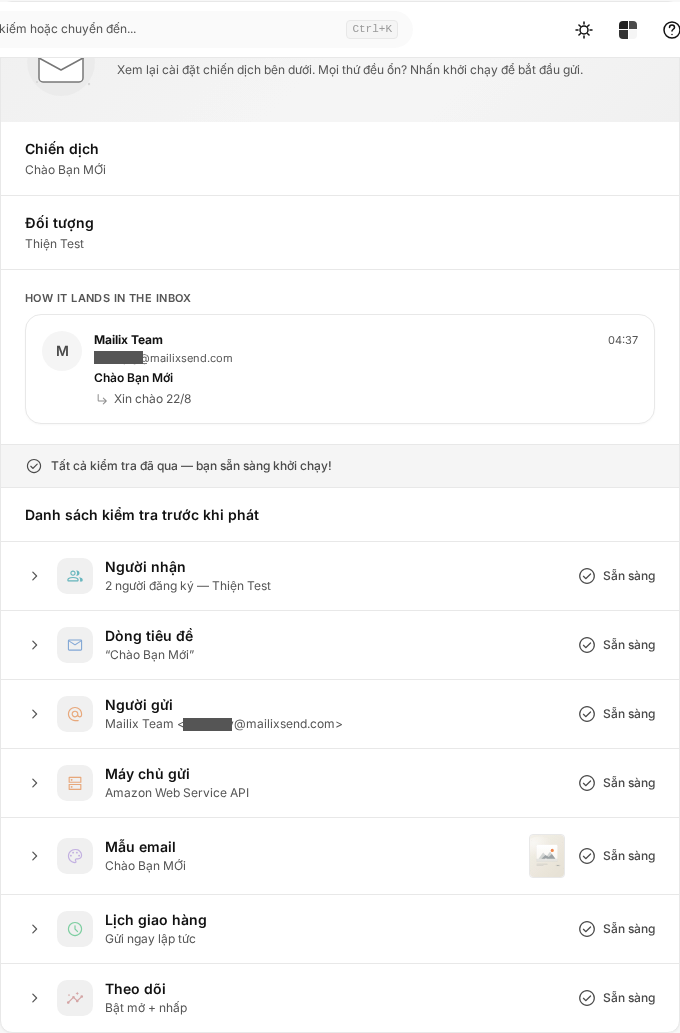 The Confirm page checks whether sender information is present. Sender identity or domain requirements are applied according to the Account configuration in the relevant steps; this page does not display a separate sender Verification check for every Account.
Review the email content
The Email Template item displays the selected HTML Template or indicates that this is a Plain Text Campaign. You can open the preview or select Edit to return to the Template step.
Mailix also checks whether the content can be read. If the service plan and system configuration require an Unsubscribe link, content without that link blocks the launch. If that requirement is not enabled, Mailix may still display a warning for you to review.
Do not ignore an Unsubscribe-link warning. Fix the content, then return to the Confirm page.
Review the sending method
The Sending method item lists the sending methods currently available to the Account. If multiple methods are available, the page may display their number and the name of each one.
If there is no active sending method, Mailix marks this item as Needs attention. Contact the administrator or check the Account's plan and configuration before launching.
This page uses the Account's group of available sending methods for its summary. It is not a technical configuration screen or a place to select the sending method again.
Review Tracking and domains
The Tracking item indicates whether Opens and Clicks Tracking are enabled or disabled.
- Disabling both options does not block the launch.
- When Opens Tracking is disabled, Reports do not contain Opens data recorded by Mailix.
- When Clicks Tracking is disabled, Reports do not contain Clicks data recorded by Mailix.
If the service plan requires a Tracking Domain and the Campaign does not have a suitable domain, Mailix displays a blocking error. Select Edit to return to the Setup step.
Review the sending schedule
The Sending schedule item displays one of two options:
- Send now: the Campaign begins processing after you select the final launch action.
- Schedule for later: the page displays the saved date and time.
Select Edit if you need to return to the Schedule step.
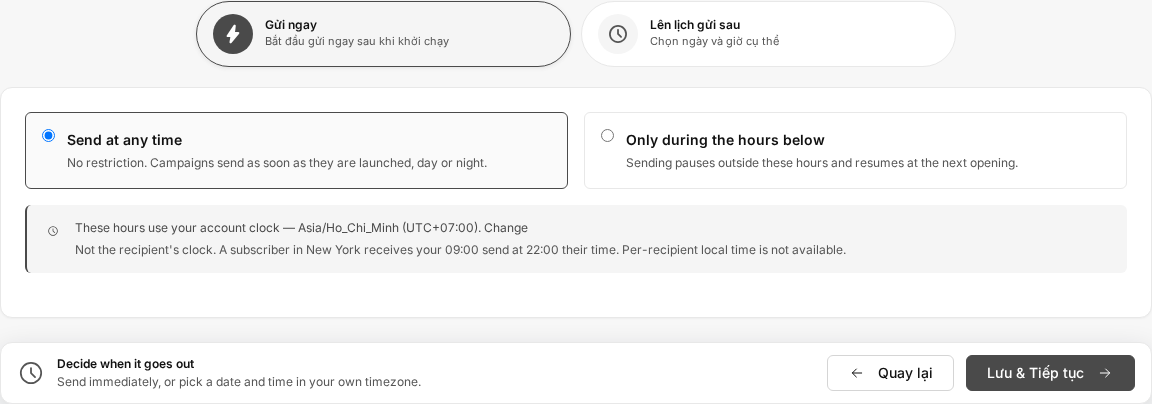
Important: When you save a later sending time in the Schedule step, the Campaign may already change to the Scheduled status. Do not treat the Confirm page as the only point that activates a saved schedule. Complete your review before the selected sending time.
Warnings and errors that block sending
The indicators on the page have different meanings:
| Display | Meaning | What you need to do |
|---|---|---|
| Ready | The item has the required information | Open it to review again if needed |
| Optional | The setting is not required, such as Tracking being disabled | Consider the impact on Reports |
| Review | There is a warning, but it does not necessarily block launch | Read the warning and fix it when appropriate |
| Needs attention or a blocking error | A required condition has not been met | Fix the error before launching |
Verified blocking errors include:
- The Account is suspended or has no active plan.
- The remaining email sending limit is insufficient for the estimated Recipient count.
- The plan does not support the current sending scope, or the Account's sending rate is limited.
- The List must be verified under the Account's conditions but cannot be verified sufficiently.
- An Unsubscribe link is missing when required by the plan and configuration.
- The content that must be checked cannot be read.
- A Tracking Domain is missing when required by the plan.
- The sending-hours restriction configuration is invalid.
Mailix checks the Account conditions and sending limits again when you launch. Because data or Account status may change, a Campaign that was just displayed as valid can still be rejected during the final action.
Return to edit a step
Each information group has an Edit link that returns to the relevant step:
- Recipients → Recipients step.
- Subject, sender, and Tracking → Setup step.
- Content → Template step.
- Sending time → Schedule step.
After saving changes, reopen the Confirm step to update the review results. The page does not have a separate refresh button for the entire checklist.
Send the Campaign now
If you selected Send now:
- Review every item on the page.
- Resolve any blocking errors.
- Select Launch Campaign.
Mailix checks permissions, Account status, sending limits, and mandatory requirements again. If the requirements are met, the Campaign enters processing and you are taken to the Campaign overview page.
Note: Launch Campaign does not mean that every email has finished sending. The Campaign changes to a queued or sending status before it is complete.
The interface does not display a separate confirmation dialog for a regular launch. Review everything carefully before selecting the button.
For a scheduled Campaign
If you selected a future time, the Confirm page displays that schedule again. Selecting Launch Campaign checks the sending conditions again; the Campaign remains Scheduled and waits for the selected time.
However, the sending schedule takes effect from the moment it is saved in the Schedule step. If you leave the Confirm page, do not assume that the Campaign will stop automatically. To make a change, return to the Schedule step before the sending time.
Send a test and preview
The Confirm page provides Send test email and Preview actions. Use them to check how the email is displayed before launch. Sending a test does not replace the required checks on this page.
If Mailix does not allow sending
Resolve the issue in this order:
- Open the warning or blocking error to read the cause.
- Use the Edit link if the error concerns Recipients, Setup, Template, or Schedule.
- Check the service plan and sending limits if the error concerns the Account.
- Check the available sending methods.
- Return to the Confirm step and try launching again.
If a condition changes while you are working, Mailix may leave the Campaign unchanged and display an error instead of launching. After resolving the issue, you can try again if the Campaign status still permits editing.
Frequently asked questions
Why can't I send the Campaign yet?
Open the Needs attention items and blocking errors on the Confirm page. The cause may concern Recipients, the sender, content, sending methods, the Account plan, sending limits, the Tracking Domain, or sending-hours restrictions.
Is the Recipient count in the Confirm step the actual sending count?
Not necessarily. It is an estimate based on the current selection. Email eligibility conditions and duplicate-address processing may reduce the actual sending count.
Are people with unverified email addresses excluded in this step?
The Confirm page does not run email Verification itself. Verification results may be applied when Recipients are determined according to the system configuration, so the actual sending count may differ from the displayed number.
Why does Mailix require an Unsubscribe link?
This requirement depends on the service plan and system configuration. When it applies, content without an Unsubscribe link blocks the launch.
Can I return and edit the content before sending?
Yes, while the Campaign status and Account permissions still allow editing. Select Edit in the Email Template item.
Does selecting Launch Campaign finish sending the email immediately?
No. With Send now, this action begins processing. The Campaign may display queued and sending statuses in sequence before it is complete.
Does a scheduled Campaign still need confirmation?
You should complete the Confirm page to review the sending conditions again. However, the sending schedule has been saved and may take effect from the Schedule step; do not rely on not having selected the launch button to delay that schedule.
Can I send a test before launch?
Yes. Select Send test email on the Confirm page. See the separate guide for the scope and results of test emails.