Create an Email Template with Custom HTML
Custom HTML is for cases where you already have HTML content and want to edit it directly instead of designing with drag-and-drop components. You should understand basic HTML structure and check how the email renders before using it in a Campaign.
Before you begin
You need:
- a Template in your account library;
- permission to edit Templates;
- the HTML content you want to use.
The Create Template screen does not offer a way to start directly with HTML. First create a Template from the collection, then switch that Template to Custom HTML (HTML tùy chỉnh).
If the Template has unsaved changes in the builder, save them before leaving the builder. However, builder content is not automatically inserted into the HTML editor the first time it opens.
Switch a Template to custom HTML
From the main menu, select:
Campaigns → Templates → Template actions menu → Edit as custom HTML (Chiến dịch → Mẫu → menu thao tác của Mẫu → Chỉnh sửa dưới dạng HTML tùy chỉnh)
This action appears only for a Template currently using the builder. If the Template is already in HTML mode, its edit icon and Edit HTML (Chỉnh sửa HTML) action open the HTML editor again.
System Templates cannot be switched directly from the customer library. Create an account-owned Template first.
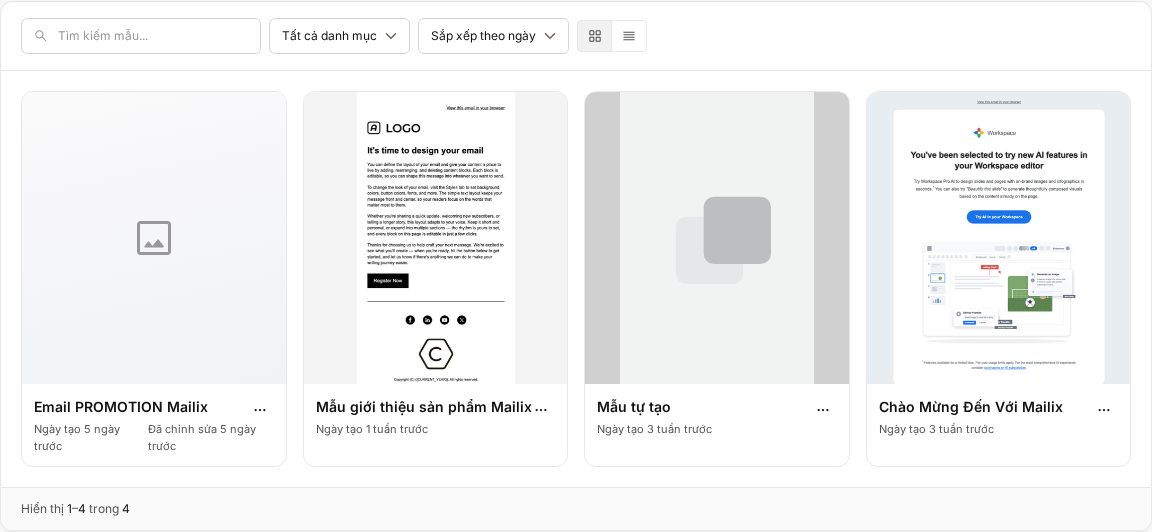
Warning before switching
Opening the HTML editor does not yet change the Template's mode. The first time it opens, the editor is empty so you can enter new HTML content.
Important: The Template officially switches to custom HTML only when you select Save HTML (Lưu HTML) for the first time and then confirm Switch to custom HTML (Chuyển sang HTML tùy chỉnh). This replaces the current Template with the new HTML content and cannot return to the visual builder. Existing builder content is not used as the starting content in the HTML editor.
When saving for the first time, Mailix displays the Switch to custom HTML? dialog:
- Select Switch to custom HTML to confirm and save.
- Close or cancel the dialog to continue in the HTML editor without switching the Template.
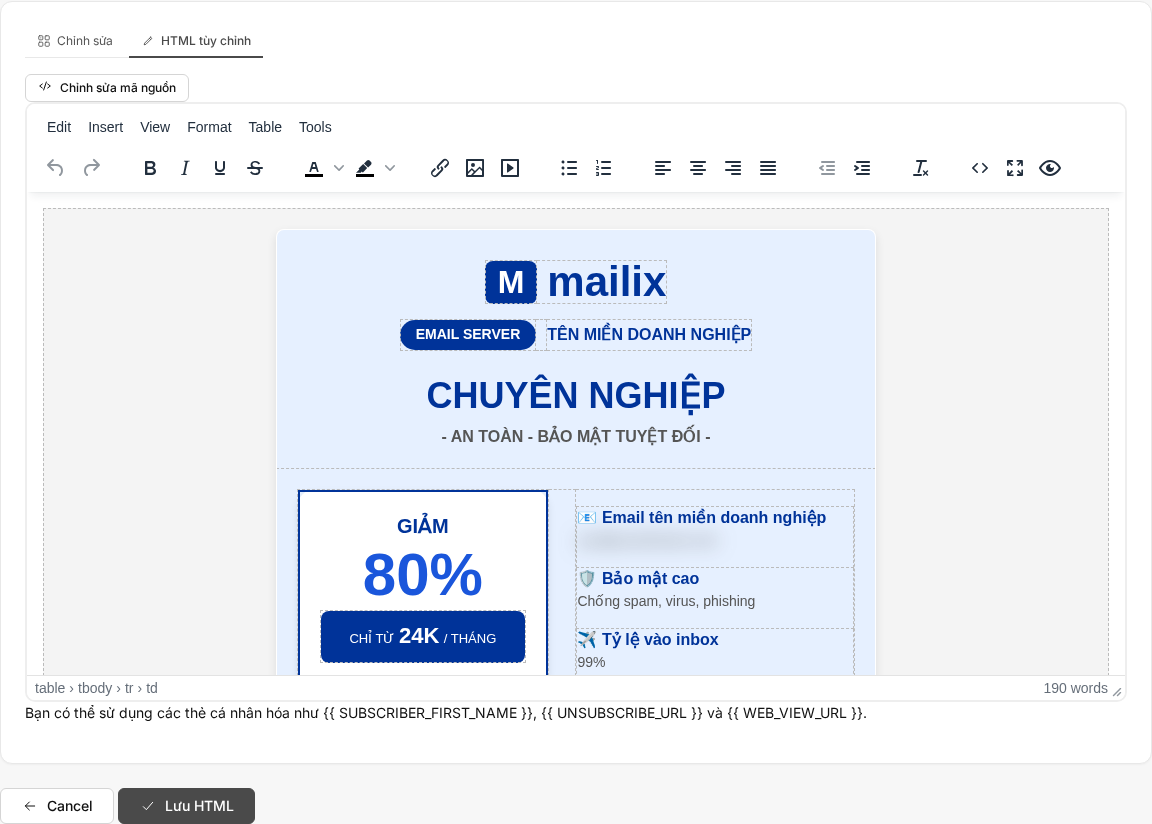
Get familiar with the HTML editor
The HTML editor has two modes:
- Visual editor: compose and format content with the toolbar.
- Source editing: edit HTML directly while viewing the result in the adjacent pane.
Select Source editing (Chỉnh sửa mã nguồn) to switch from visual mode to source mode. Select Visual editor (Trình chỉnh sửa trực quan) to return. Content is synchronized when you switch modes.
This is not a drag-and-drop builder: the screen has no component panel, layout grid, or theme-change action.
Edit HTML content
In the Visual editor, you can use editing tools such as text formatting, lists, alignment, links, images, tables, and media content.
In Source editing:
- Enter or paste HTML into the source area.
- Check the preview pane beside it.
- Switch the code area between Light (Sáng) and Dark (Tối) if needed.
- Select Save HTML when the content is ready.
Mailix requires only that the HTML field contain content. Saving does not validate HTML structure, accessibility of every link, or compatibility with every email application.
Can I import a ZIP Template?
No. The library's custom HTML screen currently has no button for uploading or importing a ZIP Template.
This screen also has no action for importing an .html file or content from a URL. Enter or paste content using the visual editor or source mode.
Images and resources
You can add images with the image tool in the visual editor or use an image URL in the HTML.
This screen does not open the account resource library and does not provide a separate image-upload workflow. Use an image URL that will be reachable when the email is opened. An image appearing in the preview pane does not guarantee that every recipient's email application will always load it.
CSS and advanced content
You can include formatting attributes, a style block, or a stylesheet link in the HTML content. Mailix saves the content you submit without displaying a CSS compatibility check.
Source editing also has no separate check for scripts, forms, iframes, or interactive content. Some email applications may not support these elements. Check the Template in a Campaign context before sending.
Merge Tags in HTML
You can enter Merge Tags directly in HTML content, such as Subscriber data variables or system links. The screen displays syntax suggestions but has no Merge Tag picker for automatic insertion.
Custom Subscriber fields depend on the List used when the Template is applied to a Campaign. Merge Tags are not Tags used to categorize Subscribers.
Unsubscribe and system links
HTML can contain Merge Tags for:
- unsubscribe links;
- view-in-browser links;
- Subscriber profile-update links.
Saving an HTML Template does not automatically confirm that it contains all links required for every Campaign. Depending on the service plan and account configuration, Mailix may check unsubscribe links when the content is used in a Campaign.
Preview HTML
In source mode, the right pane updates with the content being edited. In visual mode, you can use the preview action on the editor toolbar.
These previews use the current content, including unsaved changes. They do not send a real email, replace Merge Tags with data for a specific Subscriber, or provide a separate desktop or mobile option.
After saving, you can also select Preview (Xem trước) from the Template library to view the saved version.
Save or leave the HTML editor
This screen does not save automatically and has no separate Save & Close button.
Save HTML
Select Save HTML to save the content and return to the Template library.
- On the first save, you must confirm the one-way switch to custom HTML.
- On later edits, the saved HTML content is updated and you return to the library.
- If the content is empty or cannot be saved, you remain on the editing screen to resolve the error.
Cancel
Important: Cancel returns to the library without saving and without asking for confirmation. All unsaved HTML changes are lost.
If you select Cancel before the first save, the Template remains in builder mode with its original content. If the Template has already switched to HTML, its most recently saved HTML version is retained.
After switching to custom HTML
After the first save:
- editing the Template opens the HTML editor;
- the Template can no longer be opened with the visual builder;
- the builder's theme-change action is no longer available;
- the Template can still be selected for a Campaign and an A/B Test variant.
There is no interface action for switching an HTML Template back to the builder. Copying an HTML Template is not a way to switch it back because the copy retains HTML mode.
When a Template is selected in a Campaign, Mailix copies the content into a separate Campaign version. Therefore, later HTML edits do not update Campaigns that previously used the Template, and editing content in a Campaign does not change the original Template.
Template name and Campaign information
An HTML Template stores email content, not the Campaign name, email subject, sender, reply-to address, or Campaign preview text. You configure this information in each Campaign.
When you cannot save HTML
- Content is empty: add content in the editor and select Save HTML.
- The Custom HTML action is not visible: the Template may already be in HTML mode, or your account may not have edit permission.
- The Template no longer exists: Mailix returns you to the library; check which Template you need to open.
- Saving is not possible: remain on the page, read the notification, and try again. Do not select Cancel if you still have content to keep.
- The preview HTML is unexpected: check the content shown in source mode; saving does not automatically repair HTML structure.
- A required system link is missing in a Campaign: add the required Merge Tag to the HTML and save again.
No separate plan-specific limit or HTML quota has been verified on this screen. Template edit permission is still checked when the editor opens and when you save.
Frequently asked questions
Can I choose custom HTML directly from the Create Template screen?
No. Create the Template first, then select Edit as custom HTML from the Template menu.
When does the Template officially switch to HTML mode?
After you select Save HTML for the first time and confirm Switch to custom HTML.
What happens if I open the HTML editor and close it without saving?
The Template remains in builder mode with its original content. Unsaved HTML content is discarded.
Can I return to the builder after saving HTML?
No. The switch takes effect in one direction only.
Can I import a ZIP Template?
Not from the Template library. This custom HTML screen has no ZIP import action.
Can I use Merge Tags in HTML?
Yes. Enter Merge Tags directly using the syntax suggested on the screen. Actual data is determined when the Template is used in a Campaign.
Does Mailix automatically check HTML in every email application?
No. The preview pane helps you check the current content but does not guarantee identical results in every email application.
Does saving an HTML Template mean the Campaign is ready to send?
No. The Campaign still needs recipients, a subject, a sender, a send schedule, and other sending conditions.
Next steps
Publication note: Replace the
(...)links with the official Customer Docs URLs before publishing this article to the production website.