Create an A/B Test Campaign
An A/B Test lets you send different email versions to part of a List, compare the results, and then use the winning variant for the remaining Subscribers.
What is an A/B Test?
Each A/B Test has at least two variants. Each variant can use its own subject, preview content, sender information, and email design.
You select part of the List as the test group. Mailix divides this group among the variants according to the configured percentages. After the test phase, Mailix selects the winning variant automatically or waits for you to select it manually.
An A/B Test helps compare results between variants. It does not guarantee that one variant will perform better, and it does not automatically assess statistical significance before selecting a winner automatically.
Before you begin
You need:
- Permission to create and edit Campaigns.
- At least one List.
- An available sending method at launch.
- Remaining Campaign-creation and sending limits on the Account.
Creating an A/B Test may depend on Account permissions and system configuration. The creation page currently does not show a requirement for a separate A/B Test plan.
Create an A/B Test Campaign
- Open Campaigns → Email.
- Select Create campaign.
- Select A/B Test.
 Mailix immediately creates a New Campaign with a default name, then opens the A/B Test Setup page. An A/B Test uses a separate workflow comprising Campaign, Variants, and Winner rules; it does not use the five-step wizard for a Regular Campaign.
Set up Recipients
In the Campaign step:
- Enter the Campaign name.
- Select one Recipient List.
- Select a Test group percentage from 1% to 100%.
- Select the group-splitting method.
- Save to move to Variants.
An A/B Test currently selects only one complete List. The setup page does not provide options for multiple Lists, Segments, or exclusion groups.
The test-group percentage determines the portion of Subscribers used to compare the variants. If you select less than 100%, the remaining portion receives the winning variant. If you select 100%, the entire eligible group participates in the test, leaving no group to receive the winning variant.
Subscribers must still meet the sending conditions at processing time, including Subscription status and any email Verification results configured for the system. An A/B Test does not verify email automatically.
Note: The Subscriber count displayed on the review screen may be the List's total count, not the final number of emails that will be sent. Subscription status, Verification results, and duplicate email addresses may reduce the actual number.
Select how to split the group
Mailix provides two options:
| Splitting method | Meaning |
|---|---|
| Exact split | Allocates the calculated quantities, with a possible difference of only one Subscriber due to rounding. This is recommended for most Lists. |
| Quick split | Allocates approximate quantities based on the percentages. The interface recommends this option for very large Lists and notes that results may vary slightly. |
Both methods create stable groups from the existing data. The setup page does not provide a random-shuffle option.
For a small List, a low percentage may produce a test group of zero after rounding. Check the List size and select a sufficiently large percentage before launching.
Set up variants
You need at least two variants. The setup page does not state a maximum, but some areas display clear letter labels only for the first six variants.
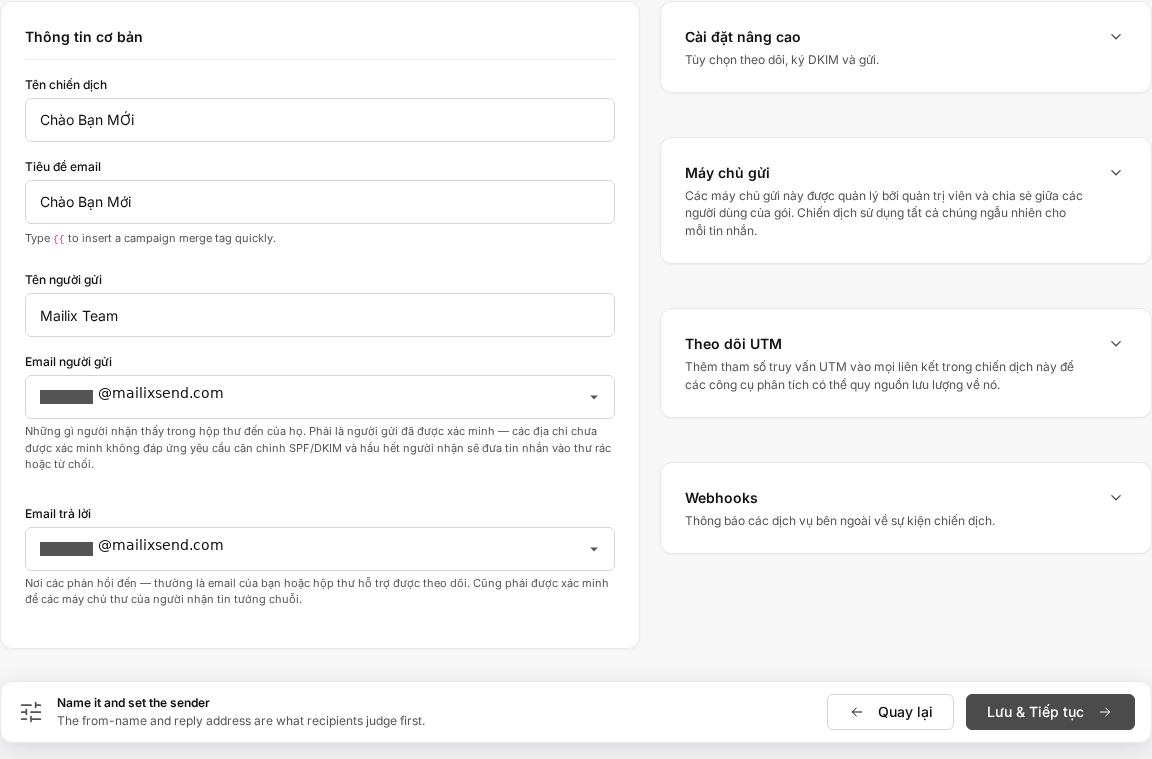
When adding a variant, enter:
- Variant name.
- Email subject.
- Preview content, if needed.
- From name.
- From email.
- Reply-to email.
- The Email Template and email content.
Each variant uses independent content. You can select a system Template, an Account Template, edit it with the builder, or use custom HTML. An A/B Test does not provide a Plain Text Campaign variant option.
You can add, edit, duplicate, or delete variants. The first variant is marked as the control variant. The setup page does not provide an action for making a different variant the control.
When you add, duplicate, or delete a variant, Mailix rebalances the percentages automatically. Select Balance distribution to adjust each variant's weight. The total percentage within the test group must equal 100%.
Duplicate a variant
Duplicating creates an independent variant with the same content and sending information as the original at the time it is copied. Editing the copy afterward does not change the source variant.
Delete a variant
Deleting a variant also deletes that variant's separate email content. Mailix rebalances the percentages of the remaining variants.
Important: Check that you have selected the correct variant before confirming deletion. The interface does not provide an undo action.
Select how the winning variant is determined
In the Winner rules step, select one of three methods:
| Selection method | What Mailix does |
|---|---|
| Highest open rate | Compares each variant's unique open rate against the number of emails sent. |
| Highest click rate | Compares each variant's unique click rate against the number of emails sent. |
| Manual selection | Waits for you to review Reports and select a variant. |
With automatic selection, the variant with the highest rate at evaluation time is selected. Mailix does not require a minimum sample size or statistical-significance level before selecting a winner. If variants are tied or have no engagement, Mailix still selects one based on their existing order instead of continuing to wait.
Opens and Clicks Tracking are enabled by default when a new A/B Test is created. The A/B Test page does not provide a separate Tracking switch and does not check whether the corresponding Tracking type is active before automatically selecting a winner. Make sure the relevant Opens or Clicks data is being recorded; select Manual selection if you want to evaluate the data yourself.

Set the test duration
When selecting a winner automatically, enter a waiting period from 1 to 720 hours.
The waiting period begins after Mailix finishes sending to the test group. When it expires, Mailix evaluates the selected open or click rate and automatically sends the winning variant to the remaining group.
With Manual selection, there is no waiting period. After sending to the test group finishes, the A/B Test changes to Waiting for winner selection.
Select the winning variant manually
- Wait for the A/B Test to change to Waiting for winner selection.
- Open the A/B Test Reports.
- Compare the variant results.
- Select Choose as winner on the suitable variant.
- Confirm the selection.
If a remaining Recipient group exists, Mailix begins sending the selected variant to that group. A confirmation dialog appears before the action. After confirming, you cannot select another winner or undo the winning variant.
Important: The winner-selection button may appear while the test group is still sending. Selecting it at that time may begin sending the winning variant while the test portion is still being processed. Select it only after the A/B Test changes to Waiting for winner selection.
Preview and send a test
Each variant has an Email preview action for checking its saved design.
 Preview does not send a real email and does not fully represent the personalized data of a specific Subscriber.
The current A/B Test workflow has no verified action for sending a separate test email for one variant. The general Campaign test-send action does not clearly allow variant selection, so do not use it to conclude that a specific variant has been tested.
Review and launch the A/B Test
After you save Winner rules, Mailix opens the Review and launch page. This page checks that:
- A List has been selected.
- There are at least two variants.
- The total variant percentage equals 100%.
- Each variant has an Email Template and subject.
- Each variant has sender information.
The Reply-to email is also required at launch, even though the sender-review row on this page may not display that omission.
You can select:
- Send now to start the A/B Test after selecting Launch A/B Test.
- Schedule for later to select a date and time in the Account's time zone, then select Launch A/B Test.
 This is the final launch action. A scheduled A/B Test changes to Scheduled only after you submit the form on this page.
Monitor the test process
The main statuses are:
| Status | Meaning |
|---|---|
| New | The A/B Test is being configured and has not been launched. |
| Scheduled | The A/B Test is waiting for the selected time. |
| Testing | Mailix is sending variants to the test group. |
| Waiting for winner selection | Sending to the test group has finished; Mailix is waiting for the evaluation period to end or for your selection. |
| Sending winning variant | The winning variant is being sent to the remaining group. |
| Complete | All required stages have ended. |
| Paused | Processing is paused at the current stage. |
| Error | The A/B Test cannot continue and needs review. |
You can pause an A/B Test while it is scheduled, testing, waiting for a winner, or sending the winning variant. Resuming processes the remainder of the current stage; it does not resend completed emails from the beginning.
Complete all variant edits before launching. Editing actions change with status, and the setup section cannot be reopened at every stage.
View results and the winning variant
A/B Test Reports display the following for each variant:
- The allocated Recipient count.
- The number of emails sent successfully and unsuccessfully.
- Opens and open rate.
- Clicks and click rate.
- Bounces.
- Unsubscribes.
- The winning variant and the criterion used.
If the winning variant is sent to the remaining group, its statistics may include both the test group and the group that received the winner. Reports do not separate all metrics into two independent Campaigns.
With exactly two variants, Reports display Statistical confidence when the resulting data can be calculated. This section includes the confidence level, lift, sample size, and comparison metrics. It is Reports information only; Mailix does not use this threshold as a condition for automatically selecting a winner.
Resend, copy, archive, or delete an A/B Test
Resend an A/B Test
Important: Resending deletes the old Recipient allocations, winning variant, and all old Tracking data for the A/B Test before running it again. Save or review the current Reports before confirming.
Resend uses the current Campaign and does not create a new Campaign. Mailix retains:
- The Recipient List.
- The variants, including each variant's content and Email Template.
- The test-group percentage and distribution percentages among variants.
- The winner-selection criterion and waiting period.
Mailix deletes the previous run's old Recipient allocations, old winning variant, sending data, Opens, Clicks, Bounces, Complaints, and Unsubscribes. The status is reset, and the A/B Test starts sending again from the beginning. The Resend window describes the impact but does not provide a second confirmation dialog.
Copy an A/B Test
Warning: Do not use Copy campaign to create a new A/B Test copy.
This action creates a Regular Campaign with the New status. The new Campaign may retain the List and some general settings, but it does not contain the variants, variant-specific content, sample percentage, distribution percentages, winner-selection rule, or waiting period from the A/B Test. The old sending schedule and Reports are not copied either.
To create another A/B Test, select Create campaign → A/B Test and configure it again.
Archive an A/B Test
Important: Archiving does not stop a running A/B Test, cancel a scheduled A/B Test, or stop the winning-variant sending phase. It clears detailed Tracking data, so A/B Reports may no longer display the same detailed metrics. Archive only when you no longer need that data.
The Campaign remains in the Campaign list after archiving. The interface requires confirmation before the action and does not provide an Unarchive option.
Delete an A/B Test
Important: Deleting cannot be undone. Mailix cancels pending processing and deletes the Campaign, A/B configuration, Recipient allocations, and related Reports data. The variants and their content are no longer accessible from the interface.
The interface requires confirmation and states that the action cannot be undone. There is no customer recovery process.
Important notes
- An A/B Test uses only one complete List; the setup page does not provide Segment or exclusion options.
- Each variant's percentage is a percentage within the test group, not the entire List.
- If the engagement type used as the criterion is not recorded, a winner may still be selected automatically from rates of zero.
- Subscribers who unsubscribe, are blocked, or are no longer eligible before the winning-variant phase are not sent to as valid Recipients.
- When the test group is 100%, Mailix must still determine a winning variant to complete the A/B Test. With manual selection, you must still select a variant even though no Recipient group remains for a subsequent send.
When the A/B Test cannot be launched
Check for these causes:
- No List has been selected, or the List no longer has eligible Subscribers.
- There are fewer than two variants.
- The total variant percentage does not equal 100%.
- A variant is missing a subject, Email Template, sender, or Reply-to email.
- The test group is too small after the percentage is calculated.
- The Account no longer has permission or sending allowance.
- No sending method is available.
- The scheduled time is invalid or has passed.
If the A/B Test encounters an error after launch, check the message in Reports and fix the cause before resuming. Mailix does not guarantee a partial send when the allowance is insufficient.
Frequently asked questions
Is an A/B Test limited to two variants?
No. You can create more than two variants and need at least two to launch. The setup page does not state a maximum.
Which elements can I test?
Each variant may differ in its subject, preview content, sender name and email, Reply-to email, Email Template, and email content. Mailix evaluates the whole variant; Reports do not automatically prove which individual element produced a difference.
Are Recipients split randomly?
The setup page does not provide a random-splitting option. Mailix provides an exact split and an approximate quick split for large Lists.
Can I select the winning variant manually?
Yes. Select Manual selection, wait for sending to the test group to finish, then select the winning variant in Reports.
Which metric determines the automatic winner?
You can select open rate or click rate. The setup page does not provide conversion or send-time optimization criteria.
What happens if there are no Opens or Clicks?
Mailix does not require a minimum amount of data. When the rates are tied or all equal zero, Mailix still selects a variant based on the existing order. Use Manual selection if you want to review the data before deciding.
Can I schedule an A/B Test?
Yes. On the Review and launch page, select Schedule for later, select a date and time, then select Launch A/B Test.
Can I select a Segment?
No. In an A/B Test, you can select only one complete List.