Select and design an Email Template for a Campaign
The Template step lets you choose how to create the email, edit its content, and prepare to move to the scheduling step.
What will you accomplish?
After completing this guide, you can:
- Select a System Template or one of My Templates.
- Edit the Campaign's own design copy.
- Use custom HTML or create a Plain Text email.
- Add suitable preheader text and Merge Tags.
- Save the content and move to the Schedule step.
Open the Template step
After completing the Setup step, select Save & Next. Mailix opens the third step:
Campaigns → Email → open the Campaign → Template
You can also select Template on the step bar while the Campaign can still be edited.
 This guide applies to Regular Campaigns and Plain Text Campaigns. A/B Tests have a separate content-design workflow.
Choose how to create the email content
The available content-creation method depends on the Campaign type.
| Content-creation method | Best used when |
|---|---|
| System Templates | You want to start with a ready-made design provided in Mailix. |
| My Templates | Your Account already has an Email Template you want to reuse. |
| Email Builder | You want to edit the layout and content visually after selecting a Template. |
| Custom HTML | You already have HTML content or a suitable Template ZIP package. |
| Plain Text | You want to send content without HTML formatting. |
Plugin-based content-creation options may appear only when supported by the Account and system configuration. This guide does not describe those options as default features.
Select an Email Template
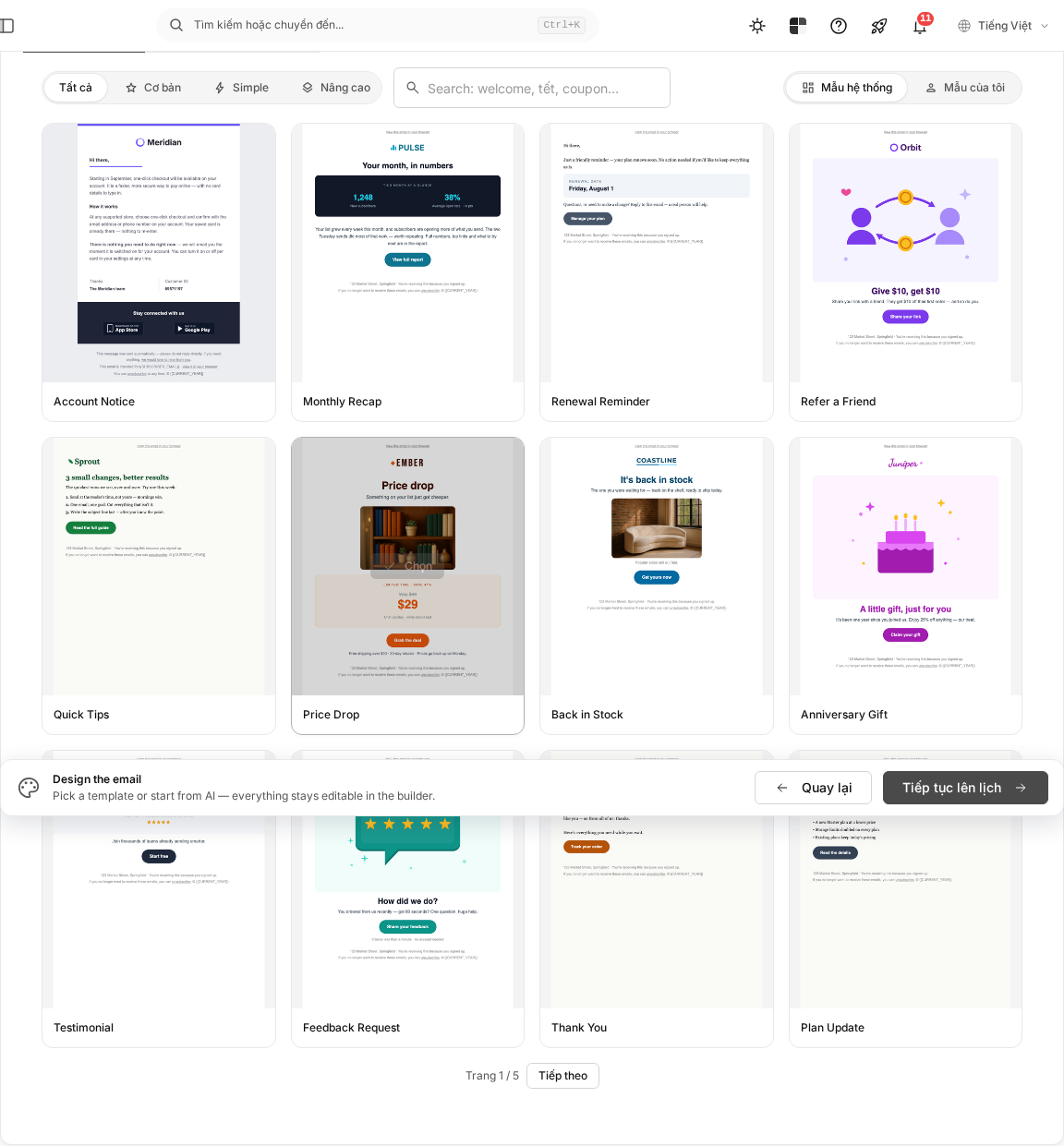
For a Regular Campaign, the Template Gallery provides two sources:
- System Templates: Templates provided in Mailix.
- My Templates: Email Templates that belong to your Account.
You can search for a Template by name. For System Templates, you can also filter by the categories currently displayed in the gallery.
To select a Template:
- Open System Templates or My Templates.
- Find a suitable Template.
- Select Select on that Template.
- Wait for Mailix to apply the Template and reopen the Template step.
If the gallery returns no results, try switching the Template source or changing the search term.

Edit content with the Email Builder
After you select a Template, Mailix displays a preview and the Open Email Builder button.
- Select Open Email Builder.
- Edit the content and layout.
- Select the save action in the Email Builder.
- Return to the Template step to review the content.
The Email Builder lets you use images from the Account's asset area when editing elements that contain images. Detailed guidance about layouts, content blocks, and images is provided in Design an email with the builder.
 Content in the Email Builder is not described as saving automatically. Save it before closing the builder or returning to the Campaign step.
Use custom HTML
Select Paste in your own HTML if you want to enter HTML content instead of selecting a Template from the gallery.
Here, you can:
- Compose content with the visual editor.
- Switch to source-code editing mode.
- Preview the HTML content in the source-code editing area.
- Upload a ZIP file containing an HTML Template according to the requirements shown on the screen.
HTML content is required. Select Save HTML to apply the content and return to the Template step.
Important: When you save custom HTML for the first time, the Campaign switches to custom HTML mode. You cannot reopen that content in the visual Email Builder. Mailix displays a confirmation dialog before switching.
For guidance on preparing an HTML Template, see Create an Email Template with custom HTML.
Plain Text Campaigns
A Plain Text Campaign does not display the Template gallery or the HTML Email Builder. The Template step provides an Email content field for entering text.
- Enter the content in Email content.
- Insert Merge Tags if needed.
- Select Save & Next.
The content cannot be empty. After it is saved successfully, Mailix moves to the Schedule step.
Preheader text is not applied to Plain Text emails in the verified sending workflow.
Add preview content
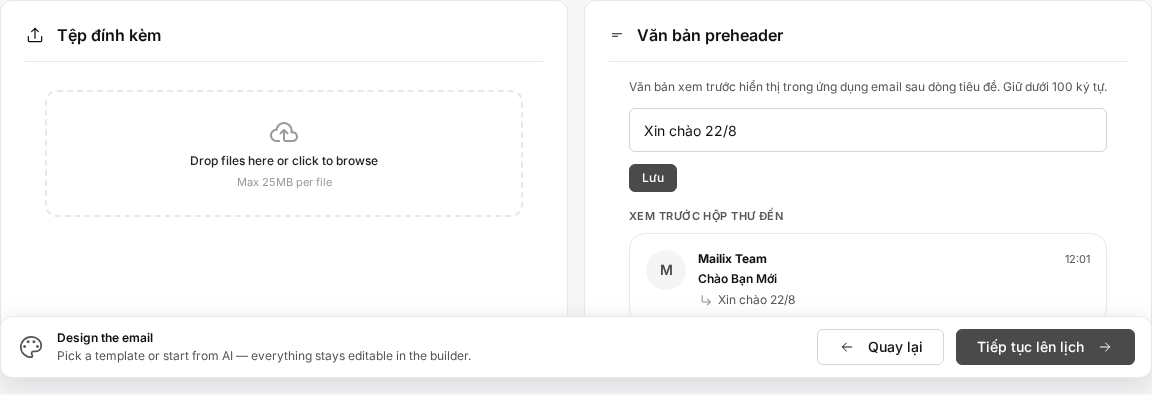
For a Campaign that uses an HTML Template, the Preheader text section appears after you select a Template.
Preheader text is preview text that may appear after the subject line in email applications. This field is optional.
- Enter content in Preheader text.
- Select Save within this section.
- Check Inbox preview to view the From name, Email subject, and preheader text.
 If you leave it blank, Mailix does not add separate preheader text to the Campaign's HTML content.
Personalize content with Merge Tags
Merge Tags let you insert Subscriber data into email content. The available tags are determined by the List marked Default and that List's Custom Fields.
In the Email Builder, you can select a Merge Tag from the variable-insertion tool while editing content or a link. In a Plain Text Campaign, enter {{ to open the suggestion list.
Some system Merge Tags also support functions such as an Unsubscribe link or viewing the email on the web.
Custom Field Merge Tags are not Tags used to classify Subscribers. See Manage Custom Fields in a List to understand how fields supply personalization data.
System content to review
Depending on your service plan and system configuration, Mailix may require HTML content to contain an Unsubscribe link before it can be saved or sent.
If Mailix reports that the Unsubscribe link is missing, add the corresponding Merge Tag to the content, then save it again. Do not remove system links already included in the Template if you still need their functions.
Does selecting a Template change the original Template?
No. When you select a System Template or one of My Templates, Mailix creates a separate content copy for the Campaign.
Changes made in the Campaign do not modify the original Template. Therefore, editing or deleting the original Template later does not change the content copy that was added to the Campaign.
Switch to another Template
When the Campaign already has a Template, select Change Template to reopen the gallery. Then select the new Template.
Note: Selecting another Template replaces the Campaign's current content. Review and save any content you need to keep before selecting a new Template.
Mailix does not provide a separate undo step after the new Template has been applied.
If the Campaign has switched to custom HTML, continue using Edit HTML. That content cannot be switched back to the visual Email Builder.
Save the content and continue
The save method depends on the content type:
- HTML Template: save changes in the Email Builder, then return to the Template step.
- Custom HTML: select Save HTML.
- Plain Text: select Save & Next.
- Preheader text: select Save separately in the preheader section.
When an HTML Campaign has a Template, select Proceed to Schedule to open the Schedule step.
You can return to the Template step to edit the content while the Campaign still permits changes.
When you cannot continue
- The Proceed to Schedule button is not visible: select a Template or save the HTML content first.
- Plain Text content cannot be saved: check the Email content field and add the missing content.
- A Template cannot be found: switch between System Templates and My Templates, or clear the search term.
- A Template cannot be applied: reload the gallery and select it again. The Template may no longer be available.
- Content cannot be saved in the Email Builder: check required content, including the Unsubscribe link if the screen requires it.
- Custom HTML cannot be saved: make sure the HTML section is not empty. If you upload a ZIP file, check the specific message shown on the screen.
- Editing is unavailable: the Account may lack permission, or the Campaign may no longer be in a state that permits changes.
Frequently asked questions
Can I use a ready-made Template?
Yes. Select System Templates, find a suitable Template, then select Select.
Can I use a Template previously created by the Account?
Yes. Select My Templates to view and search the Account's Email Templates.
Does editing Campaign content change the original Template?
No. Mailix copies the Template content into the Campaign. The Campaign's content copy is edited independently.
Can I switch to another Template after editing the content?
Yes, but the new Template replaces the Campaign's current content. Review it before selecting another Template.
Can I use custom HTML?
Yes. The Template step provides options to enter HTML or upload a Template ZIP file. After the first save, the Campaign remains in custom HTML mode and cannot return to the visual Email Builder.
How is a Plain Text Campaign different?
A Plain Text Campaign uses text content only. This type does not use the Template gallery, HTML Email Builder, or preheader text in the verified sending workflow.
Where does preheader text appear?
The preheader may appear after the subject line in email applications. Mailix displays an inbox preview area next to this input section.
Can I use Merge Tags in the content?
Yes. Both the Email Builder and the Plain Text field provide a way to insert or suggest Merge Tags. Available tags depend on the Default List.
Can I return and edit the content later?
Yes, while the Campaign still permits editing. Save the content in the Email Builder or the corresponding form before leaving the page.